
Predictive text on the Galaxy Z Fold 7 usually works well with One UI 8, but sometimes it stops suggesting words or autocorrect goes rogue. The keyboard might lag on the inner screen or just not offer predictions at all. These six fixes should get things back on track.
Restart the phone first
A quick restart clears temporary glitches that can mess with the keyboard. If the Fold 7 isn't responding at all, press and hold the Volume down and Side buttons simultaneously for 10 seconds until it reboots. Once it's back up, open any text field and see if predictive text is working again.
This step alone fixes a surprising number of keyboard hiccups. It's quick and costs you nothing, so always start here.
Clear the keyboard cache and data
If a restart didn't help, the next step is clearing the cached files Samsung Keyboard stores. Go to Settings > Apps, tap the three dots in the top right, and select Show system apps. Find Samsung Keyboard and Samsung Keyboard Neural Beta, tap Storage, then tap Clear Cache for each one.
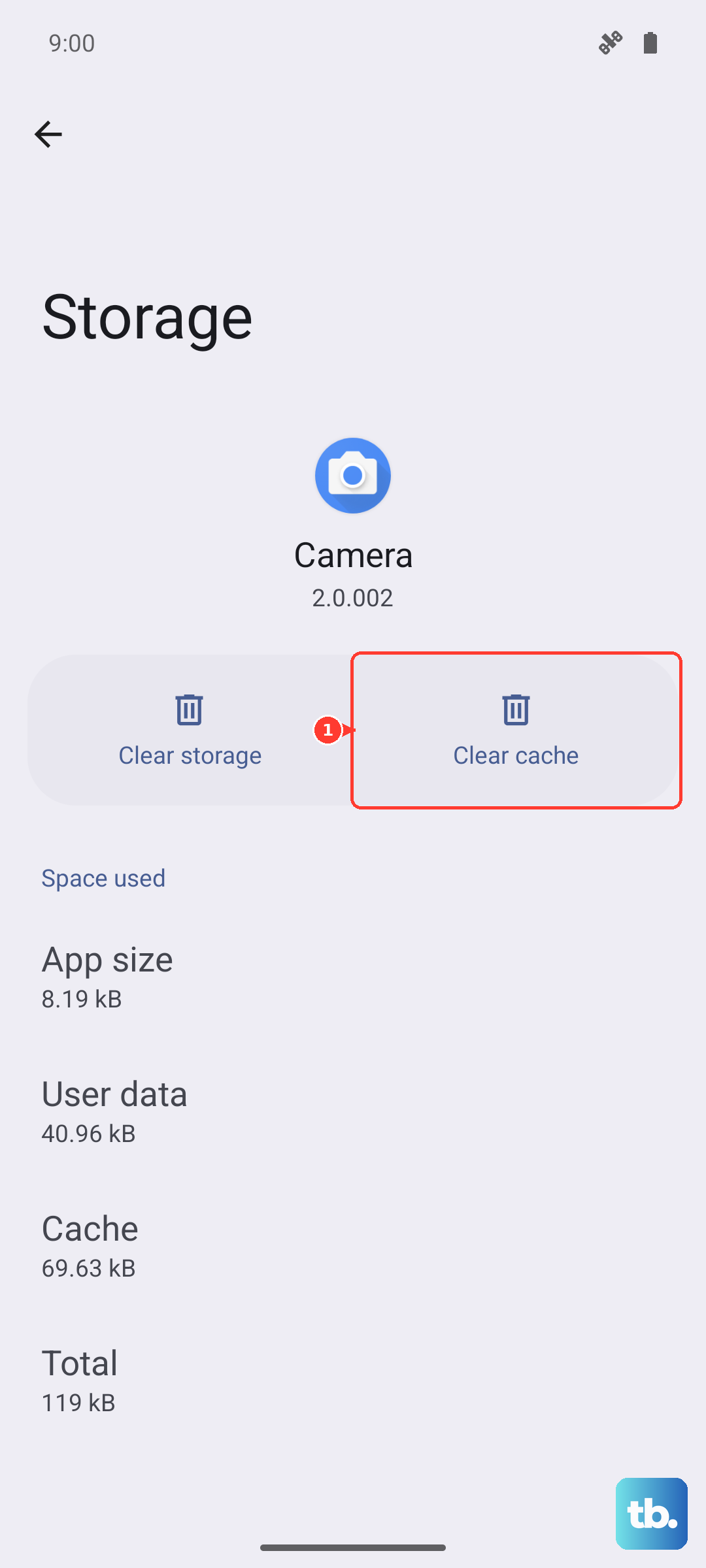
If predictions are still off, go back to the same menu and tap Clear Data instead. This wipes your personal dictionary and custom settings, but it also removes any corrupted data that might be causing problems. You'll need to retrain the keyboard on your typing habits afterward.
Check predictive text and smart typing settings
Sometimes a system update or app update quietly toggles predictive text off. Head to Settings > General Management > Language & Input > On-Screen Keyboard > Samsung Keyboard > Smart Typing and make sure Predictive text is toggled on.
While you're there, try toggling it off and back on again. This refreshes the feature without needing a full reset. Double-check that your keyboard language is set to the right variant, like English (US), since the wrong language can break predictions entirely.
Update the keyboard app and language packs
Samsung pushes keyboard updates through the Galaxy Store and Play Store. Open the Play Store, tap your profile icon, select Manage apps & device, and search for Samsung Keyboard. If an update is available, install it. You can also check the Galaxy Store for Samsung-specific updates.
Language packs can also fall out of date. Go back to Samsung Keyboard settings, tap Languages and Types, select your language, tap Manage input Language, then tap the three dots and choose Check for an update. Download any available updates and restart your Fold 7.
Reset Samsung Keyboard to default settings
If you've tried everything else and predictive text is still broken, a full reset of the keyboard app is the way to go. In Samsung Keyboard settings, scroll down and tap Reset to default settings. This puts every keyboard option back to factory state.
You'll lose your autocorrect history and any custom shortcuts, but the trade-off is a clean slate. After the reset, re-enable predictive text in Smart Typing and test it out in a messaging app.
Try a different keyboard app
Sometimes the Samsung Keyboard itself has a persistent bug, especially after a system update on a new device like the Z Fold 7. If none of the above steps work, install a third-party keyboard like Gboard or Microsoft SwiftKey from the Play Store. Switch to it in Settings > General Management > Language & Input > On-Screen Keyboard > Manage Keyboards.
If predictive text works fine on the alternative keyboard, the issue is isolated to Samsung's app. You can keep using the third-party option or wait for a future update that patches the problem.