
When your Samsung Galaxy Z Fold 7 stops showing notifications, it's easy to miss important messages, calls, or calendar alerts. This usually comes down to a few common culprits, and most of them are quick to fix. Let's run through what's likely going on and how to get those notifications back.
Quick Check: Do Not Disturb and Modes
The first thing I'd check is whether Do Not Disturb or a Modes routine is blocking notifications without you realizing it. Swipe down twice to open the quick settings panel and look for Do Not Disturb. If it's highlighted, tap to turn it off.
Samsung's Modes and Routines feature can also silently silence notifications based on time, location, or activity. Open Settings > Modes and Routines and see if any active routine is limiting notifications. You can temporarily disable the mode to test.
Force Restart Your Galaxy Z Fold 7
If Do Not Disturb isn't the issue, a forced restart clears out temporary software glitches that can cause the notification system to stall. Press and hold Volume down and Side buttons simultaneously for 10 seconds until the device restarts. That's it. When the phone powers back on, test your notifications.
Check Notification Permissions Per App
Android 15 gives you granular control over which apps can send notifications. It's possible an app's permissions got toggled off during an update or by accident. Go to Settings > Apps, tap the app you're not getting notifications from, then tap Notifications. Make sure "Show notifications" is enabled. While you're there, check that the notification categories you care about (like Messages, Calls, Alerts) are also turned on.
Disable Power Saving Mode
Power saving mode is a common cause of delayed or missing notifications on the Z Fold 7. It restricts background activity to save battery. Open Settings > Battery and make sure Power saving is off. If it's on, your phone might only check for notifications when you open the app instead of delivering them in real time.
Put Apps to Sleep or Unrestrict Them
Samsung's device care software automatically puts apps into "Deep sleeping" or "Sleeping" states if you haven't used them in a while. That can stop notifications cold. Go to Settings > Battery > Background usage limits. Check the lists for "Sleeping apps" and "Deep sleeping apps." If the app you're having trouble with is listed, tap it and select Remove. You can also set specific apps to Never sleeping from the same menu.
Clear the App Cache and Data
Corrupted cache files inside the messaging or notification system can cause weird behavior. Start with the messaging app that's not displaying notifications properly. Open Settings > Apps, find the app (like Google Messages or Samsung Messages), tap Storage, then tap Clear cache. That won't delete your messages. If it doesn't help, you can try Clear data, but that will reset the app's settings (not your actual messages).
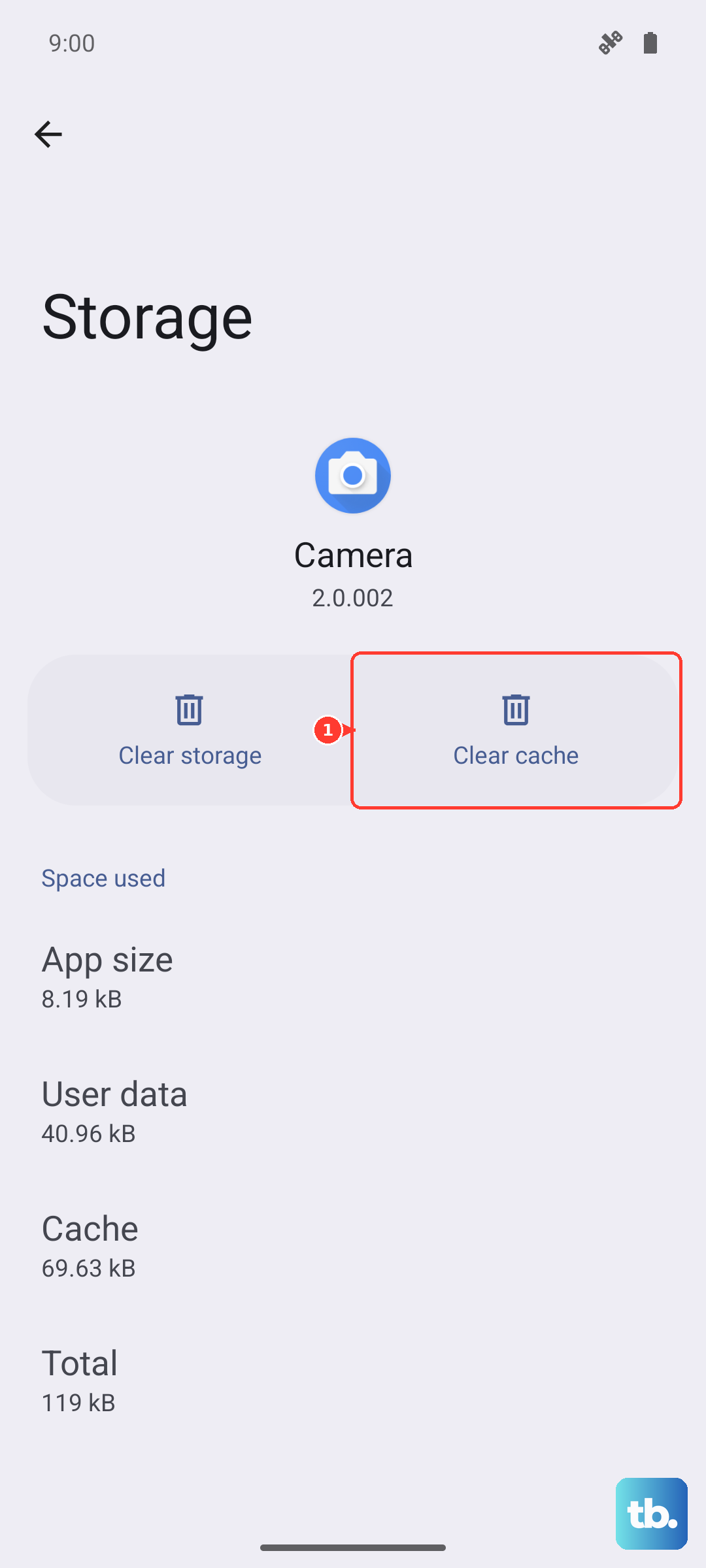
Next, clear the system notification cache. In Apps, tap the three-dot menu and select Show system apps. Scroll until you find an app called Notification (or something similar, like NotiStar if you use Good Lock). Tap it, go to Storage, and clear the cache. Don't clear data for system apps unless you're sure, it can reset your notification preferences.
Force Stop the Notification System App
Sometimes the notification service itself gets stuck. In Settings > Apps, make sure you're viewing system apps. Find the Notification app, tap Force stop, then restart your phone. This forces the notification system to reload fresh.
Allow Background Activity for Messaging Apps
Android can restrict background activity for apps to save battery, which stops notifications from showing up. Go to Settings > Apps, find your messaging app, tap Battery, and choose Unrestricted. This tells the system to keep the app active in the background so it can deliver notifications instantly.
Update Your Software
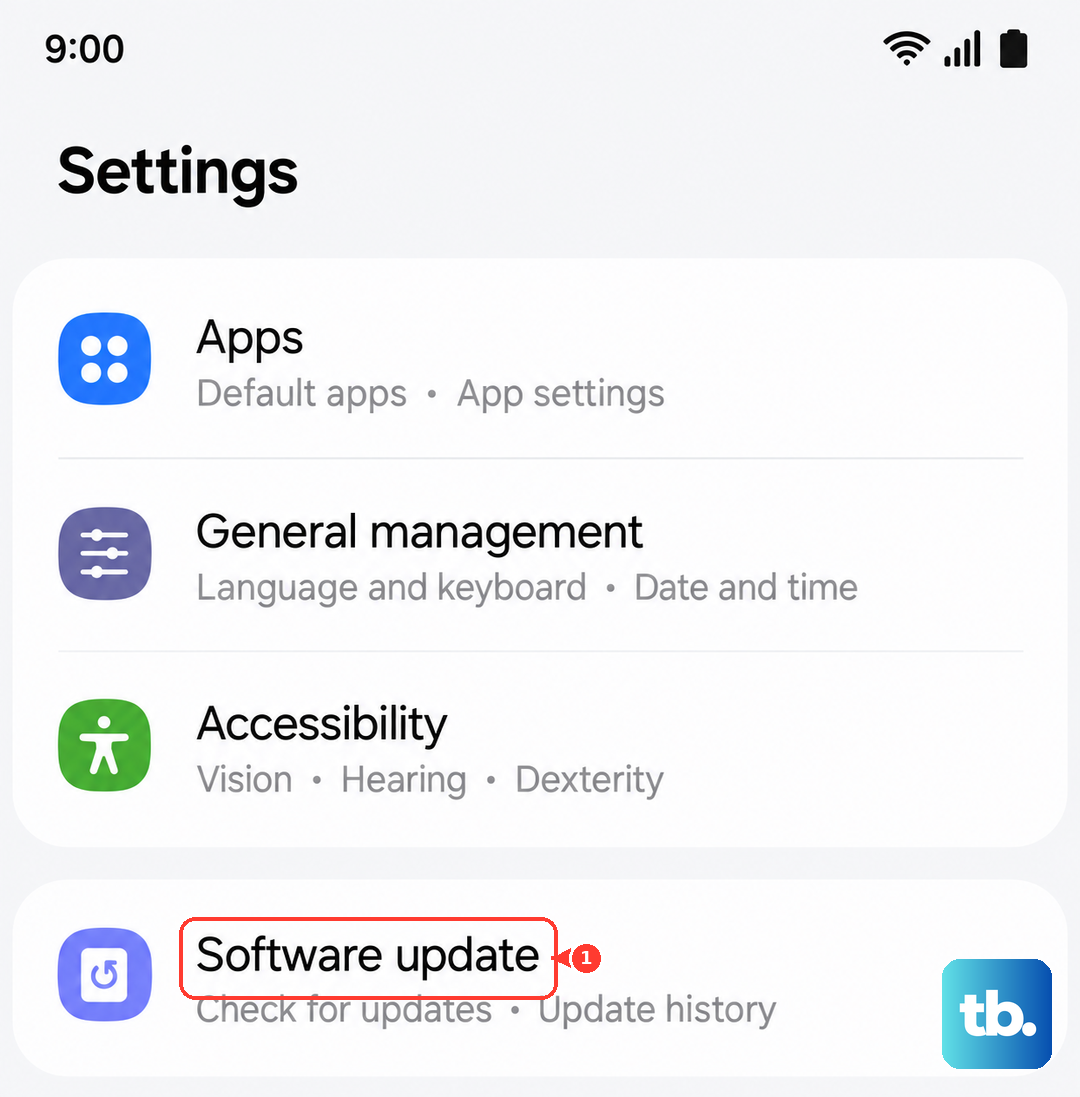
Software updates on the Z Fold 7 often include fixes for notification bugs specific to One UI and Android 15. Open Settings > Software update and tap Download and install. If there's an update available, install it and test your notifications again.
Clear the Cache Partition
This one's a bit more involved but can resolve deeper system issues with the notification service. Turn off your Galaxy Z Fold 7. Connect it to a computer with a USB cable (this is required for newer Samsung devices to access the recovery menu). Press and hold the Volume Up and Side buttons together. When the Android logo appears, release both buttons. Use the Volume keys to navigate to Wipe cache partition and press the Side button to select. Confirm on the next screen, then select Reboot system now.
This clears temporary system files without touching your personal data.
Reset All Settings
If nothing else has worked, resetting all settings is worth a shot. Go to Settings > General Management