
Your Samsung Galaxy Z Fold 7 goes silent when calls come in, even though the volume is cranked up. You see missed call notifications but never heard it ring. This is a common issue on the Z Fold 7 running Samsung's Android 16-based One UI software, and it usually comes down to a toggled setting or a software quirk that's easy to fix.
Check if Do Not Disturb or a Mode Is Active
The most frequent reason a Z Fold 7 stops ringing is an active Do Not Disturb (DND) or a custom Mode. Swipe down from the top of the screen with two fingers to open the Quick Settings panel. Look for the Do Not Disturb icon (a circle with a minus sign) if it's highlighted, tap it to turn it off.
Samsung's Modes and Routines can also silence calls automatically. Open Settings, then tap Modes and Routines. If any Modes (like Sleep, Driving, or a custom one) are enabled, tap them and turn them off. Also check the Modes tile in Quick Settings, which may show an active mode.
Increase the Ringtone Volume
Sometimes the media volume is turned up but the ringtone volume slider is low. Press the volume up button on the side of the Z Fold 7 while on the home screen. Then tap the gear icon that appears to open Sound settings. Drag the Ringtone slider all the way to the right. You can also go to Settings > Sounds and vibration > Volume to adjust all sliders at once.
Disconnect Bluetooth Devices
If your Galaxy Z Fold 7 is connected to wireless earbuds, a smartwatch, or a car kit, the call audio might route there instead of the phone speaker. Swipe down from the top to open Quick Settings, then tap the Bluetooth icon to turn it off. Try making a test call if it rings now, the issue was a connected Bluetooth device.
You can also go to Settings > Connections > Bluetooth and check the list of paired devices. Tap the gear icon next to a device and see if "Call audio" is enabled. For specific devices like the Galaxy Watch, calls may ring on the watch and not the phone. Disabling call audio for that device or unpairing it temporarily can confirm the cause.
Check Blocked Numbers
Open the Phone app, tap the three-dot menu (top right), and select Settings > Block numbers. Make sure you haven't accidentally blocked the person who's not getting through. If the number is on the block list, simply unblock it.
Disable Call Forwarding
Call forwarding can redirect incoming calls to another number, preventing your Z Fold 7 from ringing. Go to Settings > Connections > SIM card manager, select the SIM you're using, then tap Call forwarding. Make sure voice call forwarding is set to Always forward is off. You can also dial *#21# on the phone keypad to check the forwarding status and tap Disable if needed.
Turn Off Silence Unknown Callers
Samsung's Smart Call feature can automatically block or silence calls from unknown numbers. Open the Phone app, tap the three-dot menu, and select Settings > Block numbers. If Block unknown numbers is turned on, toggle it off. For more granular control, go to Caller ID and spam protection and make sure it's not set to silence unidentified calls.
Restart or Force Restart the Z Fold 7
A simple restart can clear temporary software glitches. Press and hold the Side button (fingerprint sensor) and the Volume down button simultaneously for about two seconds until the power menu appears, then tap Restart. If the phone is unresponsive, perform a forced restart: press and hold Volume down and Side buttons simultaneously for 10 seconds until the device restarts.
Update the Software
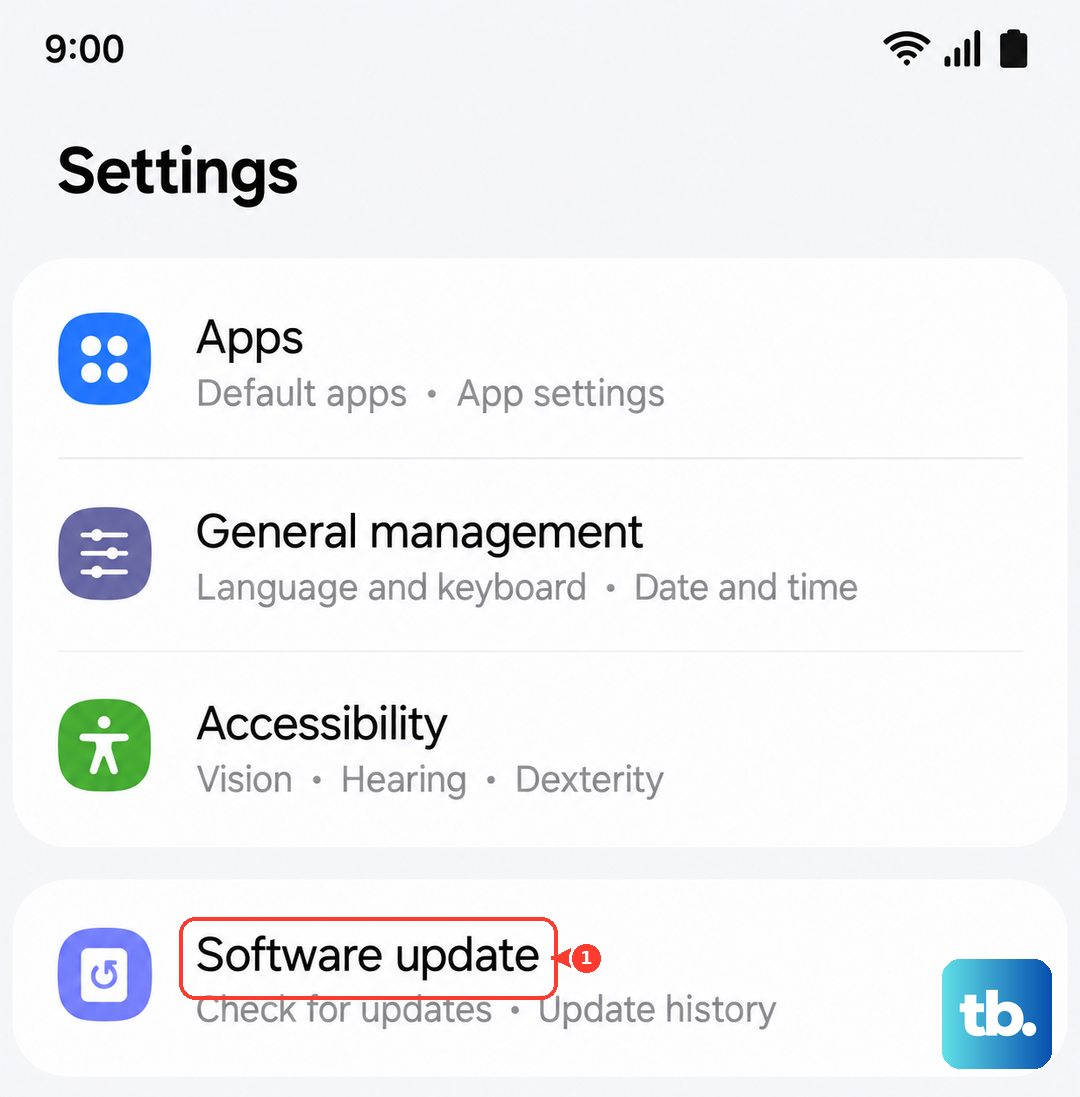
Samsung regularly releases software updates that fix bugs related to ringing and notifications. Go to Settings > Software update > Download and install. If an update is available, install it over Wi‑Fi with at least 50% battery. After the update, test whether calls ring normally.
Reset All Settings (No Data Loss)
If the issue persists, resetting all settings can undo a misconfiguration without deleting your photos, apps, or accounts. Go to Settings > General management > Reset > Reset all settings. Enter your PIN or password, then confirm. The phone will restart, and you'll need to re‑customize settings like Wi‑Fi passwords and wallpapers, but your data stays intact.
Check the Ringtones and Notification Sounds
A corrupted or deleted ringtone file can cause silence for incoming calls. Open Settings > Sounds and vibration > Ringtone. Select a different default Samsung ringtone and tap Apply. Also scroll down to Default notification sound and make sure a sound is selected for app notifications.
Wipe the Cache Partition
Clearing the system cache can resolve software glitches that affect audio. Turn off the Z Fold 7. Then press and hold the Volume up button and the Side button simultaneously until the Samsung logo appears, then release only the Side button but continue holding Volume up until the Android Recovery menu shows. Use the volume buttons to navigate to Wipe cache partition and press the Side button to select it. After the process finishes, select Reboot system now.
If none of these steps work, the issue may be related to a problem with the phone's audio hardware or a deep system bug. In that case, a factory reset (back up your data first) or a visit to a Samsung service center would be the next step.