
If your Galaxy Z Fold 7 can't send MMS, photos, videos, or group messages, you're probably staring at a spinning wheel or an error. Let's walk through what usually fixes it.
Force Restart Your Galaxy Z Fold 7
A quick forced restart clears out temporary software hiccups without losing any data. On the Z Fold 7, press and hold the Volume down and Side buttons simultaneously for about 10 seconds. Keep holding until the Samsung logo appears and the device restarts.
This is different from a normal power off, it bypasses any hung processes that might be blocking MMS. Give it a full reboot and try sending that message again.
Check Your Mobile Data Connection
MMS needs an active mobile data connection. It won't work over Wi‑Fi alone unless your carrier supports Wi‑Fi calling with MMS (most don't).
Open Settings > Connections and make sure Mobile data is toggled on. If you're on Wi‑Fi, try turning it off temporarily. A weak cellular signal can also cause MMS to fail, check the signal bars. You might need to move to a better spot or toggle Airplane mode on and off to force a fresh network registration.
Verify Your MMS Settings
The Messages app needs the right preferences enabled. Open the app, tap the three‑dot menu (top‑right), then go to Settings > Multimedia messages. Make sure Auto retrieve is turned on. If you travel, also enable Roaming auto retrieve.
If you're using Samsung Messages, the path is the same. If you've switched to Google Messages, it's Messages > three‑dot menu > Settings > Advanced and then confirm Auto‑download MMS is checked.
Clear the Messages App Cache
Corrupted temporary files can mess with MMS. Clearing them won't delete your conversations. Go to Settings > Apps, find Messages (or Samsung Messages / Google Messages), tap Storage, then tap Clear cache.
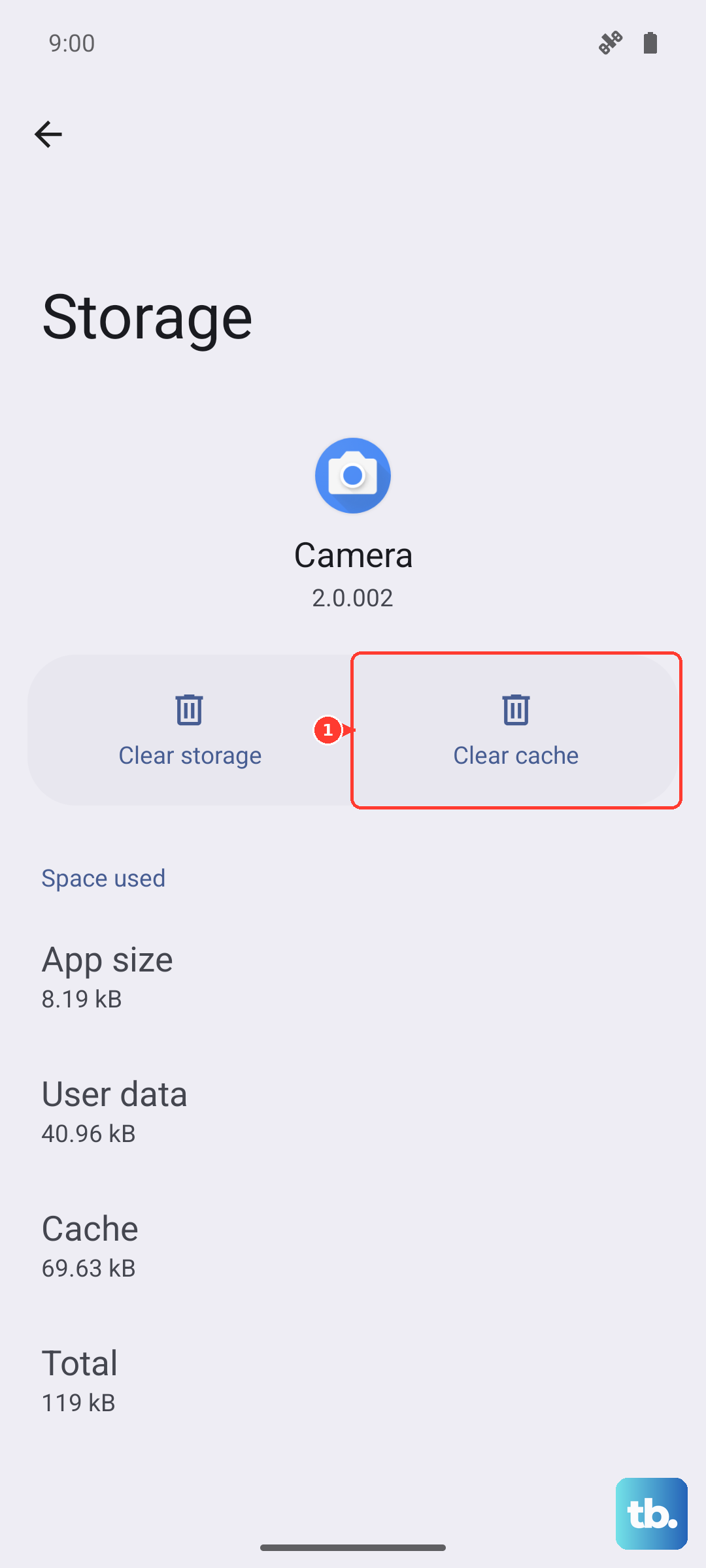
If that doesn't help, you can tap Clear data, but this will erase your message history and return the app to its default state. Back up anything important first.
Review Your APN Settings
Access Point Name settings tell your phone how to connect to your carrier's multimedia messaging server. If they're wrong, MMS won't go through.
Go to Settings > Connections > Mobile networks > Access Point Names. Check that the MMSC, MMS proxy, and MMS port fields are correctly filled in for your carrier. You can usually find the exact values on your carrier's support site. If you're not sure, contact them, they can send you the correct APN settings or walk you through it.
If you see multiple APNs, make sure the one for your carrier is selected (the dot next to it should be filled).
Reset Network Settings
When nothing else has worked, a network settings reset can fix deeper connectivity glitches. It won't delete your photos or contacts, but it will erase saved Wi‑Fi passwords and Bluetooth pairings.
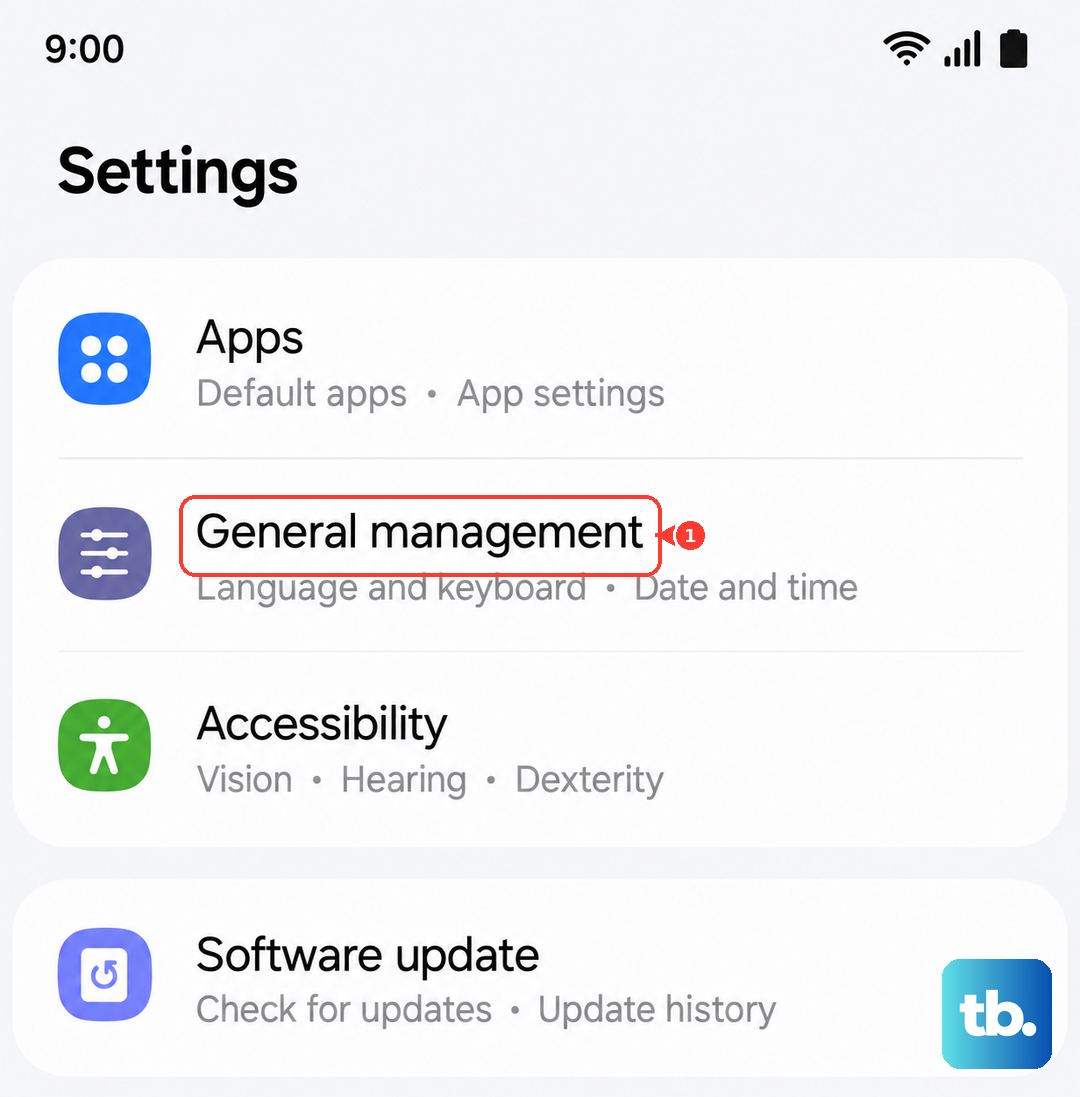
Go to Settings > General management > Reset > Reset network settings. Confirm and wait for the phone to restart. Then reconnect to your Wi‑Fi if needed and try sending an MMS.
Update to the Latest Software
Outdated software can cause compatibility issues with MMS, especially after carrier‑side changes. The Z Fold 7 launched with One UI 8 on Android 16, and Samsung regularly pushes software updates that can include messaging fixes.
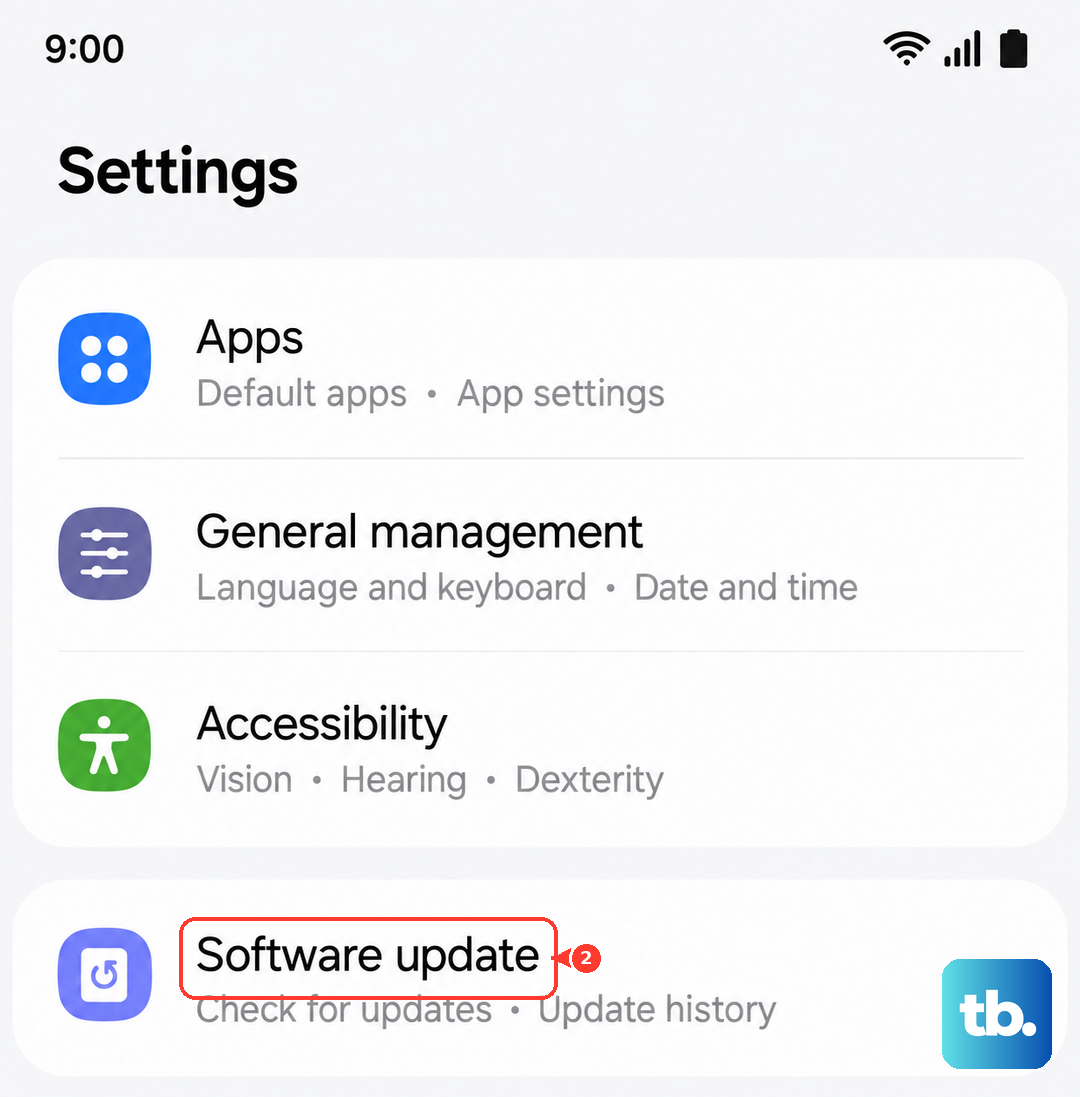
Open Settings > Software update > Download and install. If an update is available, install it and reboot. While you're there, make sure your carrier's software version (sometimes listed under Software update > About phone) is up to date too.
Free Up Storage Space
Low storage can block MMS from downloading or sending. Check how much free space you have: Settings > Device care > Storage. If it's below 500MB, clear out old message threads with large attachments, delete unused apps, or move photos to the cloud.
Try Google Messages Instead
Samsung's own Messages app has been known to act up with MMS, especially after carrier RCS changes. Google Messages is the default on many Z Fold 7 units sold outside of a few regions. If you're still using Samsung Messages, try switching.
Download Google Messages from the Play Store, open it, and set it as your default messaging app. Test sending an MMS, if it works, you can stick with Google Messages going forward.