
If the camera on your Galaxy Z Fold 7 goes black, start with something simple. Close the camera app, then reopen it. I've seen this clear up temporary software hiccups more often than you'd think. If that doesn't do it, a full restart usually handles the deeper glitches.
Key Points
- Camera showing black screen: Close and reopen the camera app first, then restart the phone if needed.
- Charging stops at 45%: This is a known issue on the Z Fold 7. Try a different certified charger and cable.
- Phone won't turn on: Force restart by holding Volume down and Side buttons together for 10 seconds.
- Wireless charging not working: Make sure the phone is centered on the charging pad and remove any thick case.
- Slow wired charging: The Z Fold 7 maxes out at 25W wired. Use a USB PD PPS charger for the best speed.
Force restart the phone
Sometimes the camera app freezes along with the whole system. If your Z Fold 7 is unresponsive, a force restart is your best move. Press and hold Volume down and Side buttons simultaneously for 10 seconds until the device restarts.
This bypasses any stuck processes and forces a clean boot. Give it about 30 seconds to fully power back on before testing the camera again.
Check for software updates
If your camera started showing a black screen after a recent update, there's a good chance Samsung already pushed a fix. Go to Settings > Software update and tap Download and install. Samsung releases camera-focused patches fairly often, especially for the Fold series, which uses complex camera systems.
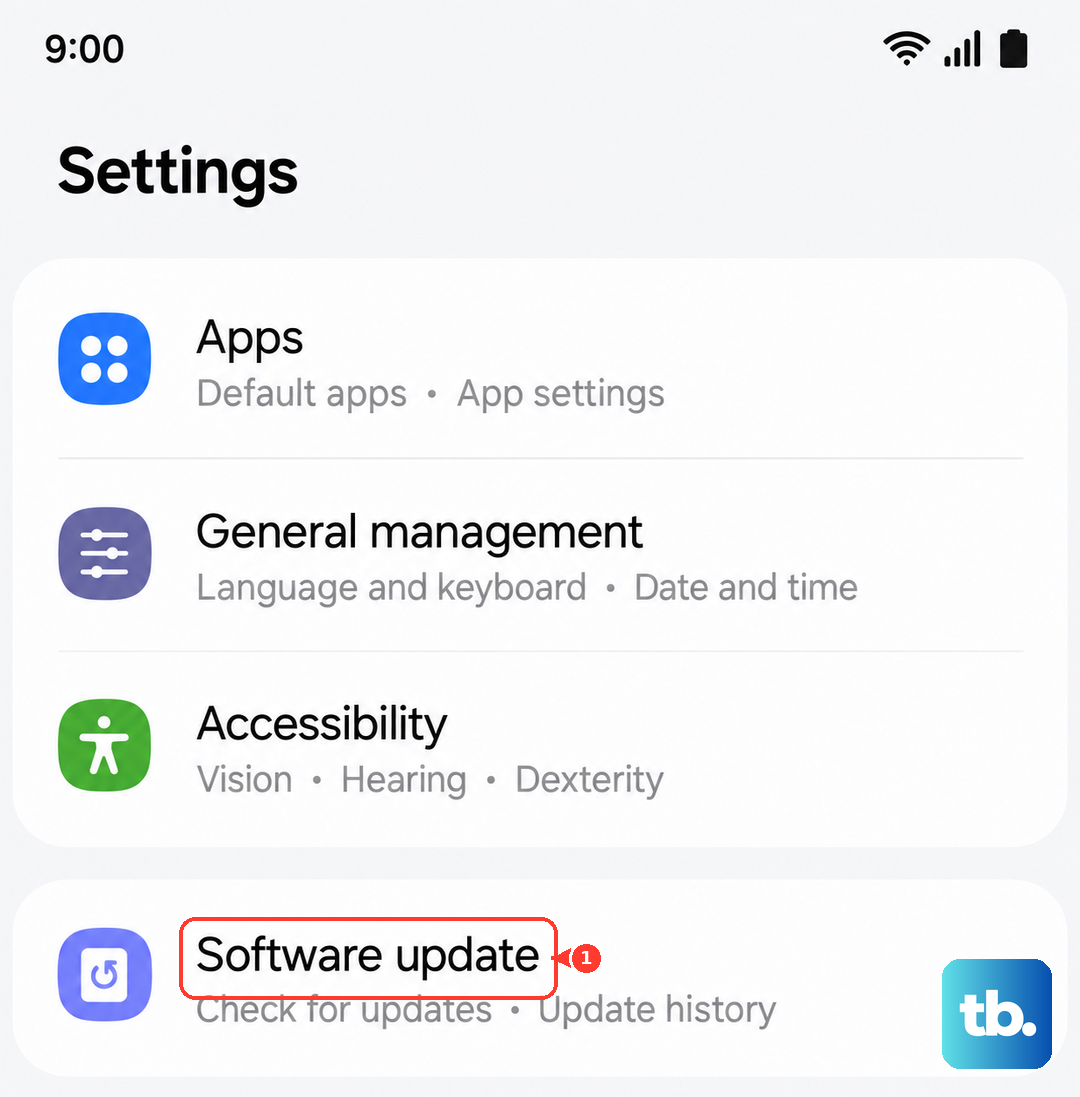
Install any available updates, then restart your phone. Many users on the Galaxy Z Fold forums have reported that a simple update resolved their camera black screen issues.
Clear the camera app cache
Corrupted temporary data in the camera app can cause the black screen issue. Head over to Settings > Apps > Camera > Storage and tap Clear cache. This won't delete your photos or settings, just the app's working files.
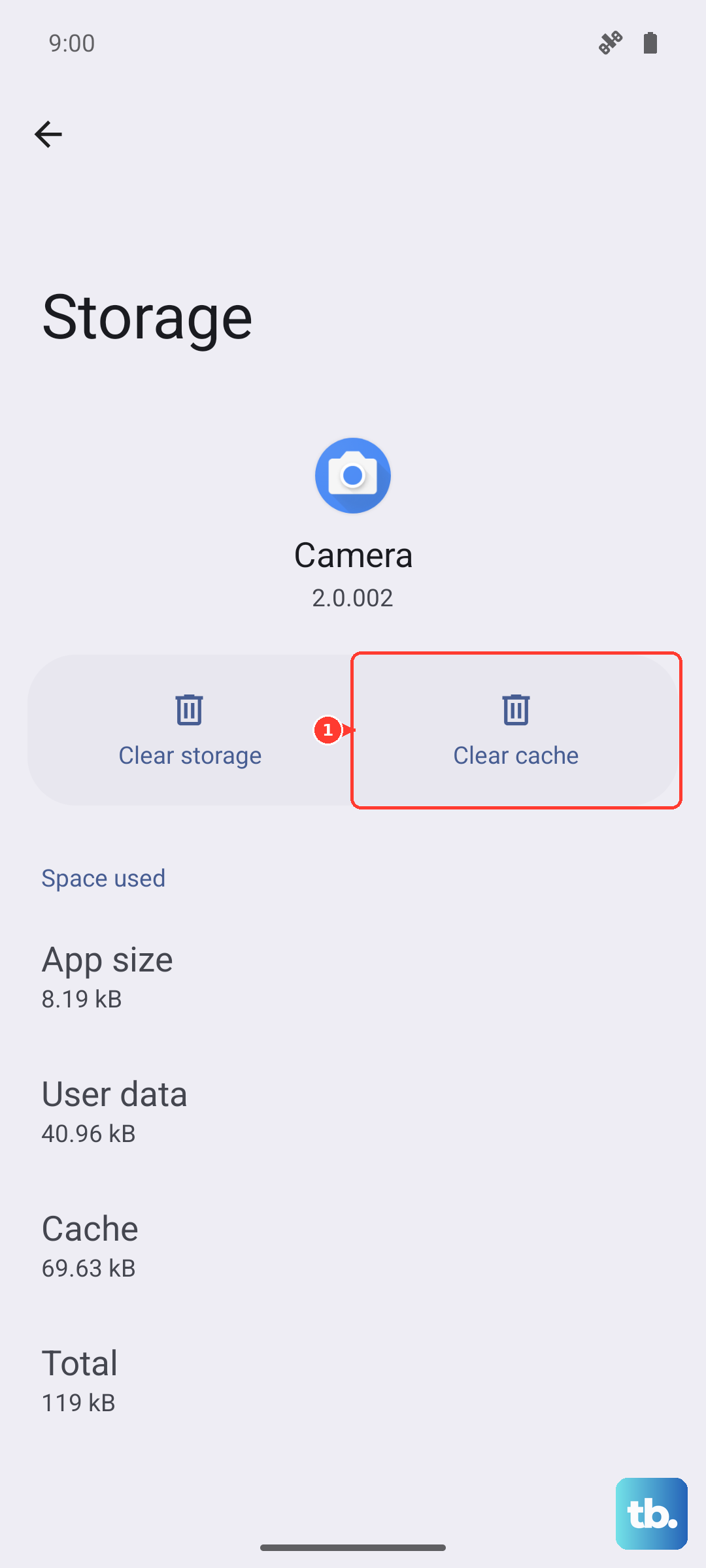
Try launching the camera again after clearing the cache. If the problem persists, you can try Clear data on the same screen, but that will reset your camera settings to default. You'll need to reconfigure any custom modes or filters.
Make sure the lens isn't blocked
The Z Fold 7's triple camera setup sits on the back, and it's easy for your finger or a case edge to cover one of the lenses. Take a look at the rear cameras and make sure nothing is blocking them. Clean the lenses with a microfiber cloth, smudges and oils can confuse the camera module and make the viewfinder go black.
Also check the cover screen camera and the under-display camera on the main screen. Dust or fingerprints on any of these can cause issues. A quick wipe usually clears it up.
Close background apps using the camera
Other apps that access your camera can sometimes leave it in a bad state. Social media apps, video calling apps, and barcode scanners all grab the camera. Swipe up from the bottom of the screen and hold to open the recent apps list, then swipe away anything that might be using the camera.
This is especially common after using apps like Snapchat or Instagram, which don't always release the camera properly. After closing those apps, give the camera another try.
Check if the camera works in Safe Mode
Safe Mode disables all third-party apps. If your camera works fine in Safe Mode, a downloaded app is causing the black screen. To boot into Safe Mode on the Z Fold 7, press and hold the Side button, then tap and hold Power off and tap Safe mode.
Test the camera while in Safe Mode. If it works, restart the phone normally and start uninstalling recently added apps one at a time. Camera-related utilities, screen recording apps, and even some launchers can conflict with the stock camera app.
Fix charging issues
The Galaxy Z Fold 7 has a known issue where charging stops at around 45% battery. This isn't a camera problem, but if your phone dies and won't turn back on, the camera will obviously be unusable. First, inspect the USB-C port for dust or lint and clean gently with compressed air. Using a USB PD PPS charger and cable is essential for optimal charging, since the Z Fold 7 is limited to 25W wired charging.
If wireless charging isn't working, check that your phone is centered on the pad and remove any thick cases. The phone supports 15W wireless charging through Qi, but some pads may not align properly with the Fold's unique shape. If the battery is deeply discharged, leave it plugged in for 30 minutes before trying to power on.
Update Google Play system
Occasionally, Google Play system updates can mess with camera services. Go to Settings > Security and privacy > Updates > Google Play system update and check for any pending updates. Install them and restart your phone.
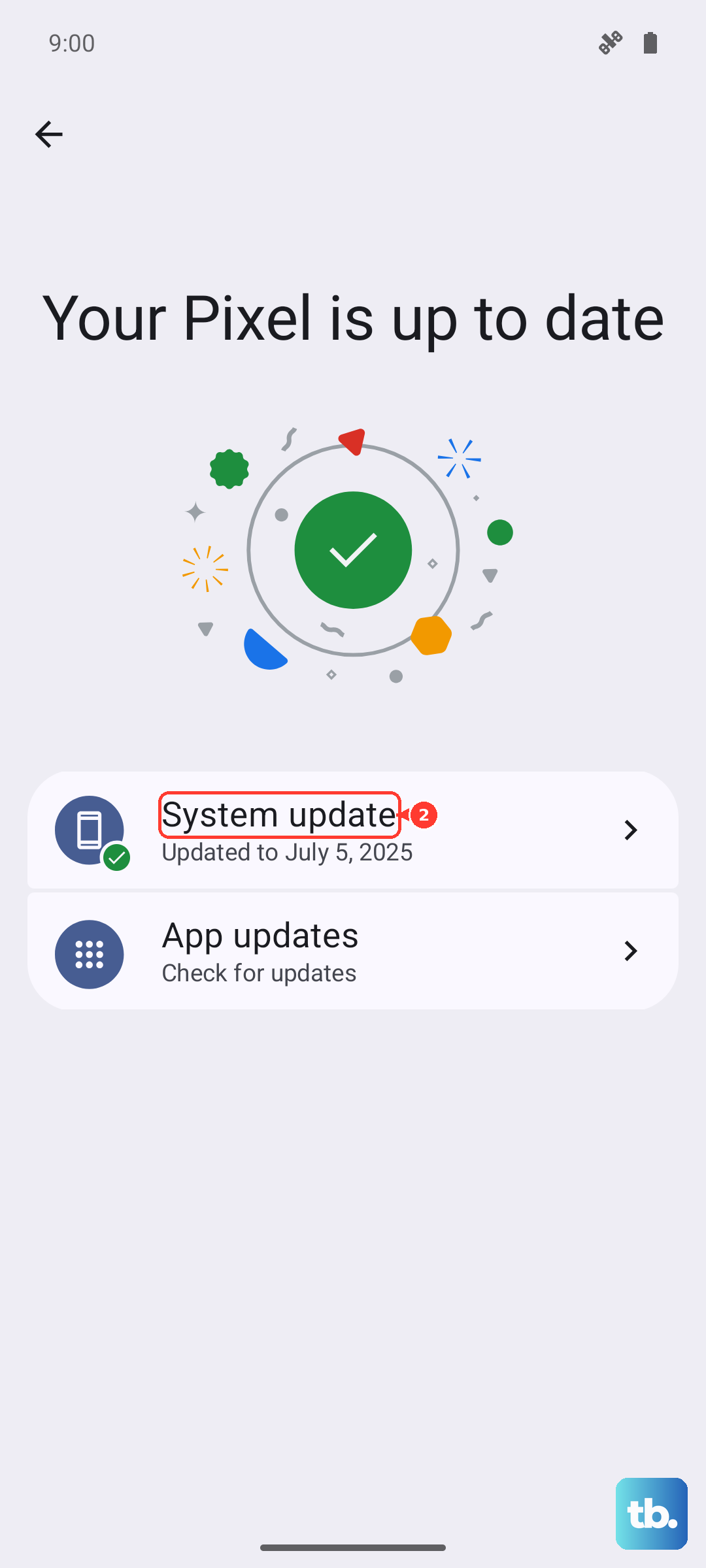
If you see a "Failed to update" error, don't panic. This is a known bug that affects some Android devices, and waiting for the next automatic update usually resolves it. A factory reset won't help and could cause data loss.
Reset app preferences
Sometimes your default camera settings get corrupted or a system permission gets revoked. Resetting app preferences can fix this without deleting any data. Go to Settings > Apps > tap the three dots menu at the top right and select Reset app preferences.
This resets disabled apps, default apps, and permission restrictions back to factory settings. You'll need to re-enable any apps you had disabled, but it often clears up camera black screen issues that other methods didn't fix.