
App installation errors on the Samsung Galaxy Z Fold 7 can stop you in your tracks, especially when you're setting up a new foldable for the first time. The good news is most of these issues are quick to fix without any technical know-how. Let's go through the solutions that work best on this device.
Force Restart and Check Your Connection
Sometimes the fastest fix is also the simplest. If your Galaxy Z Fold 7 is acting up during app downloads, try a forced restart first. Press and hold Volume down and the Side button at the same time for about 10 seconds. The device should restart on its own.
Before trying anything else, double-check your internet connection. Pull down the notification shade and make sure Wi-Fi or mobile data is turned on. A weak signal can cause downloads to fail without warning.
Fix Date and Time Automatically
Google's servers compare your device's clock when processing app downloads. If the time or date is off, the Play Store may refuse to install anything. This is more common than you'd think after a battery drain or a long shutdown.
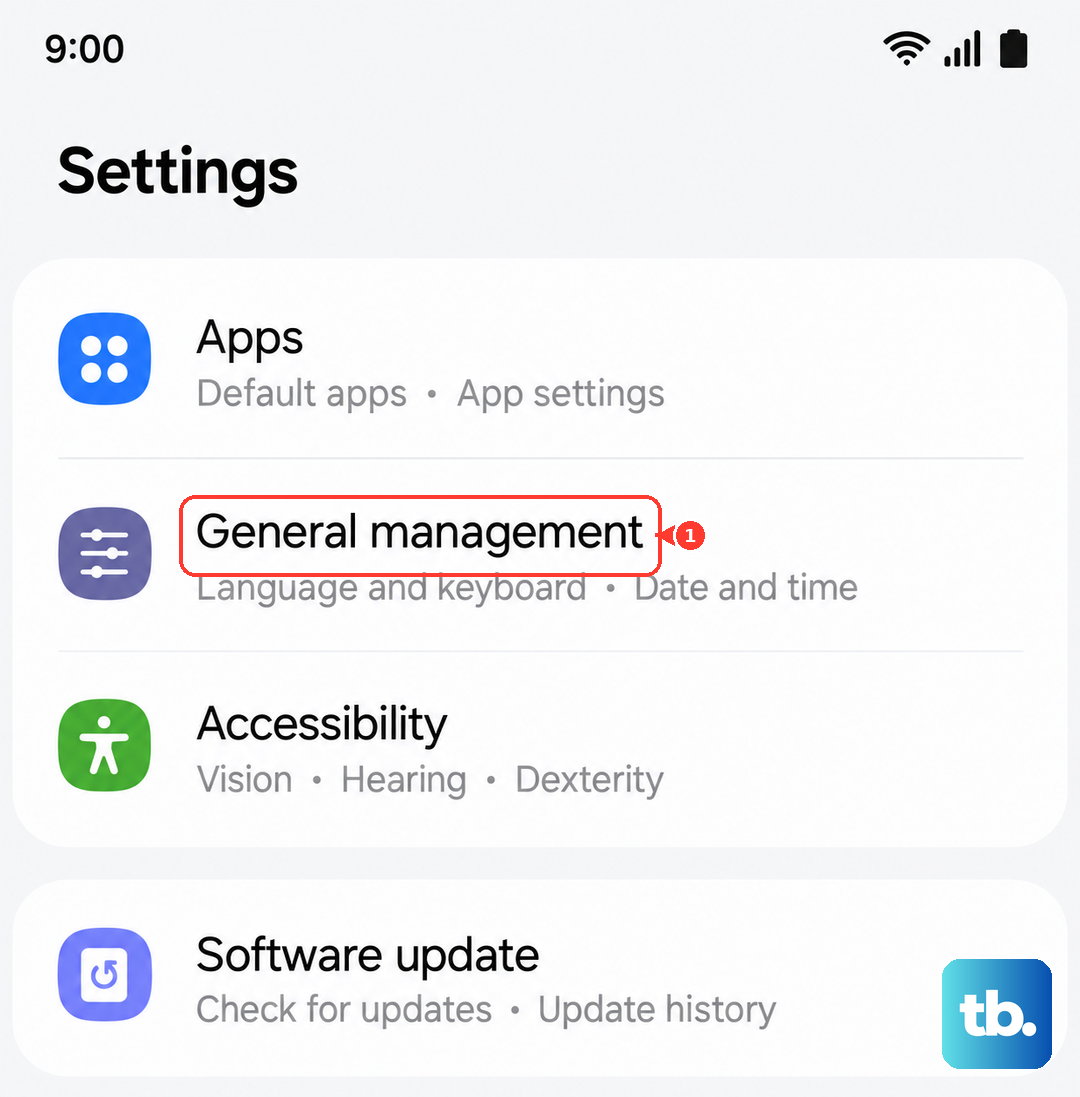
Go to Settings > General Management > Date and Time and turn on Automatic Date and Time. If it's already enabled, toggle it off, set the correct time manually, then switch it back to automatic. Give the Play Store another try.
Switch Between Wi-Fi and Mobile Data
Some Wi-Fi networks block port 5228, which Google Play uses to download apps. If you're on Wi-Fi and installations stall, try switching to mobile data. Pull down the notification shade, tap the Wi-Fi icon to disconnect, and turn on mobile data instead. Restart your Galaxy Z Fold 7 and attempt the download again.
If mobile data works but Wi-Fi doesn't, the issue is likely your router or network configuration. Try forgetting the network and reconnecting, or move closer to the router.
Clear Google Play Store Cache and Data
Corrupted cache files can make the Play Store act up. This is one of the most reliable fixes for download errors on Android 15. Go to Settings > Apps, find Google Play Store, and tap Storage. Tap Clear Cache first this won't delete any personal data.
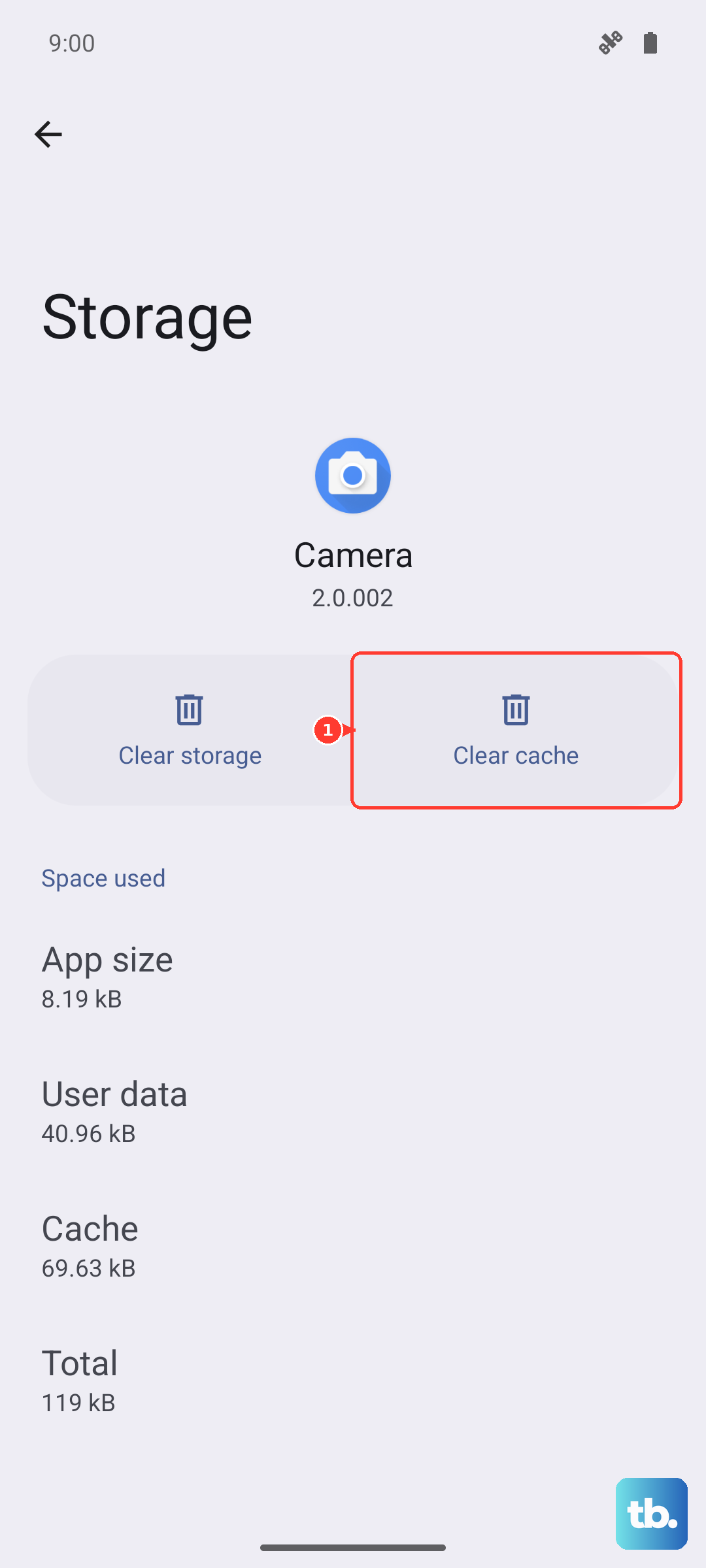
If that doesn't do the trick, tap Clear Data as well. You'll see a warning that it removes account info and saved preferences, but your apps and purchases stay safe. Restart your phone afterward.
Clear Google Play Services Cache
Google Play Services handles the communication between your apps and the system. If it gets bogged down, app installations can fail. Go to Settings > Apps, find Google Play Services, and tap Storage. Hit Clear Cache, then tap Manage Storage followed by Clear All Data.
This step often resolves those vague "error processing purchase" messages. Your Google account will reconnect automatically after a short delay.
Check and Enable Download Manager
Every Android device has a built-in Download Manager that handles app installations. If it's disabled, nothing will download. Go to Settings > Apps, tap the three-dot menu, and select Show System Apps. Search for Download Manager and tap Enable if it's grayed out.
While you're there, tap Storage and clear both the cache and data. This wipes any corrupted download states and gives you a clean slate.
Refresh Your Google Account Sync
The sync between your Google account and the Galaxy Z Fold 7 can sometimes stall. To refresh it, go to Settings > Accounts, tap your Google account, then tap Sync Account. Tap the three-dot menu and choose Cancel sync. Wait about 30 seconds, then tap the three-dot menu again and select Sync now.
This forces a fresh handshake between your phone and Google's servers. It's a quick fix that often helps with persistent download failures.
Update Your Galaxy Z Fold 7 Software
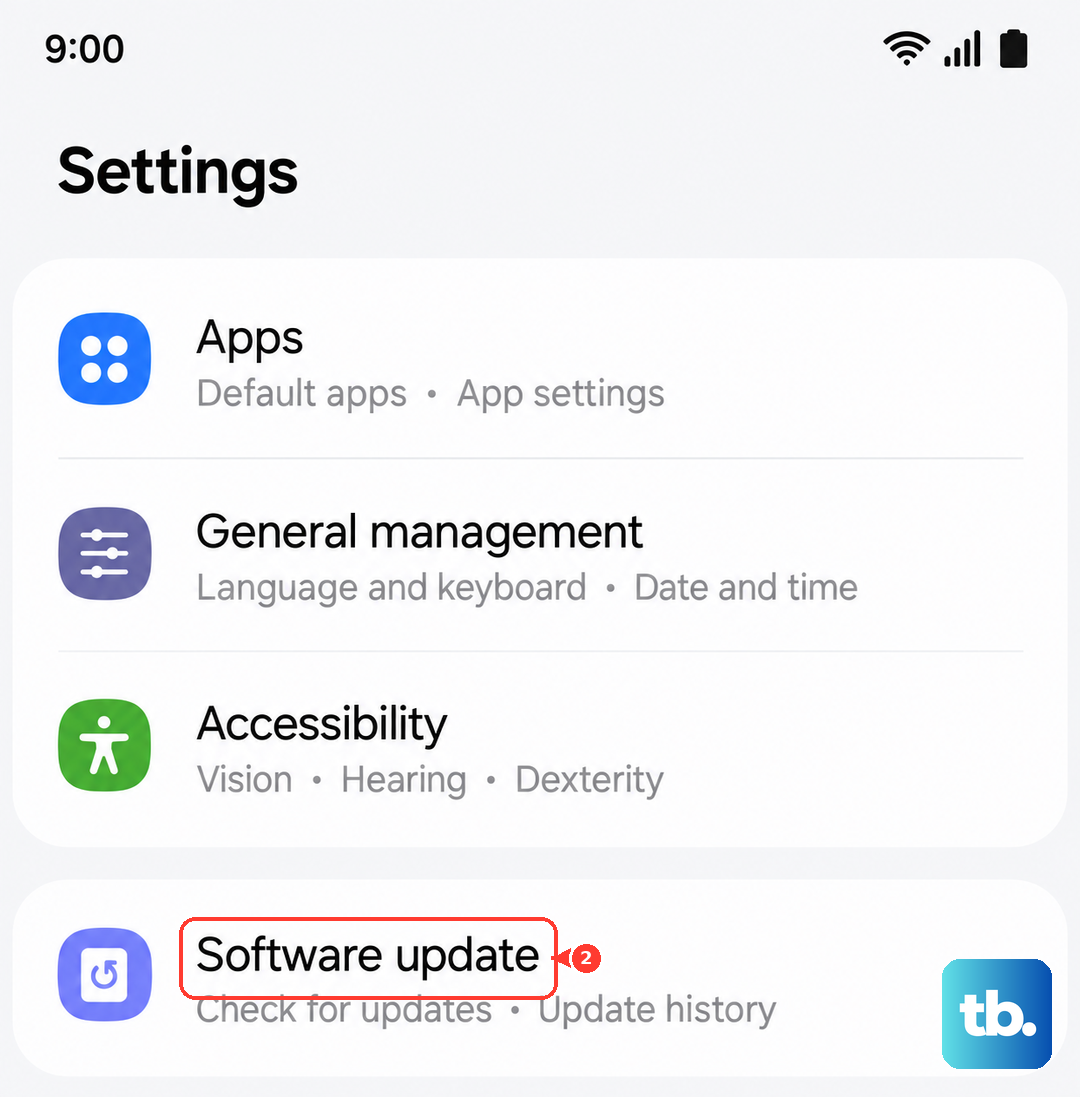
Running outdated software can cause compatibility issues with app installations. Go to Settings > Software Update and tap Check for Updates. If anything is available, install it and let the device restart.
Samsung frequently pushes updates that improve app compatibility and fix known glitches. It's worth checking even if you think you're up to date.
Remove and Re-Add Your Google Account
If your Google account has a corrupted setting, removing it and adding it back can clear up download errors. Go to Settings > Accounts, tap your Google account, then tap Remove Account. Don't worry, this doesn't delete your Google data or purchases.
Once it's removed, go back to Accounts, tap Add Account, and sign in with the same credentials. After that, try downloading from the Play Store again.
Uninstall Google Play Services Updates
A recent update to Google Play Services might not play well with the Galaxy Z Fold 7's software. You can roll back the update without any permanent effects. Go to Settings > Apps, find Google Play Services, tap the three-dot menu, and select Uninstall Updates. Confirm the action and restart your phone.
After the restart, the Play Store will update Google Play Services again automatically. In most cases, the fresh install works correctly.
When Downloads Fail With Specific Errors
If you see an "Insufficient Space" error, free up storage by deleting old photos, videos, or apps you no longer use. You can check your storage by going to Settings > Battery and Device Care > Storage. For Error DF-BPA-09, go to Settings > Apps, find Google Services Framework, tap Storage, and clear the data. For Error 911, switch Wi-Fi networks or connect to mobile data temporarily, then clear Google Play Services cache as described earlier.
Most app installation errors on the Galaxy Z Fold 7 resolve with these steps. Start with the restart and connection check, then work your way through the settings tweaks as needed. You'll be downloading apps again in no time.