You unfolded your Galaxy Z Fold6 to fire off a quick reply, and the 7.6 inch inner screen just sits there, ignoring every tap and swipe. Maybe the cover display is stuck too, or the phone locked up mid-app and the touchscreen has gone completely cold. A frozen foldable feels alarming because there are two displays and a hinge to worry about, but in almost every case this is a software hang you can clear yourself in a few minutes.
The good news is that Samsung has a clear, official ladder of fixes for an unresponsive Galaxy phone, and they all apply to the Z Fold6 because it runs standard Samsung One UI on Android. The steps below start with the safest, fastest move and progress toward the more involved options, with the full erase and a service request saved for last. Work through them in order and stop as soon as the phone responds normally again.
Start by forcing the phone to reboot
When the screen is frozen and the touchscreen will not respond at all, you cannot tap a restart button, so you need the hardware key combination. This is Samsung's recommended first step for a frozen or unresponsive Galaxy device, and it works even when nothing on screen is reacting. It does not erase anything; it simply cuts power and brings the phone back up clean.
Press and hold the Volume down button and the Side (Power) button together.
Keep holding both for 7 to 10 seconds until the screen goes black and the phone restarts.
Let go once the Samsung logo appears, then wait for the phone to finish booting.
On the Z Fold6 the Volume and Side keys sit on the right edge, though key locations can vary slightly across Galaxy models. Samsung describes this same action as holding the Side key and Volume down key simultaneously to force reboot a device that has frozen during use. If the phone restarts and behaves normally, you are done; if it freezes again, move on.
Clear out memory with Optimize now
If the phone boots back up but still lags, stutters, or freezes again shortly after, it may be short on free memory from too many apps running at once. Samsung lists this as a cause of freezing and slow response, and One UI has a built-in cleanup that closes background apps and frees memory in one tap.
Open Settings.
Tap Device care (on newer One UI this is shown as Battery and device care).
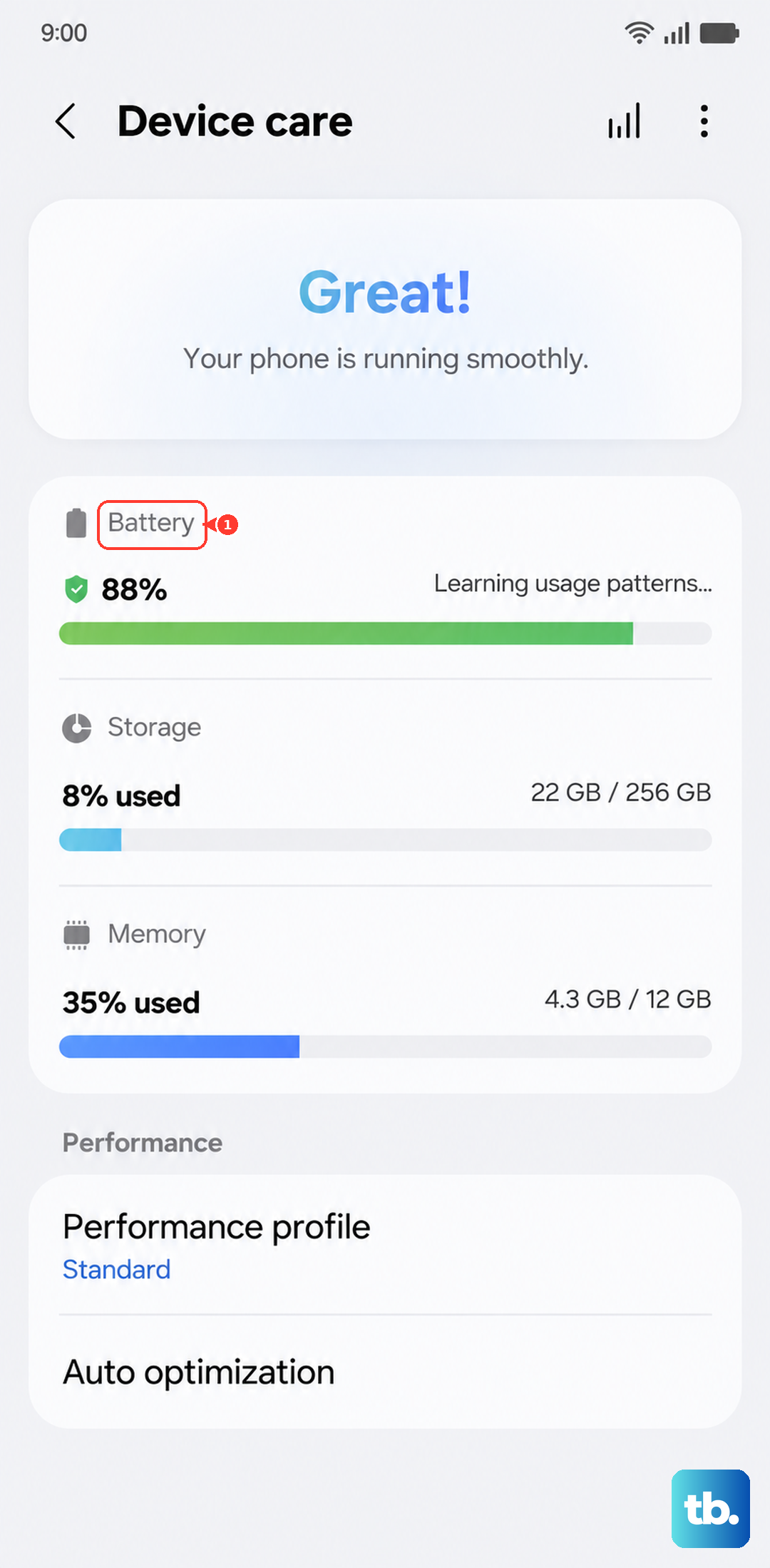
Tap Optimize now.
Give the phone a moment to finish optimizing, then use it normally for a while to see whether the freezing returns. This is a gentle, non-destructive step you can repeat any time the phone starts feeling sluggish.
Wipe the cache for an app that keeps locking up
Sometimes the freezing is tied to one specific app rather than the whole system. A particular app might hang every time you open it, or freeze the screen while it loads. Clearing that app's cached files removes its temporary data without deleting your account, settings, or saved content inside it.
Open Settings and tap Apps.
Select the app that keeps freezing.
Tap Storage.
Tap Clear cache.
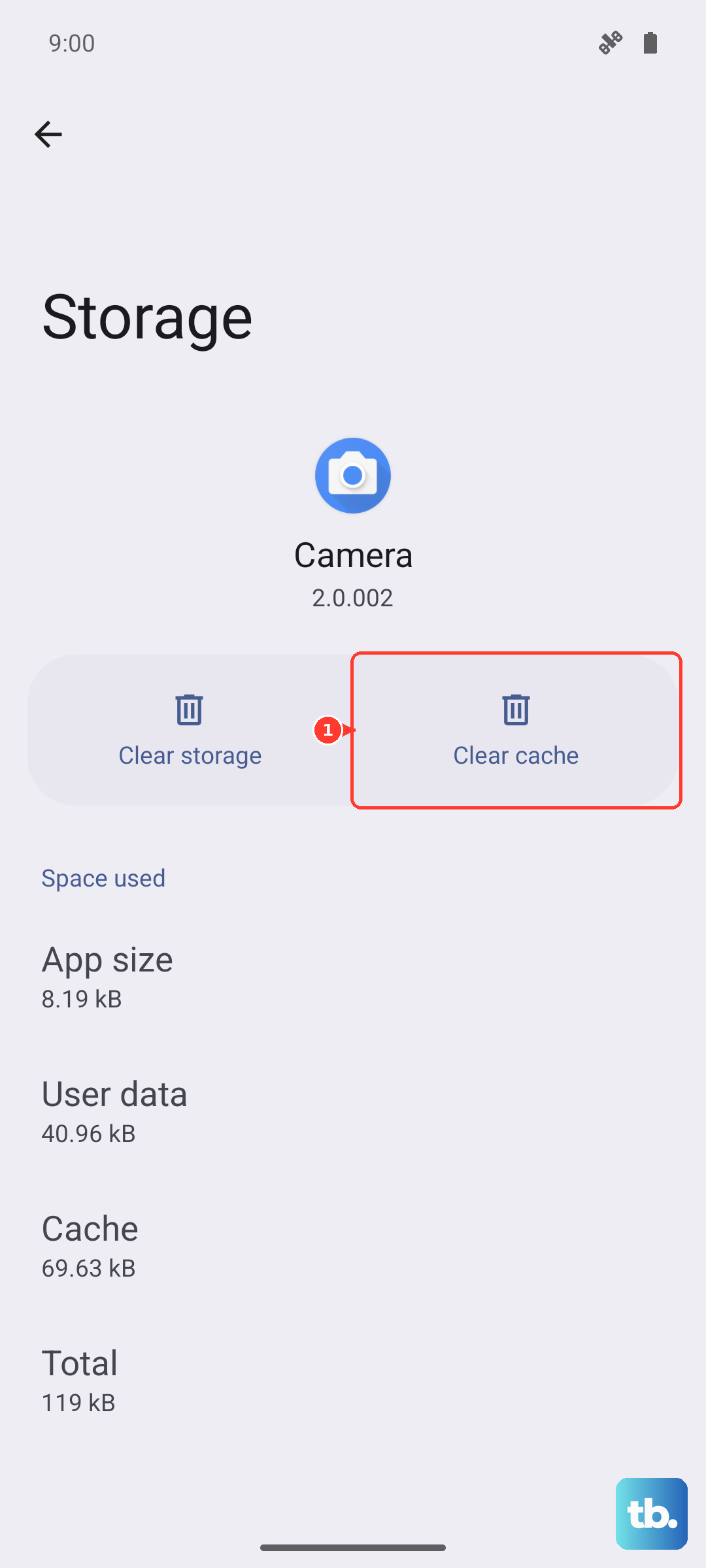
One note for anyone used to older phones. The system-wide wipe cache partition recovery option has been removed on newer Galaxy software, so the per-app Clear cache shown above is the correct approach now. Repeat it for any other app you suspect, then test the phone again.
Install any update that is waiting
Firmware bugs are a common, fixable cause of freezing, and Samsung recommends keeping your software current because updates address exactly these kinds of issues. The Z Fold6 receives ongoing One UI and Android updates, so it is worth checking even if you updated recently.
Open Settings.
Swipe to and tap Software update (it may be labeled System update on some devices).
Tap Check for updates, or tap Download and install.
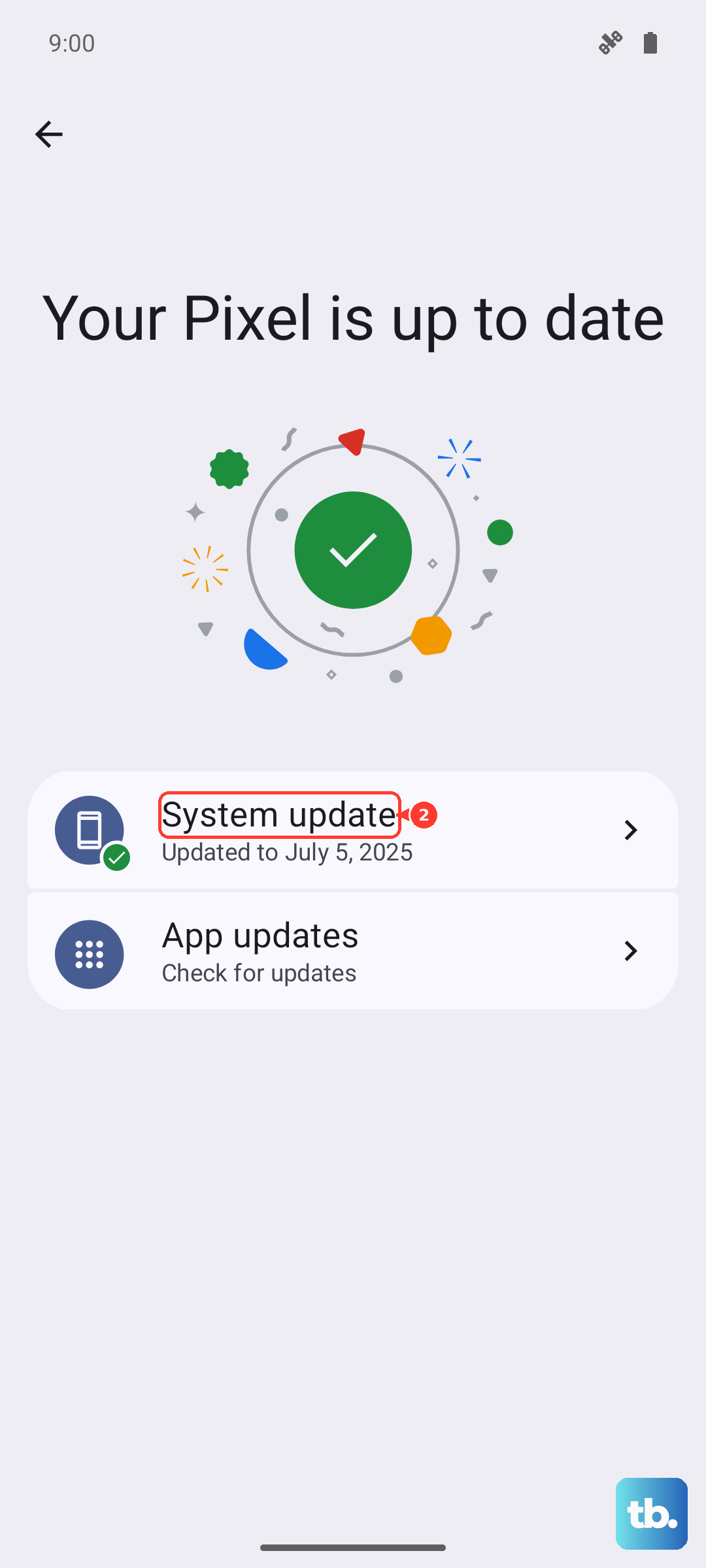
If an update is available, let it download and install fully, and keep the phone on a stable connection while it works. The device will restart as part of the process, which is normal.
Use Safe mode to expose a misbehaving app
If you suspect a downloaded app is behind the freezing but cannot tell which one, Safe mode settles the question. In Safe mode the phone runs only its built-in software and will not run any third-party apps, so if the freezing stops, you know a downloaded app is the culprit.
To enter Safe mode from the power menu, follow these steps.
Press and hold the Side and Volume down buttons at the same time, or swipe down from the top right and tap the power icon.
Touch and hold the Power off icon.
Tap the Safe mode icon.
There is also a method that works from a powered-off phone. Turn the device off, then turn it on, and when the Samsung logo appears, press and hold the Volume down button until Safe mode displays in the bottom left corner of the screen.
Once you are in Safe mode, use the phone the way you normally would. If it no longer freezes, uninstall the apps you most recently installed or updated, then restart the phone normally to leave Safe mode. Reintroduce other apps gradually so you can spot any that reintroduce the problem.
Erase and reset the phone as a last resort
If the freezing survives a force restart, a cleanup, an update, and Safe mode, a factory data reset returns the phone to its original out-of-the-box software state and clears whatever was causing the conflict. This step erases everything on the device, so treat it as a true last resort and back up first.
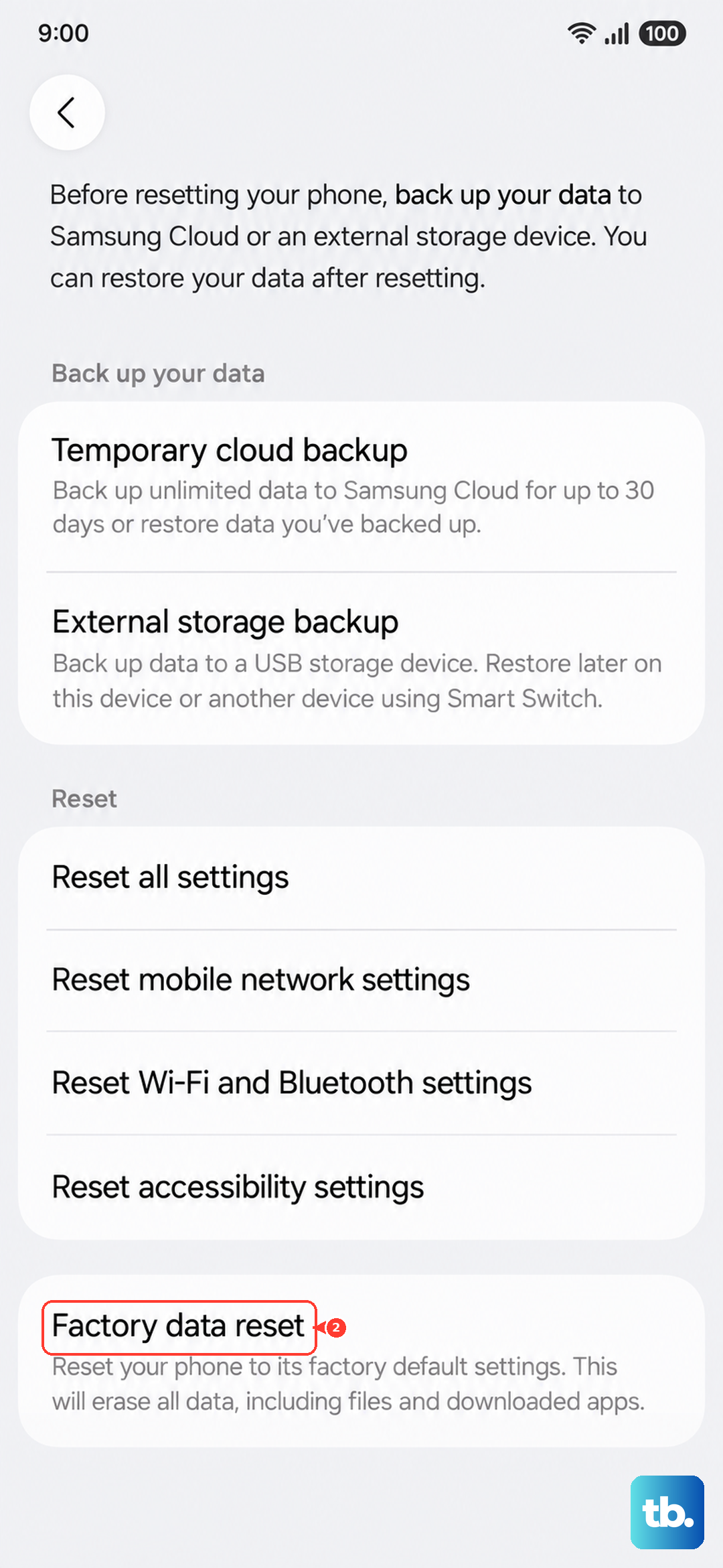
Samsung's own warning is direct. Please save any information you need prior to the factory reset because your personal information may not be recovered. Samsung also advises that you back up your personal data so you don't lose it all before you begin. Save your photos, messages, and any files you cannot reinstall.
- 1.Open Settings and tap General management.
- 2.Tap Reset.
- 3.Tap Factory data reset.
- 4.Tap Reset.
- 5.Tap Delete all, entering your lock screen and Samsung account credentials if prompted.
When it finishes, the phone returns to the initial setup screen as if it were new. Sign back in and restore your backup to get your content back.
When to stop troubleshooting and request service
If the touchscreen still does not respond after a force restart, software updates, Safe mode, and a factory reset, the problem may be physical rather than software. This is especially likely if the phone stays unresponsive even in Safe mode, since that rules out your downloaded apps entirely.
At that point, Samsung's guidance is to visit its Support Center to request service rather than keep resetting. From the Samsung Support Center you can arrange a repair or have the device looked at by a technician.
Frequently Asked Questions
How do I restart my Galaxy Z Fold6 when the screen is frozen?
Press and hold the Volume down button and the Side (Power) button together for 7 to 10 seconds until the screen goes black and the phone restarts. This forced reboot works even when the touchscreen is completely unresponsive, and it does not delete any of your data.
Will clearing an app's cache delete my data?
No. Clearing the cache through Settings, then Apps, then your chosen app, then Storage, then Clear cache only removes temporary files, not your saved content or sign-in. It is a safe way to fix lag or freezing tied to one app.
What does Safe mode do on the Z Fold6?
Safe mode starts the phone with only its built-in software and will not run any third-party apps. If the freezing stops in Safe mode, a downloaded app is the cause, so you can uninstall recently added or updated apps and then restart normally.
Does a factory reset erase everything?
Yes. A factory data reset returns the phone to its initial setup screen and removes your data, which is why Samsung warns to save anything you need first because your personal information may not be recovered. Back up your photos, messages, and files before you reset.
What should I do if the screen is still frozen after a reset?
If the touchscreen stays unresponsive after a force restart, updates, Safe mode, and a factory reset, especially if it is also unresponsive in Safe mode, the device may be physically damaged. Visit Samsung's Support Center to request service.