You plug your Galaxy Z Fold6 into the wall expecting that quick top-up, but the battery icon crawls upward, the "Super Fast Charging" message never appears, or the phone stops well short of full. On a foldable you rely on for both a phone and a tablet in one, a charge that drags or stalls is more than an inconvenience. The good news is that the Z Fold6 genuinely supports Super Fast Charging 2.0 at up to 25W on a wired charger, plus wireless charging and Wireless PowerShare, so the capability is there; something between the outlet and the battery is just getting in the way.
Most slow or stalled charging on this model comes down to the cable, the charger, the port, or a setting that quietly limits speed, and almost all of it you can fix yourself in a few minutes. Work through the fixes below in order, starting with the simplest and safest checks before moving to a reset or a service visit.
Start With the Charger, Cable, and Outlet
Fast charging on the Z Fold6 only works with the right equipment, so this is the first thing to rule out. Charging through a USB port on a computer delivers less power than an authentic Samsung charger, which results in a slow charge.
For the Z Fold6's 25W Super Fast Charging, you need a Samsung-certified 25W (or higher) charger that supports USB Power Delivery (USB-PD), since Super Fast Charging 2.0 requires a USB-PD 3.0-compatible charger and cable. Use a genuine Samsung cable as well, and plug the adapter into a wall outlet rather than a laptop or PC. A computer port simply cannot deliver the wattage the phone needs to charge quickly.
Inspect the Cable and Reseat Both Ends
A worn or loosely connected cable is one of the most common reasons charging slows down. Charging may be slowed if the cable is not properly connected to the device or charger, if the connector pin is altered due to long periods of use, or if the surface is corroded.
- 1.Examine the phone, the charger, and the USB cable for any physical damage, frayed spots, or corrosion on the connectors.
- 2.Firmly reseat both ends of the cable, making sure each connection is solid in the phone and the adapter.
- 3.Try a known-good Samsung travel charger plugged into a known-working outlet.
- 4.Let it charge undisturbed for a while to confirm whether the speed has recovered.
Clear the USB-C Port of Debris and Moisture
The Z Fold6 will protect itself if something is wrong in the port, which can look exactly like a charging failure. If there is a foreign object stuck inside the USB port or the cable, the device's safeguard may shut off charging for its protection. With a soft brush, remove the object and try charging again.
Shine a flashlight into the USB-C port and look for lint, pocket dust, or grit packed against the contacts, then gently clear it with a soft brush. If the phone shows a moisture warning, unplug it and let the port dry before trying again, because charging with moisture can lead to USB port corrosion. Never force the cable in while a moisture alert is showing.
Make Sure the Fast Charging Toggle Is On
The Galaxy fast-charging features can be switched off, and if that has happened your phone will charge at standard speed no matter what charger you use. It is worth confirming the toggle before you suspect hardware.
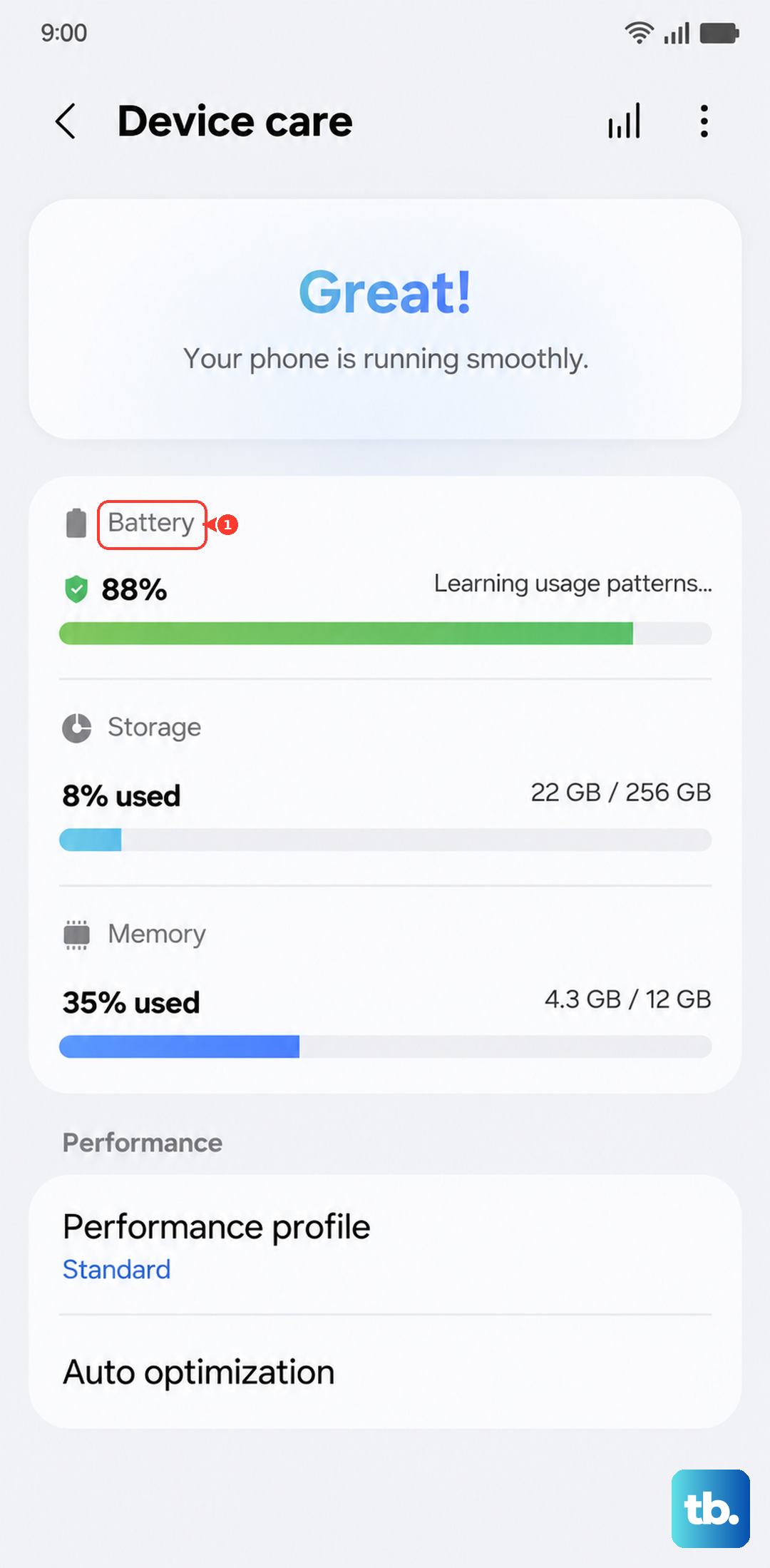
Go to Settings > Battery and device care > Battery > More battery settings, then turn on Fast charging (and turn on Fast wireless charging if you charge on a pad). Without these enabled, the phone simply will not draw the higher wattage.
Check Whether Battery Protection Is Capping the Charge
If your Z Fold6 stops charging early, for example around 80 percent, the battery is probably behaving exactly as configured rather than malfunctioning. This is the Battery protection feature limiting the maximum charge to extend battery health.
Open Settings > Battery > Battery protection to see which mode is active. In Maximum mode, your battery stops charging when it reaches 80 percent; in Basic mode, charging stops at 100 percent and resumes once the level drops to 95 percent. Adaptive mode uses Maximum while you are asleep and switches to Basic before you wake up. If you need a full, uninterrupted charge, set it to Basic or turn the feature off.
Keep It Cool and Hands-Off While It Charges
Heat is a quiet enemy of charging speed, and the phone will deliberately slow down to stay safe. If the temperature of your device or the environment is too high or too low, the device's safeguard may slow down the charging speed.
Charge at room temperature, away from direct sun or a hot surface, and resist the urge to use the phone heavily while it is plugged in. Take a break and let your phone rest while charging, because gaming, video, or many running apps mean battery consumption may be higher than the charging rate, which slows the whole process down.
Get Wireless Charging Positioned Correctly
Wireless charging on a foldable is sensitive to how the phone sits on the coils, and a small misalignment can drop your speed dramatically. For a wireless pad or Wireless PowerShare, foldable phones should be closed and have their back facing the charging pad, and the device should be centered over the coils.
Remove thick cases before charging wirelessly so the phone makes proper contact with the pad. To use Wireless PowerShare specifically, confirm the phone is charged to at least 30 percent, swipe down from the top-right to open Quick settings, tap the Wireless PowerShare icon, then place the two devices back to back.
Force Restart a Frozen Charging State
Sometimes charging hangs because of a temporary software state rather than anything physical, and a force restart clears it without losing any data. This does not erase anything on the phone; it simply reboots it.
Press and hold the Volume down button and the Side button (or Power button) at the same time until the device turns off and turns back on. The screen will go black, then the Samsung logo will appear; keep holding until you see that logo, then release. Once the phone restarts, plug it back in and check the charging speed.
Install Any Available Software Update
A software bug can interfere with charging, and Samsung pushes fixes for these through regular updates. The Z Fold6 launched on Android 14 with One UI 6.1.1, so keeping it current is part of healthy charging behavior.
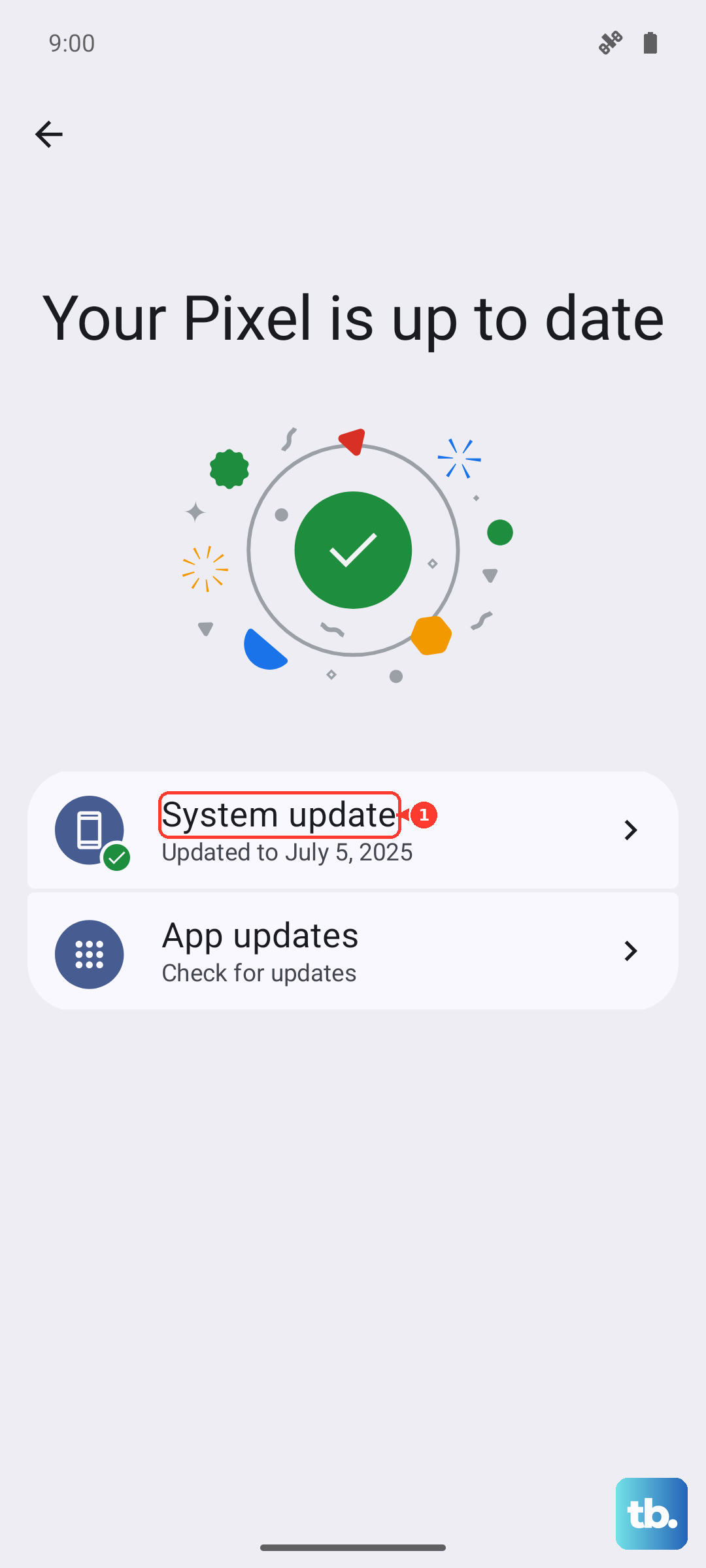
Open Settings, tap Software update (or System updates), then tap Download and install (or Check for software updates) and follow the on-screen instructions to install any available update. Keep the phone connected to Wi-Fi and reasonably charged while it downloads and installs.
Run Diagnostics, Then Reset or Get It Serviced
If you have worked through everything above and fast charging still will not engage, it is time to let the phone tell you what is wrong. Use the Samsung Members app to run a battery and charging diagnosis, which can help pinpoint whether the trouble is the cable, wireless charging, or the battery itself.
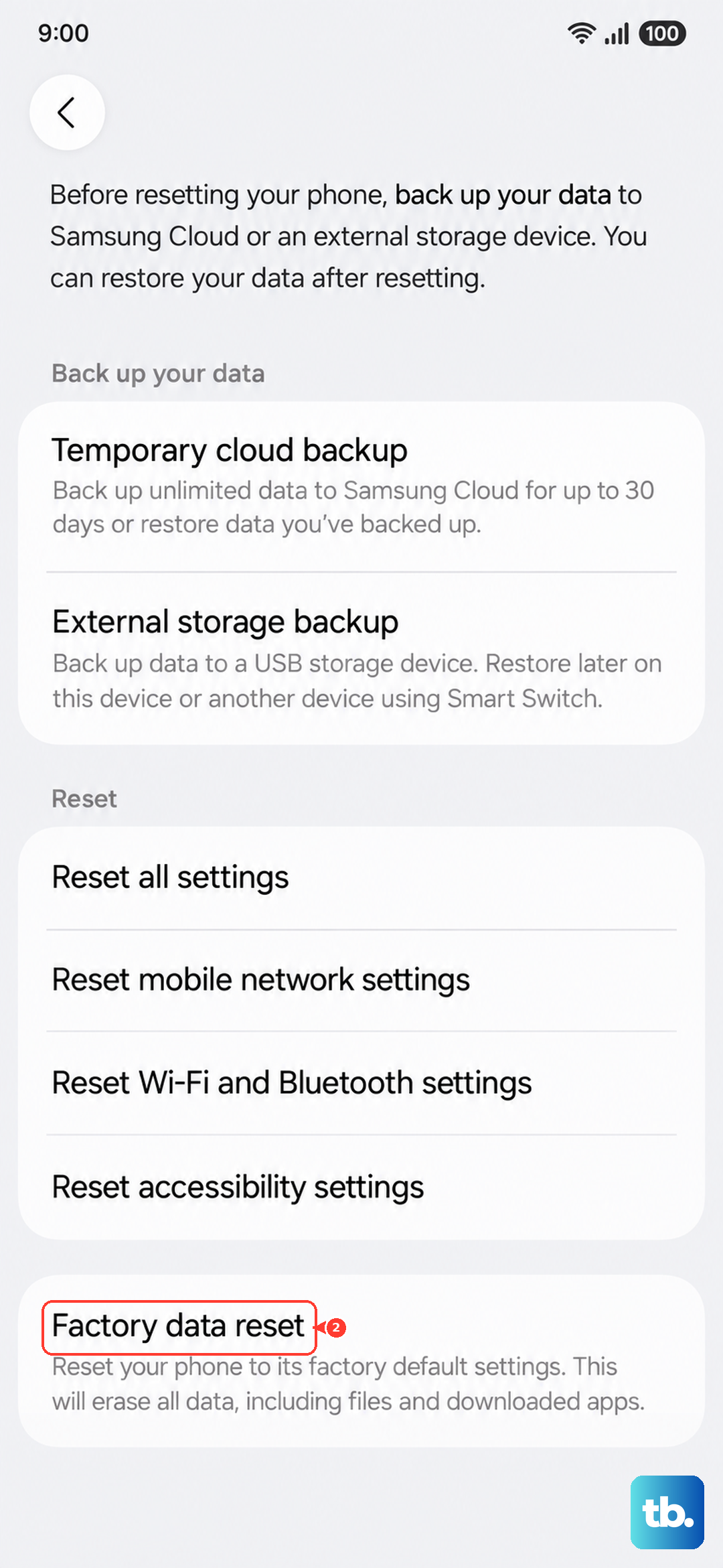
If the issue persists after that, a factory reset can clear a deeper software fault, but it erases everything on the phone, so back up your data first because personal data may not be recovered afterward. When you are ready, go to Settings > General management > Reset > Factory data reset, review the information, swipe to and tap Reset, then tap Delete all.
Should the Z Fold6 still refuse to fast charge after a reset, the problem is most likely hardware. At that point, visit a Samsung walk-in service center or schedule a repair service online so a technician can inspect the port and battery.
Frequently Asked Questions
How fast does the Galaxy Z Fold6 charge?
The Z Fold6 supports Super Fast Charging 2.0 at up to 25W with a wired charger, which requires a USB Power Delivery 3.0-compatible charger and cable. It also supports wireless charging and Wireless PowerShare, drawing from its 4,400mAh battery.
Why does my Z Fold6 stop charging at 80 percent?
This is almost always the Battery protection feature rather than a fault. In Maximum mode the battery stops charging when it reaches 80 percent, so open Settings > Battery > Battery protection and switch it to Basic or off if you want a full charge.
Why is my phone charging slowly on my computer?
Charging through a USB port on a computer delivers less power than an authentic Samsung charger, which results in a slow charge. Plug a genuine Samsung 25W (or higher) USB-PD charger into a wall outlet instead of a laptop or PC.
Why is my Z Fold6 charging slowly while I use it?
Heavy use generates heat and draws power at the same time the phone is trying to charge. When you game, watch video, or run many apps, battery consumption may be higher than the charging rate, so let the phone rest at room temperature while it charges.
Will a force restart erase my data?
No. A force restart, done by holding the Volume down button and the Side button until the Samsung logo appears, simply reboots the phone and keeps all your data. Only a factory data reset erases personal data, and you should back up first because it may not be recoverable.