You lift one half of your Galaxy Z Fold6, tap a contact, and the call drops before it connects, or it never rings at all. When voice calls keep failing on a phone this capable, the cause is almost always a connection setting, a software hiccup, or a SIM issue rather than the foldable hardware itself. The good news is that most call problems clear up with a few quick checks you can do in minutes, no service appointment required.
Work through the fixes below in order. They start with the safest, fastest toggles and end with the heavier steps like a network reset, a factory reset, and contacting support. Test a call after each fix so you can stop as soon as your calls start going through again.
Start With Airplane Mode, Do Not Disturb, and Your Block List
The first thing to rule out is a setting that is quietly cutting your calls off. Airplane mode disconnects the cellular radio entirely, so if it is on, no call can complete. Do Not Disturb can silence incoming calls, and a number you blocked earlier will never get through.
Samsung lists these as the first checks when a Galaxy phone cannot make or receive calls, and they take only seconds to confirm.
Make sure Airplane mode is turned off.
Next, disable Do not disturb mode.
Then confirm the number you are calling is not on your blocked list.
Try your call again. If it still fails, move on to a restart.
Give the Z Fold6 a Clean Restart
A simple restart clears temporary glitches in the phone's connection to the mobile network, and it is one of the most reliable quick fixes for calling problems. Use the normal restart when the screen is still responsive.
Press and hold the Volume down button and the Side button at the same time.
Tap Restart.
Tap Restart again.
If the phone is frozen and the screen will not respond, you can force it to restart instead. Press and hold the Volume down button and the Side button simultaneously until the device turns off and turns back on.
Check Your Account, Signal, and SIM Card
If calls keep failing, the problem may be outside the phone. Confirm your mobile account is in good standing with active service, because a billing or service interruption will stop calls from going through. Then check your signal strength, since a weak or absent network connection is a common cause of failed and dropped calls.
Next, verify the SIM card is correctly installed and undamaged. Samsung recommends contacting your carrier to test or replace the SIM if you suspect it is the issue. The Z Fold6 supports both a Nano SIM and an eSIM, so make sure whichever line you are calling on is the one with active service.
One more thing worth knowing. If you recently changed carriers, you may need your carrier to reprogram the phone before calling works correctly.
Toggle Wi-Fi Calling to Match Your Conditions
The Z Fold6 supports Wi-Fi Calling, which routes voice calls over a Wi-Fi network instead of the mobile network. This is helpful in spots with poor cellular coverage, but it can also cause calls to fail if your Wi-Fi connection is weak or unstable. Toggling it is a smart test either way.
To turn it on or off, go to Settings, then Connections, then Wi-Fi Calling, and tap the switch (tap again to turn it off). Wi-Fi Calling requires an active Wi-Fi connection and active service via SIM or eSIM.
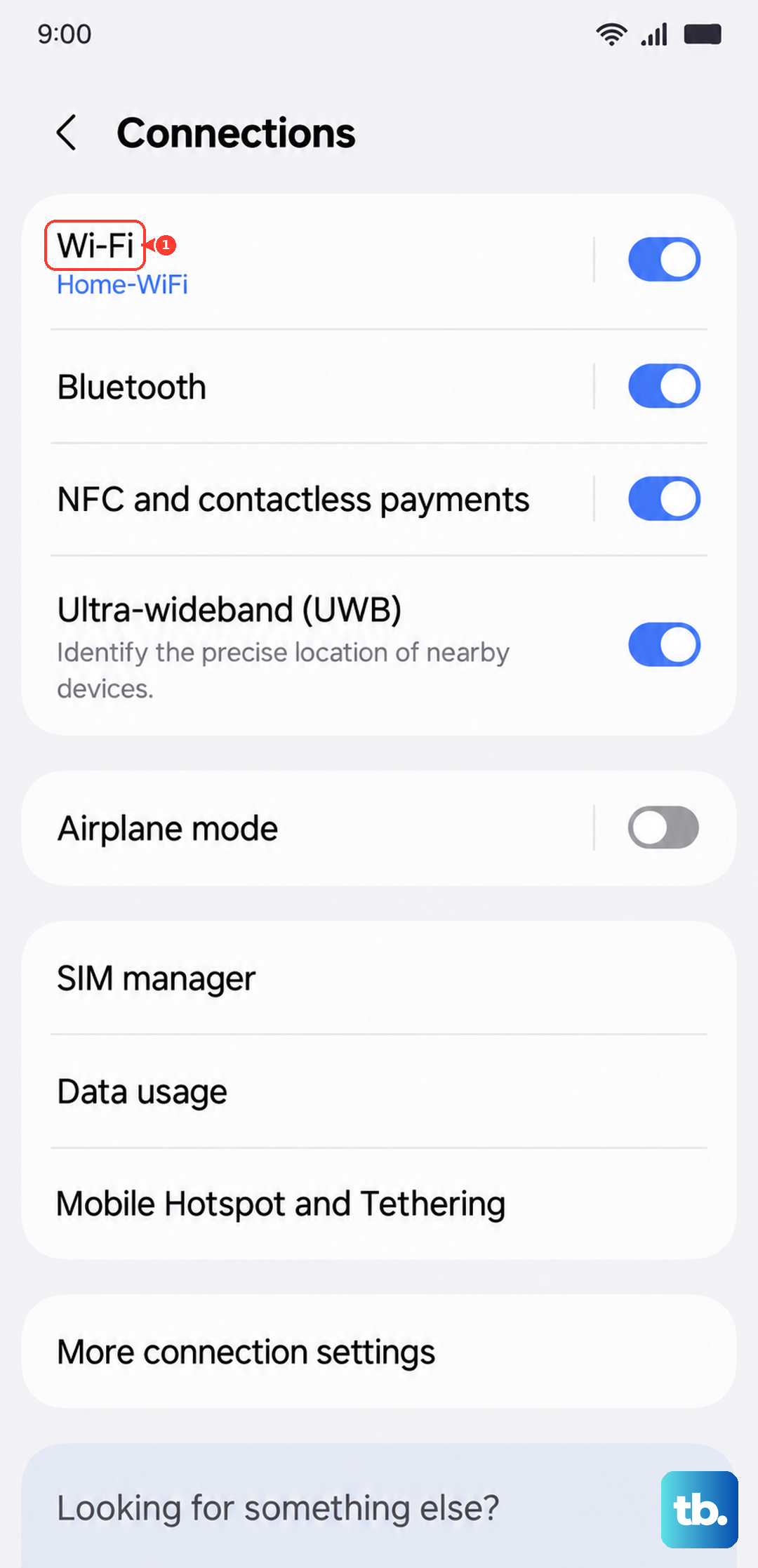
If your calls fail on a weak Wi-Fi network, turning Wi-Fi Calling off forces calls over the mobile network. If your mobile signal is poor instead, turning it on can help. Test a call after each change so you know which setting works in your location.
Install the Latest Software Update
Outdated software can carry bugs that affect calling, and Samsung pushes fixes through regular updates. Installing the newest version available for your phone is a low-effort step that often resolves persistent call problems.
Go to Settings, then Software update, then Download and install. Depending on your carrier, the option may instead read Check for system updates or Check for software updates. To see what version you are currently on, go to Settings, then About phone, then Software information.
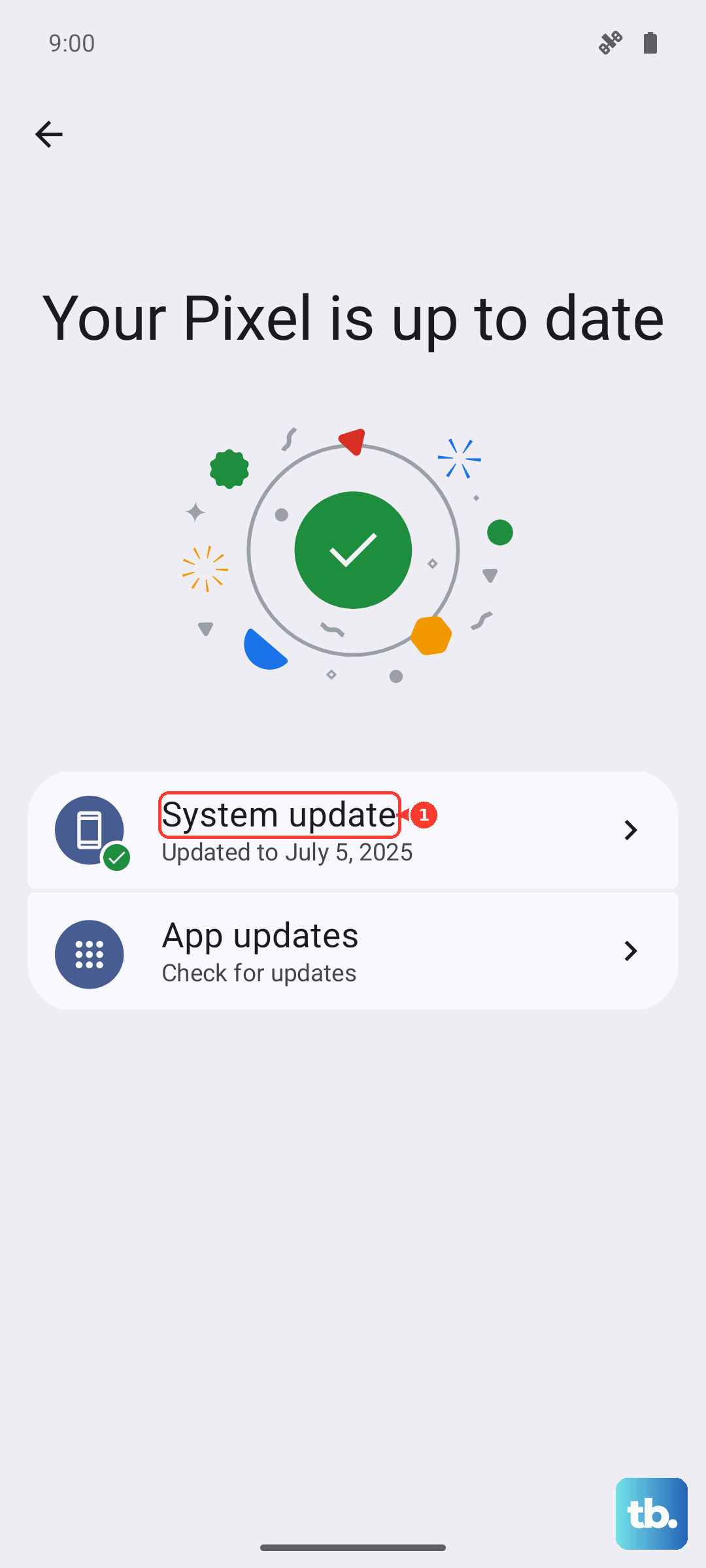
Important. Samsung warns that during the update the device cannot be used and you will not be able to make calls, even to emergency services. Run the update when you do not need the phone for a while.
Reset the Network Settings
If toggles and updates have not fixed things, the phone's stored connectivity settings may be the culprit. Resetting them clears configurations that can cause calls to drop or fail, and it does this without erasing your personal data such as photos, messages, or apps.
Go to Settings, then General management, then Reset.
Tap Reset mobile network settings (or Reset Wi-Fi and Bluetooth settings).
Tap Reset settings and confirm.
For call problems specifically, Reset mobile network settings is the one to choose. After the reset completes, you may need to reconnect to Wi-Fi networks and re-enter passwords, then test a call.
Diagnose a Misbehaving App in Safe Mode
Sometimes a downloaded app interferes with the Phone app or your network connection. Safe mode starts the Z Fold6 with only its built-in apps running, which lets you see whether one of your installed apps is to blame.
Press and hold the Power button.
Touch and hold Power off until the Safe mode icon appears.
Tap Safe mode.
Now try a call. If calls work normally in Safe mode, a downloaded app is causing the problem. Restart the phone normally, then uninstall recently installed apps one at a time, testing a call after each removal until calls are reliable again.
Back Up and Run a Factory Data Reset
A factory data reset is the last self-service step, and you should only reach it after the fixes above have failed. It returns the phone to its original software state, which can resolve deep software issues affecting calls, but it erases everything on the device. Back up your data first.
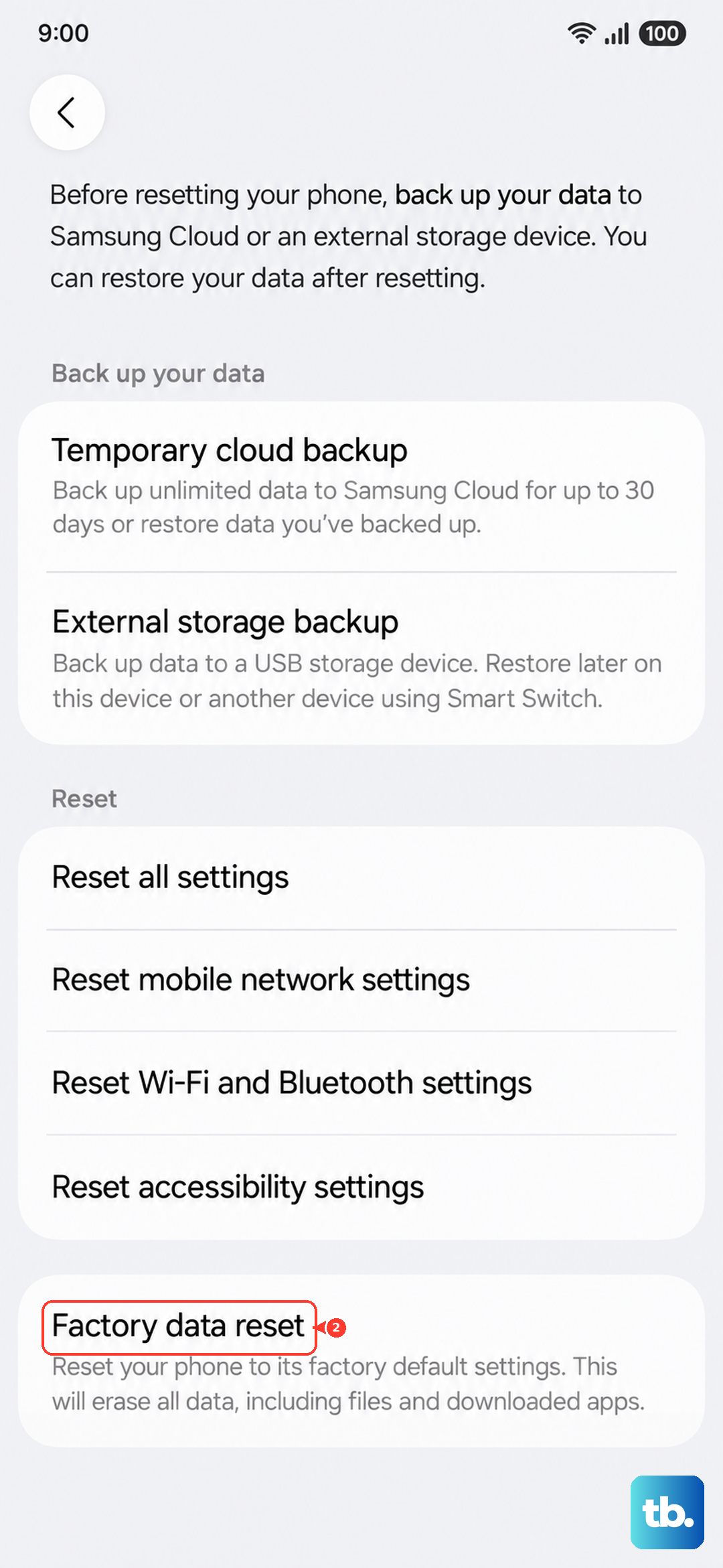
Samsung warns, "Please save any information you need prior to the factory reset because your personal information may not be recovered." Treat that warning seriously and confirm your backup before you proceed.
Go to Settings, then General management, then Reset.
Tap Factory data reset.
Review the information, then tap Reset.
Tap Delete all.
After the reset, set the phone up again and test a call before restoring all of your apps and data, so you can confirm the issue is gone.
Reach Out to Your Carrier or Samsung Support
If calls still fail after a factory reset, the problem is likely a network service issue or a hardware fault that needs professional help. Contact your carrier first about network service issues with calling, since they can check coverage, your line's provisioning, and whether the issue is on their end.
For hardware service, you can reach Samsung support to arrange a repair or to find a Samsung walk-in service center. In the US, you can call Samsung support at 1-800-726-7864 for help finding a service option near you.
Frequently Asked Questions
Why do my Galaxy Z Fold6 calls keep dropping mid-conversation?
Dropped calls usually come down to a weak or unstable connection. Check your signal strength, and if you are on a shaky Wi-Fi network with Wi-Fi Calling on, try turning Wi-Fi Calling off in Settings, then Connections, then Wi-Fi Calling, to force calls over the mobile network. Resetting your mobile network settings can also clear configurations that cause calls to drop.
Will resetting network settings delete my photos and apps?
No. Resetting the network settings only clears connectivity settings such as saved Wi-Fi and mobile network configurations, and it does not erase your personal data. A factory data reset is the step that deletes everything, which is why you should back up before doing one.
Can I make calls while my phone is installing a software update?
No. Samsung warns that during the update the device cannot be used and you will not be able to make calls, even to emergency services. Run the update when you will not need the phone for a while.
Do I need a separate app to fix calling on the Z Fold6?
No separate companion app is required to make or fix calls. Everything is handled through the device's own Settings app and the Phone app. Samsung Members is available for broader support and diagnostics, but it is not needed for these call fixes.
What should I do if calls fail right after switching carriers?
If you recently changed carriers, you may need your carrier to reprogram the phone before calling works correctly. Contact your new carrier and ask them to confirm your line is properly provisioned, and have them test or replace the SIM if needed.