
When you tap on the Settings app on your Samsung Galaxy Z Flip 7 and it crashes right away, you're not alone. This "Unfortunately, Settings has stopped working" error can pop up on Android 16 devices, and it usually means some temporary glitch or corrupted data is getting in the way. Try these fixes in order, the first one works more often than you'd think.
Force Restart Your Galaxy Z Flip 7
A quick force restart clears out minor software hiccups without deleting anything. On the Z Flip 7, the button combo is specific: press and hold the Volume Down and Side key at the same time for about 10 to 15 seconds.
Keep holding until the screen goes black and the Samsung logo appears. Let go, and the phone will boot back up normally. This step is especially useful if the Settings app won't even open long enough for you to navigate anywhere.
Clear the Settings App Cache
If the restart didn't help, the cache for the Settings app might be corrupted. Here's how to clear it on the Z Flip 7 running Android 16.
Open the Settings app by swiping down and tapping the gear icon, if it crashes immediately, use the Quick Settings panel to reach Settings > Apps. Find Settings in the list, then tap Storage and select Clear cache.
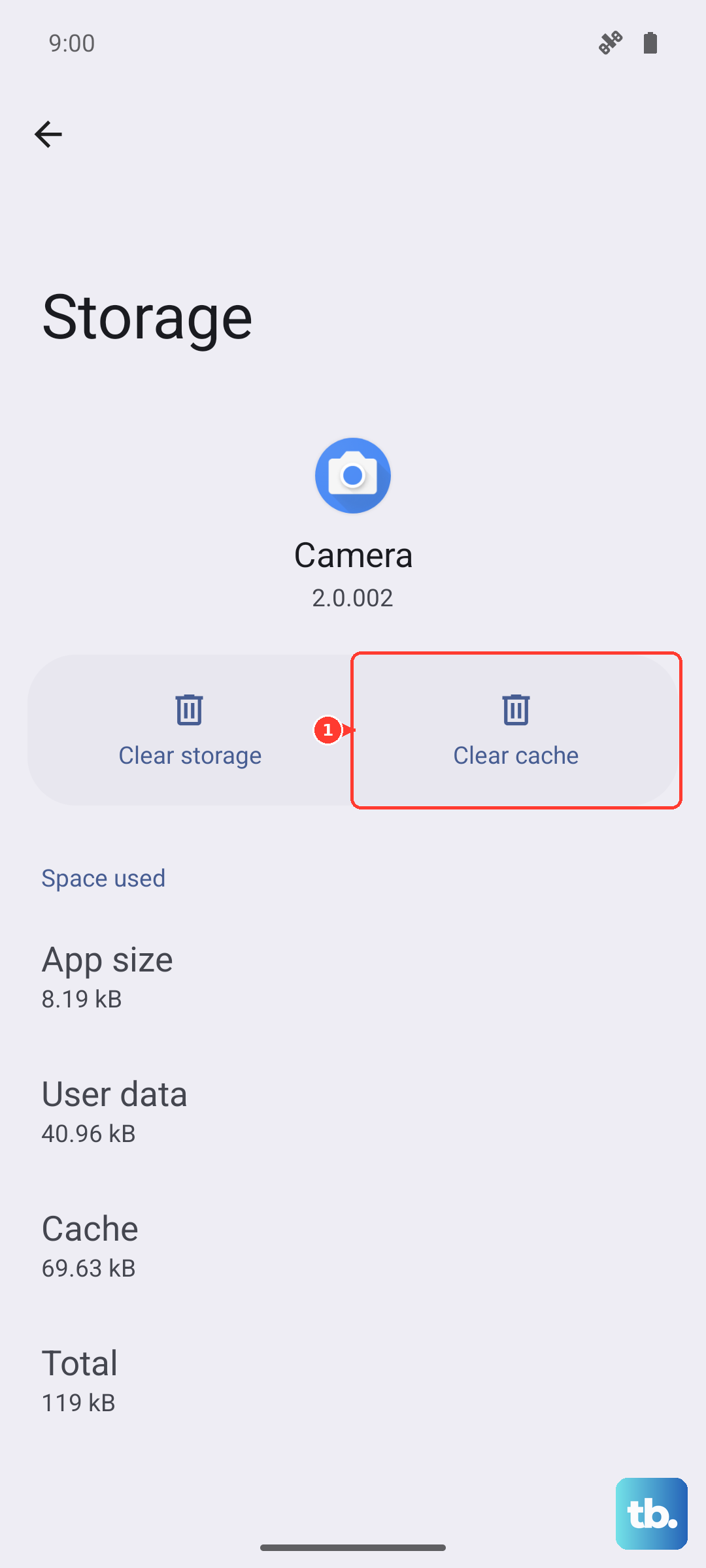
That's it. You don't need to touch the "Clear data" button here, just the cache. Try opening Settings again to see if it stays open.
Force Stop the Settings App
Sometimes the app gets stuck in a bad state, and force stopping it lets it start fresh. Go to Settings > Apps > Settings, then tap Force stop and confirm.
After you do that, the app will close completely. Open it again from the app drawer or Quick Settings, it should load without the crash.
Clean Up Google Play Services
Because the Settings app leans on Google Play Services for a lot of background functions, problems with that service can cause Settings to crash. Start by force stopping Google Play Services: head to Settings > Apps, tap Google Play Services, then Force stop.
Next, clear its cache and data. Go back to the same app info screen, tap Storage, then Clear cache. Then tap Manage storage and hit Clear all data. This resets Play Services without signing you out of your Google account. Reboot the phone afterward.
Uninstall Google Play Store Updates
A recent Play Store update can introduce conflicts with system apps like Settings. To undo it, open Settings > Apps > Google Play Store. Tap the three-dot menu in the top-right corner and choose Uninstall updates.
Confirm the action. The Play Store will revert to its factory version. Restart your phone, then open the Play Store again, it will automatically update itself to the latest version in the background.
Check for a System Software Update
Samsung regularly pushes updates to fix bugs, and the Z Flip 7's software might have a patch that addresses this exact crash. Go to Settings > Software Update (if Settings crashes before you can get there, use the force restart method to gain temporary access).
Tap Check for updates and install anything available. Updates on the Z Flip 7 can take a few minutes, so plug your phone in first to avoid battery drain during the process.
Factory Reset (Use as a Last Resort)
If none of the above steps stop the Settings app from crashing, a factory reset will wipe the slate clean. This erases all your data, photos, apps, accounts, everything, so back up your important files to Samsung Cloud or Google Drive first.
Assuming you can still get into Settings, go to Settings > General Management > Reset > Factory data reset. Tap Reset phone and confirm. If Settings won't open at all, you can perform a factory reset from the recovery menu: power off the phone, then press and hold Volume Up and the Side key until the recovery screen appears.
Use the volume buttons to navigate to "Wipe data/factory reset" and confirm with the Side key. Once it's done, your Z Flip 7 will restart as a clean device, and any software glitch causing the crash will be gone.