A frozen screen on the Galaxy Z Flip 7 can catch you off guard, especially when you're expecting the phone to snap open and work right away. The good news is almost all freezes are software-related and fixable without losing your photos or apps.
Force Restart the Z Flip 7
This is the go-to fix for a completely unresponsive screen. Press and hold the Volume Down and Side key together for about 10 to 15 seconds. The screen may go black, then the Samsung logo appears and the phone restarts. You won't lose any data. I've seen this fix work even when the phone is totally dead to touch.
Give It a Few Minutes
The Z Flip 7 can appear frozen when it's doing something heavy in the background, like applying a big software update or syncing files after a restore. If the phone feels warm to the touch, it's probably still working. Set it down for 5 to 10 minutes before force restarting. Patience sometimes solves it.
Plug It In (and Check the Charger)
A critically low battery can mimic a frozen screen. Connect the USB-C cable to your charger and wait at least 15 minutes before trying to turn it on again. Keep in mind the Z Flip 7 has a known charging quirk where it might stop charging before reaching 100% on wired power. If you see the battery icon but it's not increasing, unplug and replug the charger. For wireless charging, make sure the phone is centered on the pad. Non-Samsung pads can be finicky, so using the official Samsung wireless charger helps get the full 15W speed.
Close the Frozen App
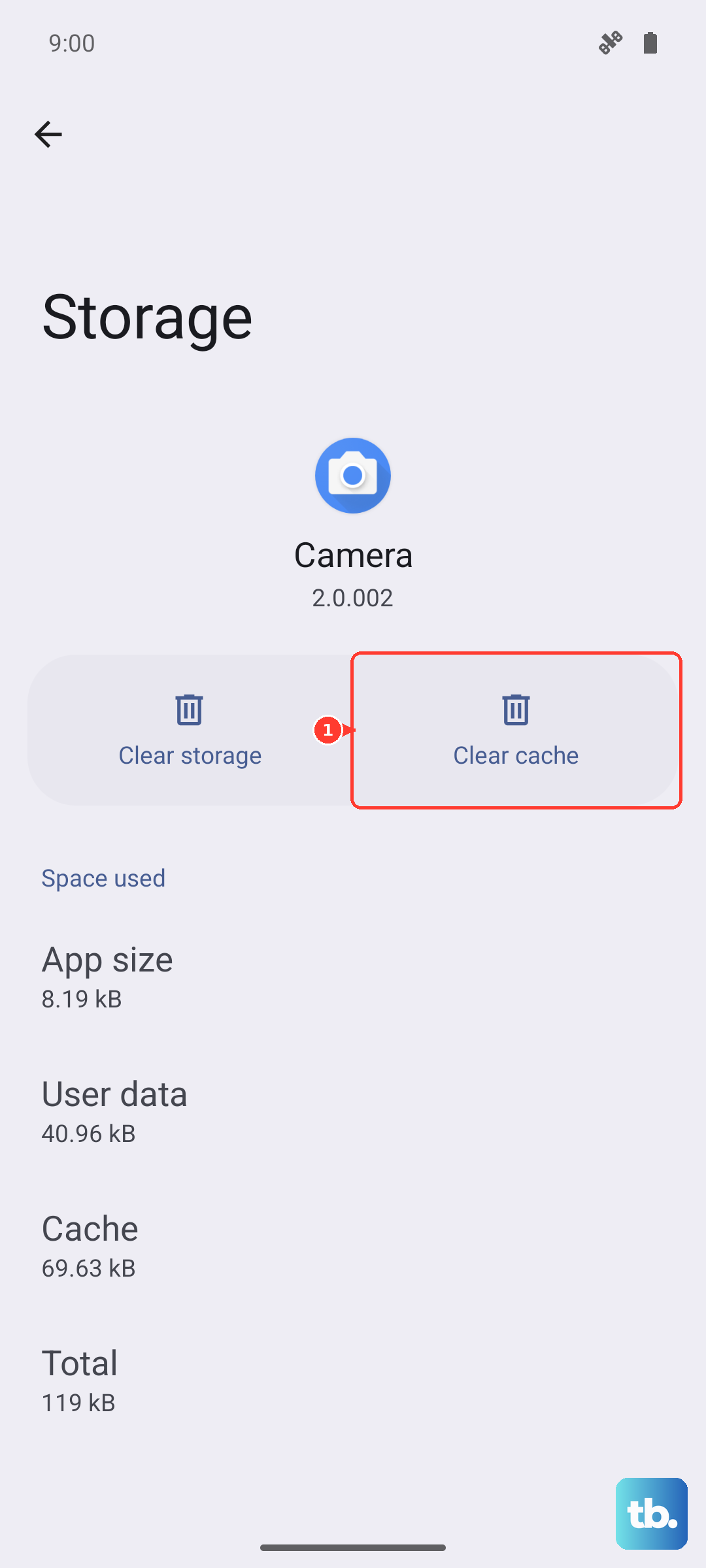
If only one app is stuck but you can still navigate elsewhere, swipe up from the bottom and hold to open the recent apps tray. Swipe up on the frozen app to close it. Then reopen it from the app drawer. If that app keeps freezing, head to the Galaxy Store or Play Store and update it. For a stubborn app, clearing its cache in Settings > Apps > [app name] > Storage > Clear cache often does the trick.
Free Up Storage Space
When internal storage gets below 1GB, the system can freeze because it needs room for temporary files. Open Settings > Device care > Storage and see what's eating up space. Delete old downloads, clear cached data, or move photos to the cloud. Aim for at least 3GB free to keep things running smoothly.
Update the Software
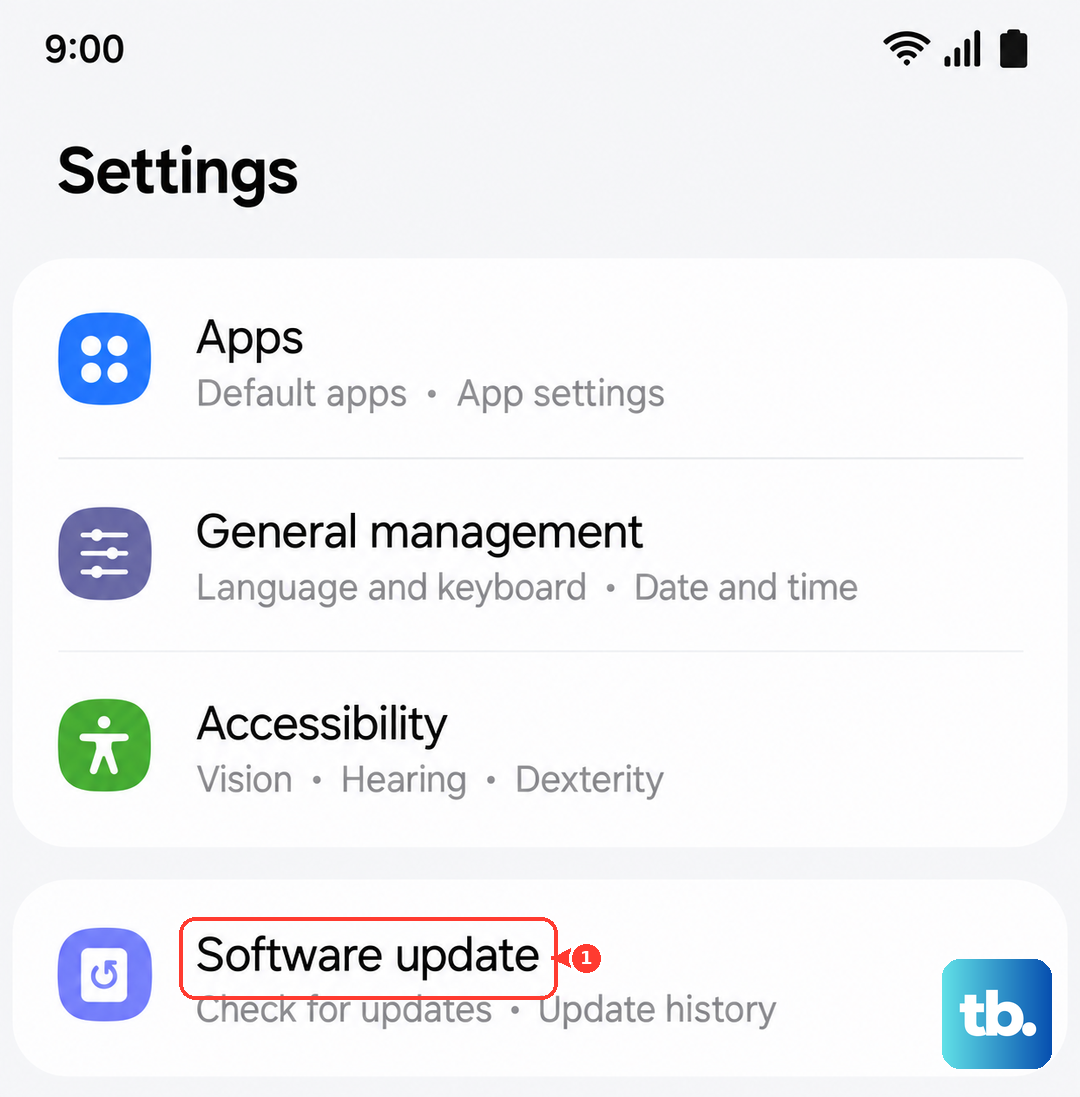
Older versions of Android 16 might have bugs that cause freezing. After restarting, go to Settings > Software update > Download and install. If the phone won't stay stable long enough to check, connect it to a computer and use Samsung Smart Switch to update. A fresh software build often includes fixes for random freezes.
Reset All Settings
Corrupted system settings can cause repeated freezes without wiping your data. Go to Settings > General management > Reset > Reset all settings. Enter your PIN or password and confirm. The phone will restart with default preferences, but your apps, photos, and accounts stay put. This is a good middle step before anything more drastic.
Boot Into Safe Mode
A third‑party app is a common cause of freezing. To check, restart the phone and immediately press and hold the Volume Down key until the home screen appears with "Safe mode" in the bottom left. In safe mode, only system apps run. If the screen no longer freezes, a downloaded app is the culprit. Restart normally and uninstall recently added apps one by one until the freeze stops.
Factory Reset (Last Resort)
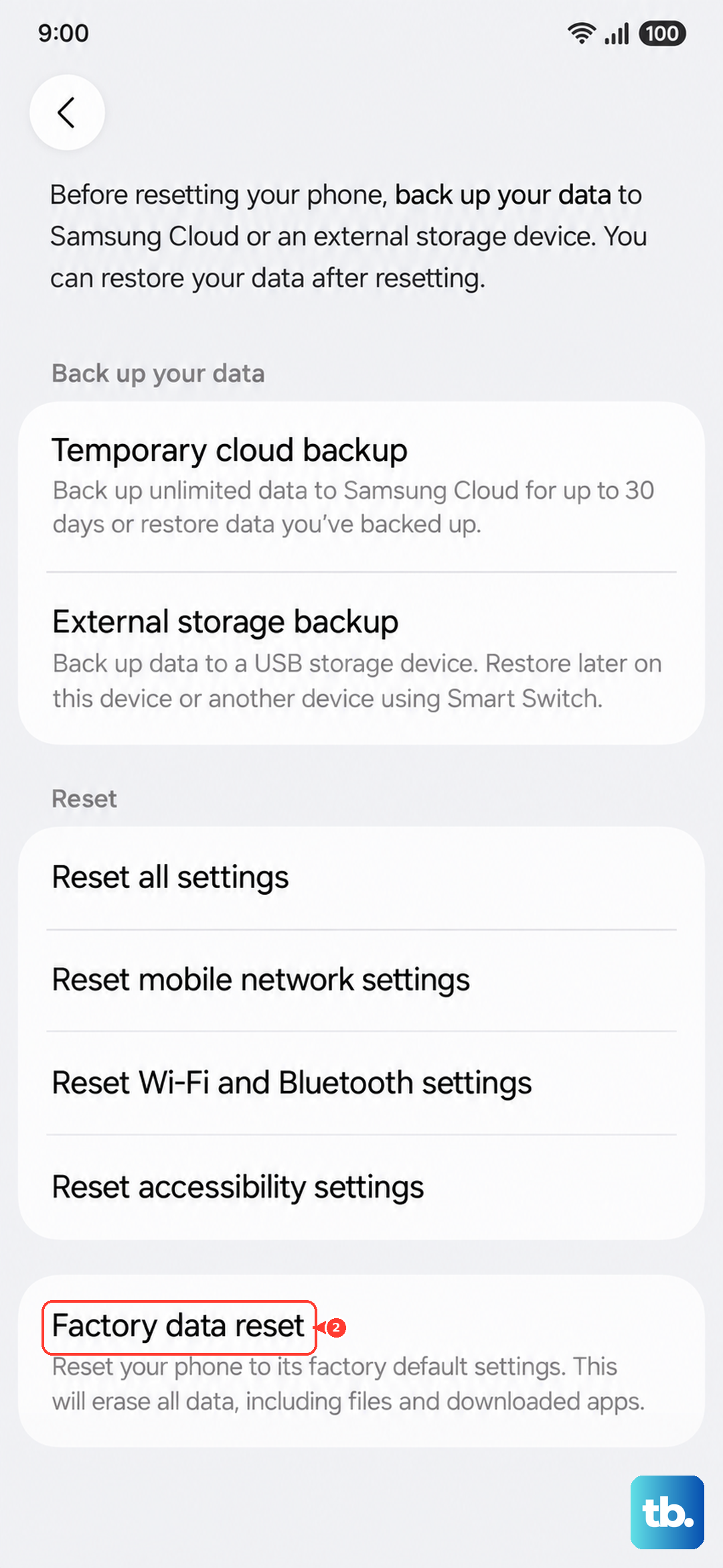
If nothing else works, a factory reset may clear any deep software issue. Back up your data first through Samsung Cloud or Smart Switch. Then go to Settings > General management > Reset > Factory data reset. If the phone is too frozen to reach settings, you can do it from recovery mode: power off, then press and hold Volume Up and Side key together until the blue text screen appears. Use the volume keys to navigate to Wipe data/factory reset and press the Side key to select. This wipes everything, so use it only after trying the other fixes.