Dialing out on your Galaxy Z Flip 7 and getting nothing but silence or a "Call failed" message is maddening. The good news is this is almost always a network or software hiccup, not a hardware fault. These 10 fixes will get you talking again, starting with the quickest.
Toggle Airplane Mode
This is the fastest way to refresh your phone's connection to the cellular network. Swipe down twice from the top of the screen to open the quick settings panel, tap the Airplane Mode icon to turn it on, wait about 10 seconds, then tap it off again. Your Z Flip 7 will re-register with the tower, and a lot of temporary glitches clear up this way.
Check your signal strength
If you're in a basement, an elevator, or a spot with notoriously bad coverage, the phone itself can't do much. Look at the signal bars in the top‑right corner. One bar or "No service" means you need to move closer to a window or step outside. The Z Flip 7 uses the same modem as the Galaxy S25 series, so it's capable of great reception, but obstacles are still obstacles.
Force restart the phone
When the call system gets stuck, a standard restart may not cut it. A force restart clears deeper cache and can fix one‑off software bugs that prevent calls from going through. Press and hold both the Volume Down button and the Side key for 10 to 15 seconds. The screen will go black and the Samsung logo will appear, let go and let the phone boot up normally. Try placing a call now.
Check Do Not Disturb and Modes
Samsung's Modes and Routines are powerful, but sometimes a Mode can silently block incoming or outgoing calls. Swipe down twice to open quick settings and look for the Do Not Disturb icon or an active Mode. If it's highlighted, tap it to turn it off. You can also check under Settings > Modes and Routines to see if any custom setup is filtering your calls.
Make sure date and time are set automatically
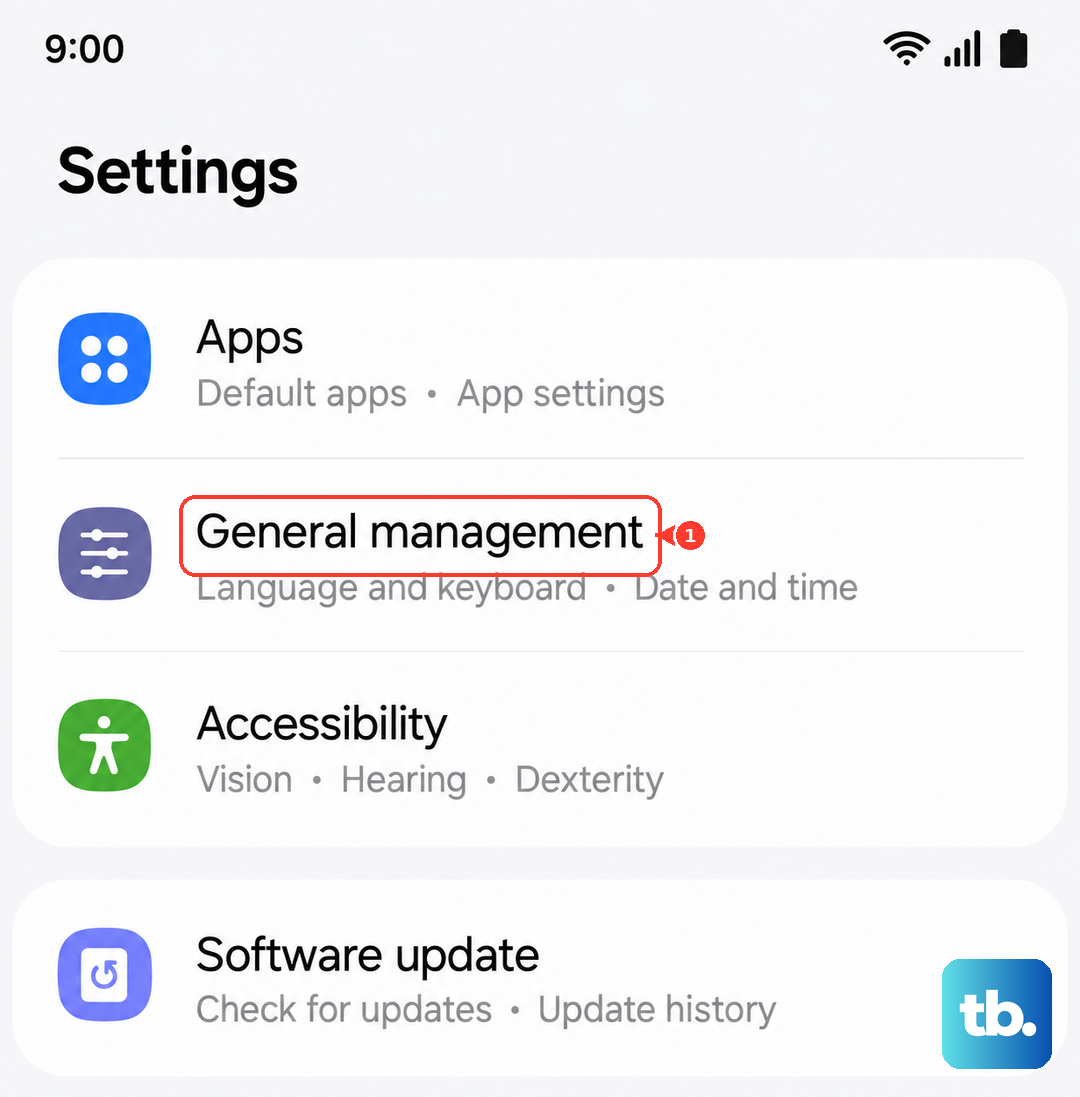
Your Z Flip 7 uses the network's time signal to authenticate with the carrier. If the time is manually set and off by even a few minutes, some carriers reject the call request. Go to Settings > General management > Date and time and make sure "Automatic date and time" is toggled on. Same for the time zone setting.
Remove the SIM and reinsert it
A slightly loose SIM card can cause intermittent call failures. Use the SIM ejector tool that came with your Z Flip 7 (or a paper clip) to pop out the SIM tray. Wipe the gold contacts gently with a dry cloth, reseat the SIM, and push the tray back in. Wait about 30 seconds for the phone to recognize the carrier again. If you have another phone handy, test the SIM there to rule out a damaged card.
Update carrier settings
Carriers push out small configuration updates that optimize how your phone connects to their network. On Samsung phones, this happens automatically, but you can force a check. Go to Settings > About phone > Status information > SIM card status and look for a carrier‑update option. Alternatively, dial *#*#4636#*#* to open the testing menu and tap "Update carrier config."
Switch network mode
If your carrier has a weak 5G signal in your area, the phone may bounce between bands and drop calls. Try locking it to LTE. Go to Settings > Connections > Mobile networks > Network mode and choose "LTE/3G/2G (Auto connect)" instead of "5G/LTE/3G/2G." Make a test call. If it works, you can switch back to 5G when you're in a stronger area.
Reset mobile network settings
This clears saved Wi‑Fi networks, Bluetooth pairings, and VPN settings, but it also resets your cellular configuration to default. It's a safe step that often resolves persistent call issues. Go to Settings > General management > Reset > Reset mobile network settings. Tap "Reset settings" and enter your PIN if prompted. After the phone reboots, reconnect to Wi‑Fi and test a call.
Update the system software
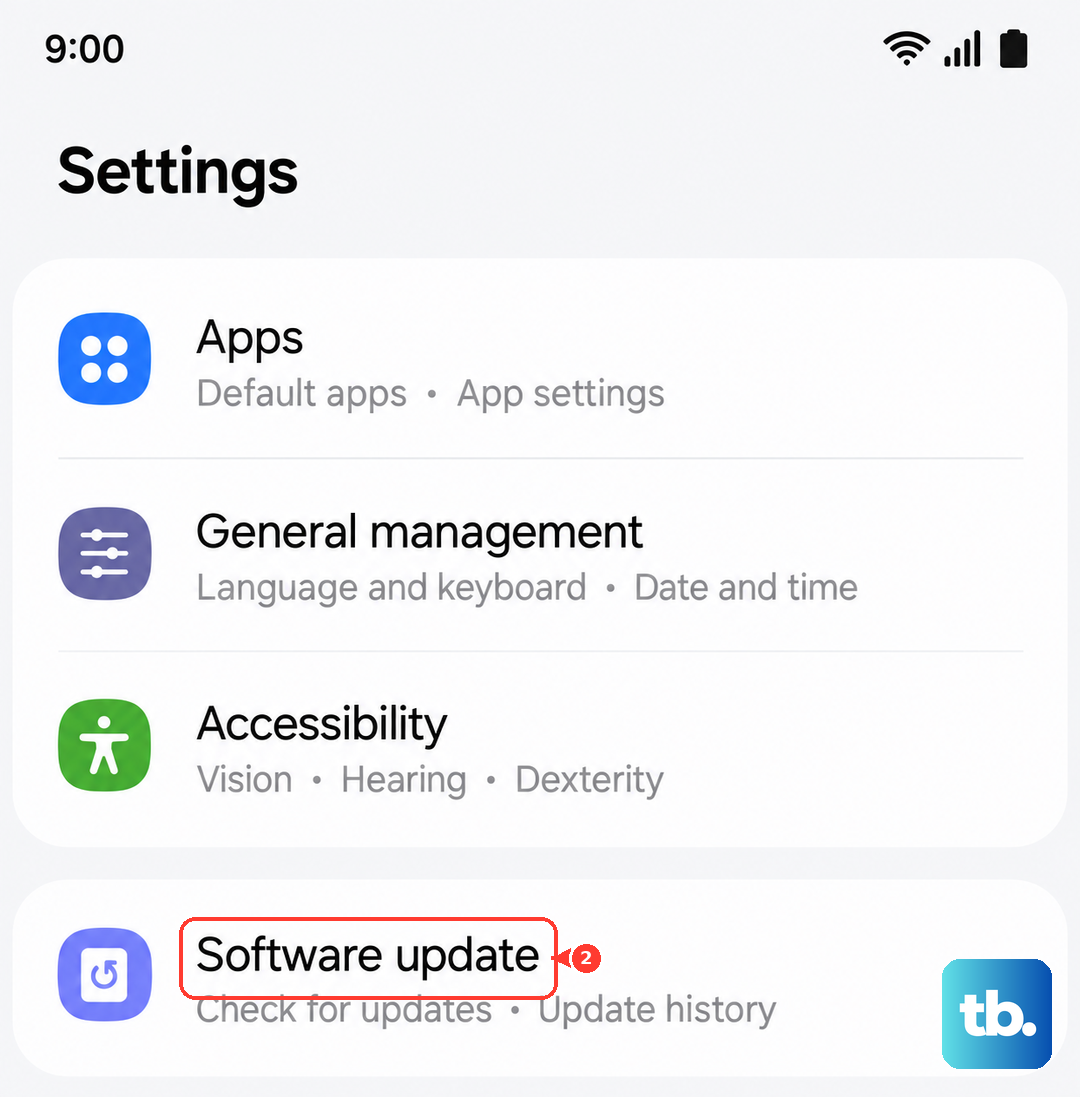
Samsung continues to refine the Z Flip 7's software, and monthly security patches can include carrier-related fixes. Open Settings > Software update > Download and install. If an update is available, make sure you're on Wi-Fi and have enough battery before installing. A fresh software build can squash bugs that break calling.