
When your Samsung Galaxy Z Flip 7 suddenly stops downloading apps, it's easy to assume something's seriously wrong. More often than not, it's a minor glitch with the Google Play Store or your network connection. Let's run through the fixes that actually work on this foldable.
Before anything else, try a quick restart. On the Z Flip 7, press and hold the Volume Down button and the Side key simultaneously for about 10 seconds. Keep holding until you see the Samsung logo, that forces a full restart even if the screen is unresponsive.
Check Your Internet Connection
Pull down the notification shade and look at your Wi‑Fi or mobile data icon. If you're on Wi‑Fi, make sure you're actually connected, sometimes the Z Flip 7 shows a saved network but isn't fully linked. If that's the case, forget the network and reconnect. If you're on mobile data, toggle Airplane Mode on for a few seconds, then turn it off. This refreshes the connection without rebooting.
Fix Date and Time Settings
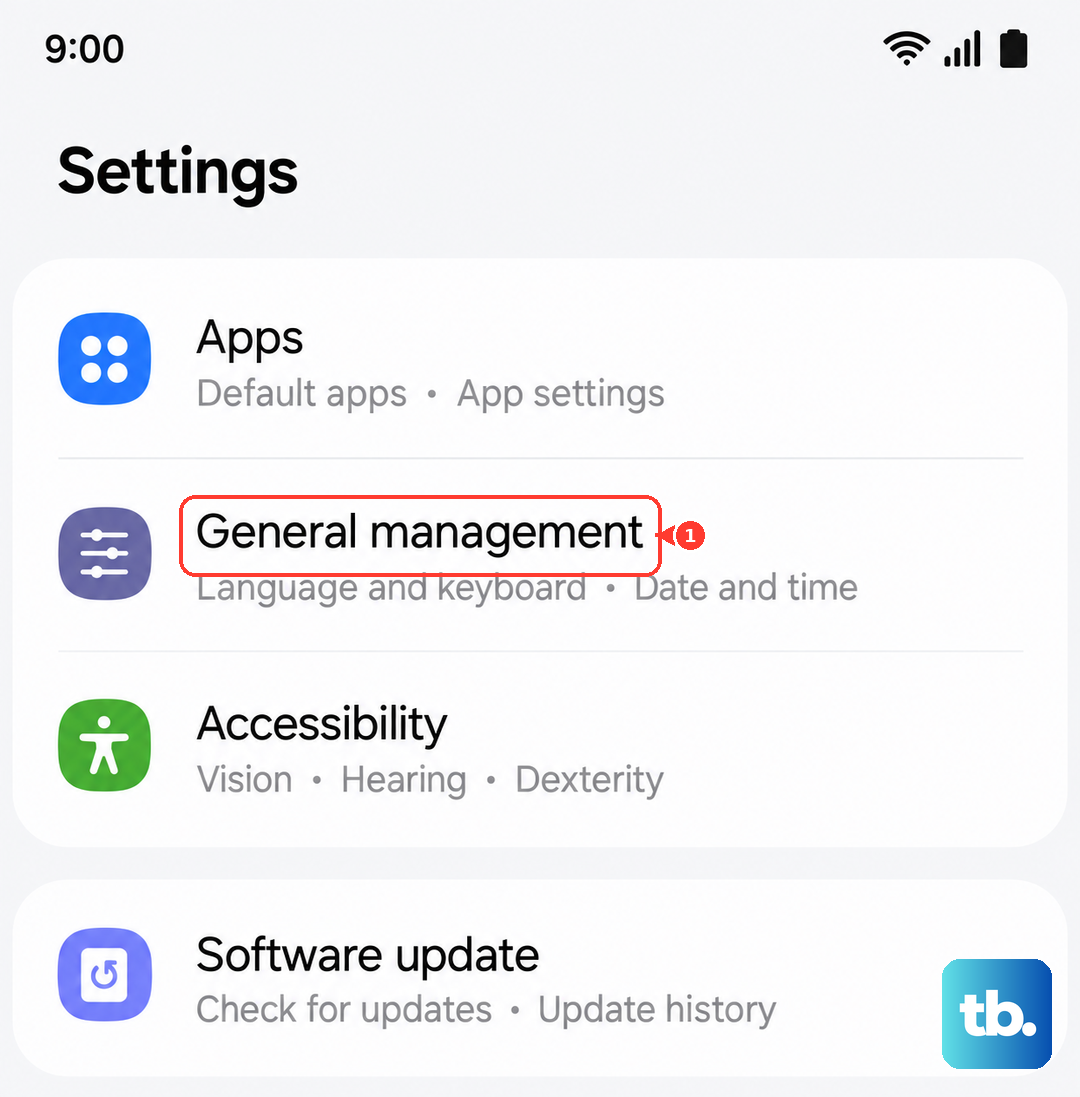
Google Play relies on your device's clock to verify security certificates. Go to Settings > General Management > Date and Time and turn on Automatic Date and Time. If it's already on, switch it off, set the time manually to match your current timezone, then turn automatic back on. That shakeup often clears up sync issues.
Switch Networks or Toggle Data
Some Wi‑Fi routers block Google Play's download port (5228). If downloads stall, turn off Wi‑Fi from the notification shade and enable mobile data. Try downloading an app again. If it works, you've found the culprit. You can also try a different Wi‑Fi network, like a mobile hotspot from another phone, to confirm.
Clear the Play Store Cache and Data
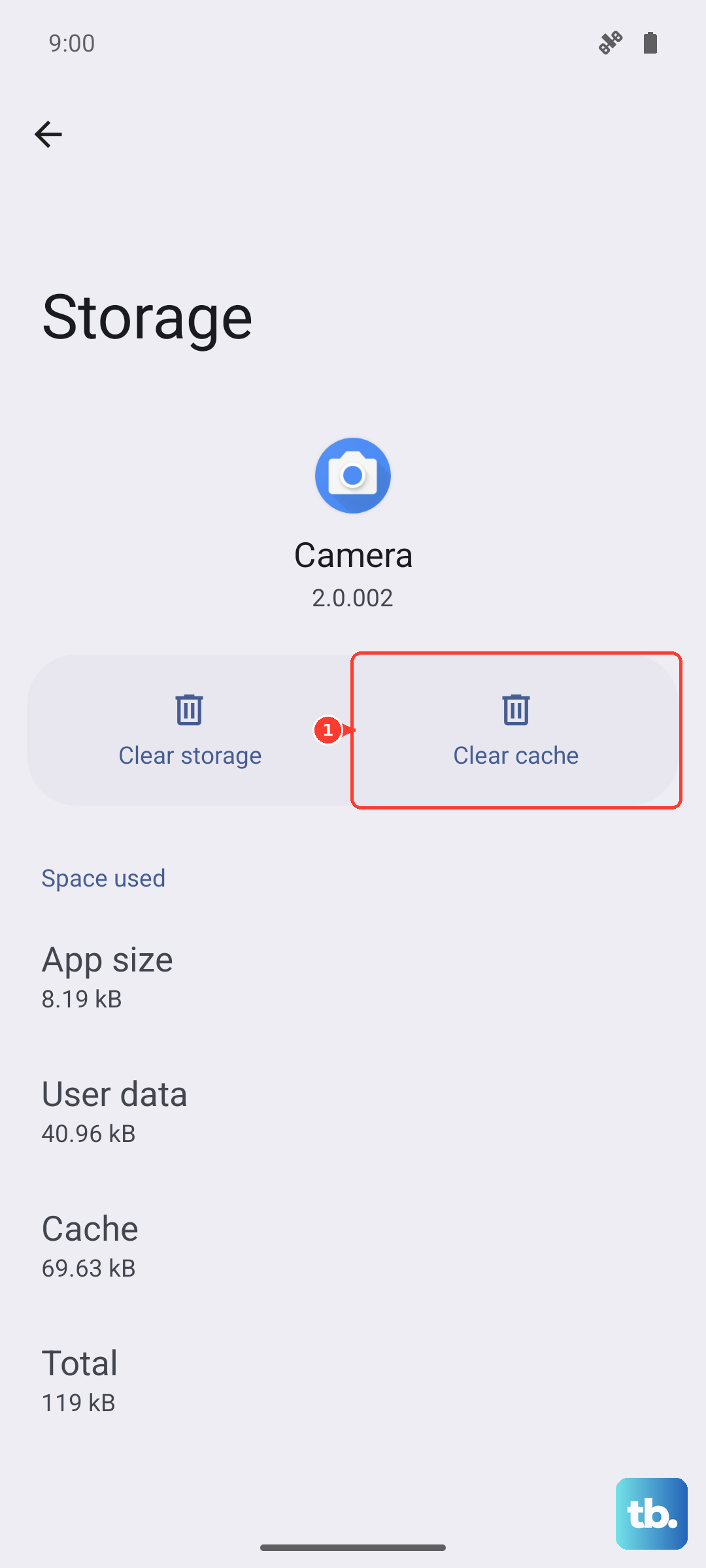
Corrupted cache files are a common cause of download failures. Go to Settings > Apps > Google Play Store > Storage. Tap Clear Cache. If that doesn't help, tap Clear Data (you'll get a warning, that's fine, it won't delete your account). Then restart the Z Flip 7 and open the Play Store again.
Clear Google Play Services Cache
Google Play Services handles communication between the Play Store and your device. Head to Settings > Apps > Google Play Services > Storage. Tap Clear Cache, then tap Manage Storage and choose Clear All Data. This resets the service without removing your Google account.
Enable and Reset Download Manager
Android's built-in Download Manager sometimes gets disabled or clogged. Go to Settings > Apps, tap the three‑dot menu, and select Show System Apps. Find Download Manager and make sure it's enabled. Then tap Storage and clear both cache and data. This forces the system to restart its download queue.
Refresh Your Google Account Sync
A stuck sync can prevent the Play Store from processing new downloads. Go to Settings > Accounts and Backup > Manage Accounts and tap your Google account. Tap Sync Account, then tap the three‑dot menu and choose Cancel Sync. Wait about 30 seconds, then pull down to refresh. If that doesn't work, remove the account entirely: go back to Manage Accounts, tap your Google account, and choose Remove Account. Then add it back under Add Account > Google.
Force Stop Play Services and Check Permissions
Sometimes Google Play Services just gets stuck. Go to Settings > Apps > Google Play Services and tap Force Stop. While you're there, check permissions: tap Permissions and make sure Storage is allowed. Also tap Change system settings and confirm it's permitted.
Update or Roll Back Play Services
If the problem started after a recent update, you can uninstall Play Services updates. Go to Settings > Apps > Google Play Services, tap the three‑dot menu, and choose Uninstall Updates. This reverts it to the factory version. Then open the Play Store and let it re‑update automatically.
Update One UI and Android 16
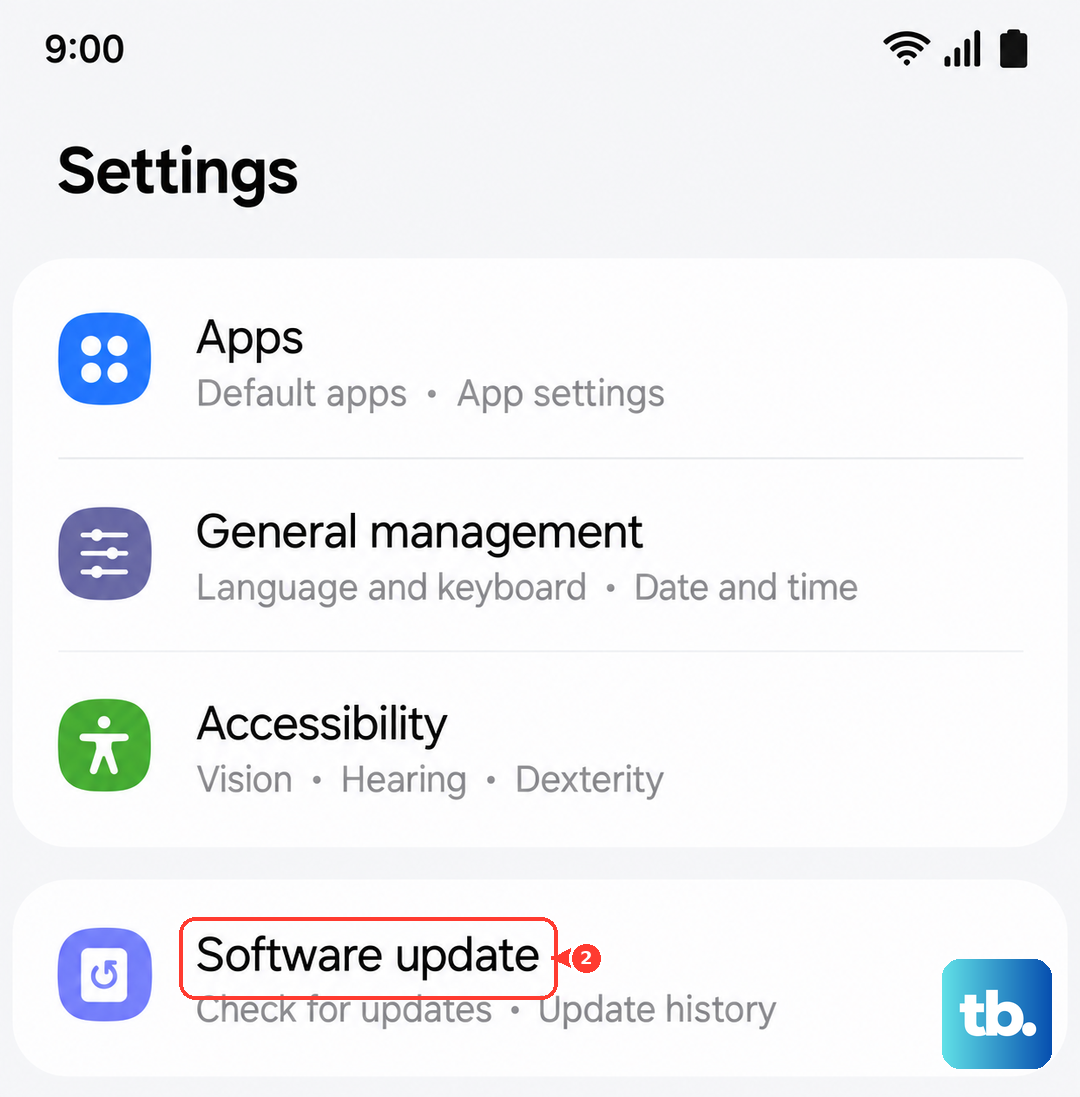
Software bugs can interfere with app downloads. On the Z Flip 7, go to Settings > Software Update > Download and Install. If there's a pending One UI update or Android 16 patch, install it. Samsung regularly pushes fixes for Play Store compatibility, so this is worth checking.
When the Error Message Tells You Something
If you see an "Insufficient Space" error, free up storage by deleting old photos, videos, or unused apps. You can check storage under Settings > Battery and Device Care > Storage. For Error DF‑BPA‑09 (“Error Processing Purchase”), go to Settings > Apps > Google Services Framework > Storage and clear its data. And if you get Error 911, it's almost always a Wi‑Fi issue, switch to mobile data, clear Play Services cache, and try a different network.
These ten fixes cover the vast majority of “won't download” problems on the Galaxy Z Flip 7. Start with the simplest, restart and network check, then work through the Play Store and account tweaks. In my experience, the cache clears and sync refresh solve it for most people. If you've tried everything and apps still won't download, a factory reset is the last option, but I'd only go there after backing up your photos and files first.