Your Galaxy Z Flip6 lights up with a missed call, yet you never heard a single ring. Maybe it stayed silent in your bag all morning, or it buzzes for some callers but not others. A phone that won't ring for incoming calls is almost always a sound or settings problem rather than a broken speaker, and the foldable design adds nothing unusual here since the Z Flip6 handles standard cellular calls and ringtones like any Galaxy phone. Work through the fixes below in order, starting with the quickest and safest, and test an incoming call after each one until your ringtone comes back.
Start with volume, because that is the usual culprit
The most common reason a Galaxy Z Flip6 stays quiet is simply that the ringer volume is down, and a connected accessory can quietly block you from turning it up. Close any open apps and stop playing media first, then press the Volume buttons to raise the level. If headphones or earbuds are connected, or media is playing, the ringtone volume may refuse to increase, so disconnect them before you try again.
You can confirm the exact levels in the settings menu rather than guessing. Go to Settings > Sounds and vibration > Volume and drag the call ringtone slider up. This same screen controls notification, media, and system volumes separately, and an extra slider appears when a Bluetooth or headphone audio device is connected.
Confirm Sound mode is set to Sound, not Vibrate or Mute
One toggle can silence every incoming call instantly. Go to Settings > Sounds and vibration > Sound mode and choose Sound. The three options are Sound, Vibrate, and Mute, and the last two will both stop the phone from ringing audibly even when the volume is high.
Clear the settings that intentionally keep your phone quiet
Several Galaxy features are designed to silence calls on purpose, and any one of them can leave you thinking the phone is broken. The next few fixes walk through each of them so you can rule them out one at a time.
Turn off Do not disturb or add call exceptions
Do not disturb mutes ringtones until you turn it back off. Swipe down from the top right of the screen to open the Quick settings panel, then touch and hold the Do not Disturb icon to check its settings. You can also open Settings > Notifications > Do not disturb for the full view.
If you want to keep Do not disturb on but still hear from certain people, set them under the Allowed during Do not disturb exceptions. That lets calls from chosen contacts ring through while everything else stays silent.
Turn off Mute all sounds in Accessibility
An Accessibility setting can silence absolutely everything, ringtones included, and it is easy to enable by accident. Go to Settings > Accessibility > Hearing enhancements, then tap the switch next to Mute all sounds to turn it off.
Turn off any silencing Modes and Routines
A scheduled mode may be muting your calls at specific times without you realizing it. Go to Settings > Modes and Routines and turn off any mode that can silence the ringtone, such as Sleep or Relax. A time-based schedule is a common reason a phone rings during the day but not at night.
Make sure the call can actually reach your phone
If your phone never gets the incoming call in the first place, no ringtone will ever play. Airplane mode is the usual offender here. Swipe down from the top right of the screen to open the Quick settings panel, and if the Airplane mode icon is blue, tap it to turn it off so calls can reach the phone again.
Check your ringtone and per-contact ring settings
If the phone vibrates or shows the call but plays no sound, the ringtone itself may be the issue. Confirm that a ringtone is actually selected, and note that you need a downloaded audio file because you cannot set a streaming track such as a Spotify song as a ringtone.
For a specific person who never rings through, check their individual setting. Open Contacts > select the contact > More > Change ringtones/vibration > Ringtone, and set Ring even when set to Vibrate or Mute the way you want it. Turn that switch on if you want that caller to ring even in silent or vibrate mode, or off if you do not.
Restart the phone to clear a temporary glitch
If every setting looks correct and the phone still won't ring, a restart often clears a temporary software hiccup. Swipe down from the top right of the screen and then tap the Power icon. Tap Restart, and then tap Restart again, let it boot fully, and test an incoming call.
Force a restart if the phone is frozen or unresponsive
When the screen is frozen or the normal restart won't take, a forced restart is the recommended next step and it does not erase any data. Press and hold the Volume down button and the Side button (or Power button) simultaneously until the device turns off and turns back on. The screen goes black, the Samsung logo appears, and you can release the buttons at that point.
Install any pending software update
An outdated build can cause sound and call bugs that a later update fixes. Using two fingers, swipe down from the top right of the screen and tap the Settings icon, then go to Software update (or System updates). Tap Download and install (or Check for system updates or Check for software updates, depending on your carrier) and follow the prompts.
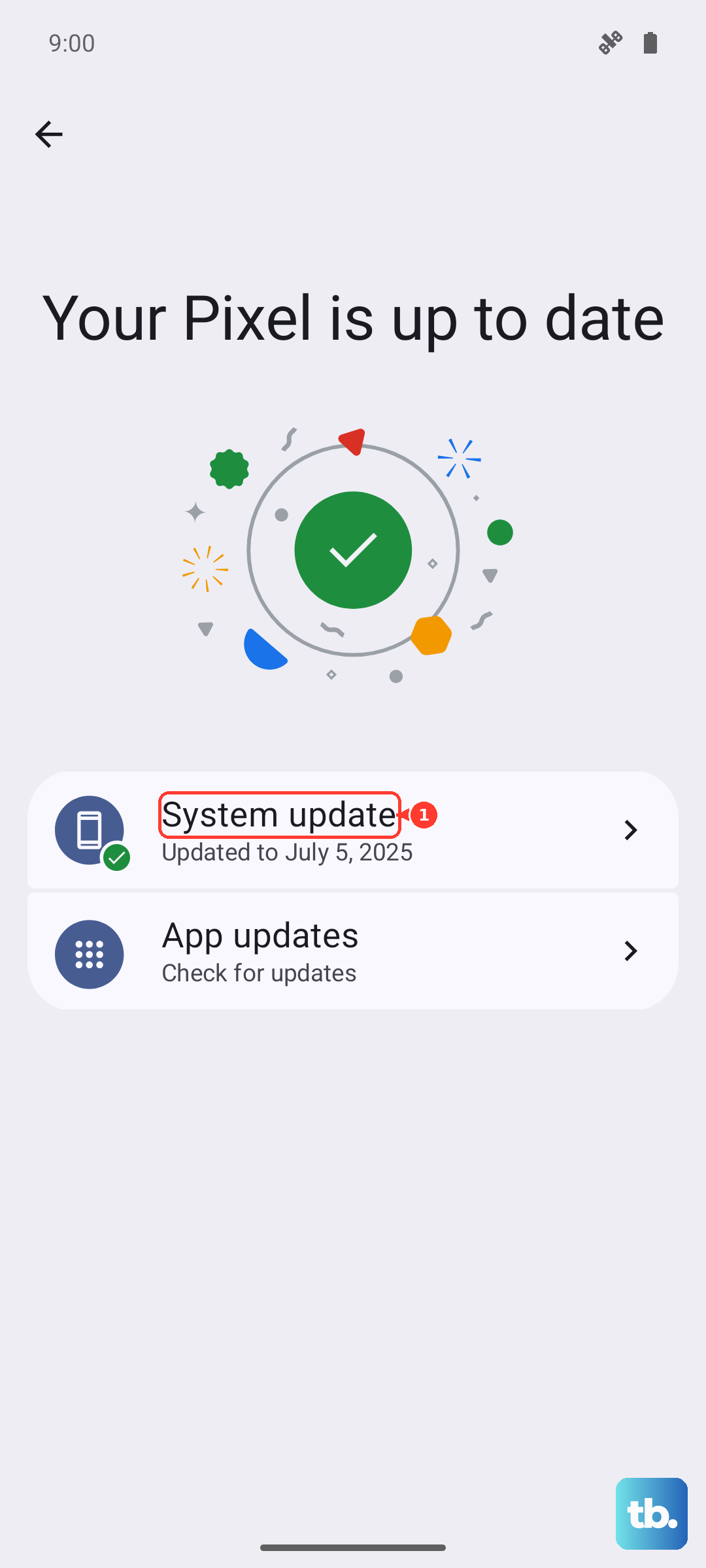
Connect to Wi-Fi and keep the battery charged before you start, since the phone restarts to finish installing. If the on-device update fails, you can also update the firmware using Smart Switch on a Windows PC or Mac connected over USB.
Reset network settings for stubborn call problems
If incoming calls are inconsistent or fail to connect at all, resetting your network configuration can help without touching your personal files. Go to Settings > General management > Reset and choose Reset mobile network settings for call and mobile issues, or Reset Wi-Fi and Bluetooth settings if a paired device may be intercepting audio. Tap Reset settings, enter your security credentials if prompted, then tap Reset.
Keep in mind that this clears saved Wi-Fi networks, so you will need to re-enter Wi-Fi passwords afterward.
Use Safe mode to rule out a downloaded app
A third-party app can hijack your sound settings or block the ringer, and Safe mode temporarily disables every app you installed yourself. Press and hold the Power button until the menu appears, then touch and hold Power off until the Safe mode icon shows and tap Safe mode. If the phone rings normally in Safe mode, a downloaded app is the cause, so restart normally to exit Safe mode and remove recently added apps one by one.
Factory reset only as a last resort
If nothing above restores your ringtone, a factory data reset returns the phone to its original state, but it erases everything, so treat it as the final option. Back up all of your data first, because this removes all data, apps, settings, and personal files and they cannot be recovered.
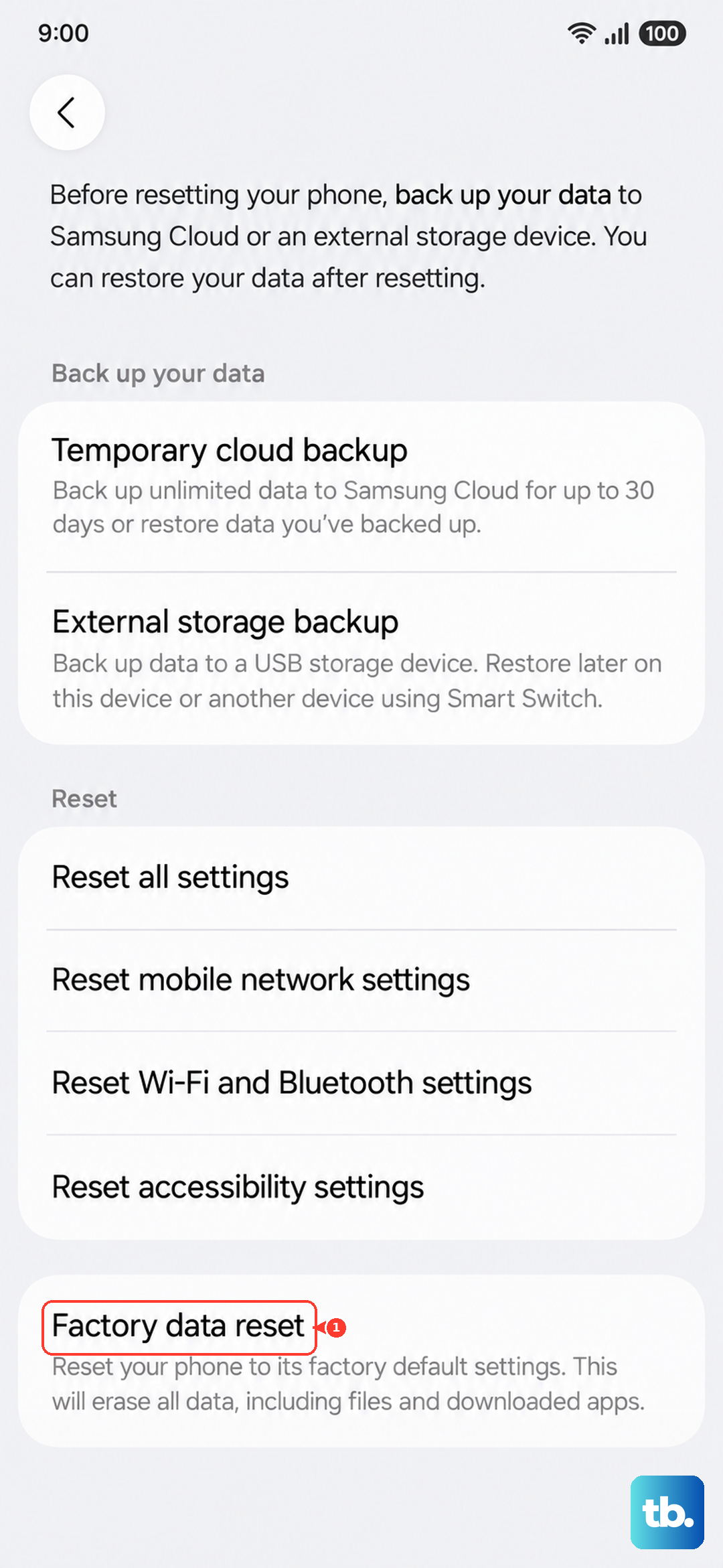
When you are ready, go to Settings > General management > Reset > Factory data reset > Reset > Delete all. You will need your security lock and Samsung account password if either is set, and the phone restarts to the initial setup screen.
When to bring in Samsung or your carrier
If calls still won't ring after a reset, the issue may be with your service or hardware. Check that your account is in good standing and that the SIM is seated correctly, and remember that a recently switched carrier may need reprogramming.
For hands-on help, use the Samsung Members app for built-in support, diagnostics, and chat or service-request options. You can also reach Samsung US support through the official Samsung support website or by calling 1-800-726-7864.
Frequently Asked Questions
Why does my Galaxy Z Flip6 ring for some people but not others?
A per-contact ringtone setting is the likely cause. Open Contacts > select the contact > More > Change ringtones/vibration > Ringtone and check the Ring even when set to Vibrate or Mute switch, and also confirm that contact is not being silenced by Do not disturb exceptions.
Why won't my ringtone volume go up?
If headphones or earbuds are connected, or media is playing, the ringtone volume may not increase. Close any apps, stop playing media, and disconnect those accessories, then use the Volume buttons or drag the call ringtone slider in Settings > Sounds and vibration > Volume.
Can I set a Spotify or streaming song as my ringtone?
No. You need a downloaded audio file to use as a ringtone, so a streaming track such as a Spotify song cannot be selected. If your chosen ringtone won't apply, this is usually why.
Will resetting network settings delete my photos or apps?
No, resetting mobile network settings or Wi-Fi and Bluetooth settings does not erase your personal files or apps. It does clear saved Wi-Fi networks, so you will need to re-enter your Wi-Fi passwords afterward.
Does a force restart erase my data?
No. Pressing and holding Volume down plus the Side (Power) button until the screen goes black and the Samsung logo appears simply restarts the phone without erasing data, which is why it is the recommended step when the device is frozen or unresponsive.