
So your Samsung Galaxy Z Flip 6 won't charge. You've plugged it in, maybe even tried a different cable, and that cover screen is staying stubbornly dark. It's a frustrating spot to be in, especially with a phone that folds. The good news is this is almost always something you can fix yourself without a trip to the repair shop.
Whether the USB-C port isn't responding, your wireless charger isn't working, or the phone just seems completely dead, we'll walk through the fixes. We'll start with the quickest solutions and work our way through.
Force Restart Your Galaxy Z Flip 6
This should always be your first move. A simple force restart can clear out a temporary software glitch that's preventing the phone from recognizing it's plugged in. It takes about 10 seconds and fixes more charging issues than you'd think.
For the Galaxy Z Flip 6, press and hold the Volume Down button and the Side/Power button simultaneously. Keep holding them for about 10 seconds or until you see the Samsung logo appear on the screen.
Once it boots back up, plug in your charger and check for the charging indicator. If you see the lightning bolt icon or a battery percentage increasing, you're back in business.
Clean the USB-C Charging Port
This is the single most common fix for any phone that won't charge, and the Z Flip 6 is no exception. Lint, dust, and pocket debris love to pack into that USB-C port every time you slide it into your pocket or bag. Eventually, the cable can't make a proper connection.
Grab a flashlight and take a close look inside the port. If you see any fuzz or compacted dirt, you'll need to clean it out. First, power the phone off completely for safety.
Then, use a wooden or plastic toothpick to gently scrape along the sides and bottom of the port. Avoid using anything metal, as it can damage the delicate gold contacts. A can of compressed air held a few inches away can help blow loose debris out. Finally, give the phone a gentle tap with the port facing down to dislodge anything stuck.
Test a Different Cable and Power Source
You need to figure out if the problem is with your cable, your wall adapter, or the phone itself. The best way is to swap each component one by one.
Try a different USB-C cable first, preferably one you know works with another device. Then, try a different wall adapter or plug the cable into a computer's USB port. Don't forget to try a different wall outlet altogether, as sometimes the outlet itself is the issue.
Also, remove your phone case, especially if it's a thick or rugged one. A case can sometimes prevent the USB-C plug from seating fully into the port. If your Z Flip 6 charges with a different cable, you've found your culprit.
Check for Software Updates
Samsung regularly releases updates for One UI that can fix bugs, including ones that might interfere with charging. It's worth checking if you're running the latest software.
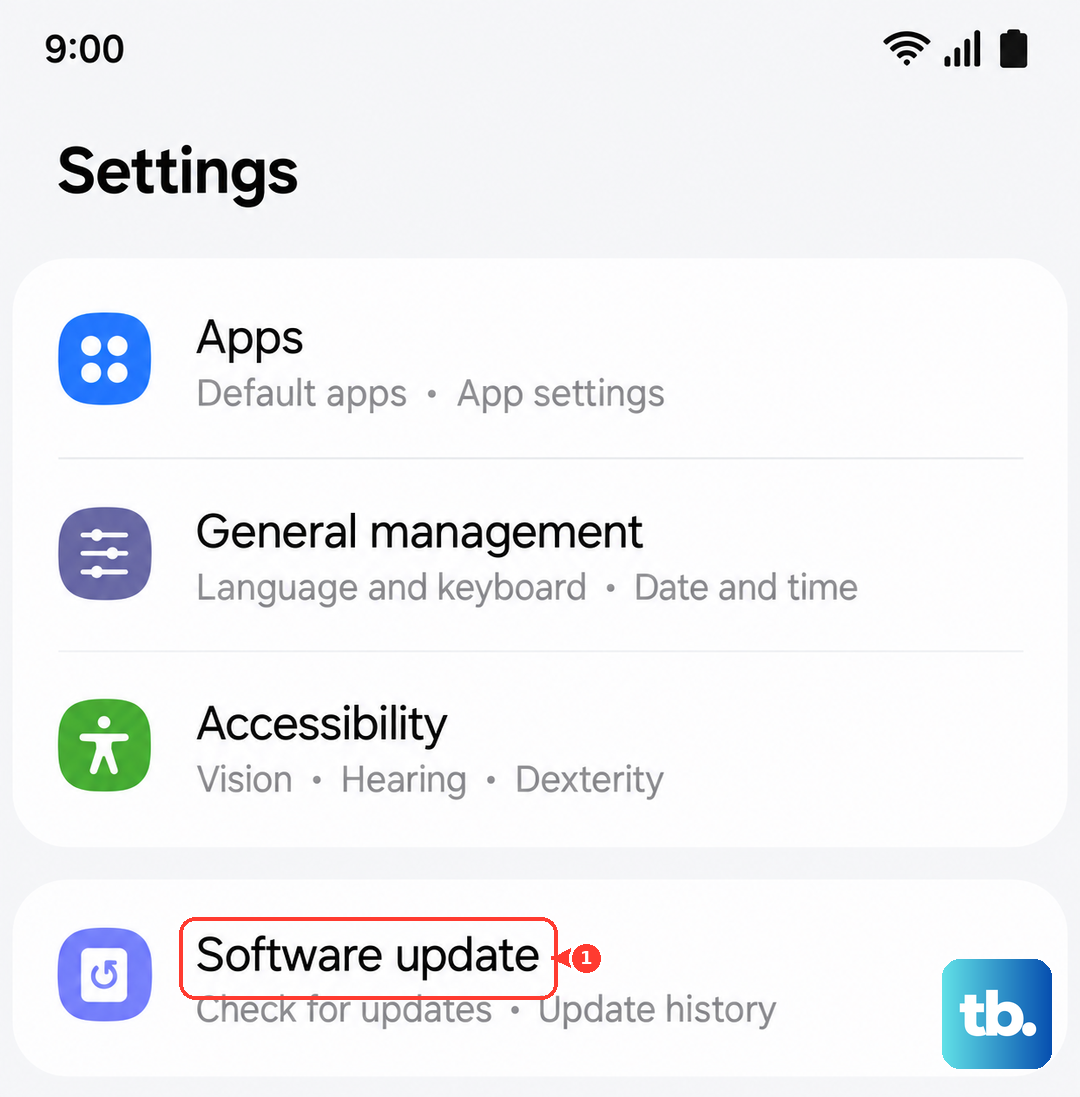
Go to Settings > Software update and tap on Download and install. Make sure your phone is connected to Wi-Fi and has at least 50% battery, or plug it in while the update runs. I've seen minor updates resolve quirky charging behavior on several Samsung models.
Try Wireless Charging
The Galaxy Z Flip 6 supports Qi wireless charging up to 15W. If your wired charging isn't working, placing it on a wireless charger is a great way to diagnose the problem. If it charges wirelessly but not via USB-C, you know the issue is isolated to the physical port.
Make sure you're using a compatible wireless charger and that it's plugged into a powerful enough adapter. Align the center of the phone's back with the center of the charging pad. Remove any thick cases or accessories that might be blocking the connection.
Remember, wireless charging is generally slower and can make the phone warmer than wired charging, which is normal. If it gets too hot, it may slow down or pause charging to protect the battery.
Wait If the Battery Is Fully Drained
If you've let your Z Flip 6's battery run down to absolute zero, it won't show any signs of life immediately when you plug it in. This is a safety feature of the battery. You need to be patient.
Leave it connected to a wall charger (not a slow computer USB port) for at least 30 minutes. Don't touch it or try to turn it on during this time. After a half-hour, check for a charging icon on the cover screen or the main display.
If you still see nothing, try the force restart method while the phone is still plugged into the wall. Hold Volume Down and the Side button for 10+ seconds to see if it kicks back on.
Inspect Your Battery Protection Settings
Samsung includes several features to help preserve your battery's long-term health, and sometimes these can be mistaken for a charging problem. It's worth checking your settings.
Go to Settings > Battery. Look for options like "Battery protection" which limits charging to 85%. If this is turned on, your phone will stop charging before reaching 100%. There's also an adaptive battery feature that can learn your habits.
You can adjust these settings based on your needs. If you need a full charge for a long day, turn Battery protection off. Otherwise, keeping it on is great for your battery's lifespan, especially with the Z Flip 6's 4000mAh capacity.
Charge with the Phone Powered Off
Sometimes a background app or process can interfere with the charging circuit. A simple way to test this is to turn your Z Flip 6 completely off and then plug it in.
If it starts charging normally while powered off, you know the hardware is fine and it's a software-related issue. This method also typically allows for slightly faster charging, as no system resources are being used.
Boot into Safe Mode
If you suspect a recently downloaded third-party app is causing trouble, booting into Safe Mode can help you confirm it. Safe Mode temporarily disables all apps you've installed, leaving only Samsung's core software running.
To enter Safe Mode, press and hold the Side/Power button until the power off menu appears. Then, press and hold the "Power off" option on your screen. It will ask if you want to reboot to Safe Mode. Tap OK.
Once in Safe Mode, which will be indicated in the bottom corner of the screen, try charging your phone. If it charges normally here, you have a problematic app. You'll need to restart normally and uninstall recent apps one by one to find the culprit.