When your Samsung Galaxy Tab S9 volume buttons stop responding, it can be a real hassle. You press them and nothing happens, whether you're trying to turn up a video or silence a notification. The good news is that most of the time, this is a software hiccup or a simple obstruction that you can fix yourself without needing a repair shop.
Before you consider a warranty claim, work through these solutions. I'd start with the force restart, as it clears up a surprising number of glitches on One UI.
Remove Your Tablet Case
This is the easiest thing to check. Take your Tab S9 out of its case, especially if it's a rugged or folio style. Sometimes cases can be slightly misaligned or have worn padding that presses against the buttons, keeping them in a constant "pressed" state.
Without the case, test the volume rocker. You should feel a distinct, tactile click for both up and down. If it works fine now, you've found the culprit.
Perform a Force Restart
A force restart is the go-to fix for unresponsive buttons on Android tablets. It clears the device's memory and reboots the system without deleting any of your personal data or files.
For the Galaxy Tab S9, press and hold the Volume Down button and the Side/Power button simultaneously. Keep holding them for about 10 seconds until you see the Samsung logo appear on the screen, then release.
Once the tablet boots back up, try the volume buttons immediately. This simple reset resolves temporary software conflicts that can make hardware controls stop talking to the system.
Check Sound and Vibration Settings
It's worth a quick look in your settings to make sure nothing was accidentally changed. Open the Settings app and tap on "Sounds and vibration."
Scroll down and ensure that the "Use volume keys for media" option is toggled on. If it's off, the volume buttons will only control your ringtone volume, which can be confusing if you're trying to adjust media sound in an app like YouTube or Netflix.
Use the On-Screen Volume Slider
While you're figuring this out, you can still control your volume. Just press either volume button once to make the volume panel appear on the right side of the screen.
You can then drag the slider up or down with your finger. You can also access this slider quickly by pulling down the notification shade twice to open the full Quick Settings panel.
Clean the Volume Rocker
Dust, lint, and pocket debris are common enemies of physical buttons. Over time, they can get packed into the small gap around the volume rocker, preventing it from moving properly.
Turn off your tablet first. Then, take a can of compressed air and give short, controlled bursts into the gap around the button. Hold the tablet at an angle so the debris falls out.
For sticky residue, lightly dampen a cotton swab with a small amount of isopropyl alcohol (90% or higher is best) and gently clean around the button's edges. Let it dry completely before turning your tablet back on.
Test the Buttons in Safe Mode
Safe Mode temporarily disables all third-party apps you've downloaded. If the volume buttons work perfectly in Safe Mode, then a recently installed app is likely causing the conflict.
To boot into Safe Mode, press and hold the Side/Power button until the power menu appears. Then, tap and hold the "Power off" option on your screen. A prompt will ask if you want to reboot to Safe Mode, tap "OK."
Test the volume buttons once the tablet restarts. To exit Safe Mode, just perform a normal restart.
Try Different Apps and Media
Open a few different apps to see where the problem occurs. Try adjusting volume in the YouTube app, then in Samsung Music or Google Podcasts.
Also, try playing different types of media, a local video file, a streaming song, a system sound. If the buttons work in some apps but not others, the issue is app-specific. Try updating or reinstalling the problematic app.
Check for Software Updates
Samsung regularly releases updates for One UI that fix bugs, including ones that might affect hardware controls. Making sure your tablet is up to date is a crucial step.
Go to Settings > Software update > Download and install. Connect to Wi-Fi and plug in your charger before starting the update. An outdated system can sometimes cause strange behavior with the physical buttons.
Enable and Use SoundAssistant
Samsung includes a useful app called SoundAssistant in the Galaxy Store that gives you more granular sound controls. Installing or opening it can sometimes refresh the audio system.
Open the Galaxy Store, search for "SoundAssistant," and install it if you haven't already. Open the app and explore its settings. Just the act of launching it can re-establish the connection between your volume buttons and the system audio.
Reset All Settings
If you're still stuck, a settings reset can help. This will revert all your system settings (like Wi-Fi passwords, display preferences, and app permissions) back to factory defaults without touching your personal photos, messages, or apps.
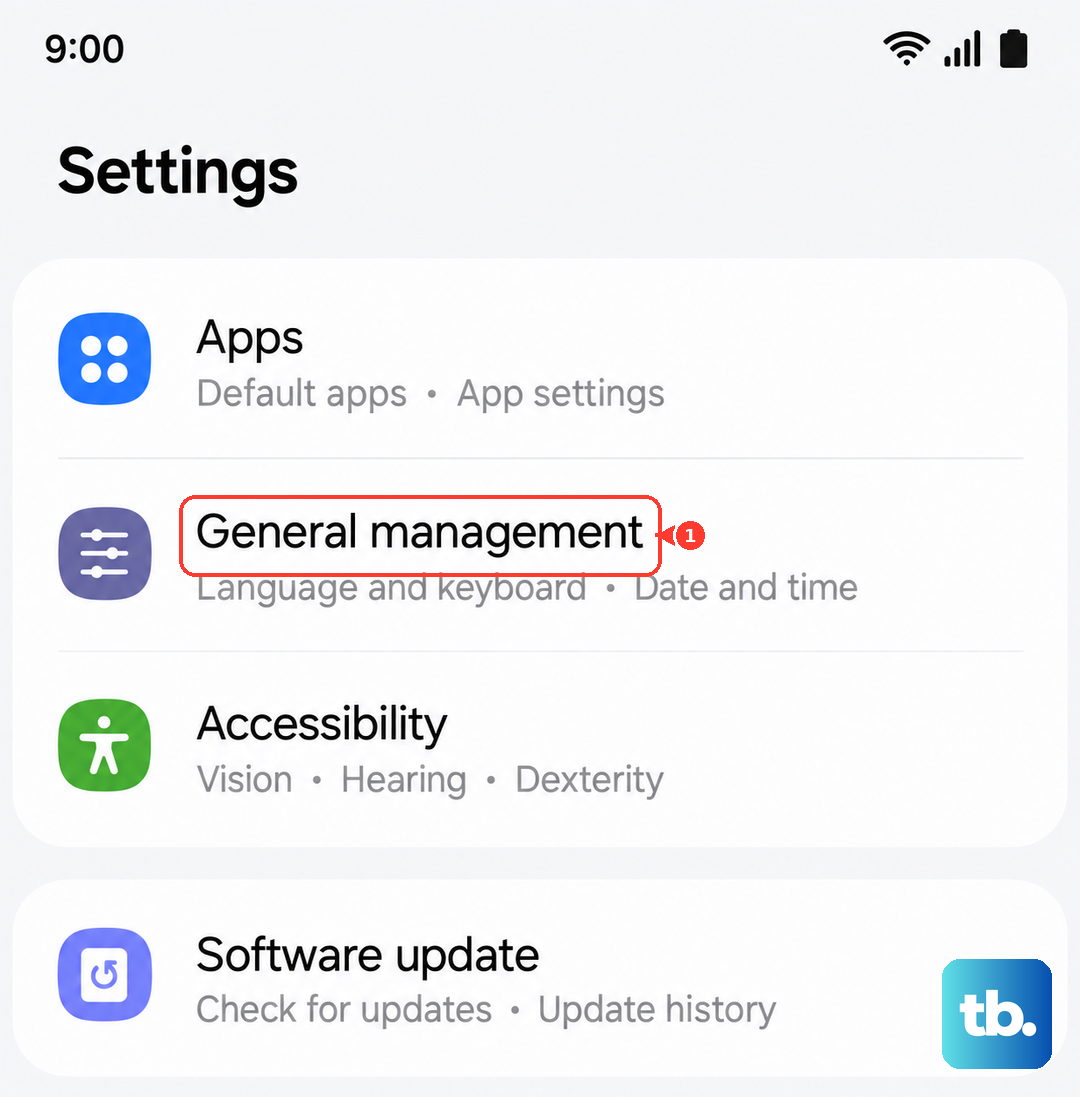
Go to Settings > General management > Reset > Reset all settings. Enter your PIN if prompted and confirm. After the tablet reboots, you'll need to reconfigure your preferences, but it often clears out corrupted settings causing hardware issues.