When your Samsung Galaxy Tab S9 goes silent, it can really throw you off, especially if you rely on it for videos, music, or video calls. The good news is that most sound issues are caused by simple settings or temporary glitches that you can fix yourself. I'd start with the quick checks first, as they solve the problem more often than not.
A browser based online speaker test helps narrow this down fast. If test tones play clearly, the speakers work and the problem lives in an app or setting.
Check Your Volume and Sound Mode
First, press the volume up button on the side of your Tab S9. If you see a volume slider on the screen, make sure it's not all the way down. Sometimes the tablet can be in Silent or Vibrate mode without it being obvious.
For more control, open Settings and go to Sounds and vibration. Here, you can adjust the media, ringtone, and notification volumes individually. Ensure the "Sound mode" at the top is set to "Sound" and not "Vibrate" or "Mute".
Disconnect Bluetooth and Accessories
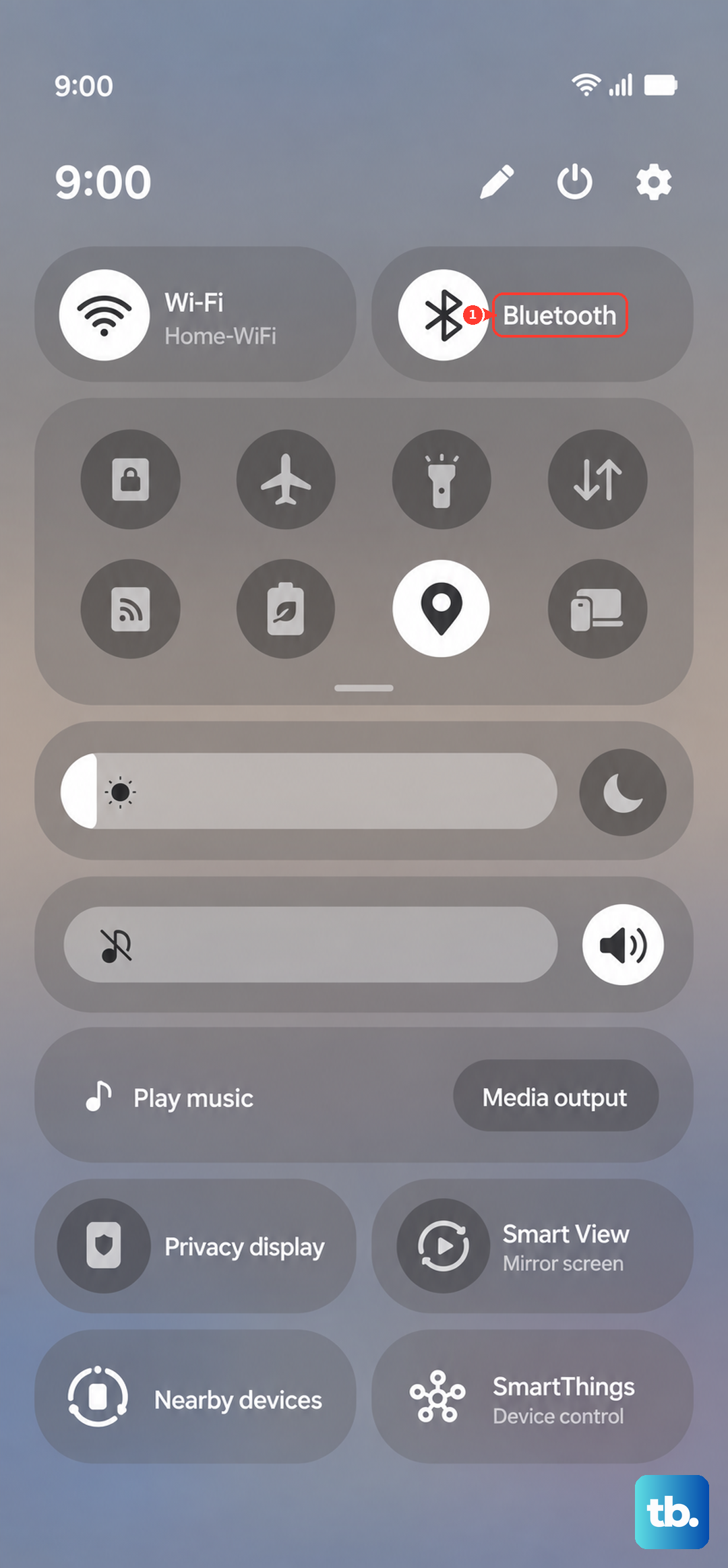
Your Tab S9 might be trying to send audio to a device that isn't there anymore. Swipe down from the top of the screen to open the Quick Settings panel and look for the Bluetooth icon. If it's blue, tap it to turn Bluetooth off completely.
You should also physically disconnect any headphones or USB-C audio adapters. A partially plugged-in accessory can trick the tablet into routing all sound through it, leaving the internal speakers silent.
Clean the Speaker Grilles
The Tab S9's speaker grilles can collect lint and dust over time, which muffles or blocks sound. Take a close look at the grilles along the top and bottom edges of the tablet when held in landscape mode.
Use a soft, dry toothbrush or a clean, dry paintbrush to gently sweep away any debris. You can also use a can of compressed air, but hold it upright and use short bursts from a few inches away to avoid pushing moisture into the speakers.
Review App-Specific Sound Settings
If you're only having sound issues in one app, like YouTube or Netflix, the problem might be isolated there. First, try closing the app completely and reopening it. If that doesn't work, check the app's own in-app settings for any audio or playback options that might be muted.
Also, Samsung has a feature called Separate app sound that can route specific apps to different audio outputs. To check it, go to Settings > Sounds and vibration > Advanced sound settings > Separate app sound. If it's turned on for an app, try turning the feature off.
Turn Off Do Not Disturb and Focus Modes
Do Not Disturb or other focus modes can silence everything. Swipe down twice from the top to see your full Quick Settings, and look for the "Do Not Disturb" or "Modes" tile. Make sure they are turned off.
You can also check in Settings > Notifications > Do Not Disturb to see the schedule and rules. Sometimes a schedule is set to turn on automatically at certain times, which would explain sound disappearing unexpectedly.
Check Accessibility and Sound Balance Settings
Some accessibility features are designed to modify audio. Go to Settings > Accessibility > Hearing enhancements. Here, make sure features like "Mute all sounds" are disabled.
Also in the Hearing enhancements menu, tap on "Left/right sound balance". The slider should be centered. If it's accidentally pushed all the way to one side, it could make one speaker seem dead or drastically reduce overall volume.
Restart or Force Restart Your Tablet
A simple restart clears out temporary software bugs that can affect audio. Just hold the side button and the volume down button together, then tap "Restart" on the screen.
If the tablet is frozen or unresponsive, you'll need a force restart. Press and hold the Volume Down button and the Side button together for about 10 seconds. Release when you see the Samsung logo, and let the tablet boot up normally.
Clear the System Cache Partition
This is a deeper reset that clears temporary system files without touching your personal data. It's a good step after a software update. First, turn off your Tab S9 completely.
Now, press and hold the Volume Up button and the Side button at the same time. When you see the Android recovery screen, use the volume buttons to highlight "Wipe cache partition". Press the side button to select it, then confirm. Finally, select "Reboot system now".
Update Your Software
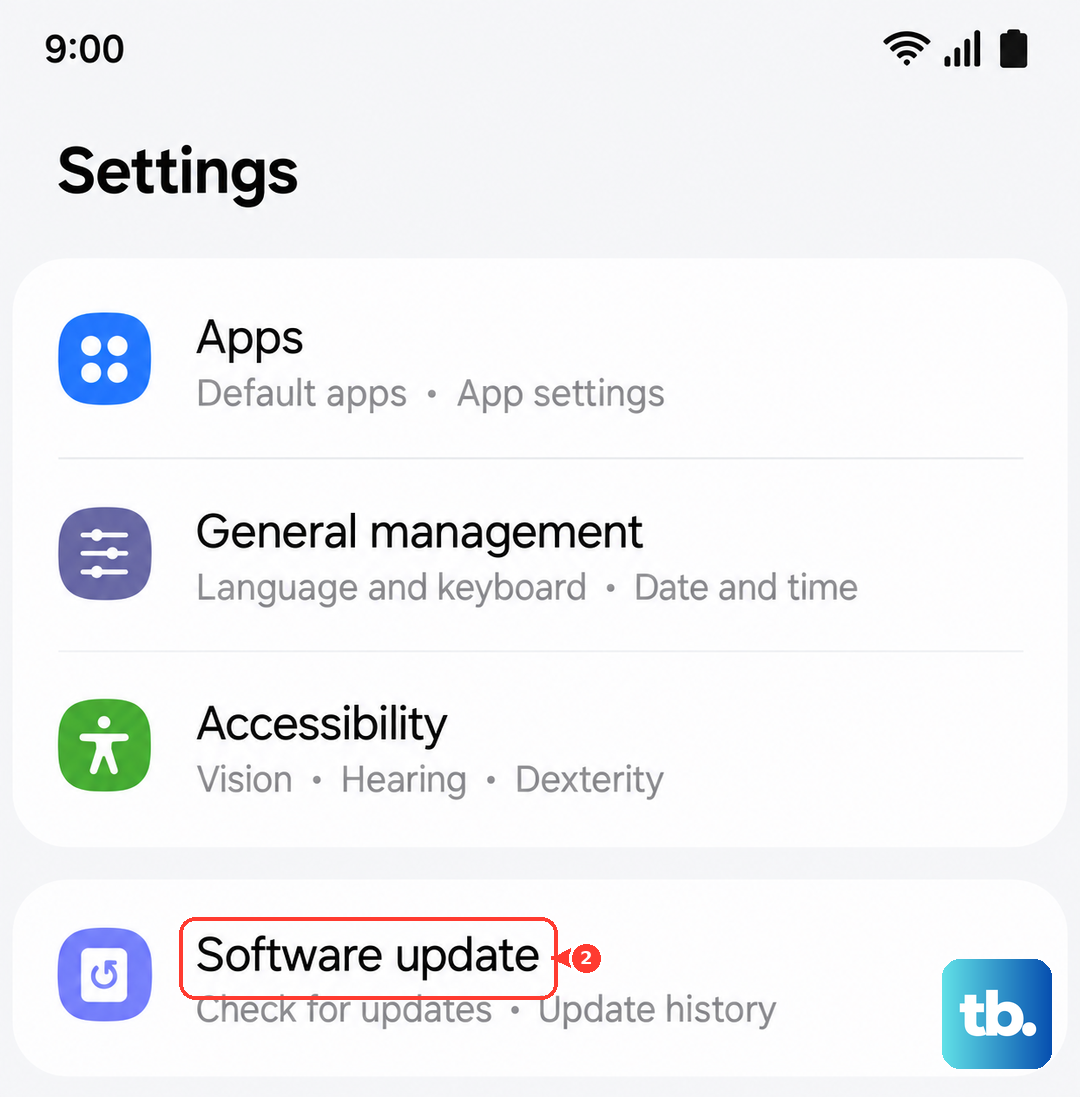
Samsung regularly releases updates that fix bugs, including audio-related ones. Connect to Wi-Fi and go to Settings > Software update > Download and install. If an update is available, let it install completely, as this often resolves persistent glitches.