When your Samsung Galaxy Tab S9 is crawling on the internet, it can make streaming, browsing, and even checking email a chore. The good news is that slow WiFi and mobile data on your tablet is usually a software or settings issue you can fix yourself.
I'd start with the quick fixes at the top of this list. They take just a minute and often solve the problem right away. If those don't work, we'll move through some more detailed steps to get your connection back up to speed.
Restart Your Tablet and Router
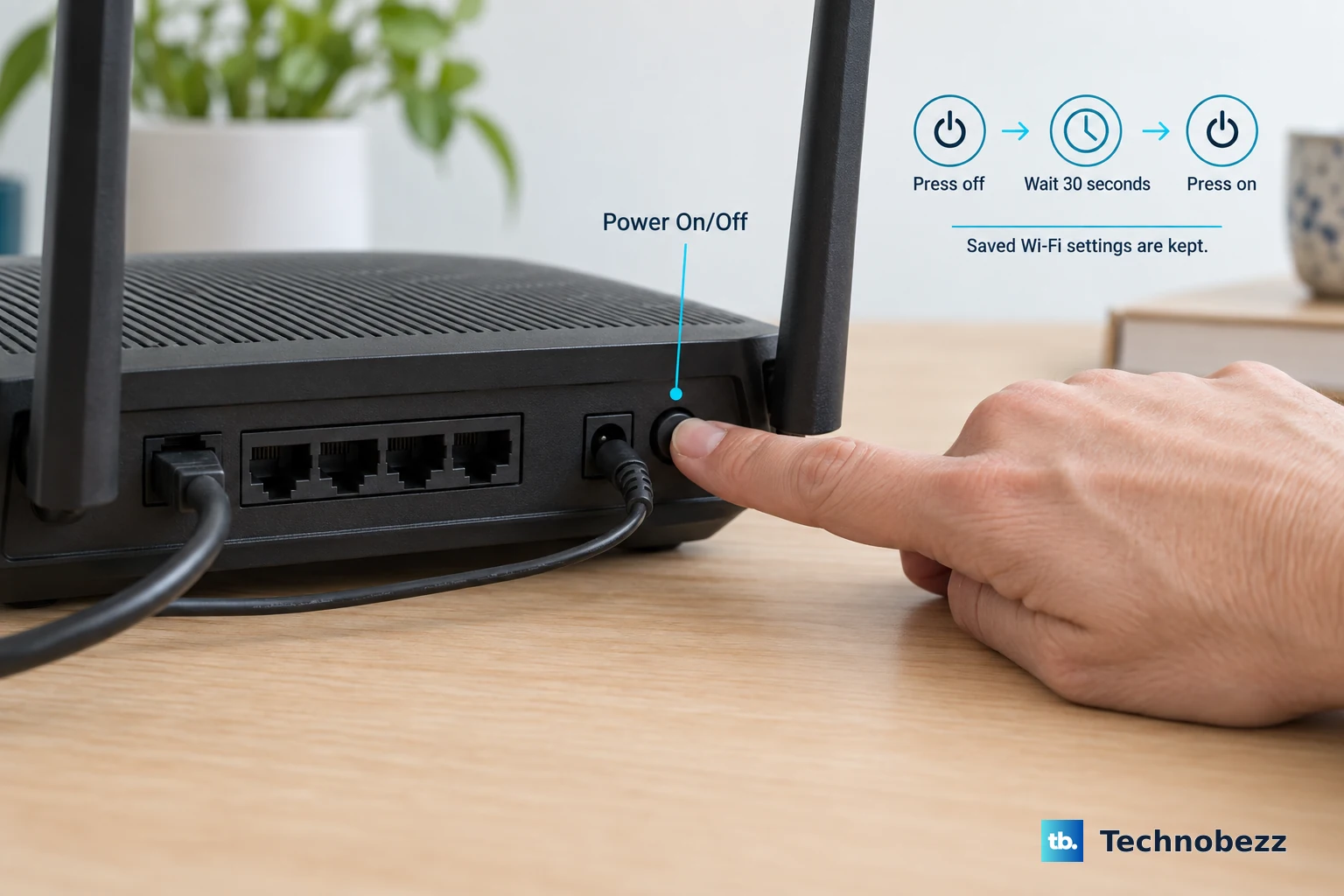
This is the simplest and most effective first step. A restart clears out temporary software glitches that can bog down your network connection. First, power cycle your WiFi router by unplugging it for 30 seconds and plugging it back in.
While that's happening, force restart your Galaxy Tab S9. Press and hold the Volume Down button and the Side button together for about 10 seconds. Let go when you see the Samsung logo appear. This is more thorough than a standard restart and can clear deeper system hiccups.
Toggle Airplane Mode On and Off
This quick trick resets all your tablet's radio connections, including WiFi and cellular data. Swipe down from the top of the screen twice to open the full Quick Settings panel, then tap the Airplane Mode icon to turn it on.
Wait about 15 seconds, then tap it again to turn Airplane Mode off. Your tablet will search for and reconnect to available networks, which often results in a faster, cleaner connection. It's a great way to refresh things without a full reboot.
Check and Improve Your WiFi Signal
Your physical location matters. Thick walls, distance from the router, and interference from other electronics like microwaves or baby monitors can cripple WiFi speed. Try moving closer to your router to see if the speed improves.
On your Tab S9, go to Settings > Connections > WiFi. Tap on the network you're connected to and look at the signal strength. If it's weak, that's likely the culprit. You can also try switching your router's broadcast band. If it's on 2.4GHz, see if a 5GHz network is available, as it's typically faster and has less interference, though its range is shorter.
Forget and Reconnect to the WiFi Network
Sometimes the saved connection data for a network gets corrupted. Removing it and adding it back fresh can fix speed issues. Go to Settings > Connections > WiFi and tap the gear icon next to your network name.
At the bottom of the screen, tap Forget. Confirm your choice. Then, tap on the network name again from the list, enter the password, and reconnect. This establishes a brand new connection profile.
Use Samsung's Adaptive WiFi Feature
Your Tab S9 has a smart feature called Adaptive WiFi. When enabled, it can automatically switch to your mobile data plan if your WiFi connection becomes too slow or unstable, ensuring you stay online.
To turn it on, go to Settings > Connections > WiFi. Tap the three-dot menu in the top right and select Intelligent WiFi. Here, you can toggle on Switch to mobile data. Just be mindful of your data plan limits if you use this feature.
Enable Data Saver Mode
If you're specifically dealing with slow mobile data, Data Saver can help by restricting background data usage for apps you aren't actively using. This frees up bandwidth for the app you have open, making it feel faster.
Navigate to Settings > Connections > Data Usage > Data Saver. Toggle it on. You can also tap Allow apps while Data saver on to manually select apps, like your email, that you want to have background access even when Data Saver is active.
Clear the Cache for Google Play Services
Google Play Services is a core Android component that many apps, including ones that use the internet, rely on. Its cached data can sometimes become bloated or corrupted, leading to performance issues.
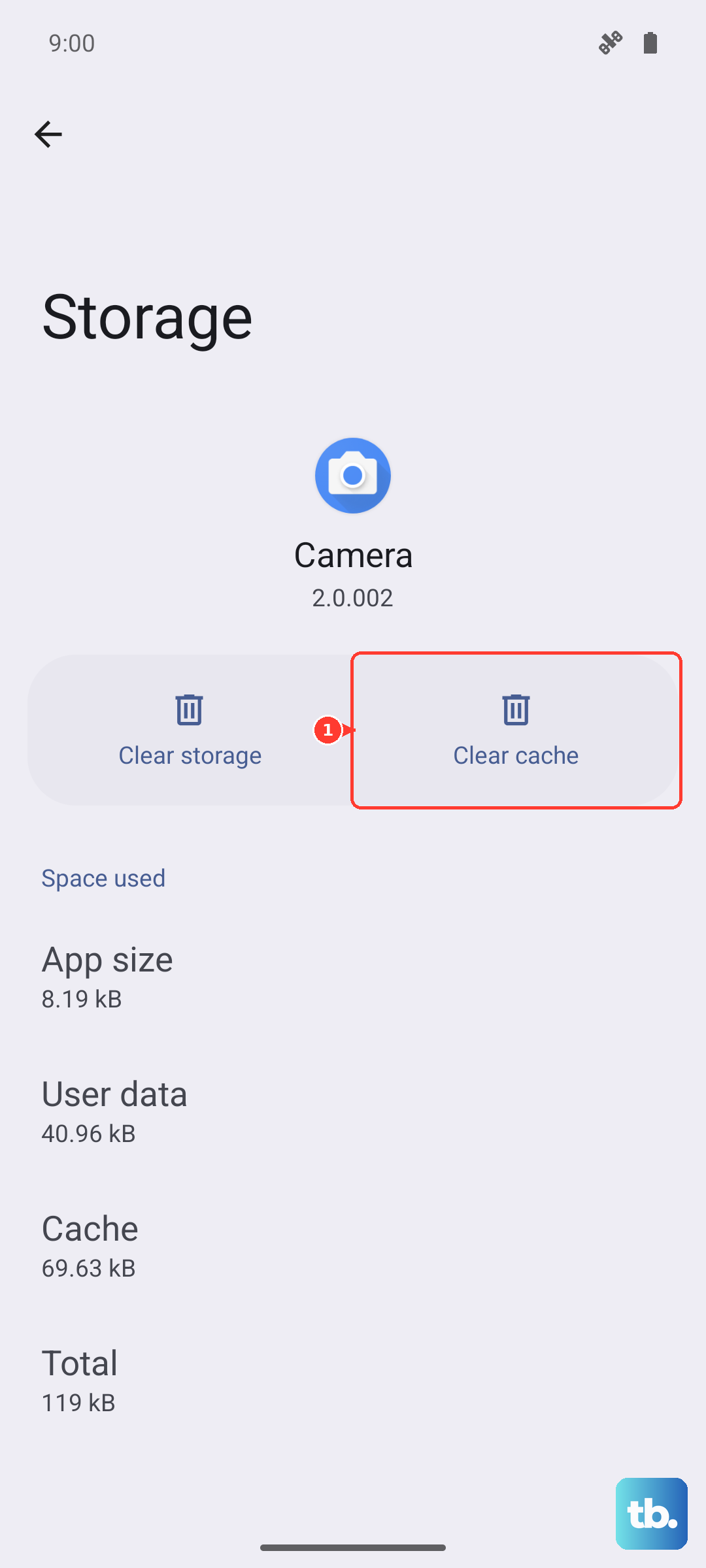
Go to Settings > Apps. Tap the filter icon and select Show system apps. Scroll down and find Google Play Services. Tap on it, then select Storage. Tap Clear Cache. This won't delete any personal data, just temporary files.
Check Your Mobile Network Mode
If you're using a cellular model of the Tab S9, make sure it's set to use the fastest network available. Go to Settings > Connections > Mobile networks > Network mode.
Select 5G/LTE/3G/2G (auto connect) or a similar option that includes 5G/LTE. This ensures your tablet will always try to connect to the fastest network in your area instead of sticking to a slower one. If you're in an area with poor 5G coverage, switching to LTE/3G/2G (auto connect) can sometimes provide a more stable connection.
Disable Any Active VPN
While VPNs are great for privacy, they route your traffic through a remote server, which almost always adds latency and reduces your internet speed. If you're troubleshooting a slow connection, temporarily turn off any VPN app you have running.
You can usually do this from within the VPN app itself or from the Quick Settings panel. Test your internet speed with the VPN off to see if that was the bottleneck. If it was, you may need to try connecting to a different server location within your VPN app.
Reset Your Tablet's Network Settings
If nothing else has worked, this is your nuclear option for network problems. Resetting network settings will erase all saved WiFi passwords, Bluetooth pairings, and cellular network preferences, returning them to factory defaults.
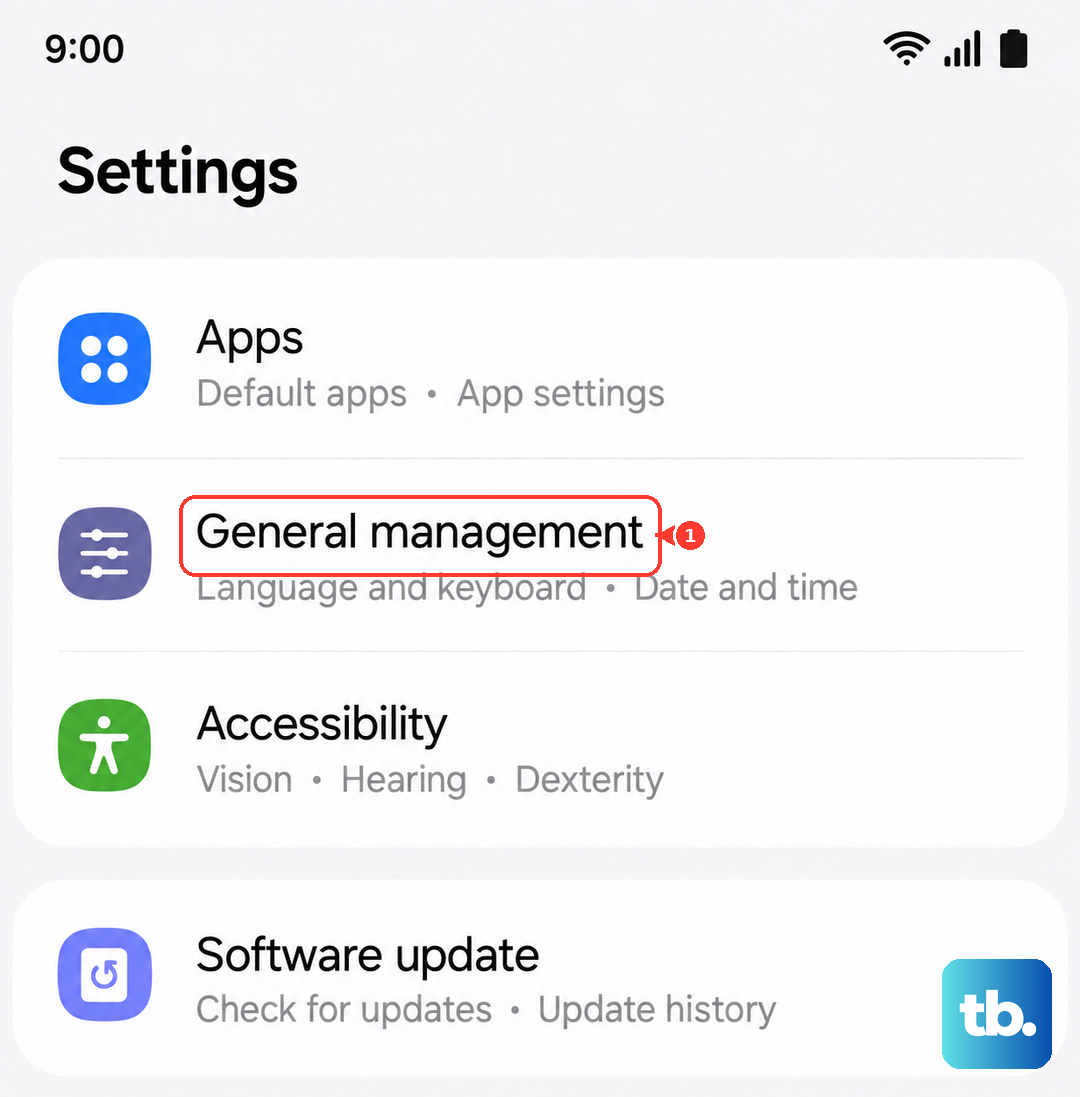
Go to Settings > General Management > Reset. Tap Reset network settings. You may need to enter your PIN or password. Confirm the reset. After your tablet reboots, you'll need to reconnect to your WiFi and re-pair any Bluetooth devices, but this often resolves deep-seated connectivity and speed issues.