
When your Samsung Galaxy Tab S9 starts restarting on its own, it can be incredibly disruptive, especially if you're in the middle of work or watching something. This usually points to a software hiccup, a misbehaving app, or sometimes a deeper system issue. The good news is you can often fix it yourself with a few steps.
Before you begin, it's a smart move to ensure your important data is backed up. You can use Samsung Cloud or sync your files with a Google account. This protects your photos, documents, and settings just in case.
Perform a Force Restart
This is the go-to first step for any weird software behavior, including random restarts. It clears the device's temporary memory without deleting any of your personal data. For the Galaxy Tab S9, press and hold the Volume Down button and the Side (power) button together for about 10 seconds.
Keep holding until you see the Samsung logo appear on the screen, then you can let go. The tablet will boot up normally. I've found this resolves a surprising number of one-off glitches.
Check for and Update Apps
A problematic third-party app is one of the most common reasons for sudden restarts. Start by checking the Google Play Store for updates. Open the Play Store, tap your profile icon in the top right, and go to Manage apps & device.
If updates are available, tap Update all. It's also worth checking if the restarting began after you installed a specific new app. If you suspect one, you can try uninstalling it temporarily to see if the problem stops.
Install the Latest System Update
Samsung regularly releases updates for One UI and Android that fix bugs and improve stability. An outdated system can definitely cause instability. To check, open Settings and tap Software update.
Then, tap Download and install. Make sure your tablet is connected to Wi-Fi and has a decent amount of battery life, preferably while plugged into its charger. Installing the latest update often clears up these kinds of random issues.
Boot Into Safe Mode
Safe Mode temporarily disables all third-party apps. If your tablet stops restarting in Safe Mode, you'll know for sure that a downloaded app is the culprit. To enter Safe Mode, first press and hold the Side button until the power off menu appears.
Then, tap and hold the Power off option on the screen. You'll see a prompt to reboot into Safe Mode. Tap it. Once you're in, you'll see "Safe Mode" in the bottom corner. Use the tablet normally for a while to see if it restarts.
To exit Safe Mode, just perform a normal restart by holding the Side button and tapping restart.
Clear the System Cache
Over time, cached data from apps and the system can become corrupted and cause problems. Clearing this cache is a safe maintenance step that doesn't touch your personal files. You'll need to boot into the recovery menu.
First, power off your tablet completely. Next, press and hold the Volume Up button and the Side button at the same time. Release both buttons when you see the Samsung logo, and you'll enter the recovery menu.
Use the Volume buttons to navigate to Wipe cache partition and press the Side button to select it. Confirm the action, and once it's done, select Reboot system now.
Free Up Storage Space
If your tablet's internal storage is completely full, it can struggle to operate properly, leading to crashes and restarts. Go to Settings > Battery and device care > Storage.
This will show you a breakdown of what's using space. Look for large files you don't need, old downloads, or consider moving photos and videos to cloud storage or an SD card if you have one inserted.
Reset All Settings
This will revert all your system settings back to their factory defaults without deleting any of your apps, photos, or personal data. You'll just need to reconfigure things like Wi-Fi passwords, wallpapers, and accessibility options.
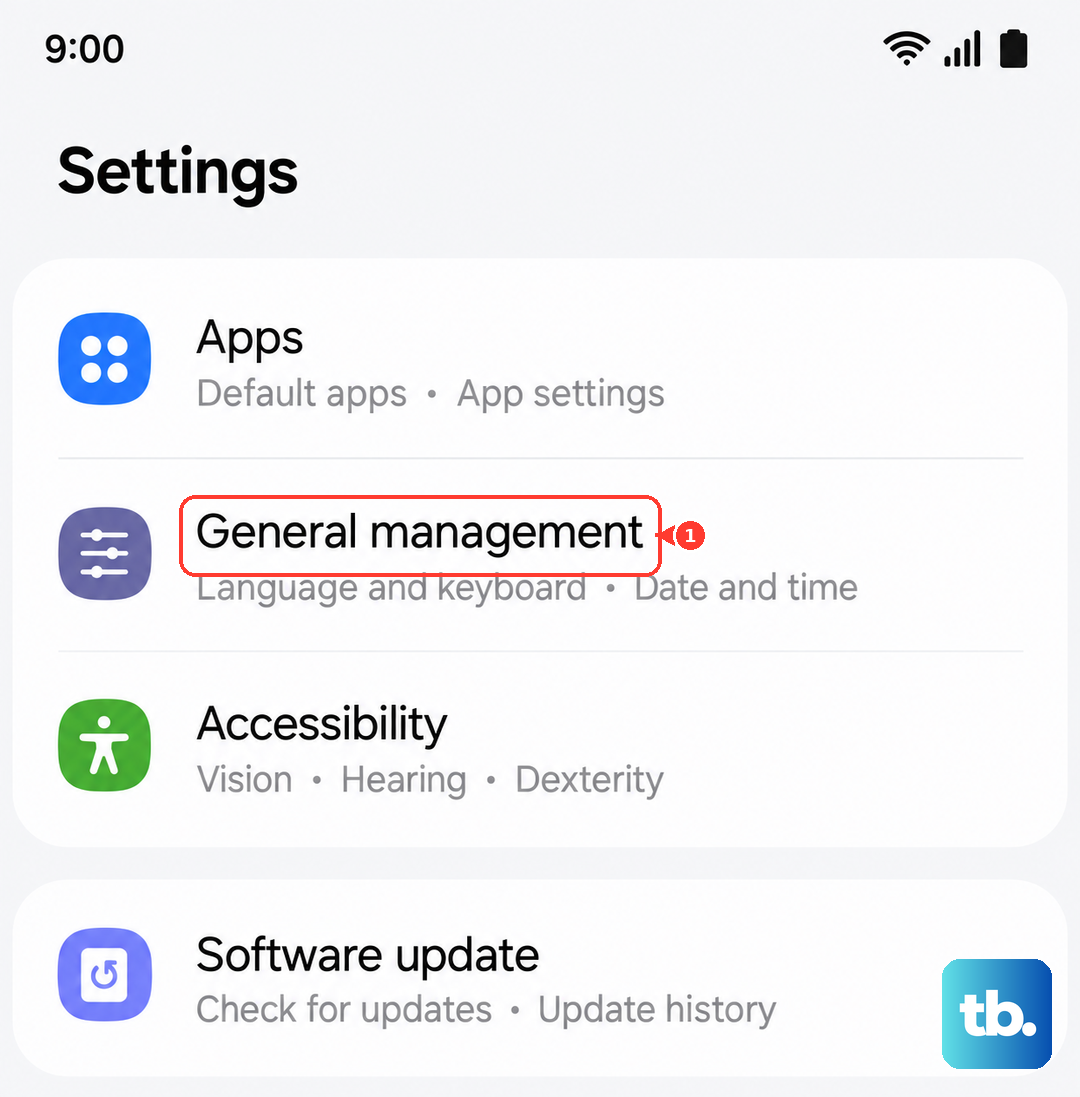
To do this, go to Settings > General management > Reset. Then, tap Reset all settings. Enter your PIN or password if prompted, and confirm. This can resolve conflicts caused by a setting that's been incorrectly configured.
Consider a Factory Reset
If none of the above steps have worked, a factory reset is the final software solution. This will erase everything on your tablet and return it to its original out-of-the-box state. This is why that backup we mentioned first is crucial.
You can do this through the settings menu. Go to Settings > General management > Reset > Factory data reset. Read the information carefully, tap Reset, and follow the prompts. After it completes, you can set the tablet up as new or restore from your backup.
Check for Overheating and Power Issues
The Galaxy Tab S9 is a powerful device, and intensive tasks can generate heat. If the tablet gets too hot, it will protect itself by shutting down or restarting. Feel the back of the device, especially near the camera module.
If it's very warm, stop using it for a bit and let it cool down. Also, ensure you're using a capable charger. For optimal performance, especially if you're using power-intensive features like Samsung DeX, Samsung's own 45W charger is recommended. A weak charger might not supply enough power during heavy use.