When your Samsung Galaxy Tab S9's GPS starts acting up, it can throw a wrench in your plans, whether you're navigating a new city or using a location-based app. The good news is that most GPS problems on the Tab S9 are software-related and can be fixed with a few simple steps. I'd start with the quick refreshers at the top of this list.
Start With These Quick Refreshers
Before we get into the deeper fixes, give these three actions a try. They solve a surprising number of GPS hiccups by simply resetting the connection and clearing temporary glitches.
First, pull down the Quick Settings panel and tap the Location icon to turn it off. Wait about 30 seconds, then tap it again to turn it back on. Next, try a standard restart by holding the side button and tapping "Restart." If that doesn't help, enable Airplane Mode from the same Quick Settings panel for 15 seconds, then disable it to reset all the radios.
Verify Your Location Settings and Permissions
Sometimes the issue isn't with the GPS hardware itself, but with how it's allowed to work. Head into your tablet's settings to double-check a few things.
Open Settings and go to Location. Make sure the main switch at the top is on. Right below that, tap "Location services" and ensure "Google Location Accuracy" is enabled. This helps by using Wi-Fi and mobile networks to find your position faster, which is especially useful indoors before you step outside.
You should also check app permissions. Go to Settings > Apps, select your navigation app (like Google Maps or Waze), then tap Permissions. Make sure "Location" is set to "Allow only while using the app" or "Allow all the time."
Disable Power Saving Modes
One UI's power saving features are great for battery life, but they can limit background processes, including how often apps can ping the GPS. If you're running on a low battery or have a mode enabled, this could be the culprit.
Go to Settings > Battery and device care > Battery. Here, you'll see if any power saving mode is active. If "Power saving" is on, tap it and switch it off. For the most consistent GPS performance, I'd also check Settings > Apps > Google Play Services > Battery and set it to "Unrestricted."
Update Your Apps and Software
Outdated software can lead to compatibility issues with the GPS module. This includes both your navigation apps and the tablet's system software running on One UI.
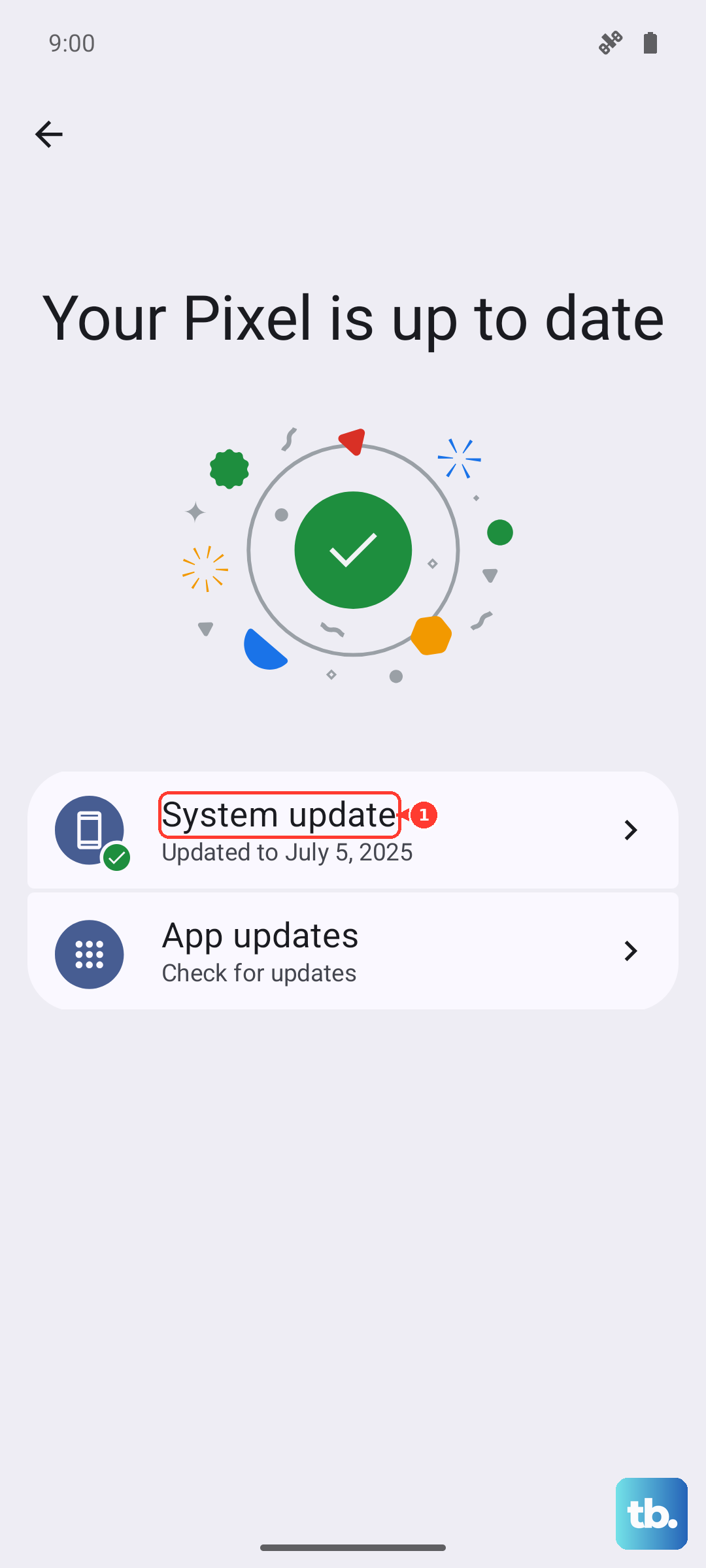
First, open the Google Play Store, tap your profile icon, and go to "Manage apps & device." Install any pending updates, especially for Google Maps, Google Play Services, and any other apps you use for location. Then, check for a system update by going to Settings > Software update > Download and install.
Clear the App Cache and Data
Over time, the data stored by your mapping app can become corrupted. Clearing this cache is a safe first step that won't delete your saved places.
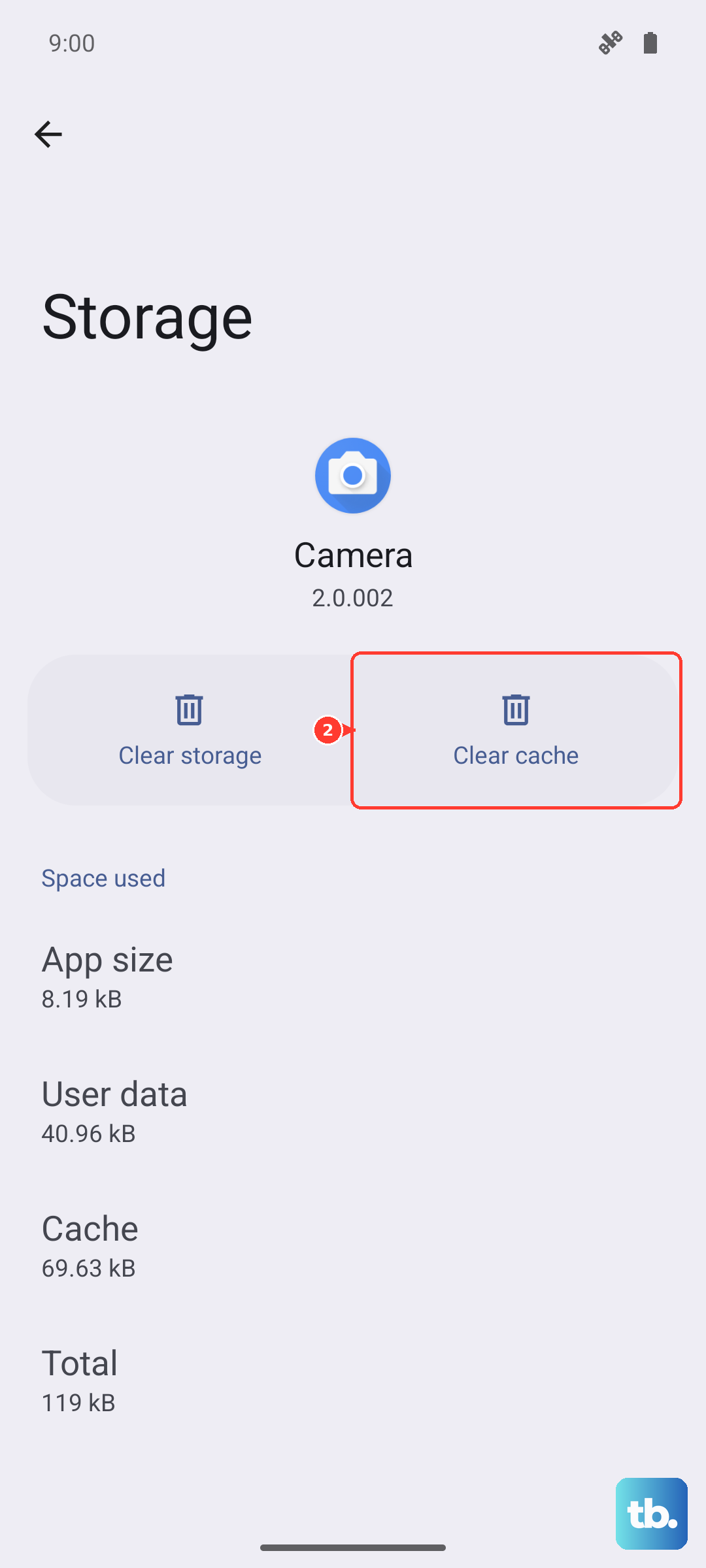
Navigate to Settings > Apps, find and select Google Maps. Tap Storage, then hit "Clear cache." Try your GPS again. If it's still not working, you can go back and tap "Clear data." Just be aware this will reset the app, so you'll need to sign back in and reset any preferences.
Check for Physical and Environmental Blocks
The Galaxy Tab S9's GPS antenna needs a relatively clear line of sight to satellites. Being inside a building, car, or even holding the tablet a certain way can weaken the signal.
If you're testing indoors, try moving near a window or stepping outside. Thick cases, particularly metal ones or those with magnetic clasps, can sometimes interfere. Try removing the case temporarily to see if your signal improves. GPS signals also struggle in dense urban areas with tall buildings, so accuracy might naturally dip there.
Boot Into Safe Mode
This is a great way to check if a third-party app you've installed is causing a conflict with the location services. Safe Mode temporarily disables all downloaded apps.
To enter Safe Mode, press and hold the side button until the power menu appears. Then, tap and hold the "Power off" option on your screen. You'll see a prompt to reboot into Safe Mode. Tap it. Once the tablet restarts, you'll see "Safe mode" in the bottom corner. Test your GPS with an app like Google Maps. If it works perfectly here, a recently installed app is likely the problem. Restart normally to exit Safe Mode.
Clear the System Cache Partition
This step clears temporary system files that can sometimes get corrupted, without touching your personal data. It's a common fix for persistent glitches on Samsung devices.
First, turn off your Galaxy Tab S9 completely. Now, press and hold the Volume Up button and the Side button together. When you see the Samsung logo, let go of both buttons. You'll enter the recovery menu. Use the Volume Down button to highlight "Wipe cache partition," then press the Side button to select it. Confirm the action, then select "Reboot system now."
Use a GPS Diagnostic Tool
If you're still having trouble, an app like "GPS Test" or "GPS Essentials" from the Play Store can tell you what the hardware is seeing. This helps figure out if it's a software configuration issue or a potential hardware problem.
Download one of these apps and open it when you're outside with a clear view of the sky. Look for a screen that shows satellites. If the app shows your tablet connecting to multiple satellites but your navigation apps still can't get a lock, the problem is software. If the app shows zero satellite connections even after several minutes outdoors, it could point to a hardware fault.
Reset All Location Settings
As a last resort before considering a factory reset, you can reset all your location and network settings back to default. This will erase your Wi-Fi passwords, Bluetooth pairings, and location preferences, but it won't touch your personal files or apps.
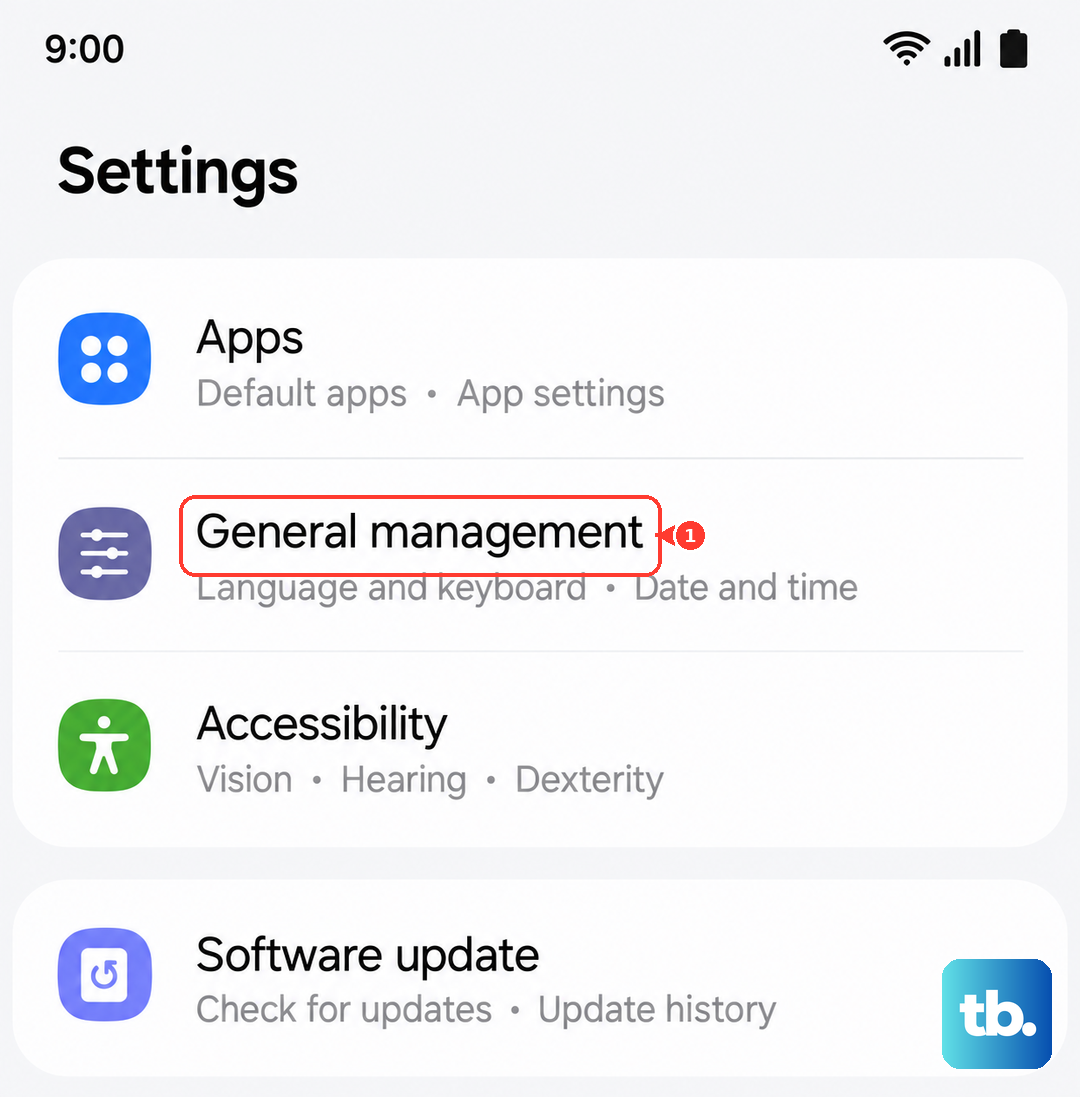
Go to Settings > General management > Reset. Select "Reset network settings." You'll need to enter your PIN if you have one set. Confirm the reset. After the tablet reboots, you'll need to reconnect to Wi-Fi and re-pair Bluetooth devices, but it often clears up deep-seated configuration errors affecting the GPS.