One moment your Galaxy Tab S9 is mid-task, the next the screen is locked solid, taps go nowhere, and even the keyboard or a video sits stuck on a single frame. A frozen tablet feels like a dead one, but the Tab S9 almost always responds to a fixed order of recovery steps, starting with a forced restart that does not touch your files.
Work through the fixes below from the top, stopping the moment the screen wakes up and behaves normally again. Each one is safe to try, and only the factory reset near the end carries any real consequence, which is flagged clearly.
Force the frozen Tab S9 to restart
When the screen is frozen or will not respond to touch, the first move is a forced reboot using the physical keys. The Tab S9 has no removable battery, so this hardware restart is the equivalent of a battery pull and is Samsung's recommended fix for an unresponsive tablet.
It does not erase any of your data.
Press and hold the Volume down button and the Side (Power) button together.
Keep holding for 7 to 10 seconds, until the screen goes black and the Samsung logo appears.
Release both buttons and let the tablet finish booting on its own.
Samsung also describes this as holding the Volume down button and the Side button (or Power button) simultaneously until the device turns off and turns back on. The screen will turn black when the device powers down, and then the Samsung logo will appear.
Once you are back at the lock screen, test whether the freeze is gone.
When the buttons themselves won't respond
Sometimes the key combination does nothing, which usually means the system is fully hung rather than just the display. There is a longer hold that gives the tablet more time to shut down.
Give it the full window before deciding it has failed.
Press and hold the Power (Side) button for up to two minutes to force the device off.
Once it has switched off, leave the tablet off for one minute.
Press the Power button again to switch it back on.
If it still will not react, the battery may be too low to respond. Let the battery fully deplete, then charge the tablet for about 30 minutes before trying to power it on again.
A device that comes back to life after a charge points to a flat battery rather than a serious fault.
Clear the screen and strip off third-party gear
A screen that ignores your taps is not always a software freeze. A dirty or wet display, or a non-Samsung screen protector or case, can make the touchscreen feel locked when the tablet is actually running fine underneath.
This is one of the easiest causes to rule out.
Remove any non-Samsung screen protectors and cases, wipe the display so it is clean and dry, and then test the touchscreen again.
If touch comes back the instant the accessory is off, the cover or protector was the problem and you can choose a thinner or Samsung-fit replacement.
Sharpen a sluggish touchscreen with Touch sensitivity
If your taps register slowly or only sometimes, especially with a screen protector still attached, One UI has a setting built for exactly that. Raising the screen's sensitivity helps it read your touches through a film.
It is a quick toggle that costs nothing to leave on.
Go to Settings > Display and turn on the Touch sensitivity toggle.
Then go back to whatever was lagging and see whether the screen now keeps up with your taps and swipes.
Free up memory so the tablet stops stalling
When too many apps are loaded at once, the Tab S9 can run low on free memory, which shows up as freezing, stutter, and slow response. One UI includes a one-tap cleanup that closes background apps and reclaims memory.
Running it regularly keeps the tablet from choking under its own multitasking.
Go to Settings > Device care (this is called Battery and device care on some models) and tap Optimize now.
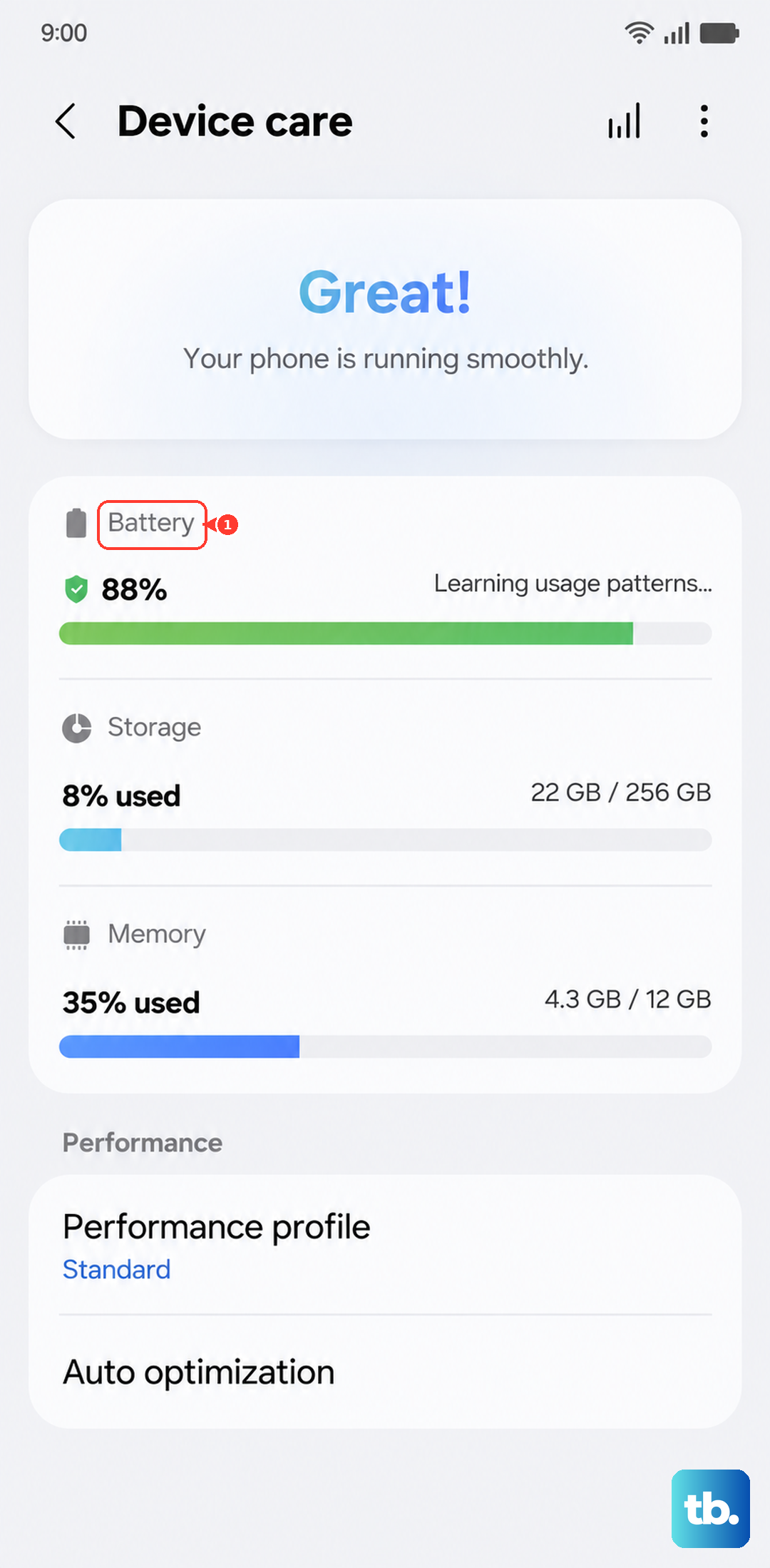
The tablet will close running apps and free up memory, and you should notice the interface respond more smoothly straight afterward.
Patch the freeze with a software update
Freezing and performance hitches are often bugs that Samsung fixes in a later build, so an outstanding update can be the actual cure. The Tab S9 checks for and installs these updates entirely on its own; no computer or companion app is involved, since the tablet runs standalone on One UI.
Make sure you are on Wi-Fi and have some charge before you start.
Go to Settings > Software update (this may read System updates).
Tap Download and install.
Tap Check for software updates (or Check for system updates) and install anything that is offered.
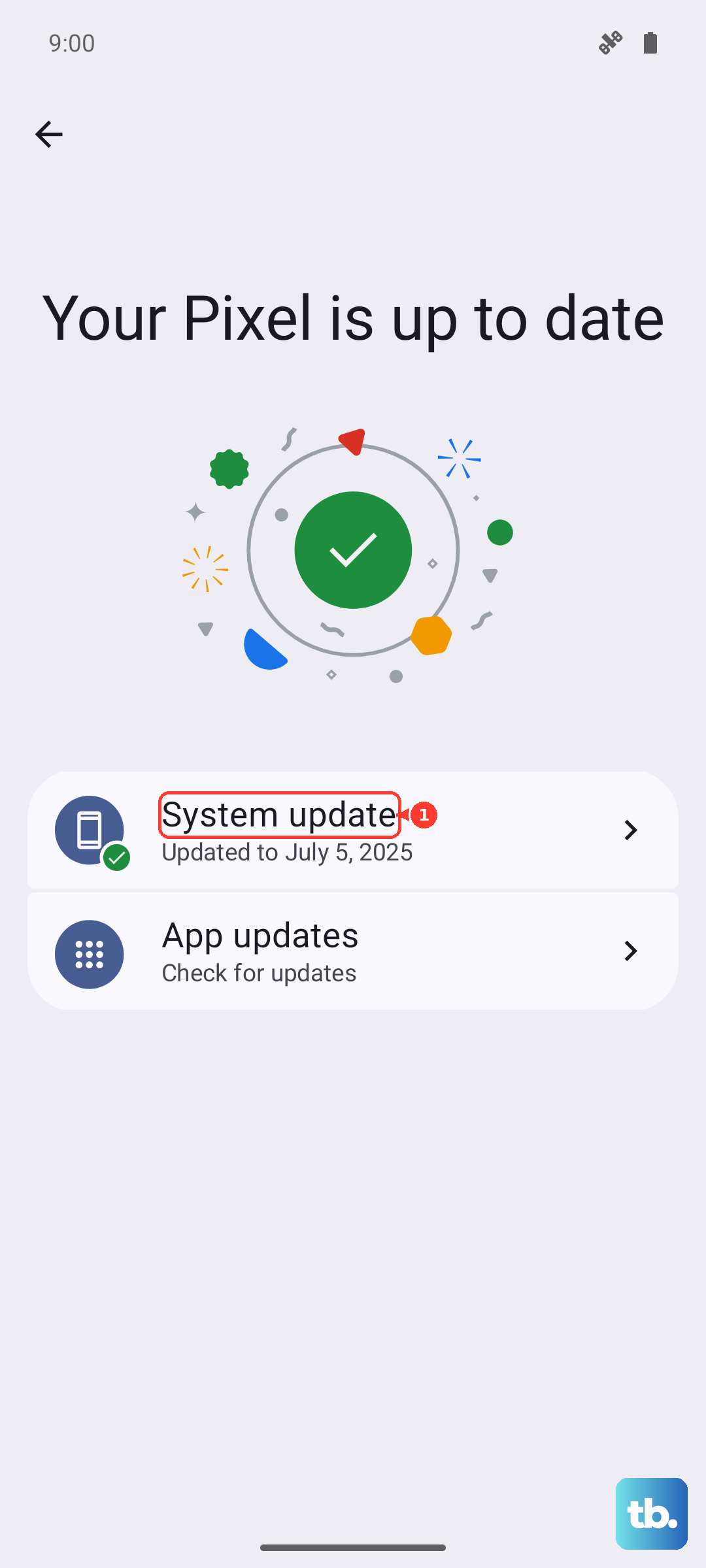
The tablet cannot be used while the update installs, so set it aside until it finishes and reboots. Samsung lists the Tab S9 as eligible for newer One UI releases, so keeping it current is worth doing even if no freeze is happening right now.
Use Safe mode to expose a misbehaving app
If the freezing keeps coming back, a single downloaded app may be the trigger. Safe mode starts the tablet with only its built-in apps running, which lets you test whether something you installed is to blame.
It is fully reversible and changes nothing permanently.
Open the Power menu.
Touch and hold Power off until the Safe mode icon is displayed.
Tap the Safe mode icon to start the tablet in Safe mode.
Use the tablet for a while in this state.
If the freezing stops, a recently downloaded or updated app is almost certainly the cause, so uninstall the most recent additions one at a time.
To leave Safe mode, simply power off and restart the tablet normally.
The factory reset that wipes the slate clean
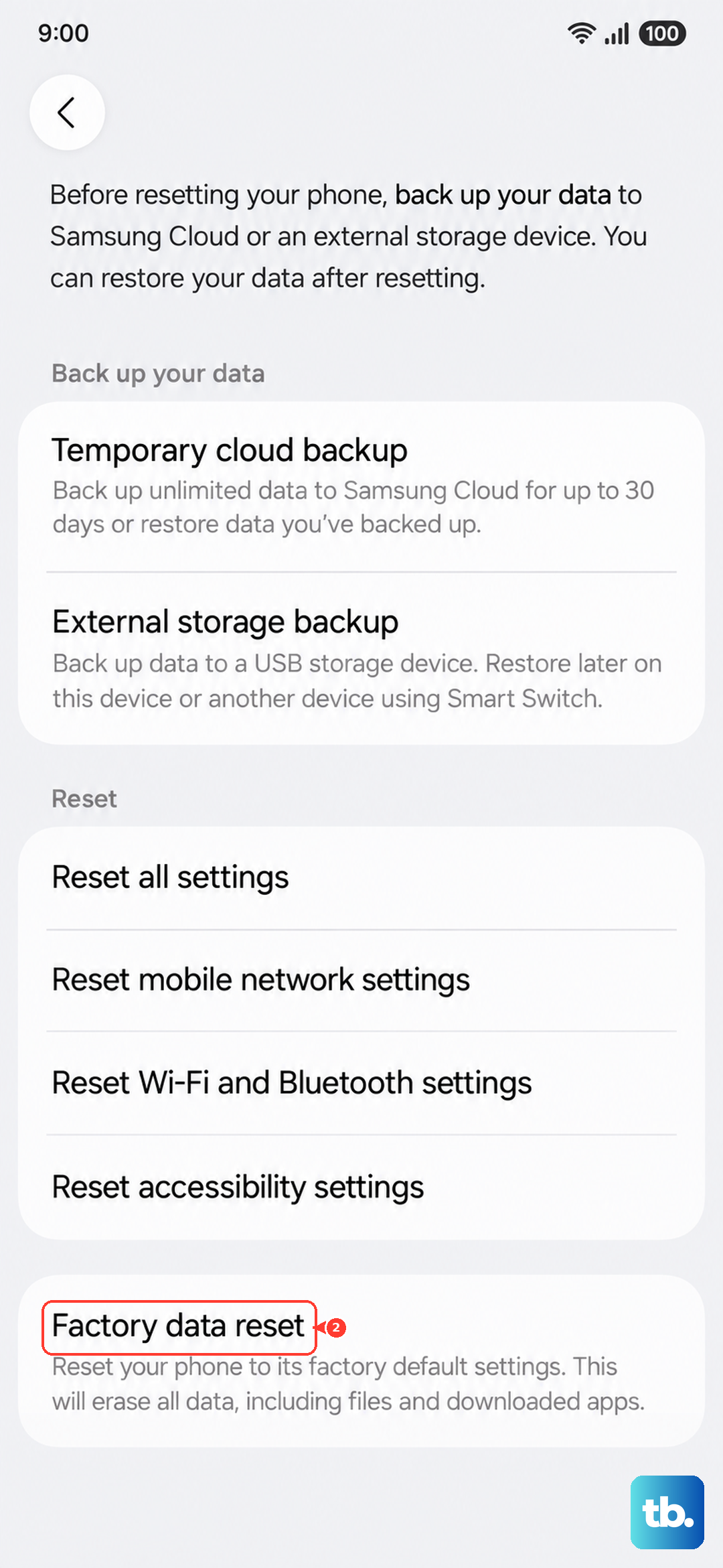
If nothing above has settled the freezing, a factory data reset returns the software to its original state and clears whatever is causing the conflict. This is a last resort because it erases everything on the tablet.
Samsung's warning is explicit: "Please save any information you need prior to the factory reset because your personal information may not be recovered." Back up your photos, files, and accounts first.
- 1.Go to Settings > General management > Reset > Factory data reset.
- 2.Review the information shown on screen.
- 3.Swipe to and tap Reset.
- 4.Tap Delete all, entering your lock credentials and Samsung account password if you are prompted.
The tablet will erase itself and restart as if new.
Set it up fresh, and if the freezing was software-related, it should now be gone.
When to hand it to Samsung
If the Tab S9 still freezes after a full reset, the problem is likely hardware rather than software, and that is beyond what these steps can fix at home. At that point it is worth getting it looked at by the people who can open it safely.
There is no desktop utility needed for any of this; the in-device tools above are the official ones.
Contact Samsung Support to request service or a repair, and have your model number ready (SM-X710 for the Wi-Fi version or SM-X716 for the 5G version), which you can confirm in Settings under the About tablet section.
Frequently Asked Questions
Will a force restart delete my apps or files?
No. Holding the Volume down button and the Side (Power) button for 7 to 10 seconds is a forced reboot, not a reset, and it leaves your apps, photos, and settings untouched. It simply powers the tablet off and back on when the screen is frozen.
The Tab S9 has no removable battery, so how do I pull the battery?
You cannot, because the standard Tab S9 is a single-piece tablet with a sealed battery. The hardware force restart (Volume down plus Side button for 7 to 10 seconds) is the direct equivalent and achieves the same hard power cycle.
How do I know whether a downloaded app is causing the freezing?
Boot into Safe mode by opening the Power menu, touching and holding Power off until the Safe mode icon appears, and tapping it. If the tablet runs normally with only built-in apps active, a recently downloaded or updated app is the cause, so uninstall your latest additions and restart to exit Safe mode.
What should I do before a factory data reset?
Back up everything you want to keep first. Samsung warns that your personal information may not be recovered after a reset, so save photos, files, and account details before going to Settings > General management > Reset > Factory data reset.
Could a screen protector be making the screen feel frozen?
Yes. A non-Samsung screen protector or case, or a dirty or wet display, can make touch feel unresponsive even when the tablet is working. Remove third-party covers, clean and dry the screen, and turn on Touch sensitivity under Settings > Display for better response through a film.