
You press the volume button on your Galaxy Tab S11 Ultra and nothing happens. No volume bar appears, no sound changes, just silence. It's a common issue, and in most cases it's a software glitch or some debris blocking the button, not a hardware failure.
Here are the fixes to try, starting with the quickest and working toward the more involved solutions.
Check Your Case First
Take the tablet out of its case. A tight or misaligned case can press against the volume rocker or block it from moving freely. This is especially common with thicker protective cases or ones that have warped over time.
Once the case is off, test the buttons. If they work, the case is the culprit and you might need to trim it or switch to a slimmer one.
Force Restart the Tablet
A force restart clears up temporary software hiccups that can make the volume buttons stop responding. It won't erase any of your data.
Press and hold the Power button and Volume Down button simultaneously for 10-15 seconds until the device restarts. That's it. When the Samsung logo appears, let go and test the volume buttons.
This fix resolves a surprisingly high number of button responsiveness issues because it forces the system to reload its audio drivers from scratch.
Is the Software Up to Date?
Android 16 and Samsung's One UI layer occasionally ship with bugs that affect hardware button recognition. A software update often patches these.
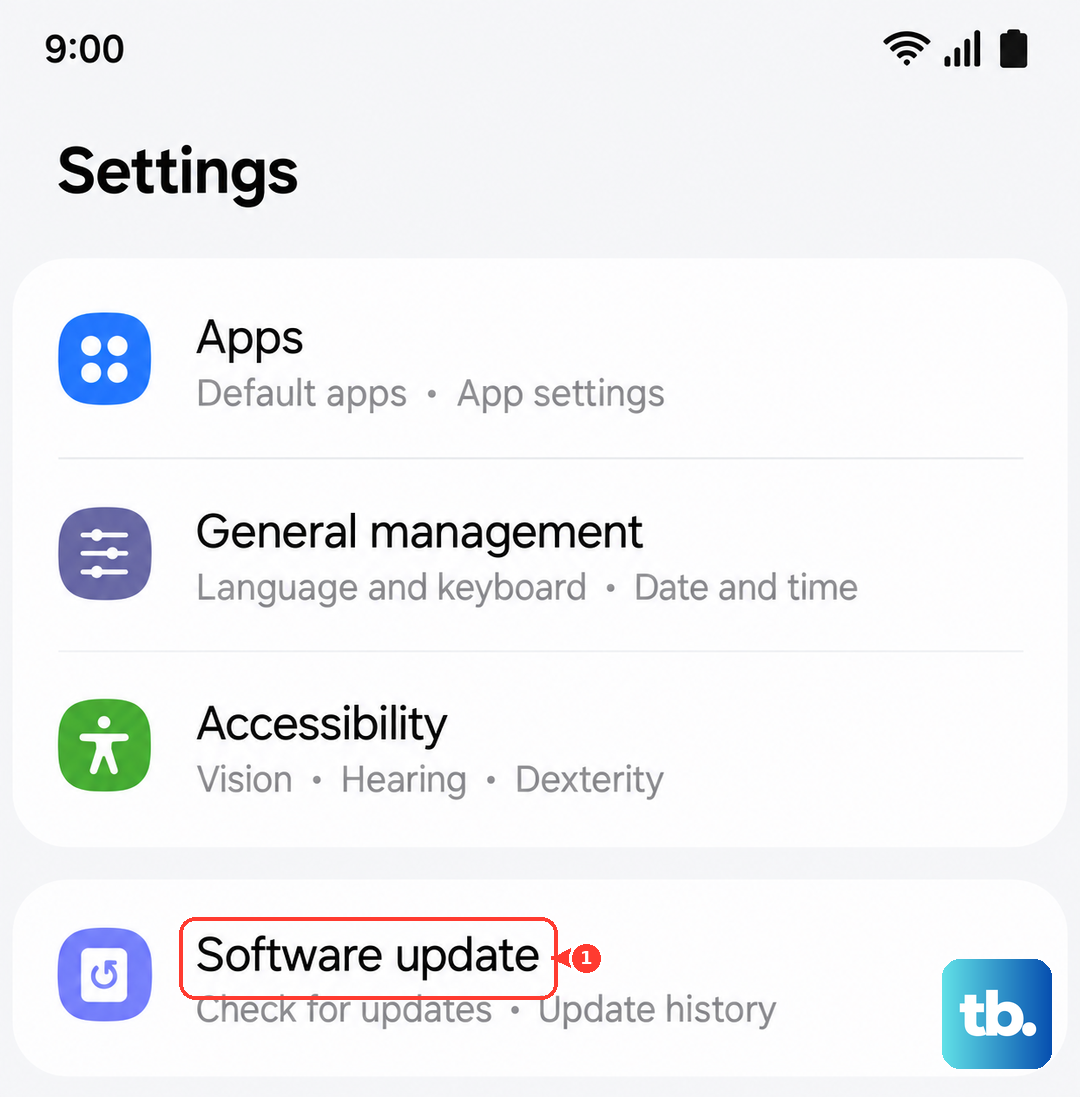
Go to Settings > Software update > Download and install. If an update is available, install it while connected to Wi-Fi and plugged into power. After the tablet reboots, check the volume buttons again.
Clean Around the Buttons
Dust and pocket lint can get lodged in the gap around the volume rocker and prevent it from making contact. This is one of the most common physical causes of unresponsive buttons.
Use a can of compressed air to blow around the button area at an angle. If you see sticky residue, dip a cotton swab in a tiny amount of isopropyl alcohol (90% or higher) and gently wipe the edges. Be careful not to push debris deeper into the tablet.
Let everything dry for a couple minutes before testing.
Try the On-Screen Volume Controls
While you're troubleshooting, you can still adjust volume using the touchscreen. Swipe down from the top of the screen to open the Quick Panel and drag the volume slider.
Or press any physical volume button to make the on-screen volume panel appear, then drag the slider with your finger. If the slider works but the buttons don't, the issue is almost certainly with the physical button mechanism, not the audio system.
Press the Buttons Repeatedly
Rapidly press the volume up and volume down buttons a dozen times each. Sometimes a mechanical component gets stuck in one position and repeated pressing can free it up.
Listen for a faint click as you press. If you don't hear it, the button might be physically jammed or the internal switch may have shifted out of place.
Toggle Mute From the Quick Panel
Samsung tablets have a mute mode that can be toggled from the Quick Panel. Swipe down twice to expand the full Quick Panel and look for the sound icon. Tap it to cycle through Sound, Vibrate, and Mute modes.
Switch between modes a few times, then test the volume buttons. This refreshes the audio state and can sometimes wake up a stuck button driver.
Test in Different Apps
Open a few different apps like YouTube, Spotify, or a game and try adjusting the volume. If the buttons work in some apps but not others, the issue is app-specific rather than a hardware problem.
This helps you narrow down whether to focus on the system settings or a particular app's sound permissions.
Use the Accessibility Menu
Samsung's Accessibility Menu gives you virtual buttons that can perform the same function as the physical volume rocker. Using it can sometimes reset the button state.
Go to Settings > Accessibility > Interaction and dexterity > Accessibility Menu and turn it on. A floating icon will appear. Tap it, then select Volume up or Volume down a few times.
After using the virtual buttons, try the physical ones again. The system driver sometimes realigns itself after this.
Factory Reset as a Last Option
If none of the above works, a factory reset can eliminate deep software corruption that might be interfering with button input. Back up your data first because this wipes everything on the tablet.
Go to Settings > General management > Reset > Factory data reset and follow the prompts. After the reset completes, set up the tablet and test the volume buttons before restoring any data.
If the buttons still don't work after a factory reset, the issue is likely hardware-related and will require a repair. That's rare, but it does happen with physical components over time.