
Screen flickering on a tablet as large and sharp as the Galaxy Tab S11 Ultra is incredibly distracting. A blinking or strobing display makes reading, watching video, or drawing nearly impossible. Most of the time this is a software quirk with Android 16 or One UI, but it can sometimes point to a hardware issue. Here are the solutions to try.
Force Restart the Tablet
Before diving into settings, do a hard reboot. This clears out any temporary glitches stuck in the system memory. Press and hold the Power button and the Volume Down button simultaneously for 10-15 seconds. Keep holding until the Samsung logo appears and the device restarts.
Disable Adaptive Brightness
The ambient light sensor on the Tab S11 Ultra is very sensitive. If it's malfunctioning, it can cause the screen to constantly shift brightness in a way that looks like flicker. Open Settings > Display and turn off Adaptive brightness. Set the brightness slider to a fixed level you're comfortable with and see if the flashing stops.
Turn Off Eye Comfort Shield
Eye Comfort Shield adjusts the screen tint based on the time of day. A bug in this feature can cause the display to pulse or flicker, especially during the transition period at dusk. Go to Settings > Display > Eye Comfort Shield and disable it temporarily to test if it's the cause.
Lower the Screen Refresh Rate
The S11 Ultra uses a 120Hz display. Some third-party apps and even certain system menus don't play nicely with variable refresh rates, causing a noticeable flicker. Go to Settings > Display > Motion smoothness and switch it to Standard (60Hz). If the flicker disappears, you can keep it at 60Hz or try turning it back up to see if an update fixed it later.
Close All Background Apps
A rogue app running in the background can sometimes force the display into an unsupported resolution or refresh rate. Open the recent apps menu (swipe up from the bottom and hold) and tap Close all. If the flickering stops, you know an app is to blame. Reopen them one by one to find the culprit and either update or uninstall it.
Update One UI and Android 16
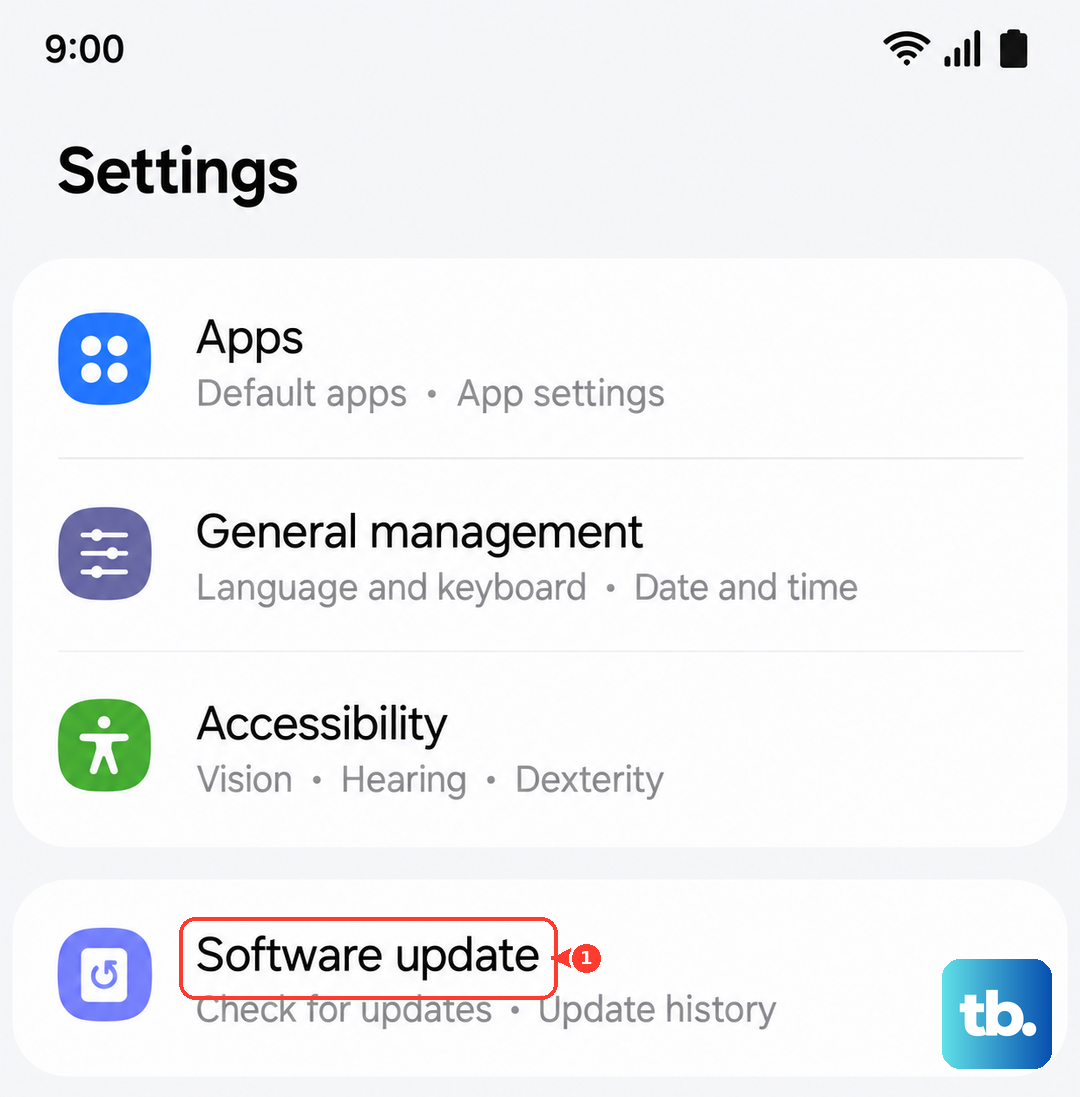
Samsung regularly pushes updates that fix display stability issues. Go to Settings > Software update > Download and install. If there's a pending update, install it. Samsung has specifically addressed screen flicker bugs on the Ultra lineup in recent updates.
Check Battery and Charging Status
A common issue on the S11 Ultra is the device becoming unresponsive after the battery fully drains. If the battery is critically low, the display might flicker because the system can't stabilize voltage. Plug the tablet into a wall outlet using the included 45W charger. It can take up to 10 minutes for the charging indicator to show up if the battery is completely empty. Once it's charged for a while, force restart the device.
Inspect for Physical Damage
Flickering that started right after a drop or hard bump is usually a hardware issue. The massive display on the S11 Ultra is fragile. Look closely at the edges and the back of the case for any signs of bending or impact. If you see any physical distortion, the display panel or internal connector is likely damaged and needs service.
Reset All Settings
If a specific display setting got corrupted, resetting everything can often fix it without wiping your data. Go to Settings > General management > Reset > Reset all settings. You'll have to re-enter Wi-Fi passwords and adjust your preferences, but your photos, apps, and files stay safe.
If the flickering continues after a factory reset, it's almost certainly a hardware defect. At that point, the display panel itself or the mainboard likely needs to be serviced. Since the Tab S11 Ultra is a 2025 device, it should still be under warranty, so reach out to Samsung support for a repair.