
When your Samsung Galaxy Tab S11 Ultra won't send text messages, it's usually one of a few common culprits. Texts might fail with a "Not sent" error, get stuck in a loop, or just never arrive. Let's work through the fixes.
Check Your Signal
Text messages (especially SMS) move through a cellular signal. Look at the signal bars on the top‑right of your screen. If you have no bars, move to a spot with better reception, even a few feet can make a difference. Toggle Airplane Mode on and off in Quick Settings to refresh the connection.
Force Restart the Tablet
If the messaging app is acting up, a force restart often resets the radios and clears temporary glitches. Press and hold the Power button and Volume Down button simultaneously for 10 15 seconds until the device restarts. This is different from a normal restart and works even if the screen is frozen.
Check Which Messaging App Is Default
On Android 16, you can have multiple texting apps. Go to Settings > Apps > Choose default apps > SMS app and make sure your preferred app (like Samsung Messages or Google Messages) is selected. If you recently installed another texting app, it may have grabbed the default and caused conflicts.
Turn Off RCS Chat Features Temporarily
RCS (sometimes called "Chat features" in Google Messages) can cause sending failures if it's misconfigured or the server is flaky. Open your messaging app, tap the three‑dot menu, go to Settings > Chat features, and turn off Enable chat features. Wait a minute, then try sending a text. If it works, leave RCS off or reconnect later.
Check Blocked Contacts
If texts fail only to one person, you might have blocked them accidentally. Open your messaging app, tap the three‑dot menu, select Settings > Blocked numbers, and remove any names that shouldn't be there.
Reset Network Settings
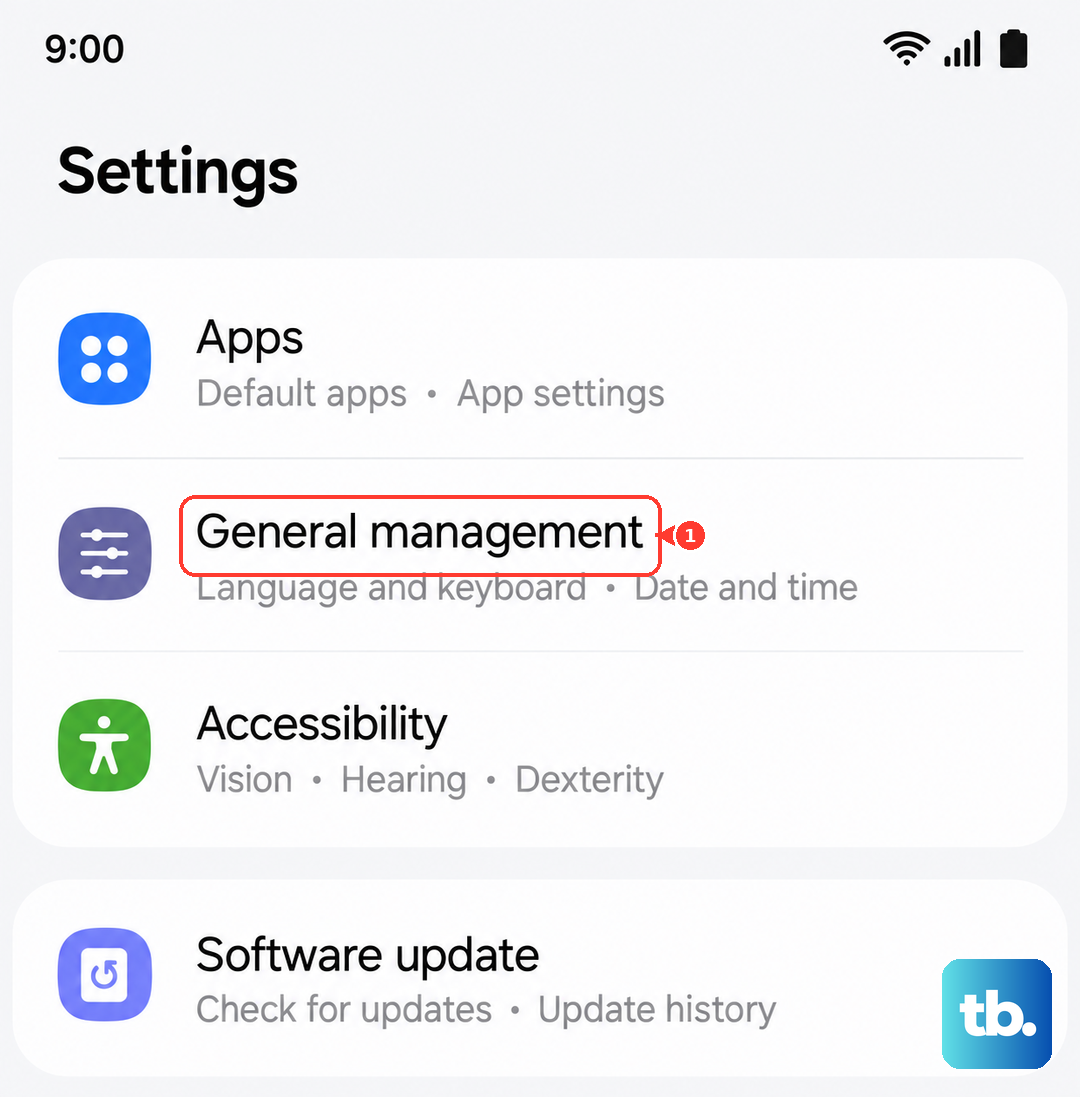
This clears all cellular, Wi‑Fi, and Bluetooth configurations and rebuilds them fresh, it often fixes stubborn messaging problems. Go to Settings > General management > Reset > Reset network settings. Confirm the reset and re‑enter any Wi‑Fi passwords afterward.
Update Carrier Settings
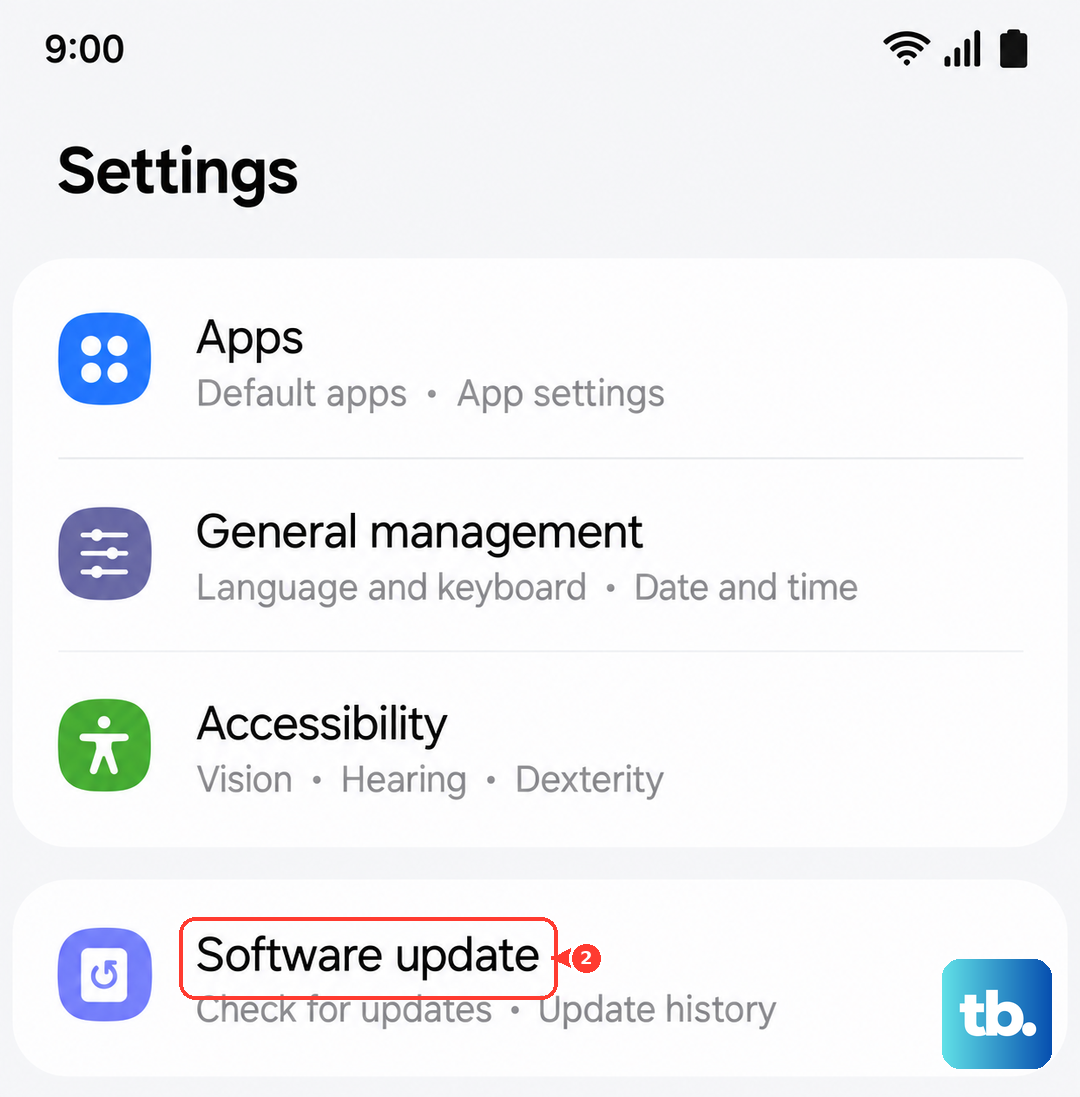
Carriers occasionally push updates that fix SMS and MMS issues. Go to Settings > Connections > Mobile networks > Access Point Names. If you see an update message, follow the prompts. You can also go to Settings > Software update > Download and install to make sure your tablet's firmware is current.
Check APN Settings for MMS
If SMS works but you can't send photos or group texts (MMS), the Access Point Name might be misconfigured. Go to Settings > Connections > Mobile networks > Access Point Names. Check that the APN matches exactly what your carrier provides. You can usually find the correct settings on your carrier's website. If anything looks off, reset to default or add a new APN.
Remove and Reinsert the SIM Card
A loose or improperly seated SIM can cause intermittent messaging failures. Power down the Tab S11 Ultra. Use the SIM eject tool (or a paperclip) to pop out the SIM tray. Wait about 30 seconds, then firmly reinsert the SIM and power the tablet back on. This forces the device to register fresh with the carrier's network.
Contact Your Carrier
If you've tried everything and texts still won't send, the problem may be on the carrier side. Your SMS or MMS service could be suspended, blocked, or not provisioned correctly on your account. Give them a call and confirm that texting is active on your plan and that your tablet is allowed to send texts (some carriers restrict tablets to data only).