
Nothing kills your productivity faster than looking at your Samsung Galaxy Tab S11 Ultra and seeing "No Service" where your signal bars should be. Whether you're trying to hop on a video call or just check emails, a missing cellular connection shuts down the whole experience. Most of the time, this is a software glitch or a quick settings fix rather than a hardware problem.
The Tab S11 Ultra runs Android 16, and the cellular radio works through the same core system as any Samsung phone. But being a tablet adds a few quirks, especially if you're using a secondary data-only SIM or an eSIM. Let's work through the fixes from simplest to most involved.
Start with a Force Restart
Before you dive into settings menus, try this. The Tab S11 Ultra can sometimes lose its mind over a temporary glitch in the modem firmware. Press and hold the Power button and Volume Down button together for 10 to 15 seconds. Keep holding until the screen goes black and the Samsung logo appears. That force restart cycles the modem chip and clears out transient errors that cause the "No Service" message.
I've seen this single step fix maybe half the cases I've dealt with. It takes about 20 seconds and costs you nothing, so it's always where I'd start.
Check Airplane Mode and Quick Settings
It sounds basic, but it's easy to bump Airplane Mode on while handling the tablet. Swipe down twice from the top of the screen to open the full Quick Settings panel. Look for the airplane icon. If it's highlighted, tap it to turn Airplane Mode off. Then give the tablet about 15 seconds to re-register on the network.
You can also toggle Mobile Data off and then back on from the same panel. Sometimes the cellular radio just needs a fresh handshake with the tower.
Pop the SIM or Reconfigure eSIM
If you're using a physical SIM card, grab the ejector tool that came with the tablet. Pop the SIM tray out, check that the card is sitting flat and undamaged, then reseat it firmly. A slightly loose SIM is a common cause of intermittent or completely absent service. The Tab S11 Ultra uses a USB-C port for charging, but the SIM tray is on the side, same as on Samsung phones.
For eSIM users, you don't have a physical card to fiddle with. What you can do is go to Settings > Connections > SIM Manager and toggle your eSIM line off and back on. If that doesn't help, you might need to remove and re-add the eSIM profile. You'll need the QR code or activation details from your carrier for that, so have those handy before you try it.
Check for Carrier Outages
Before you blame the tablet, make sure your carrier isn't having issues. A quick way to test: if you have a phone on the same carrier nearby and it's working fine, then the problem is specific to your Tab S11 Ultra. If the phone has no service either, there's likely a tower or network outage in your area. Check your carrier's status page or give them a quick call.
You can also try toggling the network operator selection manually. Go to Settings > Connections > Mobile Networks > Network Operators. Tap Search Now, wait for the list to populate, then select your carrier. If the tablet can see the carrier but won't connect, tap Select Automatically to let the system re-register itself.
Verify Network Mode and Roaming
The Tab S11 Ultra supports multiple cellular bands, but sometimes it gets stuck on the wrong mode. Head to Settings > Connections > Mobile Networks > Network Mode. Make sure it's set to the most inclusive option, something like 5G/LTE/3G/2G (Auto Connect). Picking a specific mode that your area doesn't support will immediately produce a "No Service" error.
If you're traveling or in a fringe coverage area, enable Data Roaming in the same Mobile Networks menu. Just keep in mind that roaming can add carrier charges depending on your plan.
Reset Network Settings
If the above steps haven't worked, corrupted network settings might be the culprit. Resetting them is a safe middle ground before anything more drastic. Go to Settings > General Management > Reset > Reset Network Settings. Confirm the reset. This will erase saved Wi-Fi networks and Bluetooth pairings, so you'll need to reconnect to your home Wi-Fi afterward. But it won't touch your apps, photos, or personal data.
After the reset, the tablet will reboot and reprovision the cellular radio. Give it a full minute to find the network before you panic.
Update APN Settings
APN (Access Point Name) settings tell the tablet how to connect to your carrier's data network. If those got mangled, you'll get no service. Go to Settings > Connections > Mobile Networks > Access Point Names. Tap the three-dot menu and choose Reset to Default. This restores the factory APN that the SIM or eSIM provisioning data originally configured.
If that doesn't work, you'll need your carrier's specific APN settings. They can provide those on their support page or over the phone. Enter them manually through the same APN menu.
Try the Testing Menu
Android has a hidden diagnostic menu that lets you interact directly with the cellular radio. Open the Phone app and dial *#*#4636#*#*. The dialer will automatically process that code and open the testing menu. Tap Phone Information. You'll see a dropdown that says Set preferred network type. Select something like GSM/WCDMA/LTE (PRL) or NR/LTE depending on what's available. Then tap the three dots in the corner and choose Run Ping Test just to see if the radio responds.
After that, go back to the main menu and tap Turn off radio, then Turn on radio. Exit the menu and see if service returns.
Update the Software
Android 16 is still relatively fresh, and Samsung pushes updates to fix cellular bugs. Go to Settings > Software Update > Download and Install. If there's an update waiting, install it. The tablet will restart and apply the new modem firmware if one was included in the patch.
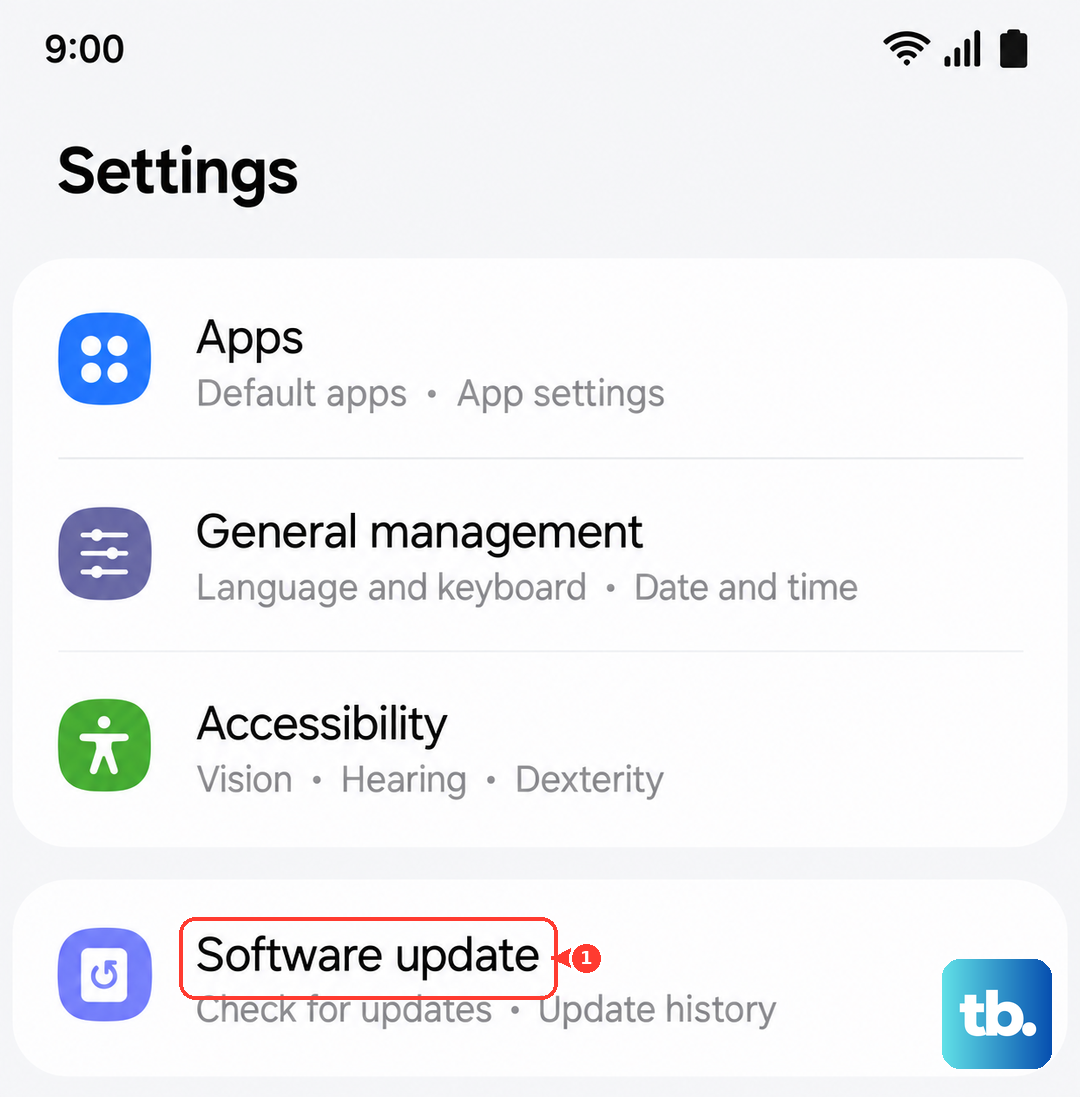
Disable VPN Apps
A VPN running in the background can mess with your cellular data routing. If you have any VPN apps installed, try turning them off or uninstalling them temporarily. Go to Settings > Connections > More Connection Settings > VPN and remove or disable any active profiles. See if the "No Service" error goes away.
Charge the Tablet Fully if the Battery Drained
One of the known quirks of the Tab S11 Ultra is that the battery can drain completely even while switched off, and the device can become unresponsive to charging afterward. If your tablet died and now shows "No Service" after you charged it back up, that's likely a low-power state issue, not a network problem. Plug it into a wall outlet (not a power strip or extension cord) with the USB-C cable. It can take up to 10 minutes for the charging indicator to appear when the battery is completely empty. Once the tablet has enough juice, the cellular radio will start working normally again. If the tablet is still unresponsive after 10 minutes of charging, perform a force restart as described at the top.
Also check the charging port for lint or debris. A dirty USB-C port can cause power delivery issues that indirectly affect all the tablet's subsystems, including the modem. A clean, dry cotton swab or a toothpick can carefully remove any gunk.
Most "No Service" problems on the Tab S11 Ultra come down to a simple settings fix or a temporary software hiccup. Start with the force restart and work through these steps in order. You'll likely have your connection back before you reach the end of the list.