
Your Samsung Galaxy Tab S11 Ultra is a powerhouse, so when it starts lagging or freezing, it's frustrating. This is a tablet with serious hardware, but software quirks, storage bloat, or a dying battery can slow anything down. Let's get it running smooth again.
Force restart first
Before you dig into settings, do a force restart. This is different from a normal restart and clears out any temporary system glitches that cause freezing.
Press and hold the Power button and Volume Down button simultaneously for 10-15 seconds. The screen will go black, and the Samsung logo will appear. Let go once you see it. This is my go-to first step for any Tab S11 Ultra that's acting sluggish.
Free up storage space
Low storage is the most common reason tablets slow down. When your internal storage gets close to full, the system struggles to manage background processes.
Go to Settings > Device care > Storage. You'll see exactly what's taking up space. Start with large files you no longer need, and consider moving photos and videos to cloud storage. The Tab S11 Ultra also has a handy feature that automatically deletes old screenshots and blurry photos if you tap "Clean now."
Close unused apps
Having too many apps open in the background eats up RAM. On the Tab S11 Ultra, swipe up from the bottom of the screen and hold briefly to bring up the recent apps view.
Swipe through and close apps you're not actively using by swiping them off the screen. Pay special attention to games and video editors, which are real resource hogs on any tablet.
Check for system updates
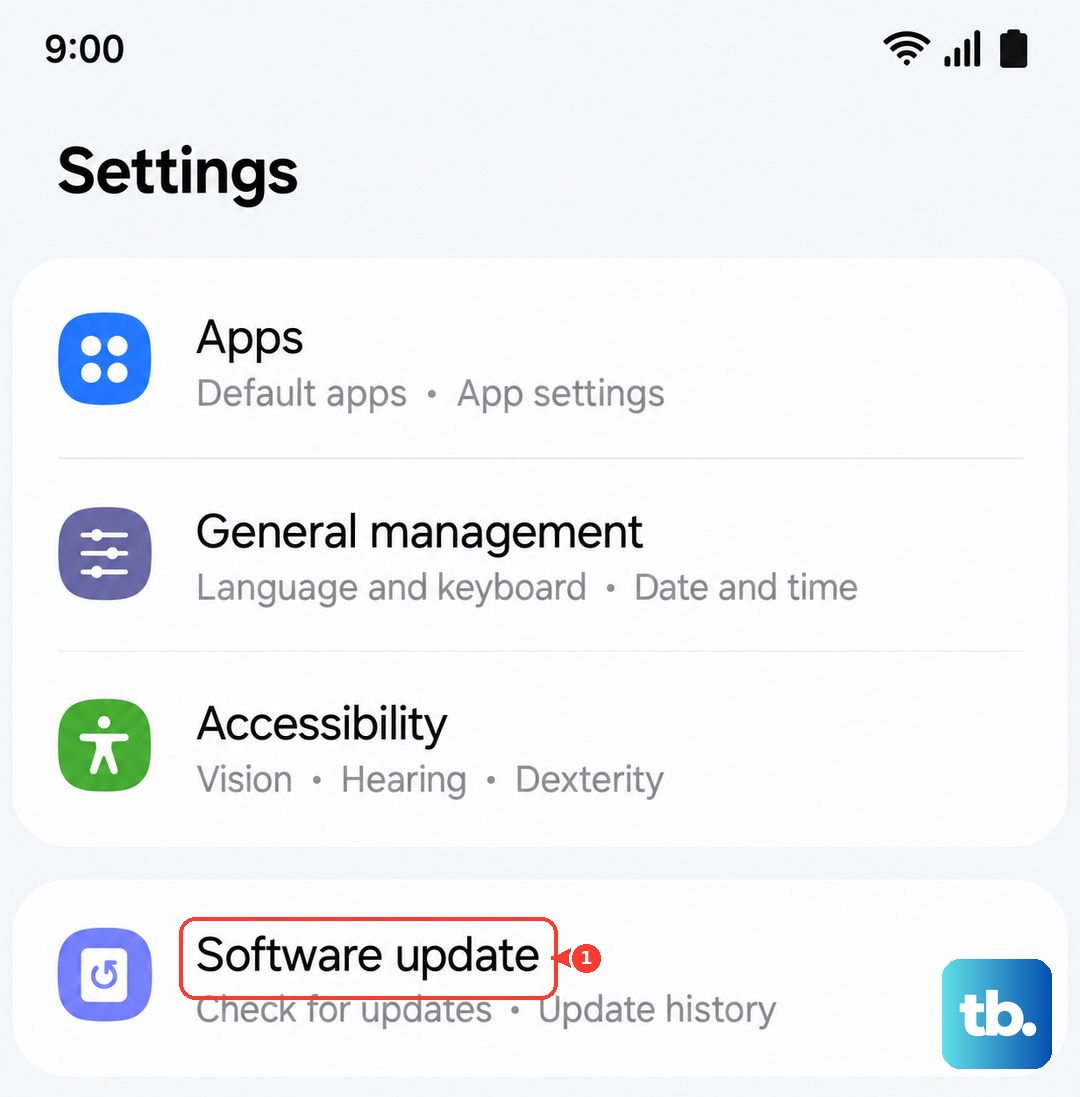
Your Tab S11 Ultra runs Android 16, and Samsung regularly pushes updates that fix performance bugs. Sometimes a single software patch resolves freezing issues entirely.
Go to Settings > Software update > Download and install. If there's an update waiting, install it while connected to Wi-Fi and plugged into power.
Clear the cache partition
System cache files can become corrupted over time, causing lag and app crashes. This doesn't delete your personal data, so it's safe to try.
To clear the cache partition, power off the tablet completely. Then press and hold the Volume Up and Power buttons simultaneously until the Samsung logo appears. Use the volume buttons to navigate to "Wipe cache partition" and confirm with the power button.
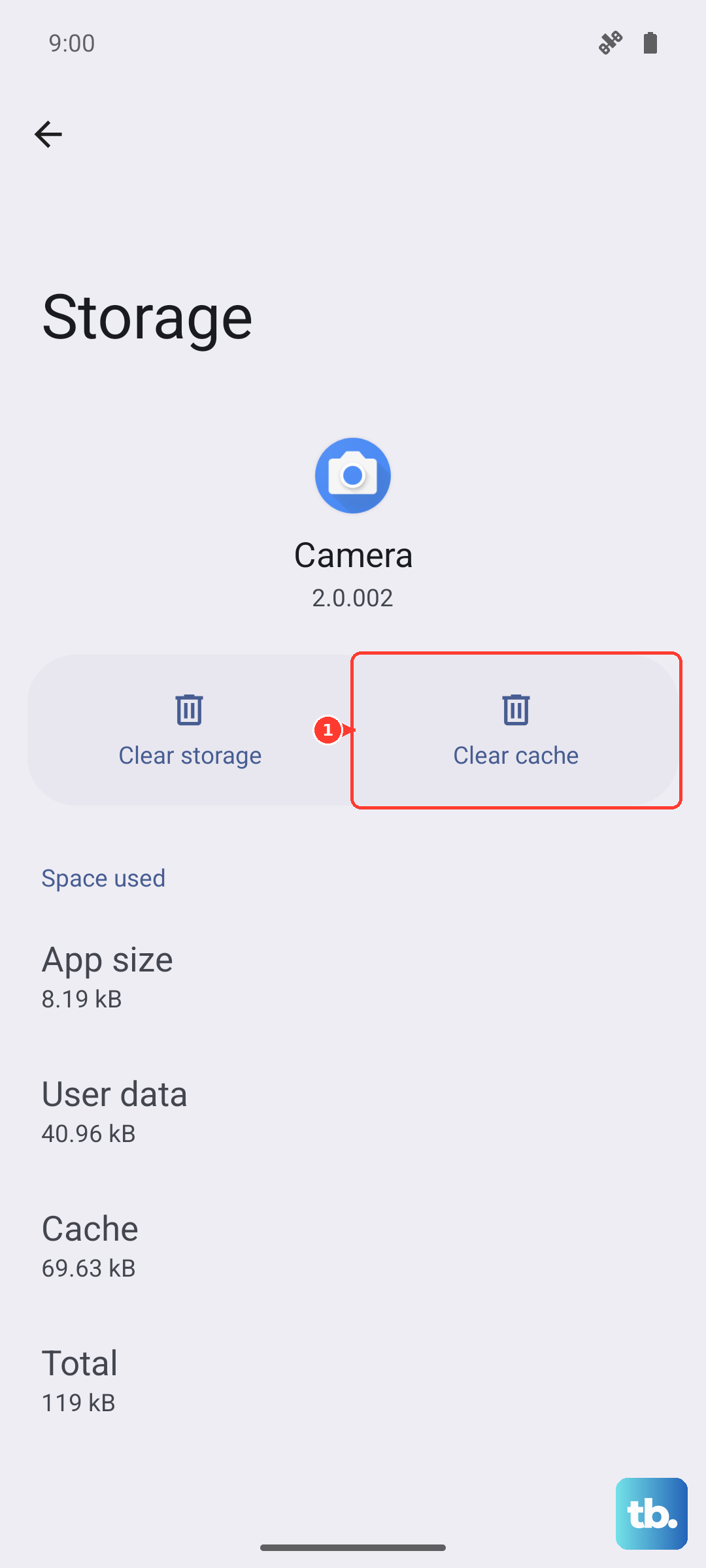
Restart the tablet afterward and see if performance improves. This is an Android-specific fix that many people don't even know about.
Manage background processes
Some apps constantly run in the background, draining both battery and system resources. You can limit this without uninstalling anything.
Go to Settings > Device care > Memory. Tap "Auto clean" to have the tablet automatically close unused apps. You can also manually review which apps are using the most memory and restrict their background activity.
Reduce animations and effects
Animations look nice, but they can make the Tab S11 Ultra feel slower, especially if you've been using it heavily. Reducing these makes navigation feel snappier.
Open Settings > Developer options. If you don't see Developer options, go to Settings > About tablet, then tap "Software information" and tap "Build number" seven times. Once enabled, find "Window animation scale," "Transition animation scale," and "Animator duration scale." Set each to 0.5x or turn them off entirely.
The difference in responsiveness is immediate.
Check battery health and charging
A weak battery can cause unexpected slowdowns. The Tab S11 Ultra supports 45W wired charging and 15W wireless Qi charging, but if the battery is draining fast or the tablet gets hot during use, performance takes a hit.
Go to Settings > Device care > Battery. Check which apps are consuming the most power. If you see unusually high usage from an app, force stop it or uninstall it. Also, if your tablet has ever been completely drained, it may take up to 10 minutes of charging before the indicator even appears. Don't panic if it seems dead at first.
Reset app preferences
If certain apps freeze or crash regularly, their settings might be corrupted. Resetting app preferences restores default permissions and background settings without deleting any data.
Go to Settings > Apps > tap the three dots in the upper right > Reset app preferences. You'll get a warning, but it only affects disabled apps and default app associations. It's a quick fix that often resolves odd app behavior.
Factory reset as a last resort
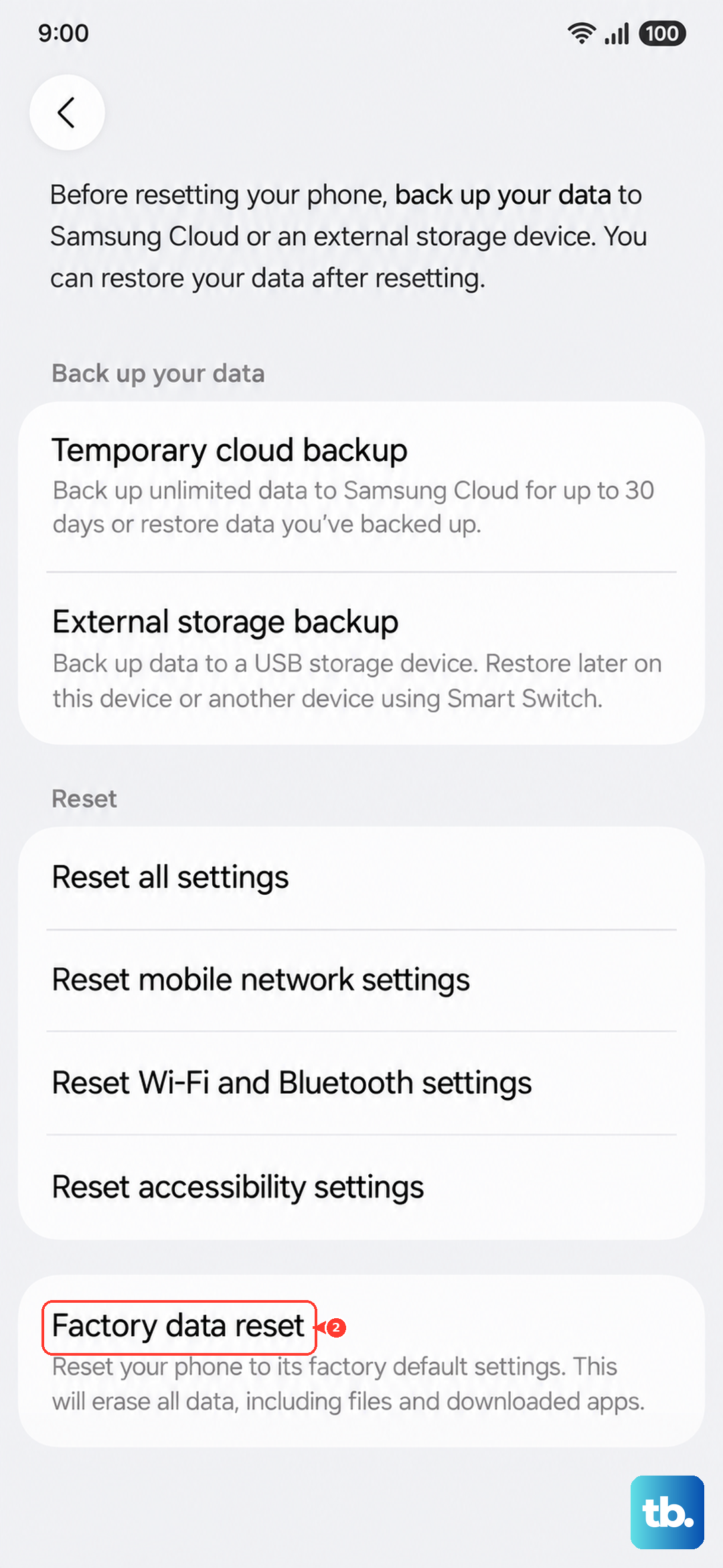
If you've tried everything and the tablet is still lagging, a factory reset will restore it to out-of-the-box performance. This wipes all your data, so back up anything important first.
Go to Settings > General management > Reset > Factory data reset. Confirm your PIN or password and proceed. After the reset, set the tablet up as a new device instead of restoring from a backup, which can reintroduce the same issues.
Start with the force restart and storage cleanup, then work through these steps. The vast majority of lag and freezing problems on the Tab S11 Ultra can be resolved without needing any advanced tools.