
When your Samsung Galaxy Tab S11 Ultra's hotspot stops working, your other devices lose their internet connection. The hotspot might not show up, fail to connect, or drop randomly. Here are the fixes that actually work.
Turn Hotspot Off and On
Swipe down from the top of the screen to open the Quick Settings panel. Tap the Hotspot icon to turn it off, wait about 10 seconds, then tap it again to re-enable it. This clears temporary glitches in the hotspot service and often gets things working immediately. Make sure Mobile Hotspot is actually turned on under Settings > Connections > Mobile Hotspot and Tethering.
Force Restart the Tab S11 Ultra
If the hotspot is acting up and a simple toggle doesn't help, do a force restart. Press and hold the Power button and Volume Down button simultaneously for 10-15 seconds until the device restarts. This refreshes all system processes including the hotspot radio without losing any data. I've seen this clear up stubborn connection issues on Samsung tablets.
Check Your Cellular Data Connection
The hotspot uses your tablet's cellular data, so if data is off or spotty, the hotspot won't work. Go to Settings > Connections > SIM card manager and make sure mobile data is enabled. If you're in a low-signal area, the hotspot may connect but provide very slow speeds. Also verify that your carrier plan allows tethering, since some budget plans restrict it.
Reset Network Settings
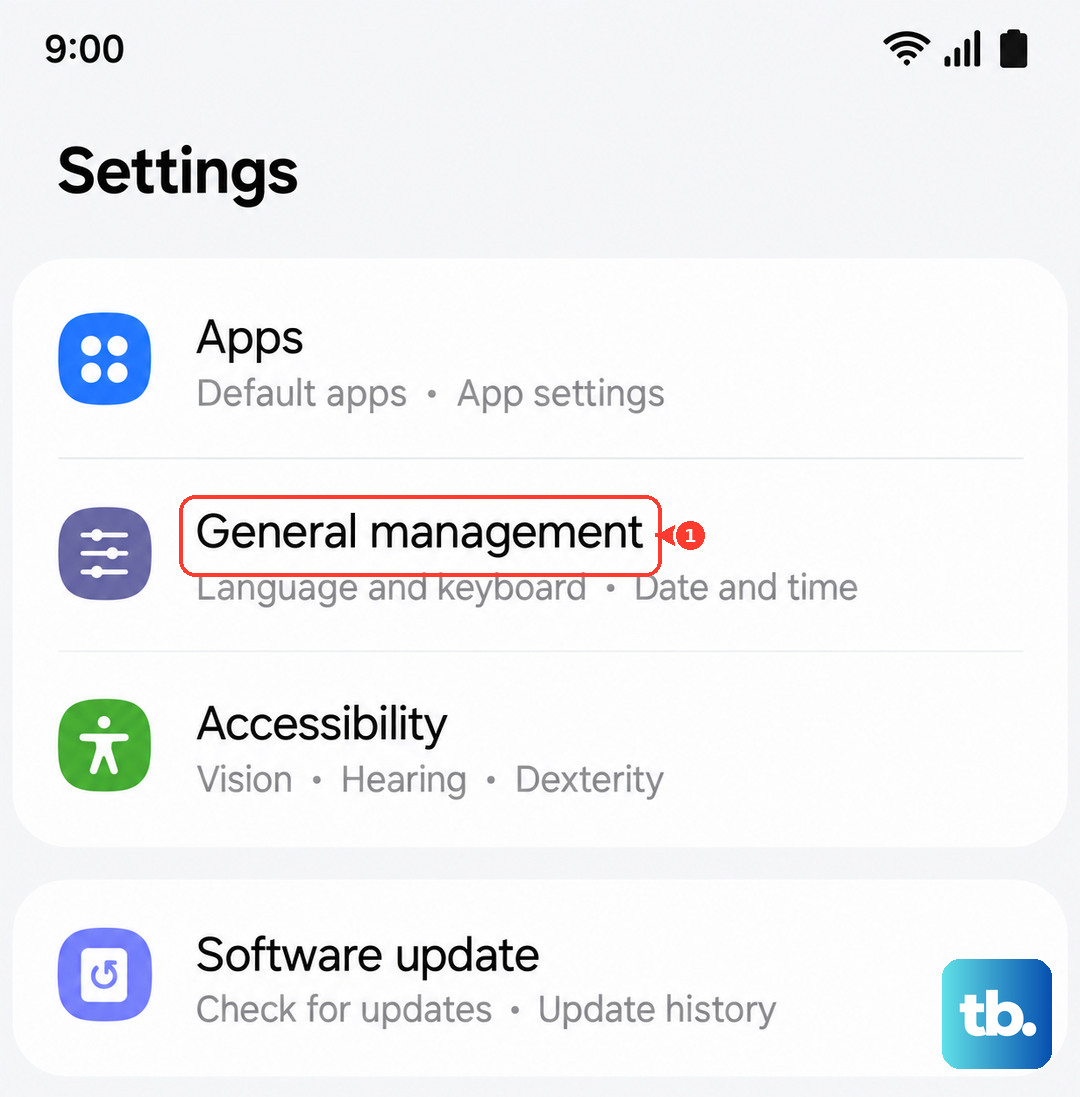
Go to Settings > General Management > Reset > Reset network settings. This wipes saved Wi‑Fi networks, Bluetooth pairings, and mobile data settings, then rebuilds them from scratch. You'll need to re-enter Wi‑Fi passwords afterward, but it clears up corrupted hotspot configurations that normal restarts can't touch. Tap Reset settings and confirm.
Update the Software
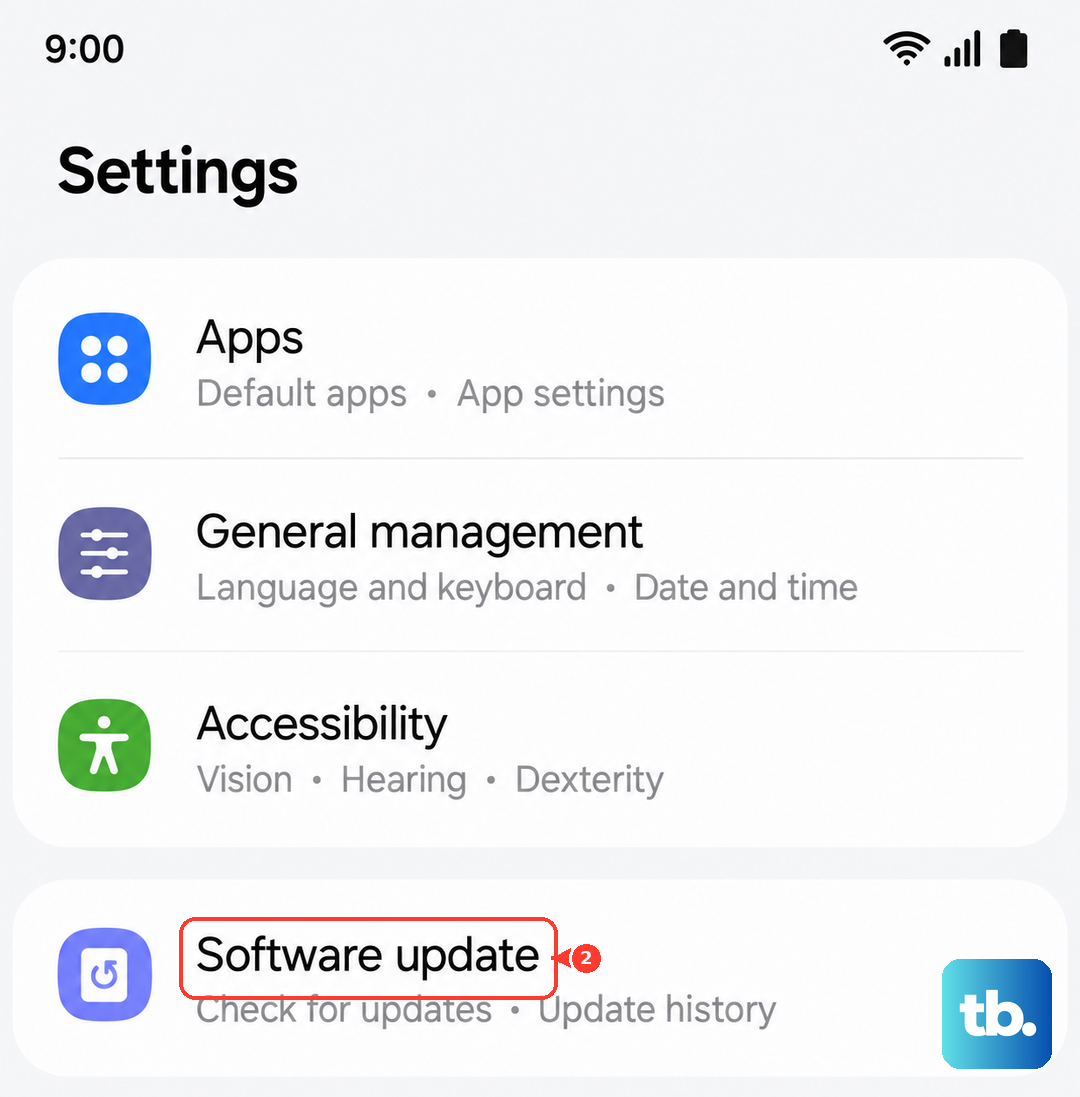
Open Settings > Software Update > Download and install. Samsung regularly releases updates that fix hotspot bugs and cellular radio issues. If an update is available, install it. Make sure the tablet has at least 50% battery or is plugged in during the update.
Try USB Tethering Instead
If the Wi‑Fi hotspot won't cooperate, connect your Tab S11 Ultra to your laptop or other device using the USB-C cable. Then go to Settings > Connections > Mobile Hotspot and Tethering and turn on USB tethering. Your computer should recognize it as a new network connection. This bypasses the Wi‑Fi radio entirely and often works when the hotspot won't.
Change the Hotspot Password
Open Settings > Connections > Mobile Hotspot and Tethering > Mobile Hotspot and tap the three-dot menu in the corner. Choose Configure mobile hotspot and change the password to something new. Tap Save. Then reconnect your other devices with the new password. A fresh password forces a clean handshake between the tablet and each connecting device.
Forget the Hotspot on Your Other Device
On the phone, laptop, or tablet that's trying to connect to your Tab, go to its Wi‑Fi settings and find the hotspot network. Tap it and choose Forget or Remove. Then search for the network again and enter the password fresh. Sometimes the saved connection profile gets corrupted, and a clean pairing fixes it.
Turn Off Power Saving Mode
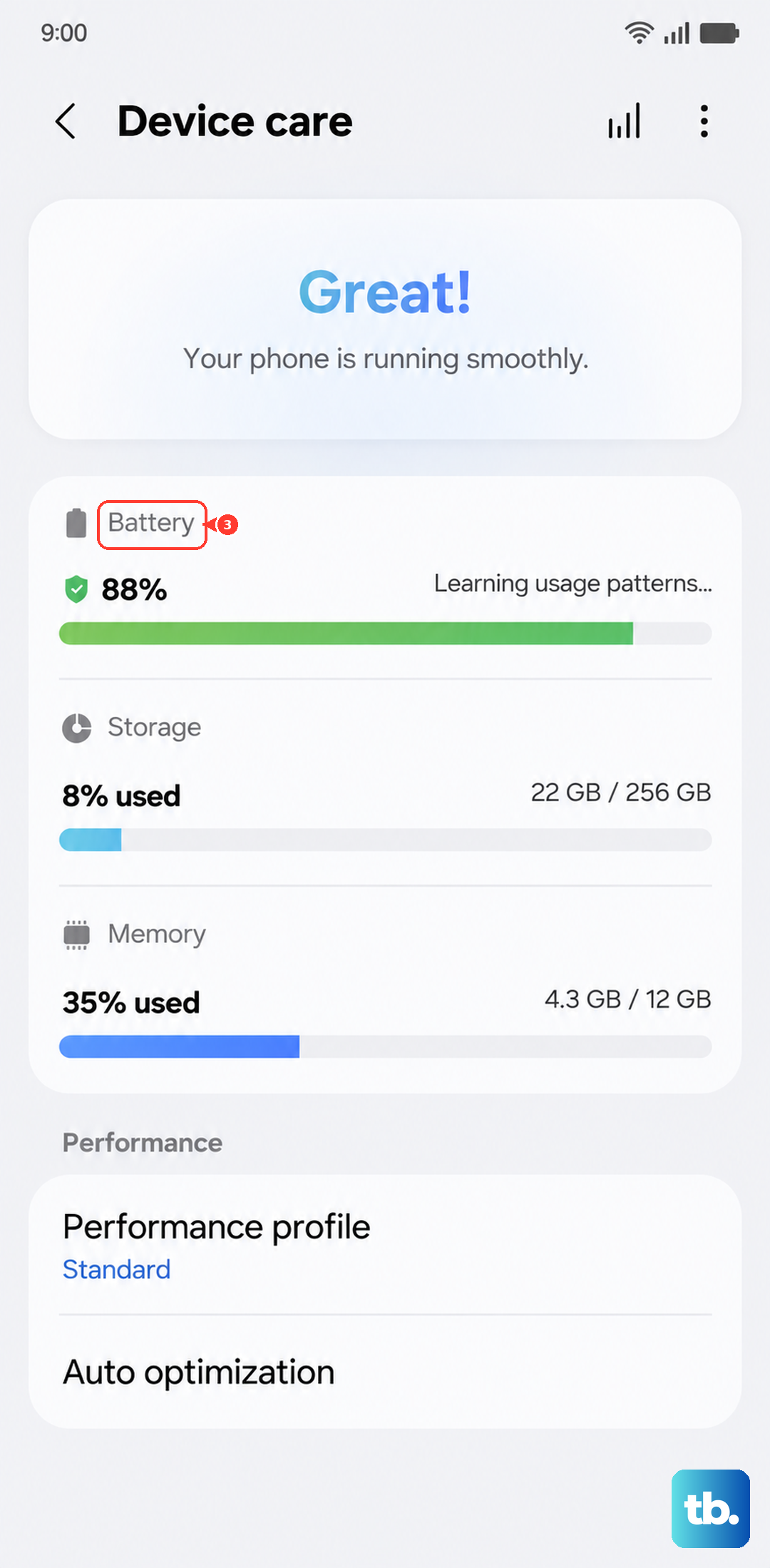
Power saving features can throttle the hotspot radio to save battery. Go to Settings > Battery and device care > Battery and turn off Power saving if it's on. Also check that Adaptive battery isn't restricting the hotspot. While you're there, make sure the tablet has enough charge, if the battery is critically low, the hotspot may refuse to enable.
Check Your Carrier for Hotspot Restrictions
If none of the above works, your carrier might have hotspot blocked on your plan or an account-level restriction. Log into your carrier's website or app and confirm that mobile hotspot / tethering is included. Some prepaid plans disable it by default. A quick call to customer service can confirm and, in many cases, enable it remotely.