
When your Samsung Galaxy Tab S11 Ultra can't figure out where you are, it throws off more than just navigation. Location-based apps act up, maps show you in the wrong spot, and services that rely on your position just stop working. The good news is that most GPS issues on this tablet are software-related and fixable in a few minutes.
The Tab S11 Ultra runs Android 16, which brings some helpful location tools. But like any tablet, glitches happen. Let's walk through what usually fixes it and what you should try based on how bad the problem is.
Toggle the Location Switch
This sounds too simple, but I've seen it work more times than you'd expect. Swipe down from the top of the screen to open Quick Settings and tap the Location icon to turn it off. Wait about 30 seconds, then tap it again to turn it back on. That quick refresh clears up minor GPS handshake issues almost instantly.
Restart the Tab S11 Ultra the Right Way
A regular restart clears out temporary software quirks that mess with location services. Hold down the Power button and tap Restart. But here's the thing about the Tab S11 Ultra specifically: if your GPS stopped working after a full battery drain, a standard restart might not cut it. In that case, press and hold the Power button and Volume Down button together for 10 to 15 seconds until the tablet restarts. This force restart wakes up components that sometimes stay asleep after a dead battery.
Check Location Permissions for Individual Apps
Android 16 tightened up app permissions, which means an app can have location turned off without you realizing it. Head to Settings > Apps and pick the app that's giving you trouble (Google Maps is the usual suspect). Tap Permissions and make sure Location is set to Allow all the time or Allow only while using the app. If it's set to Deny, that app will never get a lock on your position.
Turn Off Power Saving Mode
The Tab S11 Ultra has a massive battery, but Samsung's power saving features still kick in aggressively on Android 16. When Power Saving mode is active, the tablet reduces GPS accuracy to save juice. Go to Settings > Battery and device care > Battery and make sure Power saving is toggled off. You can also check if any routine or Bixby Mode is automatically turning on power saving at certain times.
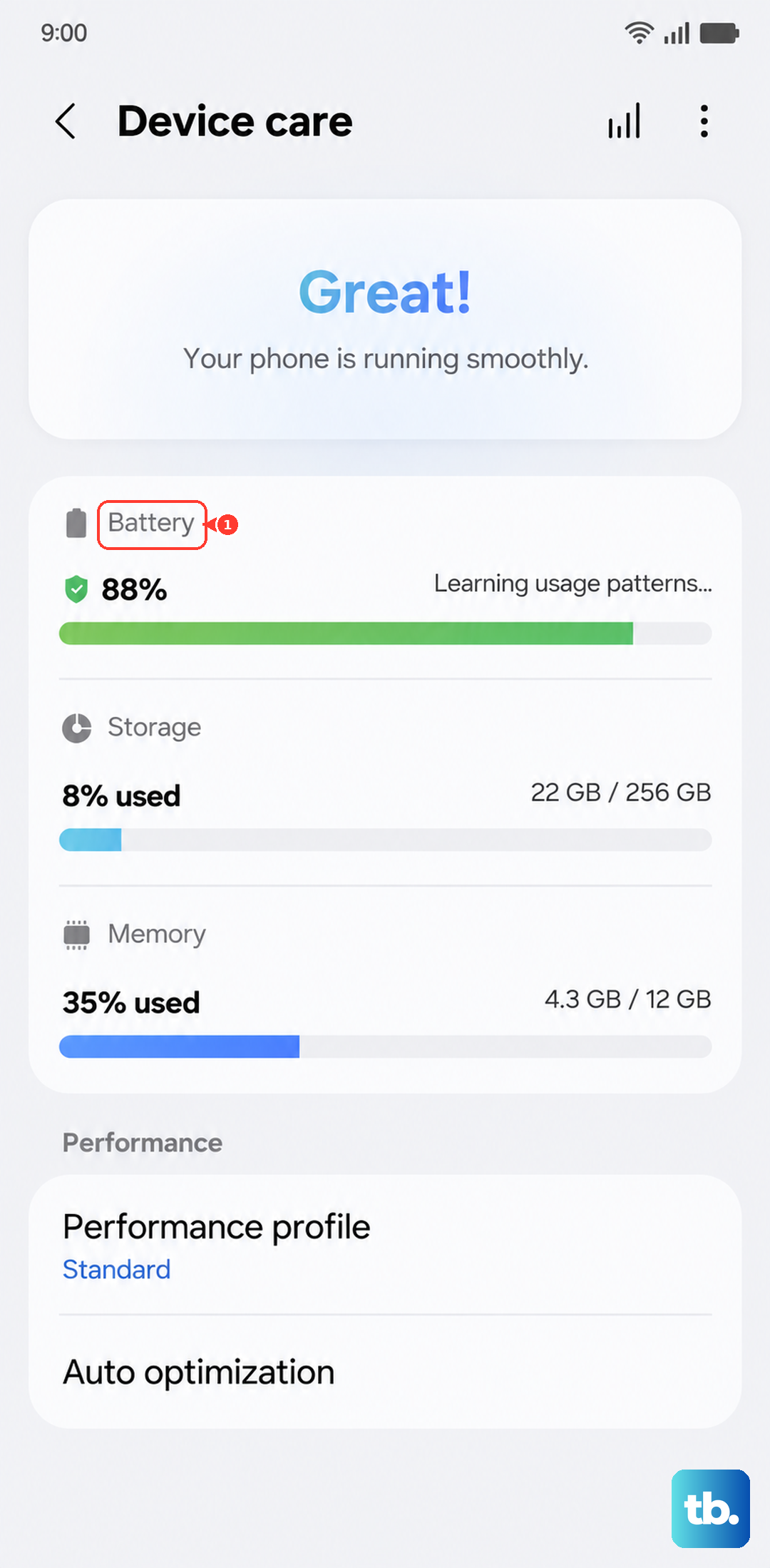
Switch to High Accuracy Mode
Android 16 offers different location modes, and the default setting sometimes prioritizes battery life over precision. Open Settings > Location > Location services and confirm that Google Location Accuracy is enabled. This lets the tablet use GPS, Wi-Fi, and mobile networks together for the most precise fix. Turning this off restricts your Tab S11 Ultra to GPS-only data, which takes longer and struggles indoors.
Update Google Maps and System Software
Outdated apps are a common cause of GPS weirdness on the Tab S11 Ultra. Open the Google Play Store, search for Google Maps, and hit Update if there's one available. Then go to Settings > Software update and check for any system-level updates for Android 16. Samsung pushes updates pretty regularly, and they often include GPS-related patches.
Clear the App Cache
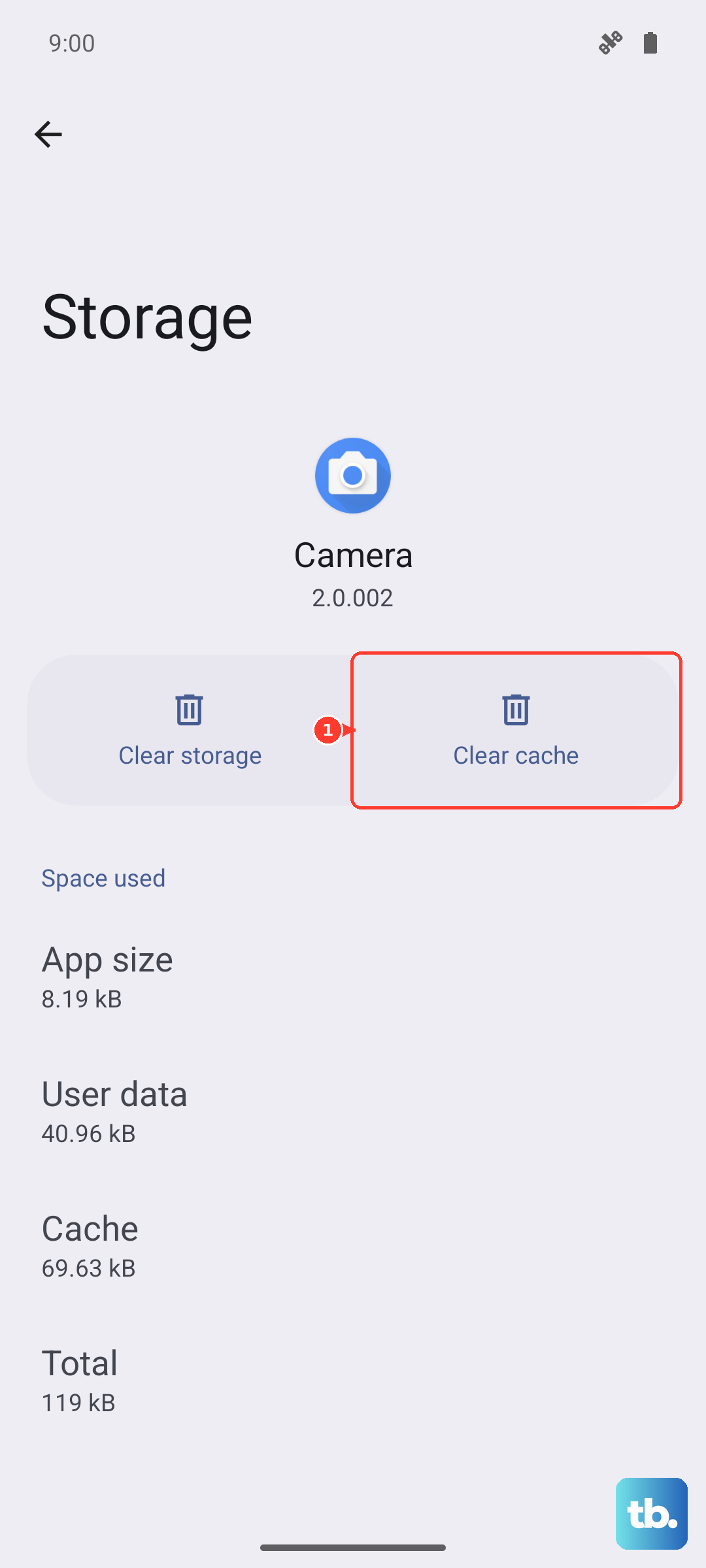
Corrupted cache data in navigation apps can cause inaccurate positioning or a complete failure to get a lock. Go to Settings > Apps > Google Maps > Storage and tap Clear cache. If that doesn't help, tap Clear data as well. Just know that clearing data resets your app preferences and saved locations, so you'll need to set a few things back up afterward.
Try Airplane Mode as a Quick Reset
This trick forces the Tab S11 Ultra to reestablish all its wireless connections, including the GPS radio. Swipe down and tap the Airplane Mode icon to turn it on. Wait about 15 seconds, then tap it again to turn it off. Give the GPS a moment to reconnect after that.
Use Safe Mode to Find the Culprit
If your GPS works fine sometimes but fails at other times, a third-party app might be interfering. Booting into safe mode temporarily disables all downloaded apps. Press and hold the Power button, then tap and hold Power off on the screen until Safe mode appears. Tap it to restart. Test your location in safe mode. If it works, a downloaded app is the issue and you'll want to uninstall recently added ones until you find the troublemaker.
Check for Physical Interference
GPS signals are weak signals. Thick tablet cases, especially ones with metal components or magnets, can block the antenna on your Tab S11 Ultra. Pop the case off and try using location services without it. Also make sure you're not in an area with heavy overhead coverage, like a parking garage or a room without windows. Even dense tree cover can weaken the signal enough to cause drift or no lock at all.
Calibrate the Compass
If your location is slightly off rather than completely broken, the compass might need recalibration. Open Google Maps and make a figure-8 motion with the Tab S11 Ultra until the blue dot's beam narrows and your position accuracy improves. This is a quick fix for that "I'm standing on the wrong side of the street" kind of problem.
When It's Likely a Software Glitch vs. Hardware
Download a GPS testing tool like GPS Essentials from the Play Store. Open it and check the Satellites screen. If the tablet can't see any satellites at all, you might be dealing with a hardware issue. If it sees satellites but still can't lock on or gives a wrong position, it's almost certainly a software problem that one of the steps above will fix. The Tab S11 Ultra launched in 2025, so hardware failures are less common, but they do happen.
Most location problems on the Galaxy Tab S11 Ultra come down to a permission hiccup, an outdated app, or power saving mode getting in the way. Work through these one at a time and you'll likely be back to accurate navigation in ten minutes or less.