
A black screen on the Samsung Galaxy Tab S11 Ultra can feel like a bricked device, especially given how quickly we depend on these tablets. But in most cases, the screen is blank because of a software freeze, a completely drained battery, or a specific quirk in how the tablet handles power when off. Let's work through the fixes one at a time.
Charge it the right way (the battery might be fully flat)
The Tab S11 Ultra has a known issue where the battery can drain completely even when the device is switched off. When that happens, the screen stays black and the tablet won't respond to anything right away. Plug it into a wall outlet using the USB-C cable and a 45W charger, not a power strip or extension cord. You might need to wait up to 10 minutes before the charging indicator appears.
Force restart the Tab S11 Ultra
If the tablet isn't charging or the screen is frozen on black, a force restart is the first real troubleshooting step. Press and hold the Power button and Volume Down button simultaneously for 10-15 seconds until the device restarts. Keep holding even if nothing happens for the first few seconds. The Samsung logo should pop up eventually.
Is the charging port the real problem?
A faulty charging port is one of the known weak points on the S11 Ultra. If your tablet isn't charging, the black screen could just be a dead battery with no way to refill it. Grab a flashlight and look inside the USB-C port for lint, bent pins, or debris. A gentle clean with a wooden toothpick can sometimes bring the connection back to life.
Check the display hardware
If you hear sounds, notifications, vibrations, or the camera opening, but the screen stays black, the display panel itself might be the issue. Run your finger across the screen where the unlock icon would normally appear. If you feel haptic feedback or the tablet unlocks, you're dealing with a screen hardware failure. A visible crack or dark spot confirms this.
Boot into Safe Mode to check for app conflicts
Third-party apps running in the background can sometimes crash the system UI, leaving you with a black screen. Press and hold the Power button, then tap and hold "Power off" on the screen until the Safe Mode prompt appears. Select Safe Mode. If the tablet works normally here, a recent app download is causing the crash. Uninstall anything you installed right before the problem started.
Wipe the cache partition from Recovery Mode
Corrupted system cache files can cause the device to get stuck on a black screen or a boot loop. Power off the tablet completely. Then press and hold the Power button and Volume Up button together until the Android Recovery menu shows up. Use the volume buttons to navigate to "Wipe cache partition" and press the power button to select it. This won't delete your photos or data, just temporary system files.
Factory reset (this wipes everything)
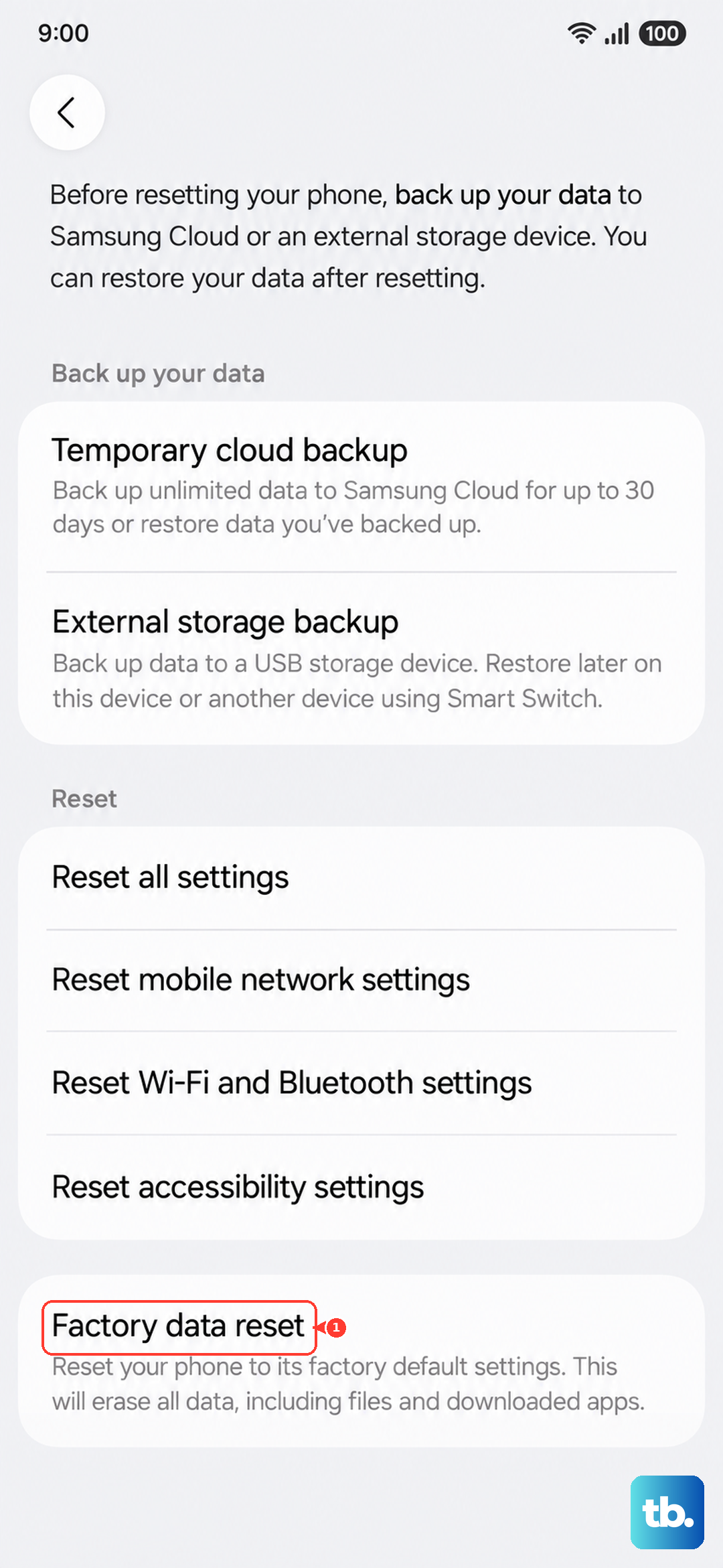
If the cache wipe doesn't do the trick, a factory reset from the same Recovery Mode menu usually will. This erases everything on the device, so back up anything important first. In Recovery Mode, select "Factory data reset" and confirm. The tablet will restart and should boot into a fresh setup screen.
Restore the firmware with Smart Switch
If the tablet won't even boot into Recovery Mode, you can use a computer to force the firmware onto it. Download Smart Switch on your PC or Mac and connect the Tab S11 Ultra with a USB-C cable. Go to "More" and choose "Emergency software recovery." Smart Switch will download Android 16 and reinstall it, fixing deep OS corruption that a standard reset can't touch.
Look for physical or liquid damage
Check the USB-C port for corrosion and inspect the SIM card tray for liquid damage indicators (they turn pink or red when wet). If you spot any moisture, do not try to charge the tablet. Place it in a dry, well-ventilated area for 24-48 hours. In some cases, the black screen is the device's way of protecting itself from a short circuit.