When your Samsung Galaxy Tab S11 Ultra refuses to download apps from the Google Play Store, it can bring your workflow to a halt. This tablet runs Android 16 and packs serious power, but even the best hardware hits glitches. The fixes here are tailored for the Tab S11 Ultra, so you won't waste time on generic steps that don't apply.
Let's walk through the solutions that actually work on this device.
Check Your Internet Connection and Restart
Start with the simplest culprit. Pull down the notification shade on your Tab S11 Ultra and make sure Wi-Fi or mobile data is active. If the connection looks fine but downloads stall, turn Wi-Fi off and on again, or switch to a different network. Some routers block port 5228 that Play Store uses.
After checking, give the tablet a standard restart. Press and hold the Power button, tap Restart. This clears minor software hiccups that could be blocking app installs.
Force Restart an Unresponsive Tab S11 Ultra
If your tablet froze mid-download or won't respond at all, a force restart is your friend. This is different from a normal restart and can revive a device that seems dead. Press and hold the Power button and Volume Down button simultaneously for 10 to 15 seconds until the Samsung logo appears.
This trick is especially useful if your Tab S11 Ultra's battery drained completely and it won't wake up. After the force restart, try downloading again.
Fix Incorrect Date and Time Settings
Google servers check your device's time before authorizing downloads. If the Tab S11 Ultra's clock is off, the Play Store might refuse to install anything. Go to Settings > General Management > Date and Time. Make sure Automatic Date and Time is turned on.
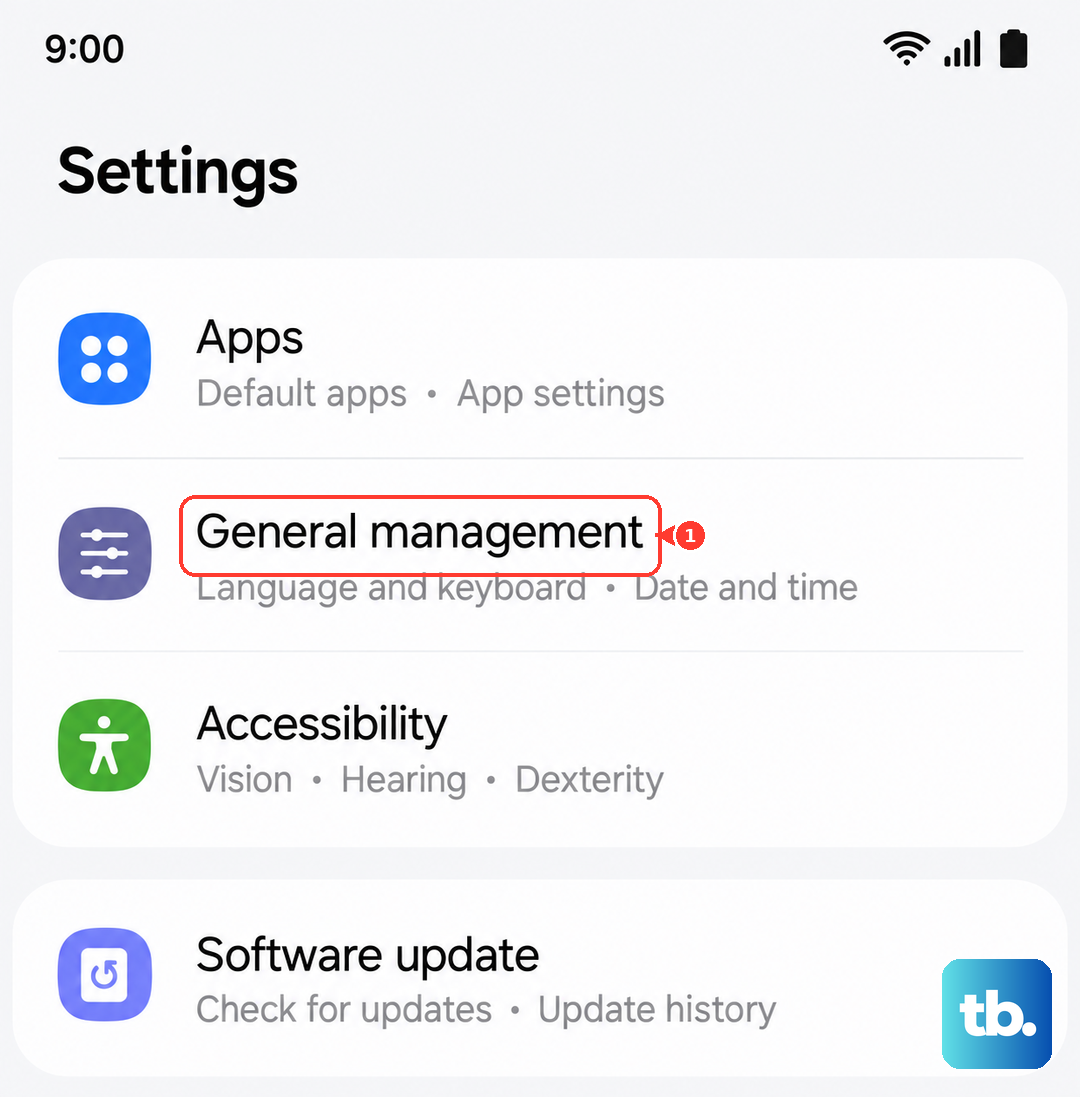
If it's already on and you're still stuck, toggle it off, set the time manually to the correct value, then toggle it back on. This forces a fresh time sync.
Clear Google Play Store Cache and Data
Corrupted cache files in the Play Store app are a common cause of download failures. Open Settings > Apps, find Google Play Store, tap Storage, then hit Clear Cache. If that doesn't help, tap Clear Data as well. This resets the Play Store without deleting your account.
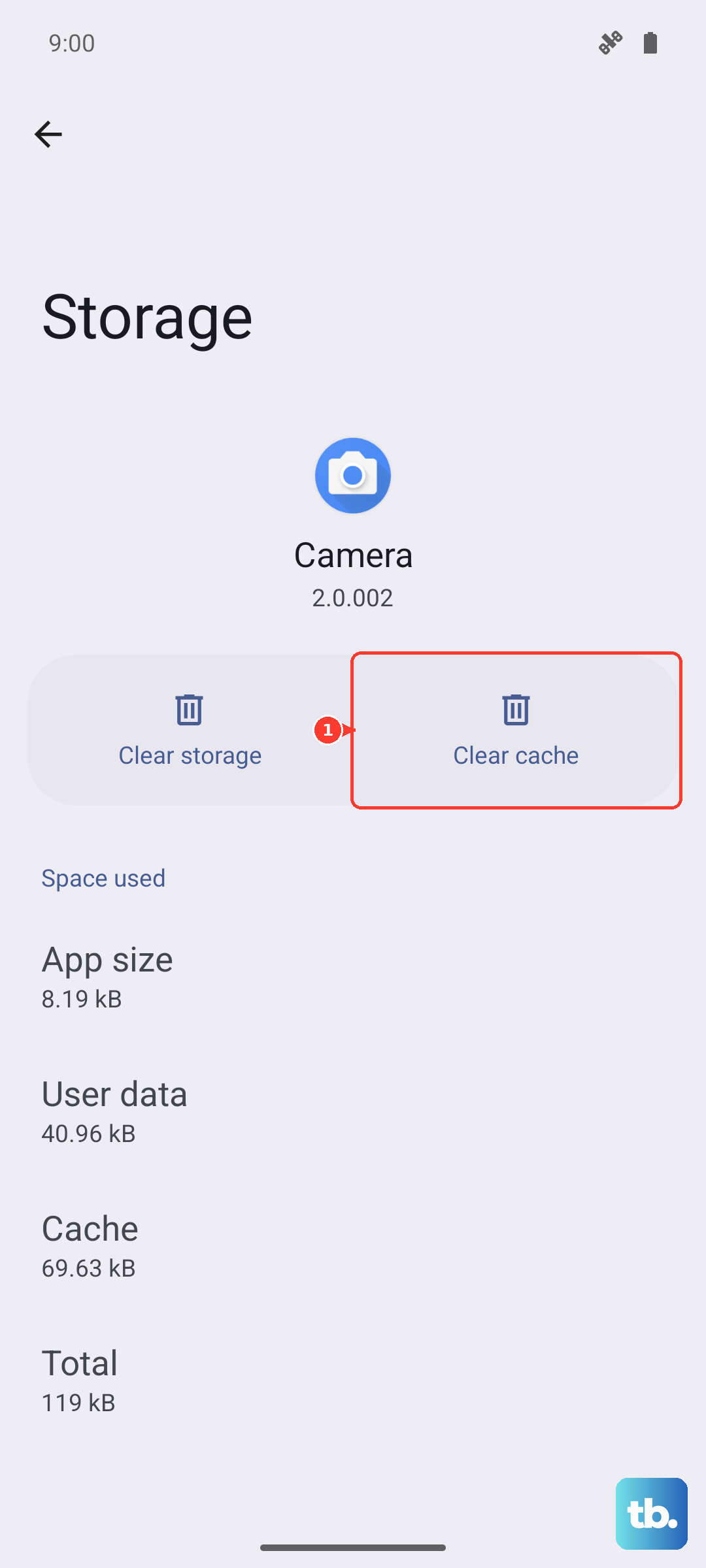
After clearing, restart the Tab S11 Ultra and open the Play Store. It will take a moment to reconfigure itself, then try your download.
Clear Google Play Services Cache and Data
Google Play Services handles the backend for app installation. When it gets tangled, downloads can stall. Head to Settings > Apps > Google Play Services > Storage. First tap Clear Cache, then tap Manage Storage and choose Clear All Data.
You'll need to confirm the action. After that, restart the tablet. This won't remove your Google account or personal files, but it will reset Play Services to a clean state.
Check App Permissions for Play Services
Google Play Services needs certain permissions to download and install apps correctly. Go to Settings > Apps > Google Play Services > Permissions. Make sure Storage permission is enabled. If it's not, toggle it on.
You should also check system settings permissions. In the same app info screen, tap Change system settings and ensure Allow permission is on. Without this, Play Services can't modify system-level settings needed for installs.
Update to the Latest Android 16 Software
Samsung regularly pushes software updates for the Tab S11 Ultra that fix bugs affecting app downloads. Check for updates by going to Settings > Software Update > Download and Install. If an update is available, install it and let the tablet restart.
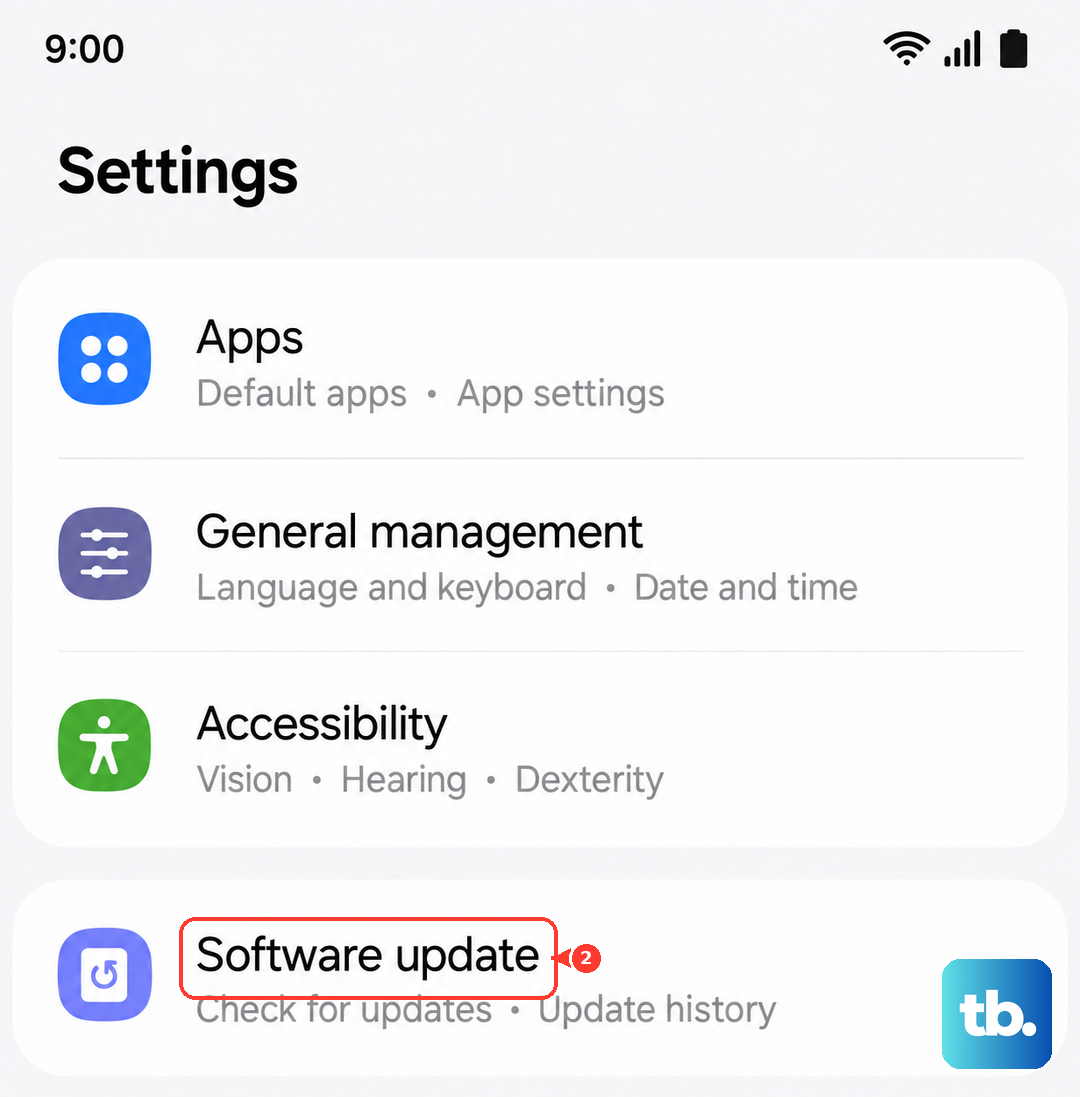
Outdated system software can cause compatibility issues with newer apps, especially ones that require the latest Android features.
Refresh Your Google Account Sync
Sometimes the sync between your Google account and the Tab S11 Ultra gets stuck, which blocks the Play Store. Open Settings > Accounts > Google (your account). Tap the three-dot menu in the top-right and select Cancel sync. Wait about 30 seconds, then go back and tap that three-dot menu again and choose Sync now.
After the sync completes, try installing an app. This simple refresh often clears up any authentication hiccups.
Remove and Re-add Your Google Account
If syncing didn't work, a full account reset can do the trick. Go to Settings > Accounts > Google, tap the account, then tap Remove Account. Don't worry, your apps and data remain on the tablet, but you'll lose any offline Play Store licenses until you re-add it.
After removal, tap Add Account in the Accounts menu and sign back in with the same Google account. This forces a fresh authentication and can resolve persistent download errors.
Free Up Storage or Consider a Factory Reset
If the Play Store gives you an "Insufficient space" error, you need to clear room. The Tab S11 Ultra has ample storage, but large apps can fill it quickly. Go to Settings > Battery and Device Care > Storage to see what's taking up space. Delete old videos, apk files, or apps you no longer use.
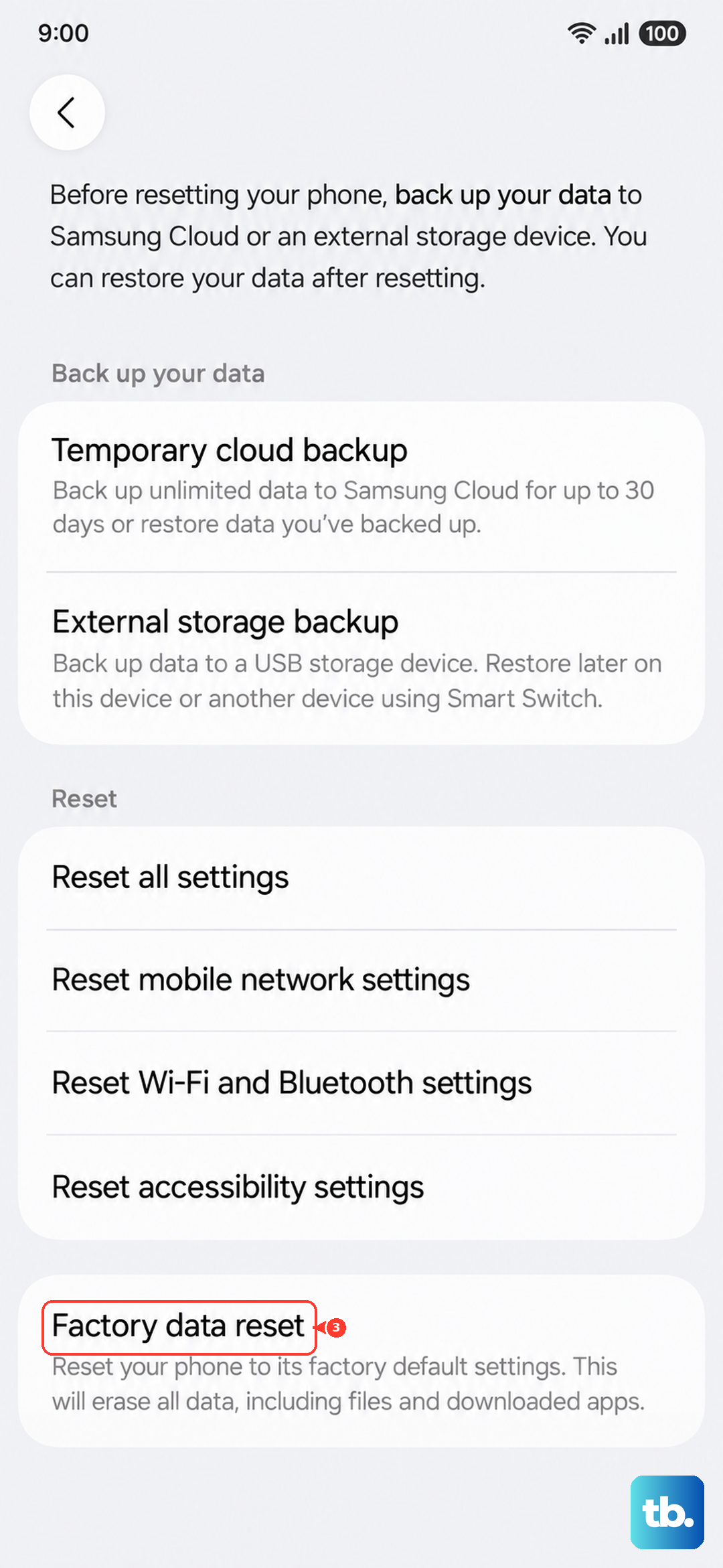
If nothing else has worked and downloads still fail for every app, a factory reset might be your last resort. Back up your data first, use Samsung Cloud or a computer. Then go to Settings > General Management > Reset > Factory Data Reset. This wipes everything and returns the tablet to its out-of-the-box state. After the reset, sign in and test the Play Store. This usually resolves even the most stubborn software issues.