
When your Galaxy Tab S10+ goes silent, it can really throw off your movie night or video call. Sound issues on this tablet can pop up for a few reasons, from a simple software hiccup to a setting you didn't know was on. The good news is you can usually fix it yourself without too much trouble.
To separate hardware from software, open a online speaker test and play the channel tones. What you hear, or do not hear, tells you which fixes below matter most.
Check Your Volume and Sound Mode
This is the most common fix, and it's worth checking even if you think you already did. Press the volume up button on the side of your Tab S10+ while you're trying to play something. Sometimes the media volume is separate from the ringtone volume, so you need to adjust it while content is playing.
Next, swipe down from the top of the screen to open the Quick Settings panel. Look for the sound mode icon, it might say "Sound," "Vibrate," or "Mute." Make sure it's set to "Sound." If you see "Mute," tap it to turn sound back on.
Disconnect Bluetooth and Accessories
Your tablet might be trying to send audio somewhere else. If you have Bluetooth headphones, a speaker, or even a Samsung DeX station connected, the sound will route there instead of the tablet's own speakers.
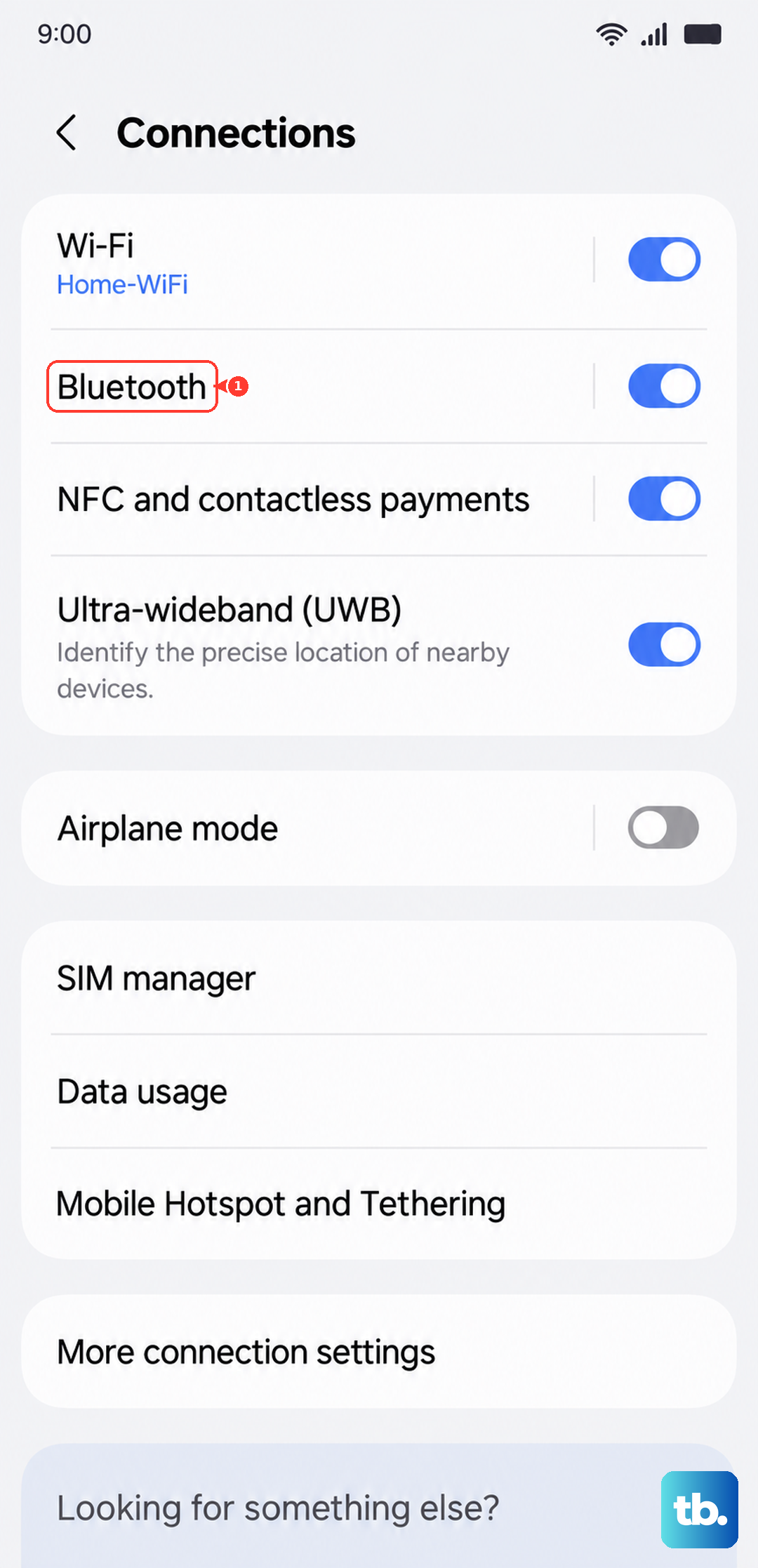
Go to Settings > Connections > Bluetooth. Turn Bluetooth off completely, or tap the gear icon next to any connected device and select "Disconnect." Also, physically unplug any USB-C headphones or hubs. I've seen this solve the problem more times than I can count.
Review the Separate App Sound Feature
This is a powerful Samsung feature that can sometimes cause confusion. It lets you send audio from one specific app to a Bluetooth device while everything else plays on the tablet. If it's set up incorrectly, it can seem like sound is just gone.
To check, go to Settings > Sounds and vibration > Advanced sound settings. Tap on "Separate app sound." If this feature is on, toggle it off and see if your main speakers start working again.
Clean the Speaker Grills
The Tab S10+ has speaker grills along the top and bottom edges when held in landscape mode. Over time, pocket lint, dust, or crumbs can get packed in there, muffling or blocking sound completely.
Take a close look with a flashlight. You can gently brush the grills with a soft, dry toothbrush or use a can of compressed air held upright for a quick blast. Avoid using anything sharp like a pin, as you could easily damage the delicate speaker components behind the grill.
Check Do Not Disturb and Accessibility Settings
Some system-wide settings can mute audio. Swipe down twice from the top to open your full Quick Settings, and look for the "Do Not Disturb" icon. If it's highlighted, tap it to turn it off.
Also, head to Settings > Accessibility > Hearing enhancements. Make sure options like "Mute all sounds" are switched off. Another setting to check is in Accessibility > Audio balance; ensure the slider is centered and not pushed all the way to one side.
Force Restart Your Tablet
A quick reboot clears out temporary glitches that can affect the audio system. For the Galaxy Tab S10+, press and hold the Volume Down button and the Power button at the same time.
Keep holding them for about 10 seconds, or until you see the Samsung logo appear on the screen. Then let go and let the tablet boot up normally. This is different from a normal restart and often fixes weird software behavior.
Clear the System Cache
Corrupted data in the system cache can cause all sorts of issues, including sound problems. This doesn't delete any of your personal files. First, turn off your tablet completely.
Now, press and hold the Volume Up button and the Power button together. Release both buttons when you see the Android recovery menu. Use the Volume Down button to highlight "Wipe cache partition," then press the Power button to select it. Confirm, and then select "Reboot system now."
Boot Into Safe Mode
If the problem started after installing a new app, Safe Mode can tell you for sure. It temporarily disables all third-party apps. To enter Safe Mode on the Tab S10+, first turn the screen off.
Press and hold the Power button until you see the "Samsung" text, then immediately release the Power button and press and hold the Volume Down button. Keep holding it until the device finishes restarting. You'll see "Safe mode" in the bottom-left corner.
Test your sound in this mode. If it works, a recently downloaded app is the culprit. Restart normally to exit Safe Mode and start uninstalling apps one by one to find the bad one.
Reset All Settings
If you're still having trouble, this will revert all your system settings back to factory defaults without touching your photos, apps, or personal data. It's a good middle step before more drastic measures.
Go to Settings > General management > Reset. Tap on "Reset settings." You'll get a warning that this will reset things like network settings, sound levels, and display preferences. Tap "Reset settings" again to confirm. Your tablet will reboot, and you'll need to reconfigure your preferences, but your sound should be back to its default working state.