
Seeing a "Not registered on network" error on your Samsung Galaxy Tab S10+ is a real productivity killer. It means your tablet can't connect to your mobile carrier, so you lose calls, texts, and mobile data when you're away from Wi-Fi. This error often pops up after a software update, a change in location, or sometimes for no apparent reason at all.
Before you worry about anything complicated, let's start with the quickest fix. Swipe down twice from the top of your screen to open the full Quick Settings panel. Tap the Airplane Mode icon to turn it on, wait about 15 seconds, then tap it again to turn it off. This forces your tablet's cellular radio to completely restart its connection to the nearest tower, which often clears up temporary glitches.
Perform a Force Restart
If toggling Airplane Mode didn't work, a force restart is your next best step. This is different from a normal restart and can clear deeper system hiccups that affect the modem. Press and hold the Volume Down button and the Power button together for about 10 seconds. You'll see the screen go black and the Samsung logo reappear. Once it's fully booted, check if you have signal bars again.
Check Your SIM Card
A loose or dirty SIM card is a surprisingly common culprit. Grab the SIM ejector tool that came with your tablet (a small paperclip works in a pinch) and power the device off. Gently push the tool into the small hole on the SIM tray to pop it out. Remove the SIM card, give both the card's gold contacts and the inside of the tray slot a gentle wipe with a soft, dry cloth, and then reseat everything firmly. Power the tablet back on and see if it registers.
Verify Your Carrier Account Status
Sometimes the issue isn't with your Galaxy Tab at all. If your prepaid plan has run out of credit or your postpaid account has been suspended due to a billing issue, your carrier will block network access. I'd recommend using another device to log into your carrier's website or app, or giving their support line a quick call. Confirm your account is active before spending more time on tablet fixes.
Reset Your Network Settings
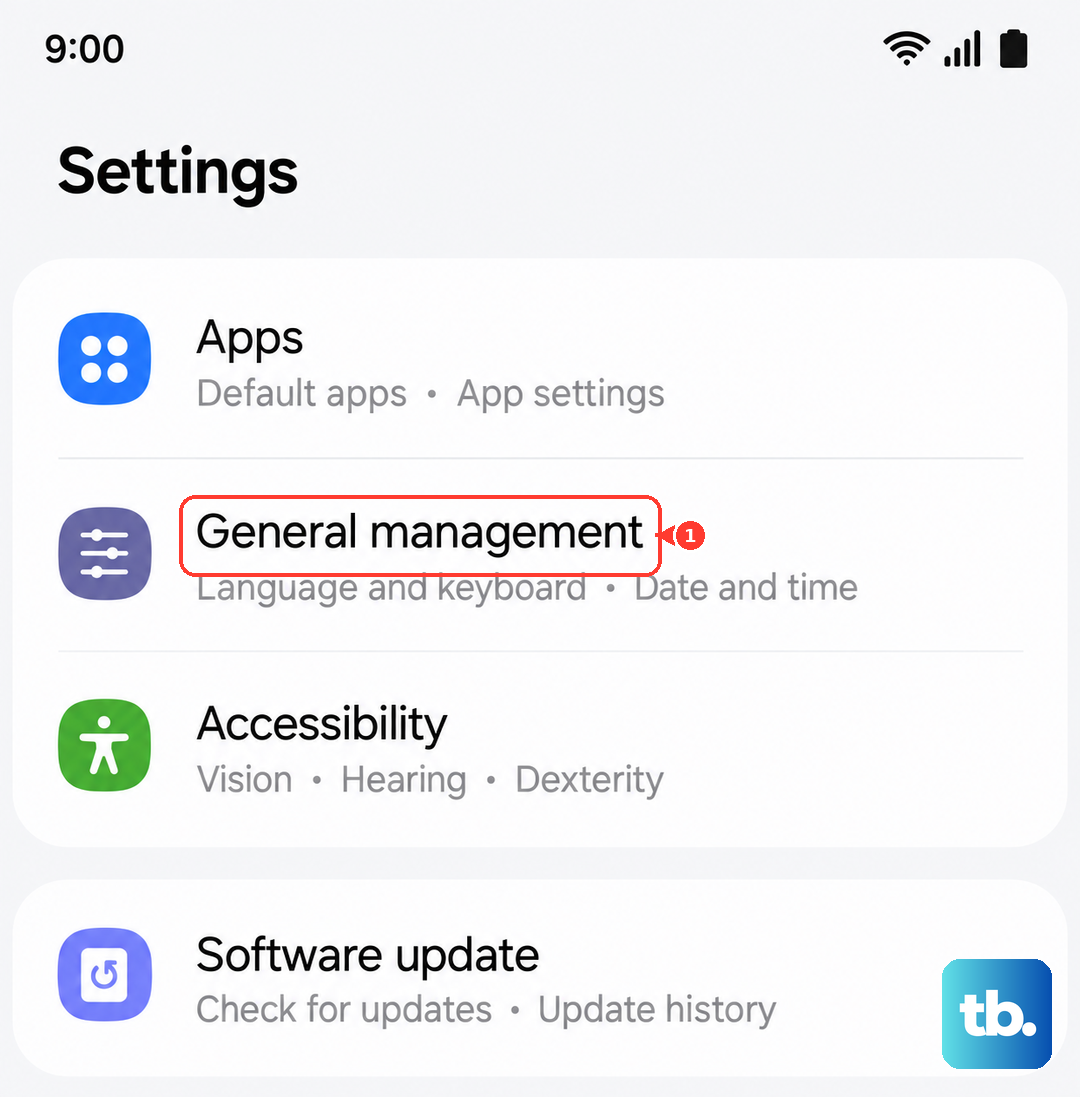
This step clears out all your saved Wi-Fi networks, Bluetooth pairings, and cellular network preferences. It's a great way to wipe any corrupted configuration data that's causing the registration error. Go to Settings > General management > Reset > Reset network settings. Tap to confirm, and your tablet will restart. You'll need to reconnect to Wi-Fi and re-pair Bluetooth devices afterward, but it often solves stubborn network problems.
Manually Select Your Network Operator
Your tablet might be trying to automatically connect to a network that's weak or undergoing maintenance. You can force it to search for and pick your carrier directly. Navigate to Settings > Connections > Mobile networks > Network operators. Turn off "Select automatically," wait a moment for the list to populate, and then manually choose your carrier's name from the list. This can establish a more stable connection.
Update Your Software
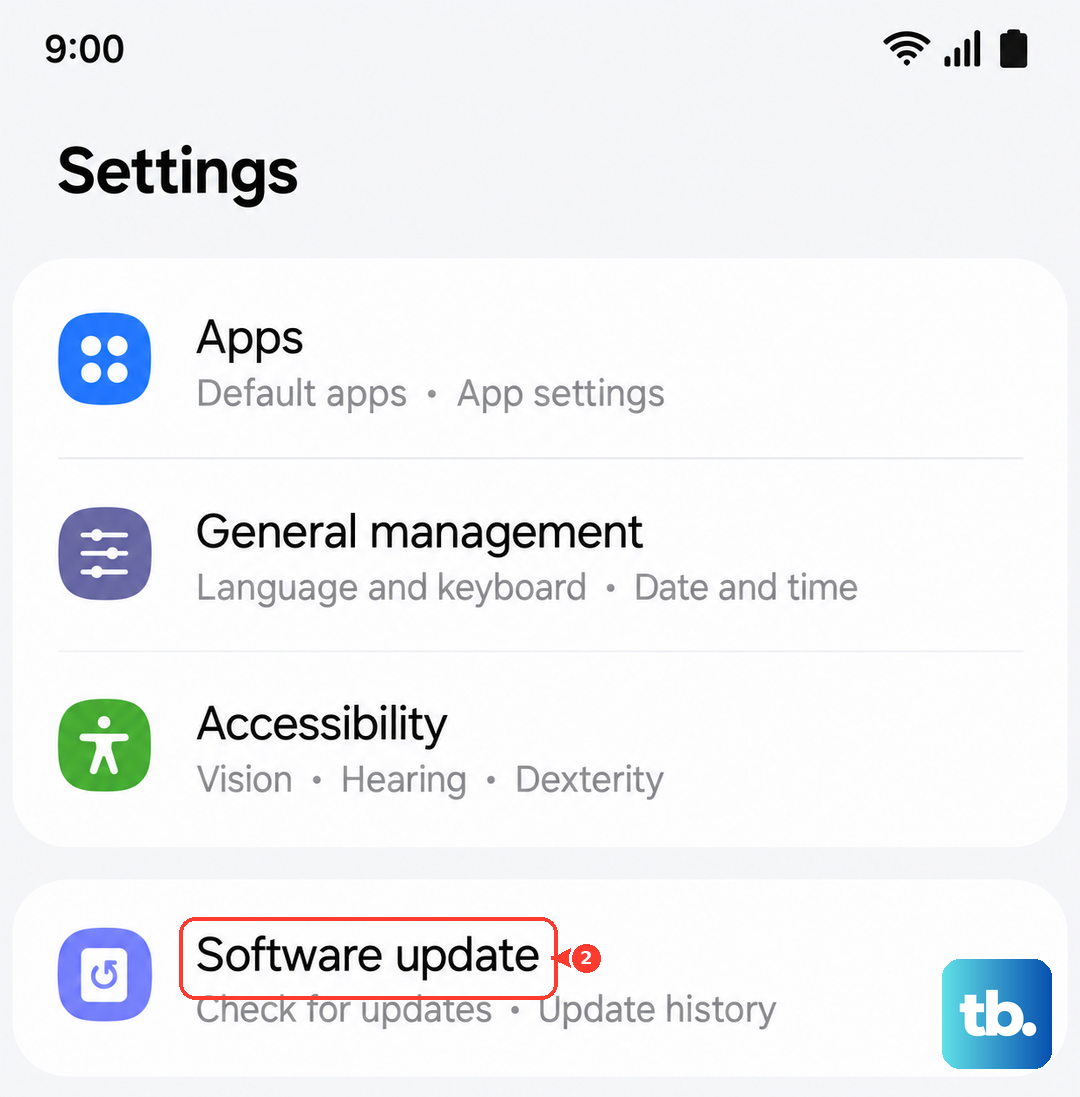
Outdated software can have bugs that affect cellular connectivity. Samsung and your carrier release updates specifically to fix these kinds of issues. Make sure your Tab S10+ is connected to Wi-Fi, then go to Settings > Software update > Download and install. If an update is available, install it. The tablet's Dimensity 9300+ chipset handles updates quickly, but it's still a good idea to plug in your 45W charger during the process.
Change the Network Mode
If you're in an area with spotty 5G coverage, forcing your tablet to use LTE can provide a more reliable connection. Head to Settings > Connections > Mobile networks > Network mode. Try switching from "5G/LTE/3G/2G (auto connect)" to "LTE/3G/2G (auto connect)." This tells your tablet to ignore 5G bands and can sometimes resolve registration failures if the 5G signal is the problem.
Try a Different SIM Card
This test helps pinpoint whether the issue is with your SIM or the tablet itself. If you can borrow a known-working SIM card from a friend or family member (even from a different carrier), pop it into your Tab S10+. If the new SIM connects to a network without any "not registered" message, then your original SIM card is likely faulty or deactivated. You'll need to contact your carrier for a replacement.
Factory Reset Your Tablet
Consider this a last resort, as it will erase all your personal data, apps, and settings. Before you begin, ensure everything important is backed up to your Samsung account or Google Drive. To proceed, go to Settings > General management > Reset > Factory data reset. Tap "Reset" and confirm. After the tablet reboots and goes through the setup wizard, test the cellular connection immediately before restoring your apps. If the error remains after a clean reset, the problem is likely a hardware fault with the internal modem.