
If your Samsung Galaxy Tab S10+ is starting to feel sluggish or freeze up, you're not alone. Even with its powerful Dimensity 9300+ chip, performance can sometimes take a hit. The good news is that a few simple tweaks can usually get your tablet running smoothly again.
Lagging on the Tab S10+ often comes down to a few common culprits. These include too many apps running in the background, storage space getting low, or the device getting a bit too warm. I'd start with a simple restart and go from there.
Force Restart Your Tablet
This is the quickest fix for any sudden freeze or unresponsive screen. It clears the device's temporary memory and stops any stuck processes. Just press and hold the Volume Down button and the Power button at the same time for about 10 seconds.
Keep holding until you see the Samsung logo appear on the screen. This forces a reboot without deleting any of your personal data or files.
Close Recent and Background Apps
Having too many apps open can eat up your tablet's RAM, especially with the large, high-resolution screen. To close them, swipe up from the bottom of the screen and hold, or press the Recent Apps button if you have navigation buttons enabled.
You'll see all your open apps. Swipe each one up or tap the 'Close All' button to clear them out. This instantly frees up resources for whatever you're trying to do next.
Check for Software Updates
Outdated software is a common cause of performance bugs. Samsung regularly releases updates that include optimizations and fixes. Go to Settings > Software update and tap Download and install.
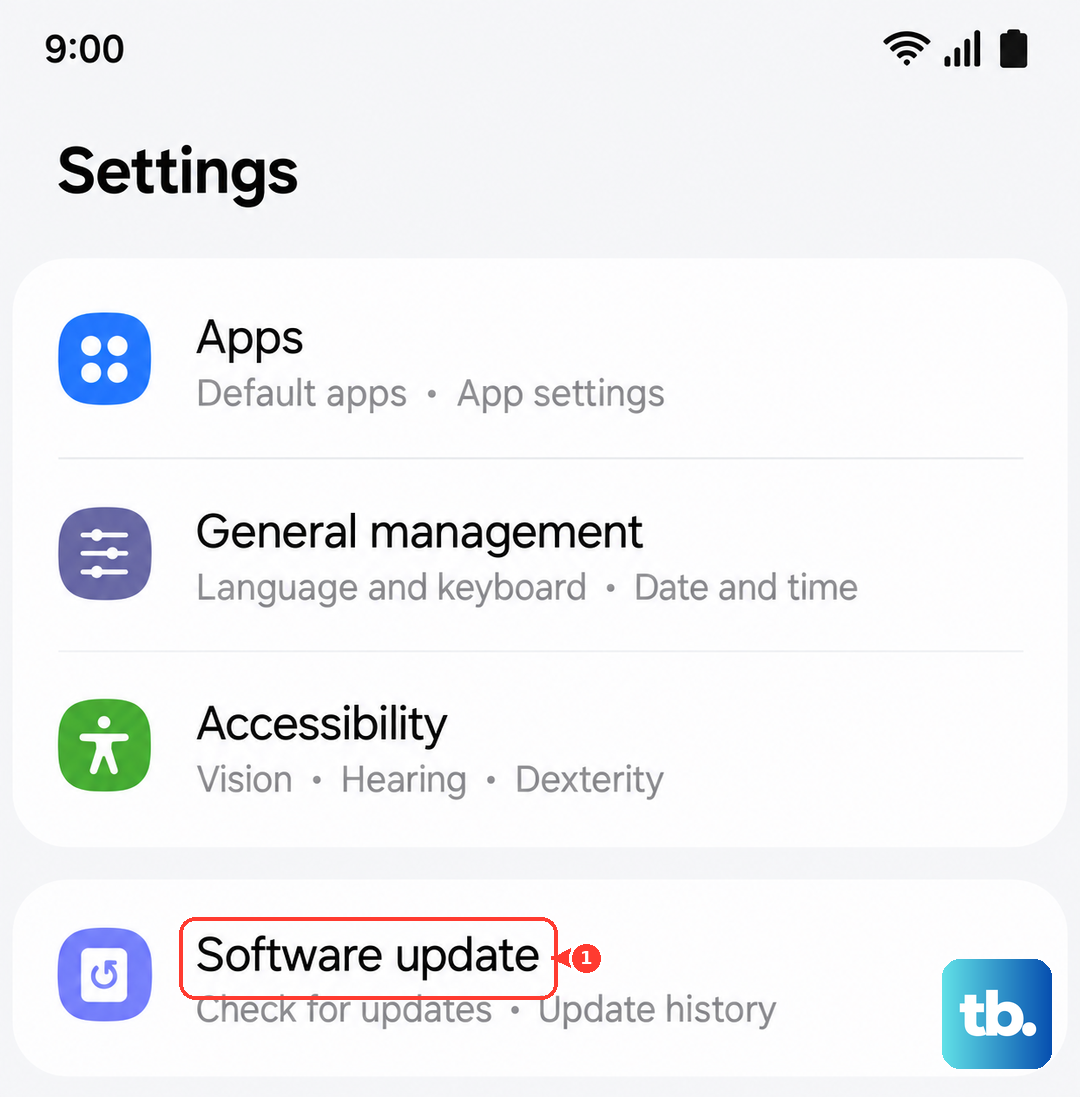
Make sure your tablet is connected to Wi-Fi and has a decent charge, preferably over 50%, before starting the update. This ensures the process goes smoothly.
Free Up Storage Space
When your internal storage is nearly full, the system has less room to operate, which can cause lag. Head to Settings > Device care > Storage.
This screen shows you exactly what's taking up space. Look for large, unused apps, downloaded files, or cached data you can delete. Moving photos and videos to a cloud service or a microSD card can also help a lot.
Clear App Caches
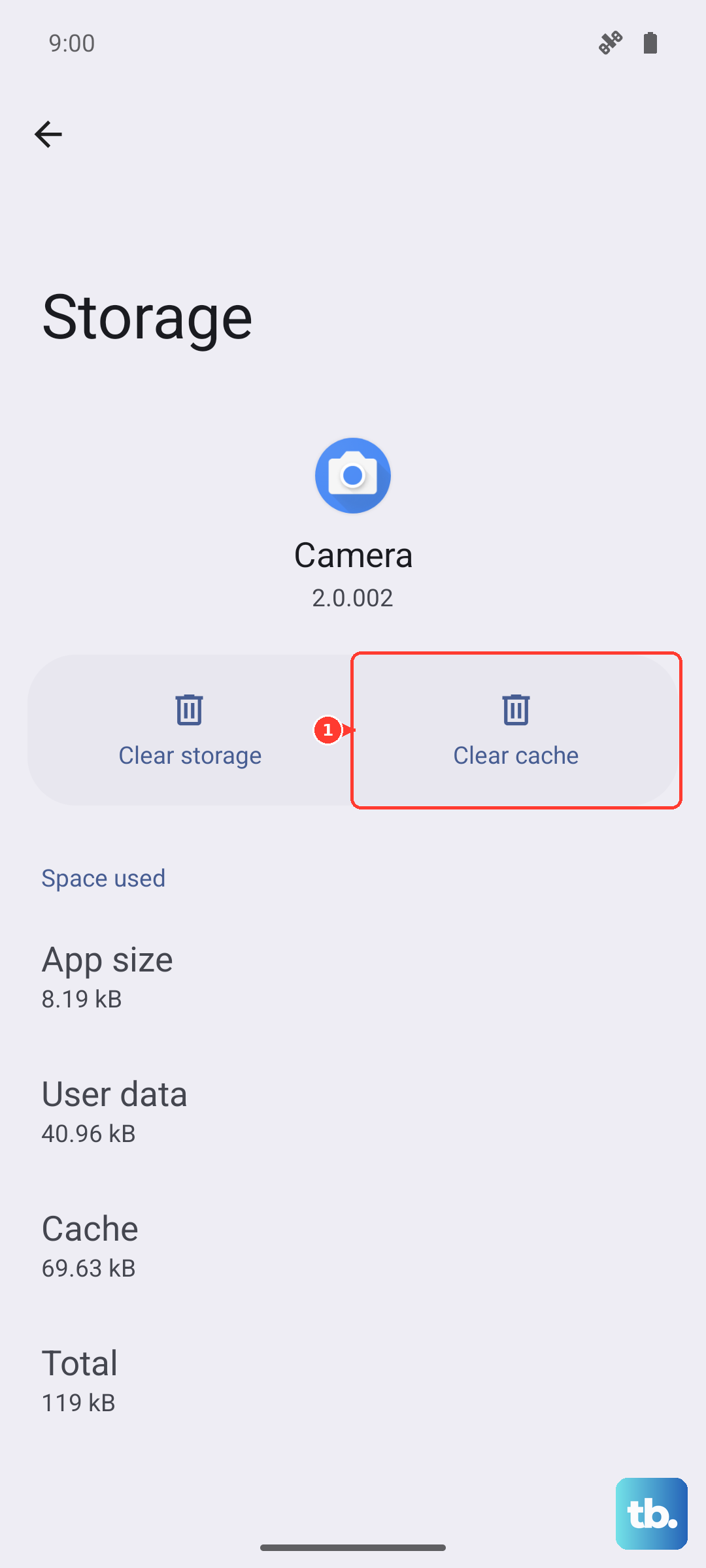
Over time, apps store temporary data that can become corrupted or bloated. Clearing this cache can speed them up without deleting your login info or settings. Go to Settings > Apps, select a specific app, then tap Storage.
Tap Clear cache. I'd focus on apps you use frequently that feel slow, like your web browser or social media apps. Don't use "Clear data" unless you're okay with resetting the app completely.
Manage Background Processes and Refresh
Some apps constantly update in the background, using CPU and battery. You can limit this. For app-specific controls, go to Settings > Apps, select an app, and tap Battery.
You can set it to "Restricted" to limit background activity. You can also turn off automatic syncing for accounts you don't need constantly updated in Settings > Accounts and backup > Manage accounts.
Reduce Animations and Visual Effects
The smooth animations in One UI look great but use processing power. Scaling them back can make navigation feel snappier. First, enable Developer Options by going to Settings > About tablet and tapping "Software information".
Tap "Build number" seven times. Then, go back to Settings, find Developer options, and scroll to the "Drawing" section. Look for "Window animation scale", "Transition animation scale", and "Animator duration scale". Change each one from 1x to 0.5x or off.
Check for Overheating
The Dimensity 9300+ chip in the Tab S10+ is powerful but can get warm during intensive tasks like gaming or video editing. When it gets too hot, it will intentionally slow down (thermal throttle) to protect itself.
If your tablet feels hot to the touch and is lagging, give it a break. Close demanding apps and move it to a cooler surface. Avoid using it in direct sunlight or under thick blankets, which trap heat.
Optimize with Device Care
Samsung's built-in Device Care tool is designed for this. Open Settings and tap Device care. Tap "Optimize now" to let it automatically close background apps and clean up temporary files.
You can also review its suggestions for improving battery life and performance. It often identifies apps that are using excessive resources in the background.
Reset App Preferences or All Settings
If a specific app is causing system-wide lag, try resetting app preferences. This resets permissions, background restrictions, and default apps without deleting your data. Go to Settings > Apps > tap the three-dot menu > Reset app preferences.
As a last resort before a factory reset, you can reset all system settings. This will revert network settings, display preferences, and keyboard layouts back to default. Go to Settings > General management > Reset > Reset all settings. Remember, this won't touch your personal files or apps.