
When your Samsung Galaxy Tab S10+ GPS stops locking on, it can throw a wrench in your plans, whether you're navigating on the go or using a location-based app. The good news is that most of the time, this is a software hiccup you can fix yourself. Let's walk through the steps to get your tablet's location services back on track.
Start With the Quick Refresh
The fastest way to fix a temporary GPS glitch is to give the system a quick reset. Swipe down twice from the top of your screen to open the full Quick Settings panel. Tap the Location icon to turn it off, wait about 15 seconds, and then tap it again to turn it back on. This simple toggle can clear up minor connection issues instantly.
If that doesn't do it, a full restart is your next best move. Press and hold the Volume Down button and the Power button together for about 10 seconds until you see the Samsung logo. This force restart is a bit more thorough than a standard reboot and can clear out deeper system caches that might be interfering.
Check Your Location Settings and Permissions
Android's location system has several layers, and sometimes the right one isn't enabled. Open Settings and go to Location. First, make sure the main switch at the top is on. Then, tap on Location services.
For the best possible GPS accuracy, especially for navigation, you'll want to make sure Google Location Accuracy is turned on. This uses Wi-Fi and mobile networks (if your tablet has cellular) to assist the GPS chip for a faster, more precise lock. Also, ensure your app has permission. Go to Settings > Apps, select your navigation app (like Google Maps), tap Permissions, and confirm Location is set to "Allow all the time" or "Allow only while using the app."
Disable Power Saving Modes
One UI's power saving features are great for battery life, but they often limit background processes, including how frequently GPS can check your location. If you're running in a power saving mode, your GPS might seem slow or completely unresponsive.
Head to Settings > Battery. Here, you'll see if any power saving mode is active. If Power saving or Adaptive power saving is on, turn it off. For a more aggressive setting, you might also check Settings > Battery > More battery settings to disable Performance profile if it's set to "Light." Switch it back to "Standard" for full GPS functionality.
Update Your Apps and System Software
Outdated software is a common culprit. First, open the Google Play Store, tap your profile icon, and go to Manage apps & device. Under "Updates available," see if your mapping apps need an update and install them. An update to Google Maps or Google Play Services can specifically resolve location bugs.
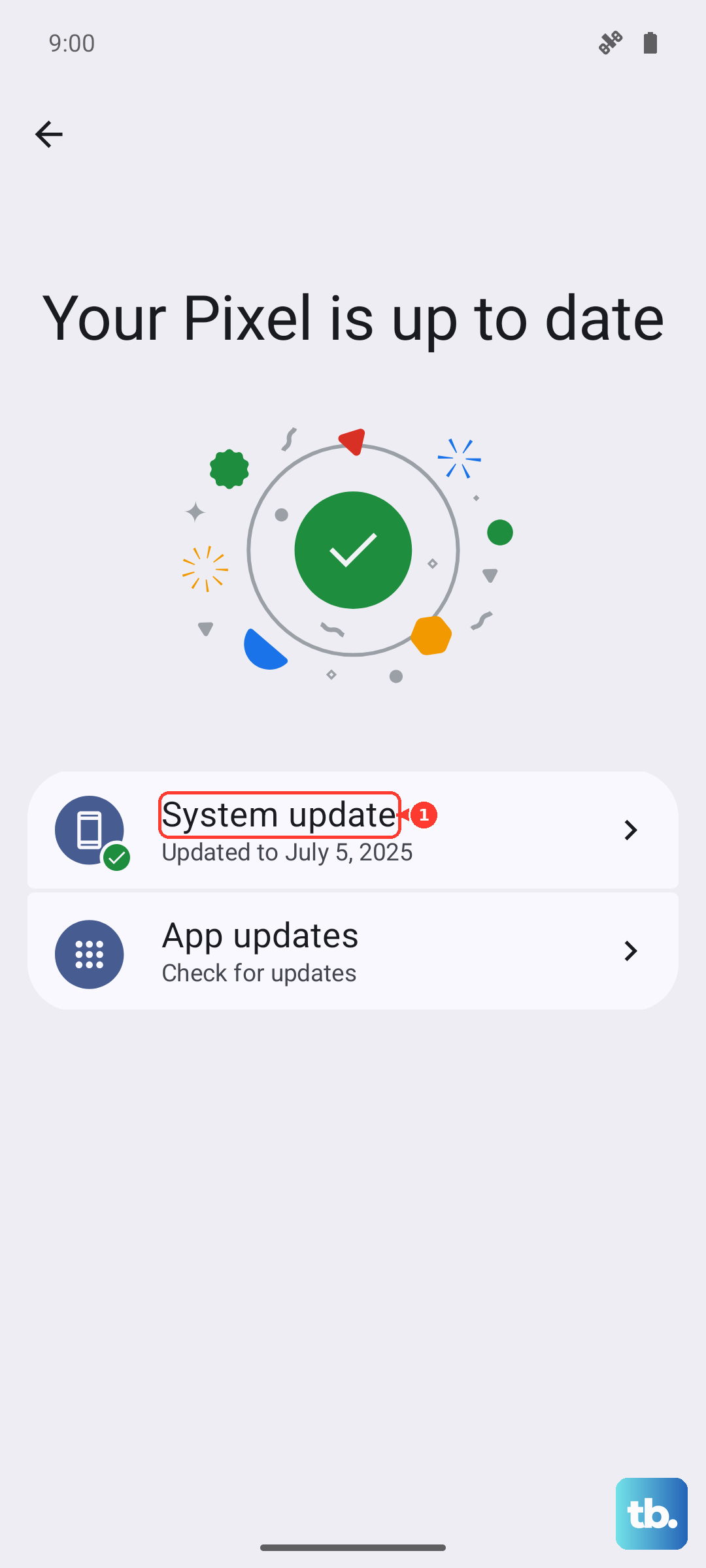
Next, check for a system update. Go to Settings > Software update and tap Download and install. If your Tab S10+ is still on an older version of One UI, installing the latest update can include important fixes for the GPS and other system components. I've seen updates resolve persistent location issues on several Galaxy tablets.
Clear the App's Cache and Data
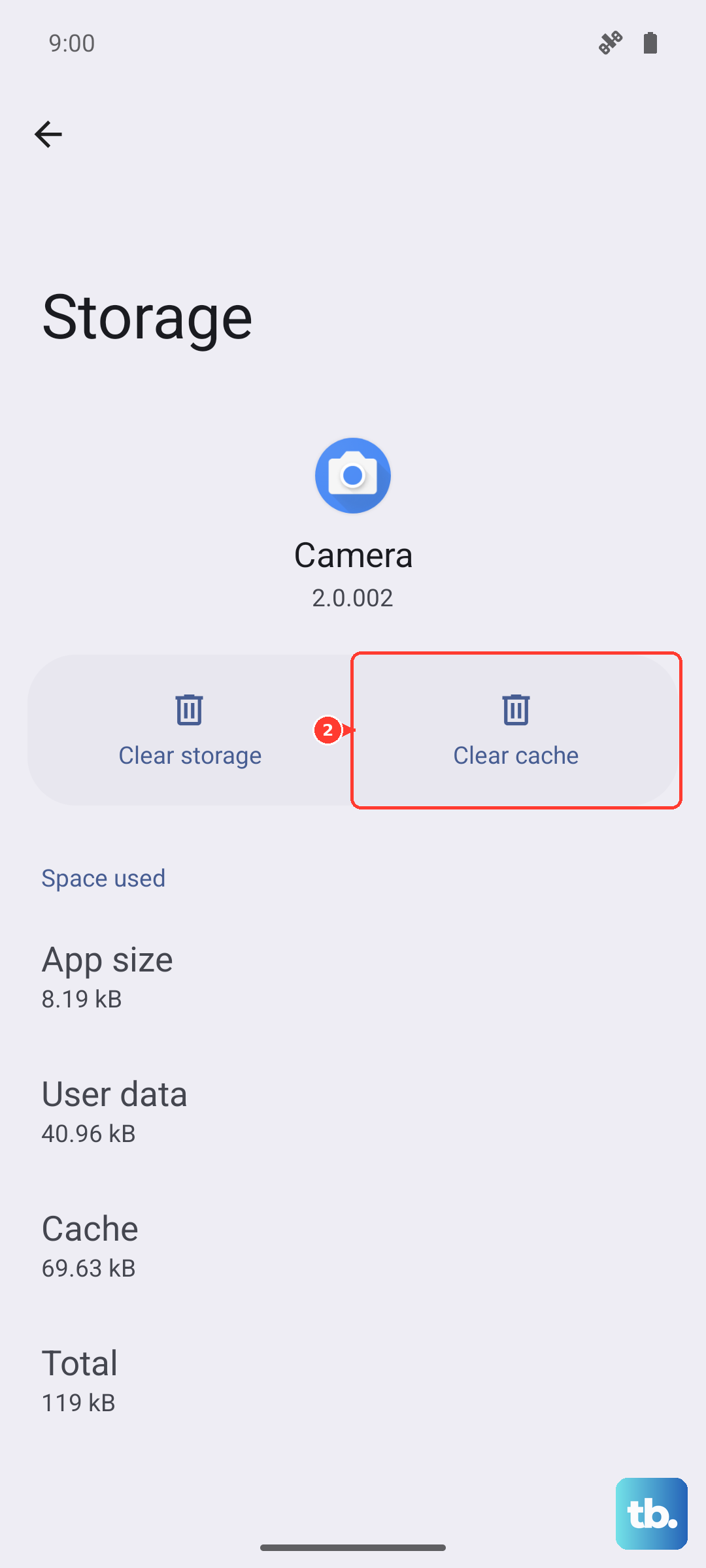
If your navigation app is acting up, its stored data might be corrupted. This fix won't delete your saved places, but it will reset the app's settings. Go to Settings > Apps, find and tap on the app (like Google Maps), then select Storage.
Tap Clear cache first. This is safe and doesn't remove any personal data. If the GPS is still problematic, you can then tap Clear data. Confirm the action, this will reset the app to its freshly installed state, so you might need to sign back in and re-grant permissions.
Test in Safe Mode
This step helps you figure out if a third-party app you installed is causing a conflict. To boot into Safe Mode, press and hold the Power button until the power menu appears. Then, tap and hold the Power off option on your screen. You'll see a prompt to reboot into Safe Mode; tap it.
Once your tablet restarts, you'll see "Safe mode" in the bottom corner. Open your maps app and test the GPS. If it works perfectly in Safe Mode, then an app you downloaded is likely the problem. Restart your tablet normally to exit Safe Mode and try uninstalling recent apps one by one to find the offender.
Reset Your Network and Location Settings
This is a more substantial reset that won't touch your personal files like photos or documents, but it will wipe all your network info. It will forget all Wi-Fi networks and passwords, Bluetooth pairings, and reset your location and mobile settings back to default. It's a good way to clear any deep configuration errors.
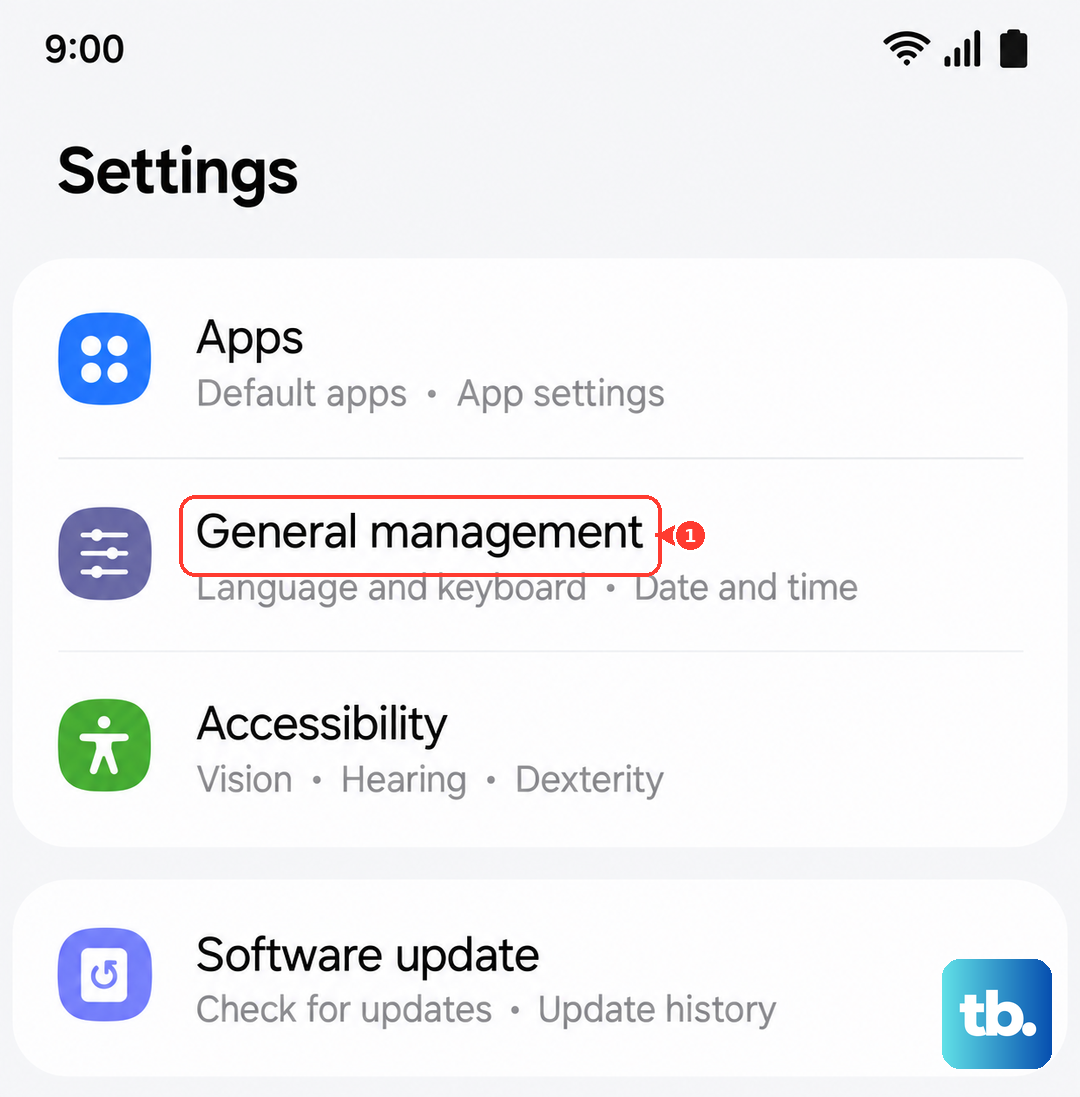
Go to Settings > General management > Reset. Tap on Reset network settings. You may also see a separate Reset location settings option. Run through these resets, then reboot your tablet. You'll need to reconnect to your Wi-Fi and re-pair Bluetooth devices afterward.
Check for Physical and Environmental Factors
GPS signals are line-of-sight to satellites, so they struggle indoors. If you're inside a building, especially with metal framing or thick concrete walls, try moving near a window or stepping outside. Even the large, beautiful screen of the Tab S10+ can't help if the signal is physically blocked.
Also, consider if you're using a thick folio case or a case with a metal kickstand. In rare cases, these can interfere with the tablet's internal GPS antenna. Try removing the case temporarily to see if your location lock improves. Heavy cloud cover or severe weather can also temporarily degrade signal strength.
Use a GPS Diagnostic Tool
If you've tried everything and the GPS is still dead, it's time to check the hardware directly. Download a free app like "GPS Test" or "GPS Status & Toolbox" from the Play Store. Open the app and grant it location permissions.
The key screen is the satellite view. If the app shows your tablet is connecting to multiple satellites (you'll see them as bars filling up), then your GPS hardware is working and the problem is likely software or app-related. If the app shows zero satellites, even after several minutes outdoors with a clear sky, it could point to a hardware fault.
Consider the System Cache Partition Wipe
This is an advanced step that clears temporary system files which can sometimes become corrupted. First, turn off your tablet completely. Now, press and hold the Volume Up button and the Power button simultaneously. When you feel a vibration or see the Samsung logo, release both buttons.
You'll boot into the Android Recovery menu. Use the Volume Down button to highlight Wipe cache partition, then press the Power button to select it. Confirm the action. Once it's done, select Reboot system now. This process can resolve underlying system glitches affecting various functions, including GPS.