You placed your Samsung Galaxy Tab A9+ on a wireless charging pad, watched the screen stay dark, and assumed the pad or the tablet had failed. Before you buy a new accessory or panic about the battery, there is a simpler explanation, and a clear path to getting power flowing again. The short version is that this tablet was never built to charge wirelessly, so the real fix lives in its USB-C cable, adapter, port, and software.
Why your Tab A9+ will never charge on a wireless pad
The first thing to settle is the hardware itself. The Galaxy Tab A9+ has no wireless-charging coil inside it, so it cannot draw power from a wireless pad, a magnetic puck, or a Qi or Qi2 charger, no matter how carefully you line it up. According to the manufacturer, "Galaxy A series, XCover series, and Galaxy Tab series devices are not compatible with wireless charging," and the official accessories listing for this model states plainly that "The Tab A9+ does not support wireless charging."
That single fact reframes the whole problem. Every genuine charging fault on this tablet is a wired, USB-C fault, which is exactly what the steps below target. A portable battery pack can still top the tablet up, but only through its USB-C cable, never across a pad.
Start with a genuine Samsung cable, adapter, and a live outlet
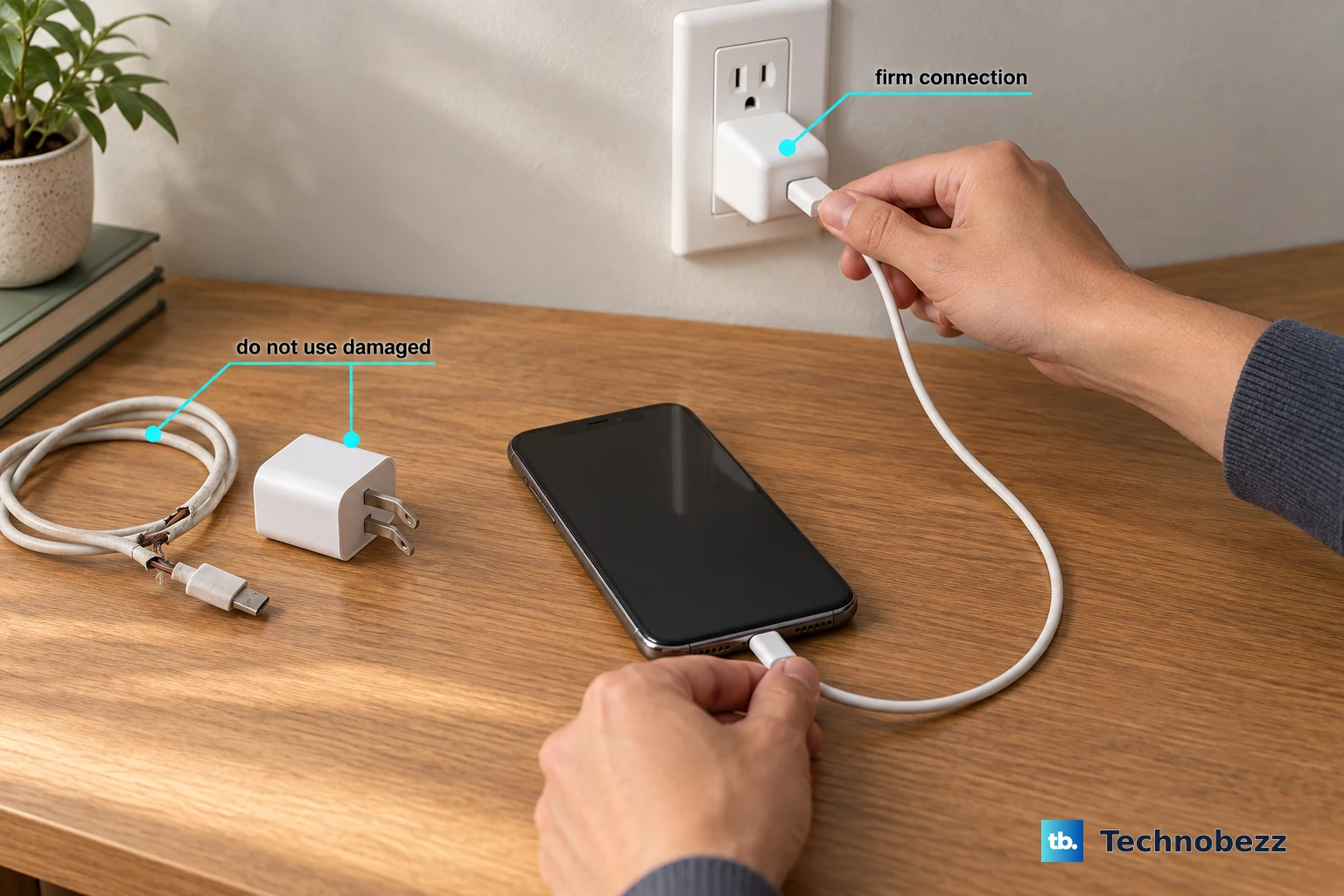
The fastest, most reliable charge comes from original Samsung gear plugged straight into a wall socket rather than into a laptop port or a USB hub. The official guidance is direct: "You should only use original Samsung travel adapters and USB cables with your phone or tablet," and it warns that "Using third-party chargers may invalidate your warranty and cause damage."
For the Tab A9+, the listed charging accessories are a "15W Power Adapter" or a "25W Power Adapter" together with a "USB Type-C 1.8m 3A cable." Plug the adapter into a known-working outlet and seat the cable firmly at both ends before you assume anything is broken.
Clear debris out of the USB-C port
Pocket lint and dust pack into the USB-C port over time and stop the cable from reaching the contacts, which looks exactly like a dead charger. Inspect the port, cable, and adapter for dust or other foreign material, and look for corrosion or bent pins on the connector. The official advice is to "Gently blow into the charging port to remove any debris."
Never poke metal objects such as pins or paperclips into the port, since they can bend the contacts or short them. Once the port looks clear, reconnect the cable and watch for the charging indicator.
Look for a waterdrop icon before you charge
If the tablet senses liquid or high humidity in the USB-C port, it deliberately pauses charging to protect the hardware and shows a waterdrop icon on screen. The official troubleshooting guidance is to check for liquid and, when that icon appears, to "leave your device to dry before using it" before you try to charge again.
Do not force the cable in or aim a hair dryer at the port; let it air-dry until the warning clears on its own. Reconnect the charger only after the waterdrop icon is gone.
Swap to a known-good charger and give it a full hour
To find out whether your cable or adapter is the real culprit, test a second set of genuine Samsung accessories. Charge with a second genuine Samsung travel charger plugged into a known-working outlet, and leave it connected for at least an hour. Avoid any other device's charger or a third-party charger for this test.
A deeply drained battery can sit at a black screen for several minutes before any charging animation appears, so give it real time before judging the result. If the tablet charges with the substitute set, your original cable or adapter is the part to replace.
Force restart a frozen tablet
A locked-up system can fail to show the charging animation or register that power is connected, even when the cable and adapter are fine. A force restart clears that state without deleting any of your files. Follow the official restart sequence for Galaxy tablets:
- 1.Press and hold the Power button and the Volume down button simultaneously for more than 7 seconds until the device reboots.
This does not erase any data. Once the tablet restarts, plug the charger back in and check whether it now responds.
Boot into Safe mode to expose a misbehaving app
A downloaded app can occasionally interfere with charging, and Safe mode runs the tablet on its built-in software only so you can rule that out. The official tablet-not-charging guidance is to start the tablet, then hold the Power button and press and hold Volume down during startup to boot into Safe mode.
If the tablet charges normally in Safe mode, a third-party app is the cause. Uninstall recently added apps until charging works again, then restart the tablet to leave Safe mode.
Install the latest software
Outdated firmware can introduce charging glitches that a routine update resolves. Before you begin, connect to Wi-Fi, since some carriers require a Wi-Fi connection to check for and install updates, and remember that "during the update process, your device cannot be used and files will be inaccessible." Then follow this path:
- 1.Open Settings.
- 2.Tap "Software update" (labeled "System updates" on some models).
- 3.Tap "Download and install" or "Check for software updates."
- 4.Tap "Install now."
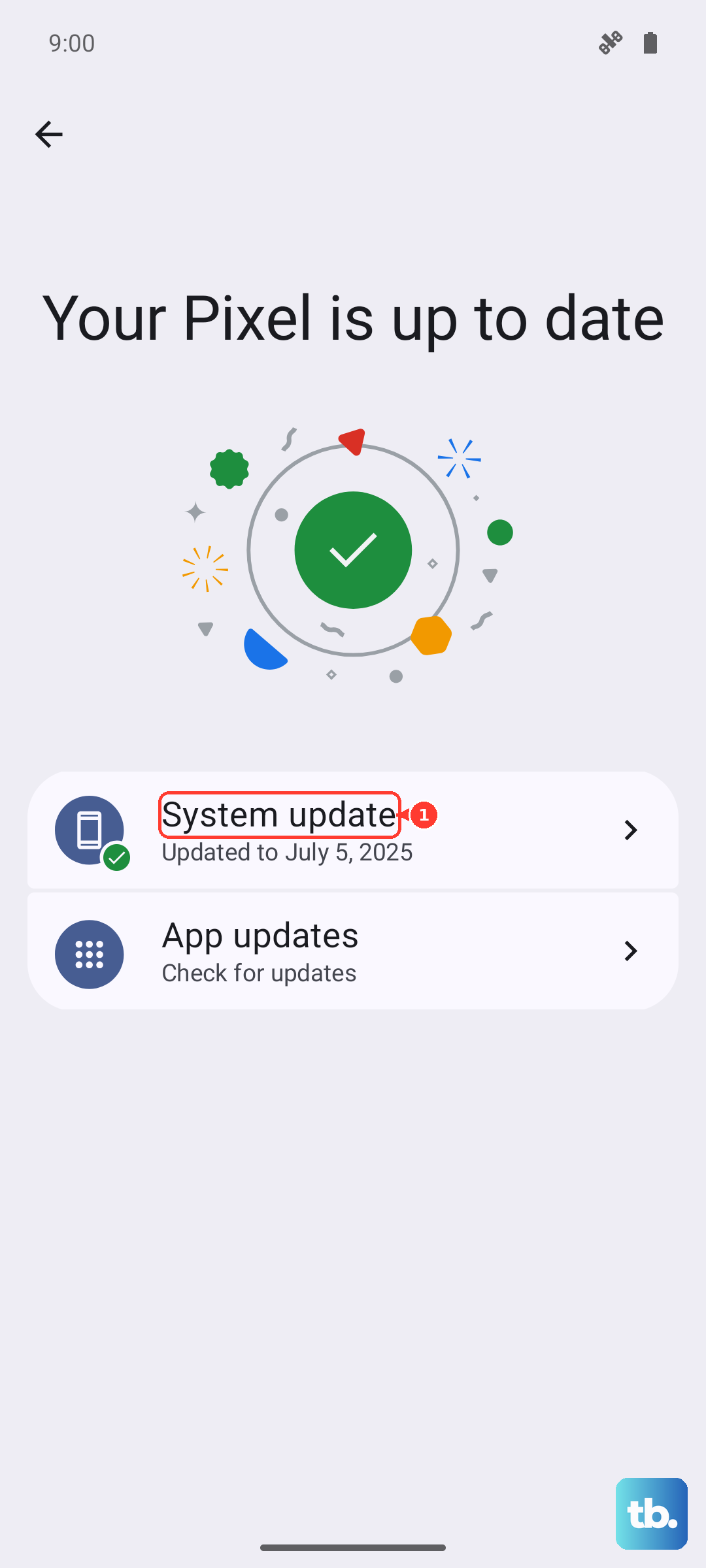
Let the install finish completely before you touch the tablet, then test charging once it returns to the home screen.
Back up your data, then factory reset as a last resort
If charging still fails and the symptoms point to software rather than a worn cable or port, a factory reset is the final step you can take yourself. This erases the tablet, so back everything up first, because the official warning is that "your personal information may not be recovered"; you may also need your lock screen credentials and your Samsung account password to complete it. When you are ready:
- 1.Navigate to and open Settings, and then tap General management.
- 2.Swipe to and tap Reset, then tap Factory data reset.
After the reset finishes, set the tablet up again and test charging before restoring your backup, so you can tell whether the reset solved the problem.
When to hand the tablet to Samsung
If none of the steps above restores charging, the problem is most likely a hardware fault in the port, the battery, or the board, and that needs a technician. At that point, Samsung's guidance is to visit a Samsung service center or schedule a repair online.
You can book a repair or review your service options through the Samsung Members app or your region's Samsung support site. If you want to confirm the software is healthy before booking, the free Samsung Smart Switch application for PC or Mac can update or recover the tablet over its USB-C cable.
Frequently Asked Questions
Does the Samsung Galaxy Tab A9+ support wireless charging?
No. Samsung confirms that Galaxy Tab series devices are not compatible with wireless charging, and the Tab A9+ accessories page states the model does not support it. The tablet charges only through its USB-C port using a cable and a wall adapter.
Can I charge the Tab A9+ with a wireless power bank?
Yes, but only through the cable. A portable battery pack can charge the Tab A9+ over a USB-C cable; the tablet cannot draw power wirelessly from the pack's surface.
Which charger and cable should I use?
Samsung lists a 15W Power Adapter or a 25W Power Adapter paired with a USB Type-C 1.8m 3A cable as the official accessories. The guidance is to use only original Samsung travel adapters and USB cables, since third-party chargers may invalidate the warranty and cause damage.
Will a force restart delete my files?
No. Holding the Power button and the Volume down button for more than 7 seconds simply reboots the tablet and leaves your data in place. A factory reset is the only step here that erases the tablet.