You type out a message on your Galaxy Tab A9+, tap send, and the text just sits there or fails outright. It is one of the most confusing problems on this tablet, because whether the Tab A9+ can text at all depends entirely on which version you own and how it has been linked to your phone. Sorting that out first will save you from chasing settings that were never going to help in the first place.
The reassuring part is that most send failures come down to a short list of account, pairing, and app settings you can check in a few minutes. Work through the fixes below in order, starting with the safest checks and moving toward a full reset only if nothing simpler does the job.
Start by Confirming Which Tab A9+ You Own
The single most important step is knowing your variant, because the two models text in completely different ways. The Wi-Fi-only Tab A9+ (model SM-X210) has no cellular radio, so it cannot send an SMS over a mobile network on its own. The 5G model (SM-X216 or SM-X218) does have cellular, so with an active SIM and plan it can send texts directly.
If you own the Wi-Fi model, the tablet can only send and receive texts through Samsung's Call and text on other devices feature, which relays messages through a paired Galaxy phone. Samsung's guidance is clear that this works as long as the tablet is signed into the same Samsung account as your phone, and that the connected phone will need to have active service. Knowing your variant tells you exactly what is realistic to fix.
For a Wi-Fi tablet to relay texts, you need four things in place at once: a connected Galaxy phone with active network service, the tablet connected to a Wi-Fi network, the same Samsung account signed into both devices, and the Call and text on other devices feature enabled. Confirm all four are true before you change anything else, since a single missing piece will stop messages from sending.
Sign Both Devices Into the Same Samsung Account
Relayed texting falls apart the moment your phone and tablet are signed into different Samsung accounts. Samsung states you can make and receive calls and send messages on the tablet as long as it is signed into the same Samsung account as your phone, and the connected phone must have active service.
Open Settings on both devices and check that the Samsung account email matches exactly on each one. If they differ, sign the tablet out and back in with the same account your phone uses, then try sending a message again to confirm the relay reconnects.
Switch On Call and Text on Other Devices
This is the feature that actually makes texting possible on the Wi-Fi tablet, and it has to be enabled specifically for your device. Go to Settings > Connected devices > Call & text on other devices, tap Text on other devices and toggle the switch on, then enable the switch next to your tablet's name.
You can also reach the same control quickly from the Quick settings panel by tapping the Call & text on other devices icon. If the switch beside your tablet's name is off, messages will not relay even when everything else is configured correctly.
Flip the Right Toggle If You Use Google Messages
When Google Messages is your default app instead of Samsung Messages, there is an extra switch that has to be on or texts will never reach the tablet. Open Google Messages, tap your profile icon > Messages settings > Advanced > Text on Galaxy devices, then toggle on Allow Bixby and text on Galaxy devices.
Without this setting, the relay simply does not pass messages through to your Tab A9+, even when Call and text on other devices looks enabled. Turn it on, then send a test message to confirm the texts now go through.
Rule Out the Verizon and AT&T Limitation
Some send failures are not your fault and cannot be cleared with settings at all. Samsung notes that the Call and text on other devices feature currently does not work with Verizon and AT&T phones.
If your paired phone is on either of those carriers, the relay will not send texts no matter how carefully it is configured. In that case the limitation lives on the carrier side, and the relay feature is simply not an available path for your phone.
Point the Tablet at the Correct Default Messaging App
A misconfigured default messaging app can quietly block outgoing texts. Go to Settings > Apps > Choose default apps > SMS app and select the app you actually want to use, either Samsung Messages or Google Messages.
Picking one clear default avoids conflicts between the two apps competing to handle the same messages. After you set it, send a quick test message to confirm the chosen app is now handling outgoing texts.
Give the Tablet a Proper Restart
A simple restart clears the temporary glitches that can stall messaging and connectivity. Use the power options from Settings or the Quick settings panel, or press and hold the Volume down button and the Side (Power) button at the same time and tap Restart.
If the tablet is frozen and will not respond, press and hold the Power (Side) button and the Volume down button simultaneously for more than 7 seconds until the device reboots. The screen turns black, then the Samsung logo appears as it starts back up.
Install the Latest Software Update
Messaging and connectivity bugs are frequently resolved in software updates, so it is worth confirming the tablet is current. To open Settings, swipe down from the top-right with two fingers and tap the Settings icon, then go to Settings > Software update > Download and install and follow the prompts.
On the same screen you can turn on Auto download over Wi-Fi so future updates arrive on their own. If the tablet will not update by itself, connect it to a computer and use Samsung Smart Switch on a PC or Mac to check for and install the latest software.
Reset Network Settings on the 5G Model
If you own the cellular Tab A9+ and it still will not send a direct SMS, resetting the network configuration can clear a bad connection. Go to Settings > General management > Reset > Reset network settings (Reset mobile network settings) > Reset settings > Reset.
This clears your Wi-Fi, Bluetooth, and mobile network configuration, so afterward you will need to reconnect Wi-Fi and Bluetooth. You may also need to contact your mobile provider to re-establish service on the tablet before texting works again.
Erase the Tablet as a Last Resort, Then Reach Samsung
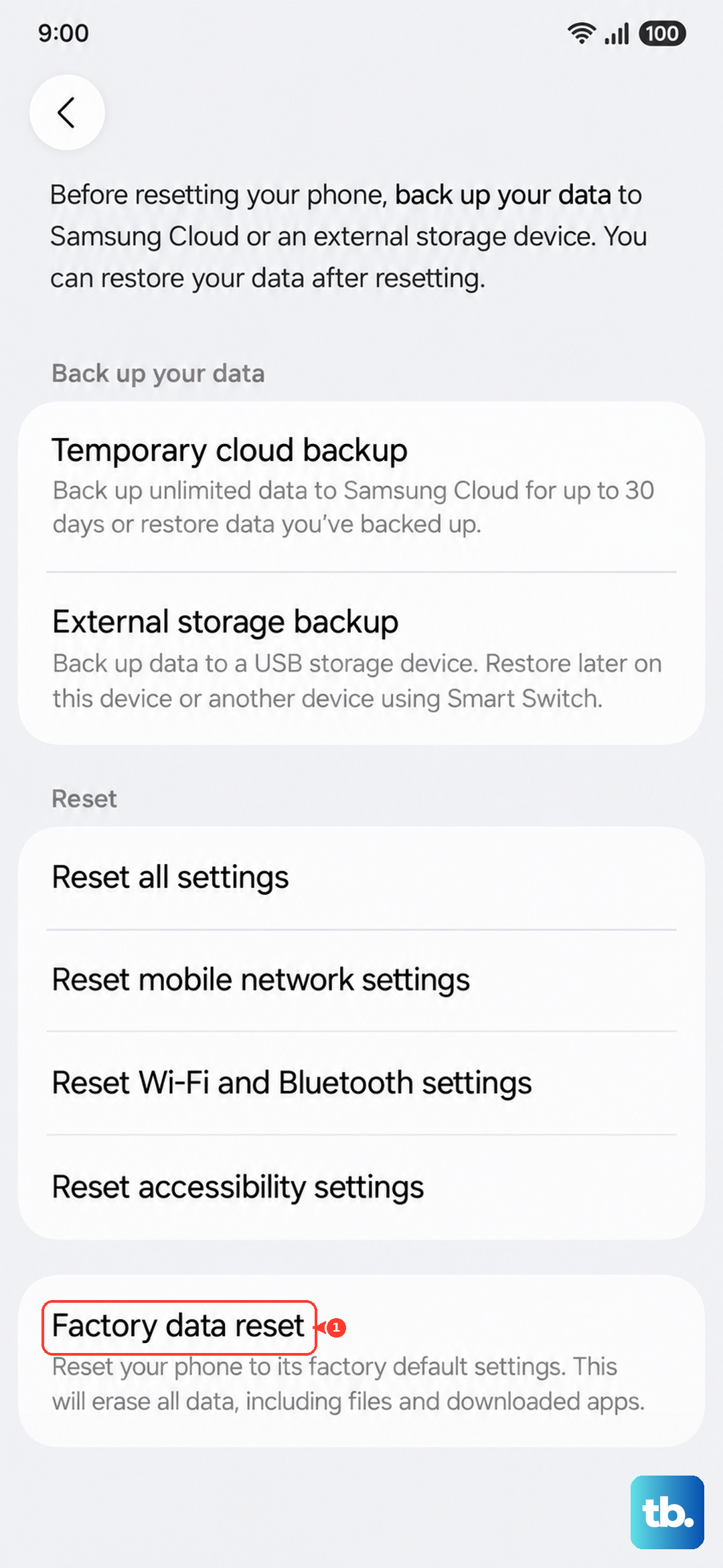
A factory reset wipes the device, so treat it as a final option after everything else has failed. Back up first, because Samsung's warning is direct: save any information you need prior to the factory reset because your personal information may not be recovered.
When you are ready, go to Settings > General management > Reset > Factory data reset, review the information shown, then tap Reset > Delete all. Enter your security lock and Samsung account password if prompted, and the tablet will restart to the initial setup screen.
If texting still fails after the reset, the problem may need official help. The Samsung Members app provides support and diagnostics, and you can reach Samsung Support through the official Samsung support site for repair or contact options.
Frequently Asked Questions
Can the Wi-Fi-only Galaxy Tab A9+ send texts by itself?
No. The Wi-Fi-only model (SM-X210) has no cellular radio, so it cannot send an SMS over a mobile network on its own. It can only send and receive texts through the Call and text on other devices feature, which relays messages through a paired Galaxy phone that has active service and shares the same Samsung account.
Why won't my texts relay when my phone is on Verizon or AT&T?
Samsung states the Call and text on other devices feature currently does not work with Verizon and AT&T phones. If your paired phone is on either carrier, the relay will not send texts, so you would need a different phone on a supported carrier to use the feature.
Does the 5G Tab A9+ need a paired phone to text?
No. The 5G model (SM-X216 or SM-X218) has cellular, so with an active SIM and plan it can send SMS directly. It can also use the Call and text on other devices feature if you would rather relay through your phone.
Will a factory reset erase my messages and files?
Yes. A factory data reset removes your personal information, and Samsung warns that it may not be recoverable, so save anything you need beforehand. The tablet restarts to the initial setup screen once the erase finishes.