
When your Samsung Galaxy Tab A9+ stops ringing for incoming calls or you can't hear the person on the other end, it can be a real headache. This is a common snag with tablets that have cellular capability, and it's often tied to a simple setting or a temporary software hiccup. The good news is you can usually sort it out yourself without too much fuss.
Before we get into the deeper fixes, let's run through a few quick checks. First, pull down the notification shade twice to see the full Quick Settings panel and make sure Airplane Mode isn't accidentally turned on. A simple restart can also clear out temporary glitches; just hold the Volume Down and Power button together for about 10 seconds until the tablet reboots.
Also, take a quick look at your signal bars. If you're in a basement or a building with thick walls, poor reception could be the culprit. Finally, it's worth a quick check with your mobile carrier to confirm your account is in good standing and there are no outages in your area.
Check Do Not Disturb and Sound Settings
One of the most common reasons for missed calls on the Tab A9+ is Do Not Disturb being active. Swipe down from the top of your screen and look for the Do Not Disturb icon in your Quick Settings panel. If it's highlighted, tap it to turn it off.
You should also check your general sound settings. Go to Settings > Sounds and vibration. Make sure your media volume and call volume are turned up. You can test the speakers by playing a video or a song to confirm they're working.
While you're there, look for any schedules or rules that might be automatically enabling Do Not Disturb during certain hours. The Snapdragon 695 chip in the A9+ can sometimes struggle if too many apps are running, which might delay notifications, so keeping background apps minimal helps.
Review Call Blocking and Spam Protection
Samsung's built-in spam protection is great for filtering out robocalls, but it can sometimes be a little too aggressive. Open your Phone app, tap the three-dot menu in the top right, and go to Settings > Caller ID and spam protection.
You can toggle the spam protection off temporarily to see if that's what's blocking your calls. Also, tap on Block numbers to review your blocked list. If a number you're expecting calls from is on that list, just tap the minus icon next to it to remove the block.
Disable Call Forwarding and Barring
Call forwarding might be enabled without you realizing it, sending all your incoming calls straight to voicemail or another number. To check this on your Tab A9+, open the Phone app, tap the three-dot menu, and select Settings > Supplementary services.
Tap on Call forwarding. You'll see options for different scenarios, like when your line is busy or unreachable. Make sure each one is set to "Turn off" or "Disable." Also, look for a setting called "Call barring" or "Call rejection" and ensure no restrictions are active for incoming calls.
Inspect Your SIM Card
A loose or faulty SIM card can cause all sorts of network problems, including call issues. You'll need the SIM ejector tool that came with your tablet. Gently push it into the small hole on the SIM tray, usually on the side of the tablet, to pop it out.
Remove the SIM card, give the gold contacts a quick look for any dirt or damage, and then reinsert it firmly. Make sure the tray slides back in completely. If you have access to another compatible device, you could test the SIM card there to rule it out as the problem.
Reset Your Network Settings
If you're still having trouble, resetting your network settings can clear up corrupted connection data. Go to Settings > General management > Reset. Then, tap on Reset network settings.
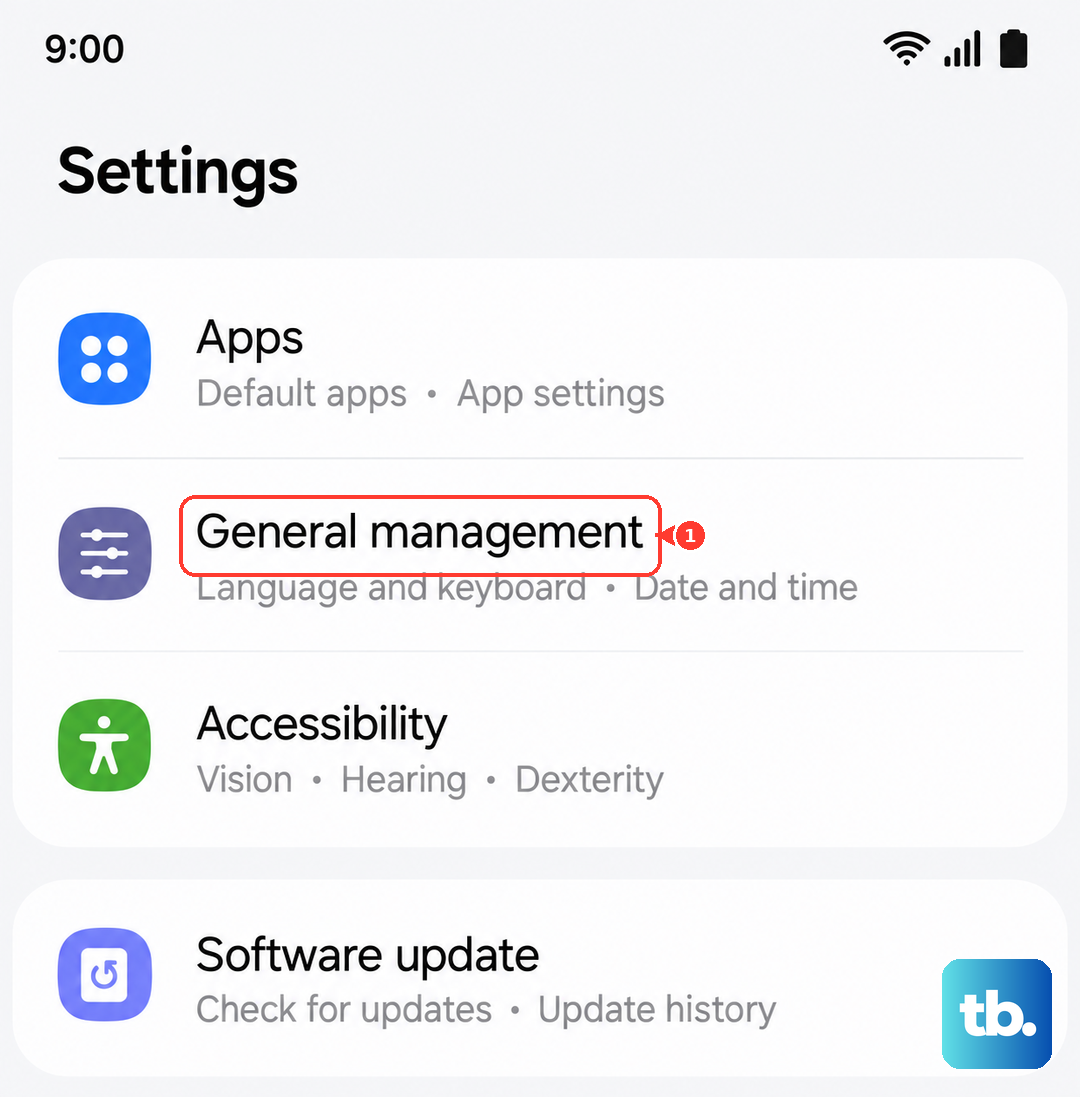
This will erase all your saved Wi-Fi networks, Bluetooth pairings, and mobile network preferences, so you'll have to reconnect to your Wi-Fi afterward. It won't delete any personal files or apps, but it often resolves persistent calling and network glitches.
Update Your Tablet's Software
Running outdated software can lead to bugs that affect calling and other core functions. Samsung regularly releases updates that include fixes for these kinds of issues. To check, go to Settings > Software update > Download and install.
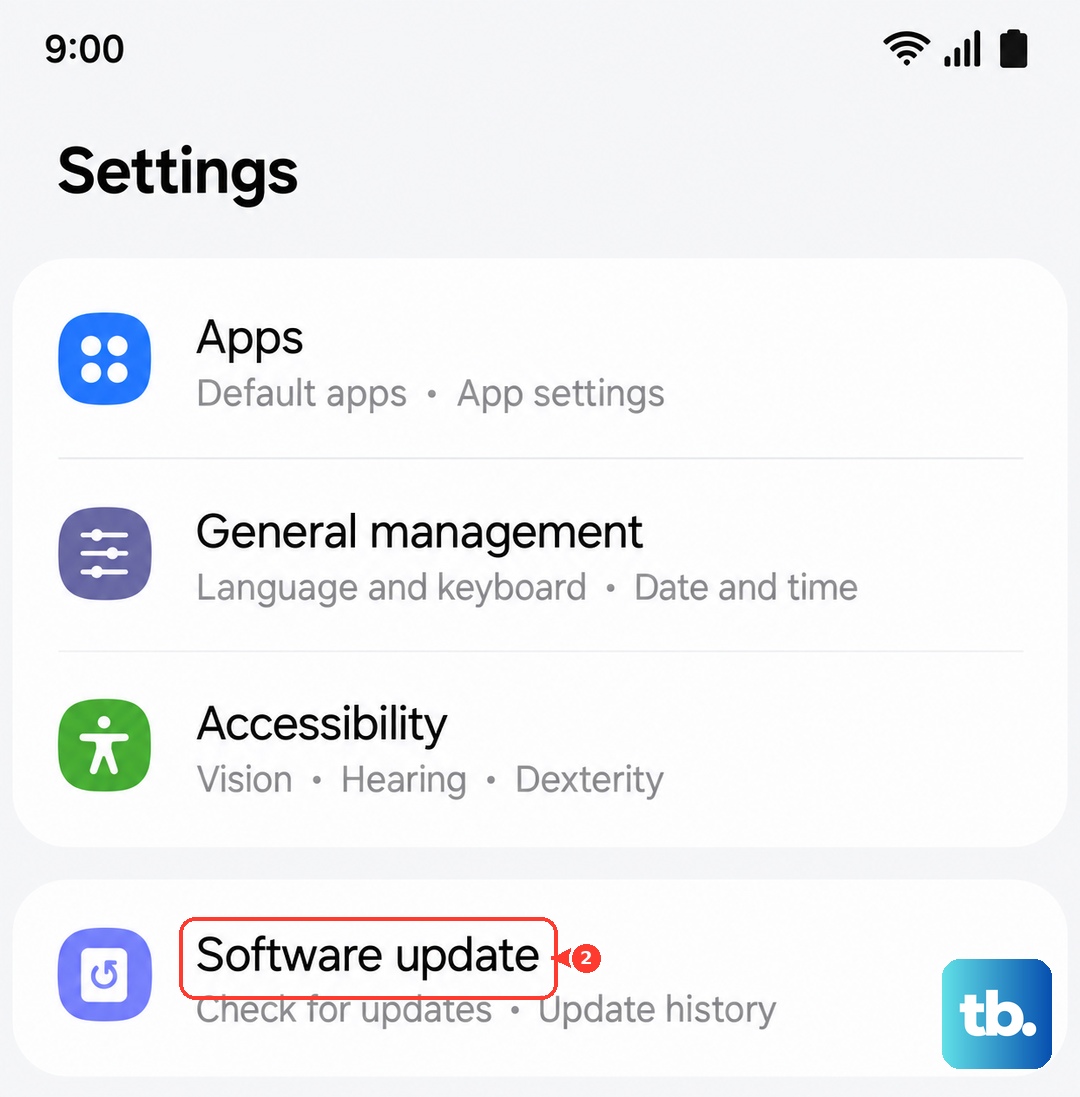
If an update is available, make sure your tablet is connected to Wi-Fi and has at least a 50% charge, or better yet, is plugged into its 15W charger. Keeping your A9+ updated ensures you have the latest stability improvements from Samsung.
Clear the Phone App's Cache and Data
The Phone app itself can accumulate corrupted temporary files. Clearing its cache is a safe first step. Go to Settings > Apps, then find and tap on Phone. Select Storage and tap Clear cache.
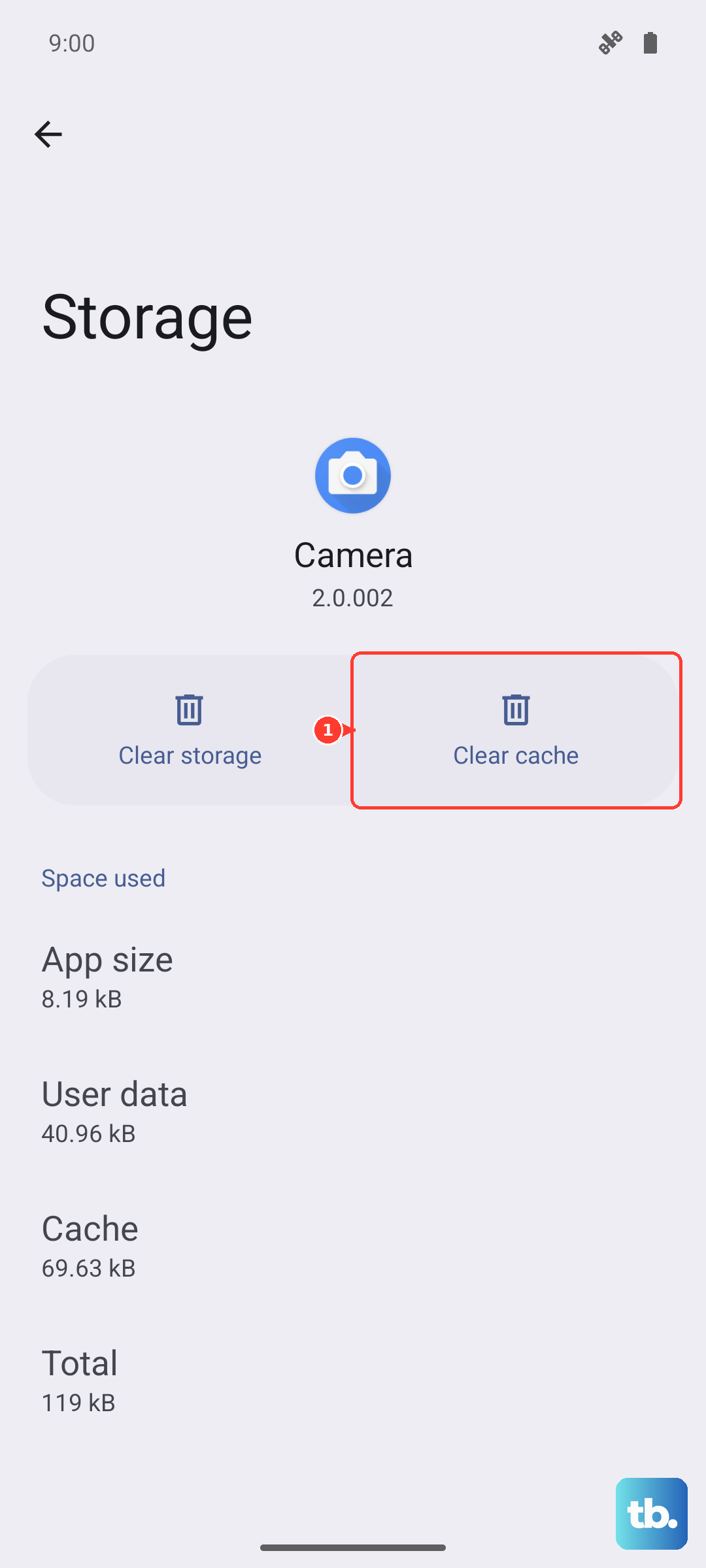
If the problem persists, you can go back and tap Clear data. Just be aware this will reset the Phone app to its default settings, so you might lose your call log and any custom settings within the app. Your contacts are safe, as they're stored separately.
Check for Problematic Third-Party Apps
Sometimes, an app you've recently installed can interfere with system functions like calling. Think about any new apps you added around the time the problem started, especially call recorders, dialers, or heavy battery savers.
You can try booting your tablet into Safe Mode to see if the issue goes away. Press and hold the power button until the power menu appears, then tap and hold the "Power off" option. You'll see a prompt to reboot into Safe Mode. In this mode, all third-party apps are disabled. If calls work normally here, a recently installed app is likely the cause.
Perform a Factory Reset
This is your last resort, but if nothing else has worked, a factory reset can wipe out any deep-seated software corruption. This will erase everything on your tablet, so it's absolutely critical to back up your photos, documents, and app data first.
Once you've secured your backup, go to Settings > General management > Reset > Factory data reset. Scroll down and tap Reset. After the tablet restarts, you'll set it up as new. You can then test the calling function before restoring your data to see if the problem is resolved.