You tap the switch next to Mobile Hotspot on your Galaxy Tab A9+, expecting your phone or laptop to jump online, and nothing happens. Maybe the toggle flips back off on its own, maybe other devices see the network but never get internet, or maybe the Mobile Hotspot option does not seem to behave the way you remember. A hotspot on this tablet has a few strict requirements, and most failures come down to one of them being unmet rather than a broken device.
Work through the checks below in order. They start with the safest, quickest confirmations and only end with a full reset, so you can stop the moment your hotspot starts sharing data again.
First, make sure your tablet can create a hotspot at all
This is the single most important check, because the Galaxy Tab A9+ ships in two very different versions. Only the 5G/cellular model (SM-X216 internationally, or SM-X218 in the US) can create a Mobile Hotspot. Samsung's official support is blunt about it. "Only LTE and 5G tablets with active service can create hotspots."
The Wi-Fi-only Galaxy Tab A9+ (SM-X210) has no cellular radio, so it cannot generate a cellular hotspot no matter what you do in Settings. That model can only join someone else's hotspot or receive internet through USB, Bluetooth, or Ethernet tethering from another device. Check the model number on the retail box or in Settings. If it is SM-X210, the feature simply is not present and no troubleshooting step will add it.
If you do have the cellular model, you also need the right plan. You must have a tethering plan on your service account with your carrier, and some carriers charge extra for tethering or for any data overage you run up while sharing. Confirm an active SIM (or eSIM) and a tethering allowance before going further.
Toggle the hotspot off and back on
A quick re-initialization clears most temporary glitches where the feature is enabled but not actually broadcasting. From the home screen, open Settings, then follow this path.
- 1.Tap Connections.
- 2.Tap Mobile Hotspot and Tethering.
- 3.Tap the switch next to Mobile Hotspot to turn it on.
- 4.Tap the switch again to turn it off, then turn it back on.
Give the other device a few seconds to find the refreshed network, then try to reconnect from scratch.
Confirm there is mobile data for the hotspot to share
The hotspot has nothing to give your other devices if the tablet itself is offline. Because the feature broadcasts your cellular connection, you need an active mobile signal behind it. Mobile Hotspot and Tethering creates a Wi-Fi network that lets other devices connect and reach the internet through your tablet's mobile data.
Glance at the status bar for a signal and data indicator before you blame the hotspot. If the tablet shows no bars or no data connection, fix the cellular service first. A hotspot can broadcast perfectly and still leave every connected device stranded if the SIM has no usable data.
Recheck the network name and password
When your other devices can see the hotspot but refuse to connect, the credentials are the usual culprit. A mistyped or forgotten password stops the join every time. You can view and correct both from the same screen.
- 1.Go to Settings > Connections > Mobile Hotspot and Tethering > Mobile Hotspot.
- 2.Open the Information section.
- 3.View and change the network name if needed.
- 4.View and change the password, then re-enter it carefully on the device that is failing to connect.
Setting a fresh, simple password here and reconnecting from scratch rules out a stale saved password on the other device.
Switch the broadcast band to 2.4 GHz
If a phone, laptop, or older gadget cannot even see your hotspot in its Wi-Fi list, the broadcast band is worth changing. Many older devices only support 2.4 GHz and will never detect a 5 GHz network.
Open Settings > Connections > Mobile Hotspot and Tethering > Mobile Hotspot, find the Band option in the Information section, and choose "2.4 Ghz" for broader device compatibility or "5 Ghz" for better performance. For maximum compatibility across mixed devices, set it to 2.4 GHz and try connecting again.
Dig into Advanced settings
The advanced menu holds two options that can quietly interfere with a hotspot's reliability. Go to Settings > Connections > Mobile Hotspot and Tethering > Mobile Hotspot > Advanced settings and review the Power saving mode and Wi-Fi sharing options there.
Power saving behavior in particular can affect how long the hotspot stays active when no device is connected. It is also worth remembering that mobile hotspots consume a noticeable amount of battery and use your data service, so keep the tablet charged during longer sessions.
Force restart a frozen or sluggish tablet
If the hotspot still will not enable, or the whole tablet feels stuck, a force restart clears the software state without touching your data. The official procedure is precise. "Press and hold the Power button and the Volume down button simultaneously for more than 7 seconds until the device reboots."
Once it reboots, open Mobile Hotspot again and test whether the feature now turns on and broadcasts.
Install the latest software update
Connectivity bugs are routinely fixed in software updates, so an out-of-date tablet can be the reason the hotspot misbehaves. To check and install, do the following.
- 1.Open Settings and tap Software update (some carriers label this "System updates").
- 2.Tap Download and install (or "Check for software updates").
- 3.Follow the on-screen instructions to install.
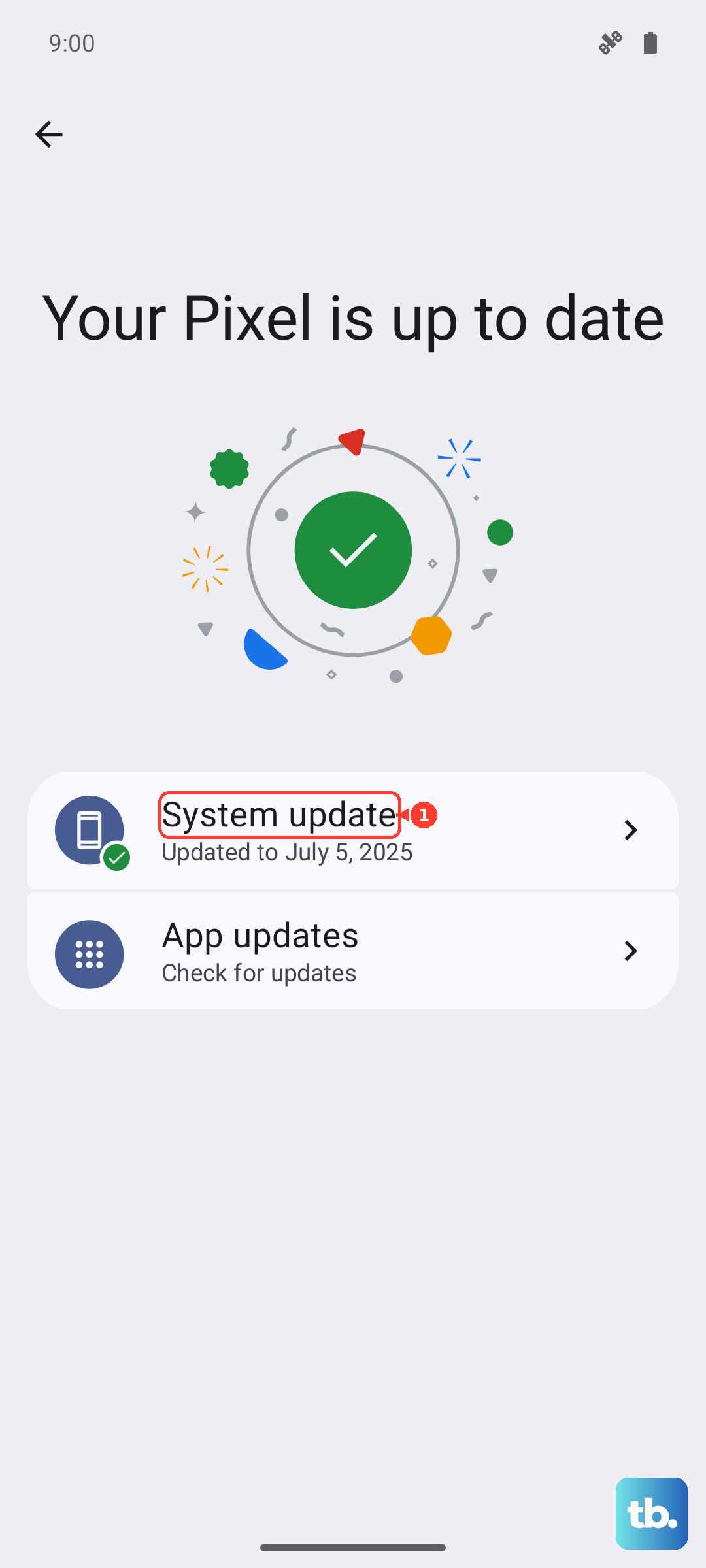
Connect to Wi-Fi and keep the battery charged before you start. The Galaxy Tab A9+ launched on Android 14 and is updatable to Android 15, so make sure you are running the newest version available for your tablet.
Ask your carrier whether tethering is actually allowed
Here is a failure that looks like a device problem but is not. The Mobile Hotspot toggle turns on, your other devices connect to the network, and yet none of them reach the internet. That pattern usually means tethering is not enabled on your line.
Remember that only LTE and 5G tablets with active service can create hotspots, that you need a tethering plan on your account, and that the carrier may charge extra. Contact your carrier to confirm tethering is switched on for that line and that your data allowance is not already used up.
Back up, factory reset, and reach Samsung support
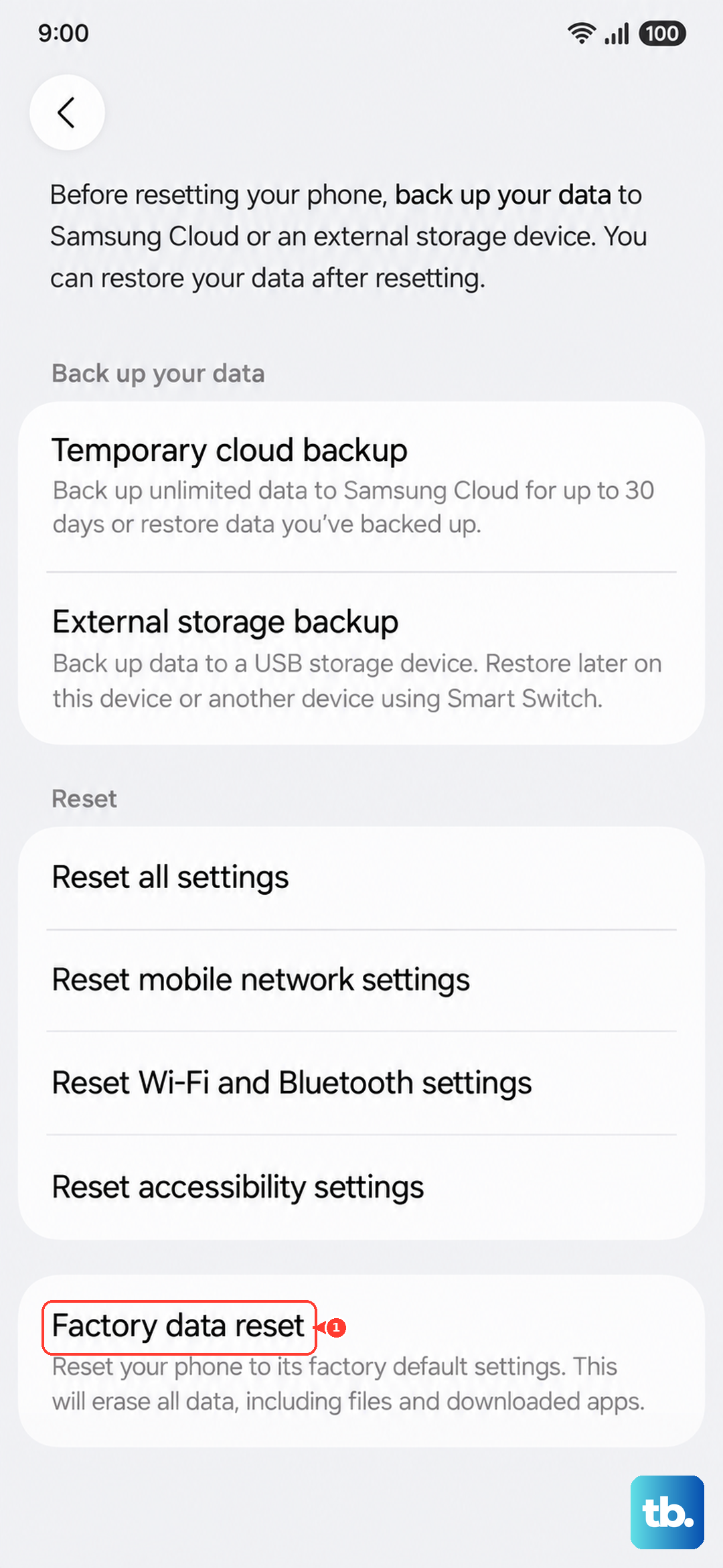
Save a factory reset for last, once every other check has failed, because it erases the tablet. Back up your photos, accounts, and files first. Samsung's warning is explicit. "Please save any information you need prior to the factory reset because your personal information may not be recovered."
When you are ready, go to Settings > General management > Reset > Factory data reset > Reset > Delete all, then set the tablet up again and test the hotspot before restoring everything. If it still fails after a clean reset, the official guidance is to book a repair or visit a Samsung Service Centre, since at that point a hardware fault is the most likely explanation.
Frequently Asked Questions
Does the hotspot use a lot of battery and data?
Yes. A mobile hotspot consumes a noticeable amount of battery and draws on your cellular data allowance the whole time it is on, so keep the tablet charged during longer sessions and watch your data usage. Power saving mode in Advanced settings can also affect how long the hotspot stays active when nothing is connected.
Can the Wi-Fi-only Galaxy Tab A9+ create a hotspot?
No. Only the 5G/cellular model (SM-X216/SM-X218) with active service can create a Mobile Hotspot. The Wi-Fi-only model (SM-X210) has no cellular radio, so it can only join another device's hotspot or receive internet through USB, Bluetooth, or Ethernet tethering.
My devices connect but get no internet. What is wrong?
The most common cause is that tethering is not included or enabled on your carrier plan, or your data allowance is exhausted. You need a tethering plan on the account, and the carrier may charge extra. Contact your carrier to confirm tethering is active on the line.
An older laptop cannot find the hotspot. How do I fix that?
Change the broadcast band. In Settings > Connections > Mobile Hotspot and Tethering > Mobile Hotspot, set the Band to "2.4 Ghz" for broader device compatibility. Many older devices only support 2.4 GHz and will not detect a 5 GHz network.
How do I force restart the tablet if it freezes during all this?
Press and hold the Power button and the Volume down button simultaneously for more than 7 seconds until the device reboots, then open Mobile Hotspot again to test it.