
When your Samsung Galaxy Tab A9+ can't find its location, it's more than just an inconvenience. You might be stuck trying to get directions or use an app that needs to know where you are. The good news is that most of the time, this is a software hiccup you can fix yourself.
I'd start with the quick fixes below. They solve the majority of location problems on the Tab A9+ and only take a minute to try.
Refresh Your Location Connection
Swipe down twice from the top of your screen to open the full Quick Settings panel. Look for the Location icon, which looks like a teardrop. Tap it once to turn it off, wait about ten seconds, and then tap it again to turn it back on.
This simple reset tells the tablet's GPS hardware to start fresh. It clears out any temporary glitch that might be preventing a satellite lock.
Perform a Force Restart
If toggling location didn't help, the next step is a force restart. This is different from a normal restart and can clear deeper system issues.
Press and hold the Volume Down button and the Power button at the same time. Keep holding them for about 10 seconds or until you see the Samsung logo appear on the screen. Let go and let the tablet boot up completely.
Check App Permissions in One UI
Sometimes, the problem isn't with the GPS itself, but with the app you're using. Each app needs explicit permission to access your location.
Go to Settings > Apps. Find the app giving you trouble, like Google Maps or Waze, and tap on it. Select Permissions and make sure Location is set to "Allow only while using the app" or "Allow all the time."
Disable Power Saving Modes
The Tab A9+ has a large battery, but its 15W charging can feel slow. You might have a power saving mode enabled to compensate, and these modes often limit background location services.
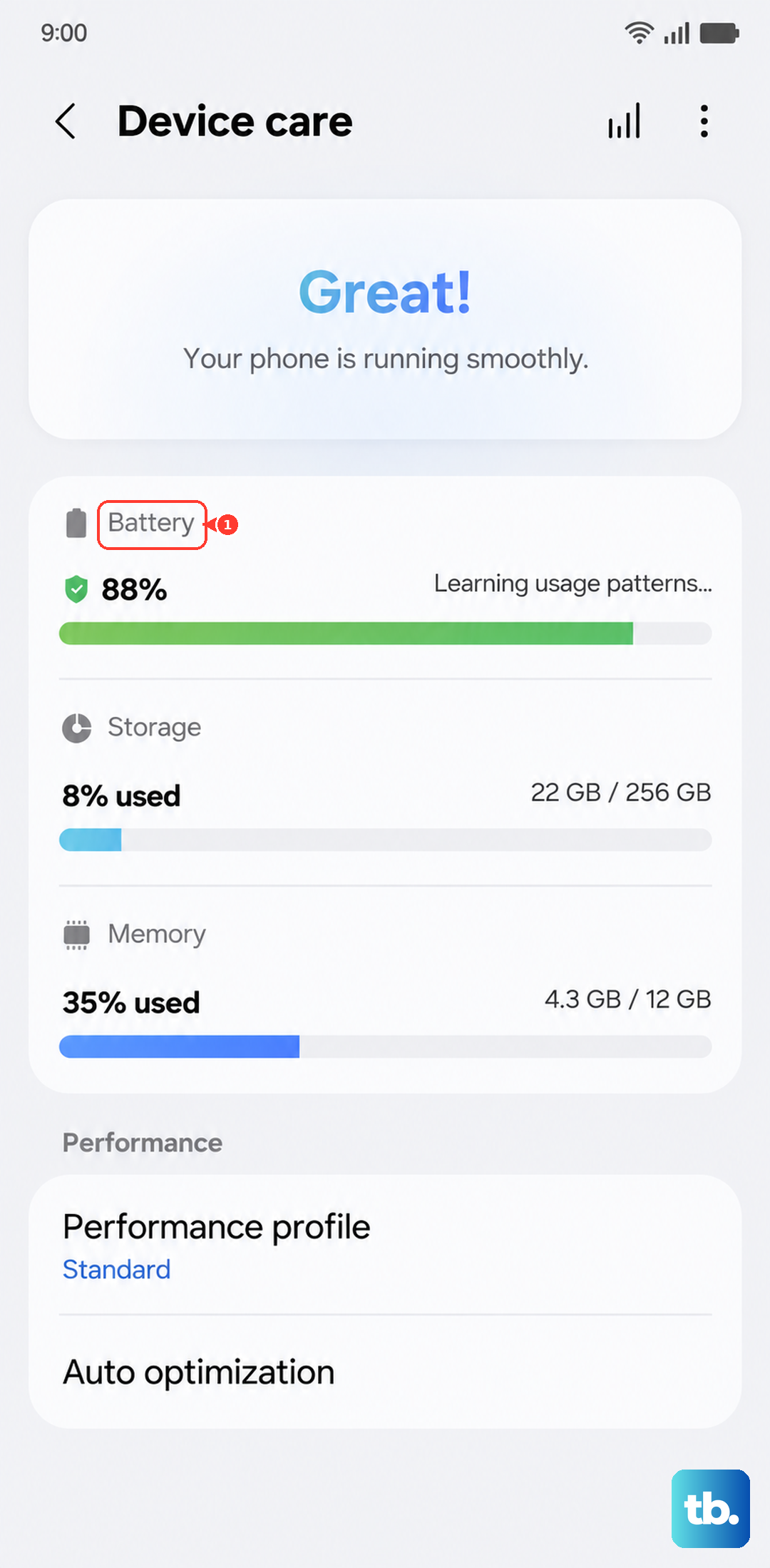
Open Settings and go to Battery and device care > Battery. Here, make sure both "Power saving" and "Adaptive battery" are switched off. Try your GPS app again with these disabled.
Switch to High Accuracy Mode
Your tablet uses more than just GPS satellites to find you. It can also use nearby Wi-Fi networks and cell towers to get a faster, more accurate lock, especially indoors.
To enable this, go to Settings > Location. Tap on Location services. At the top, you'll see "Google Location Accuracy." Make sure this is turned on. This uses all available sources for the best possible location.
Update Your Apps and Software
An outdated navigation app or an old version of Android can have bugs that break GPS functionality. Since the Tab A9+ can be updated all the way to Android 16 with One UI 8, it's important to keep everything current.
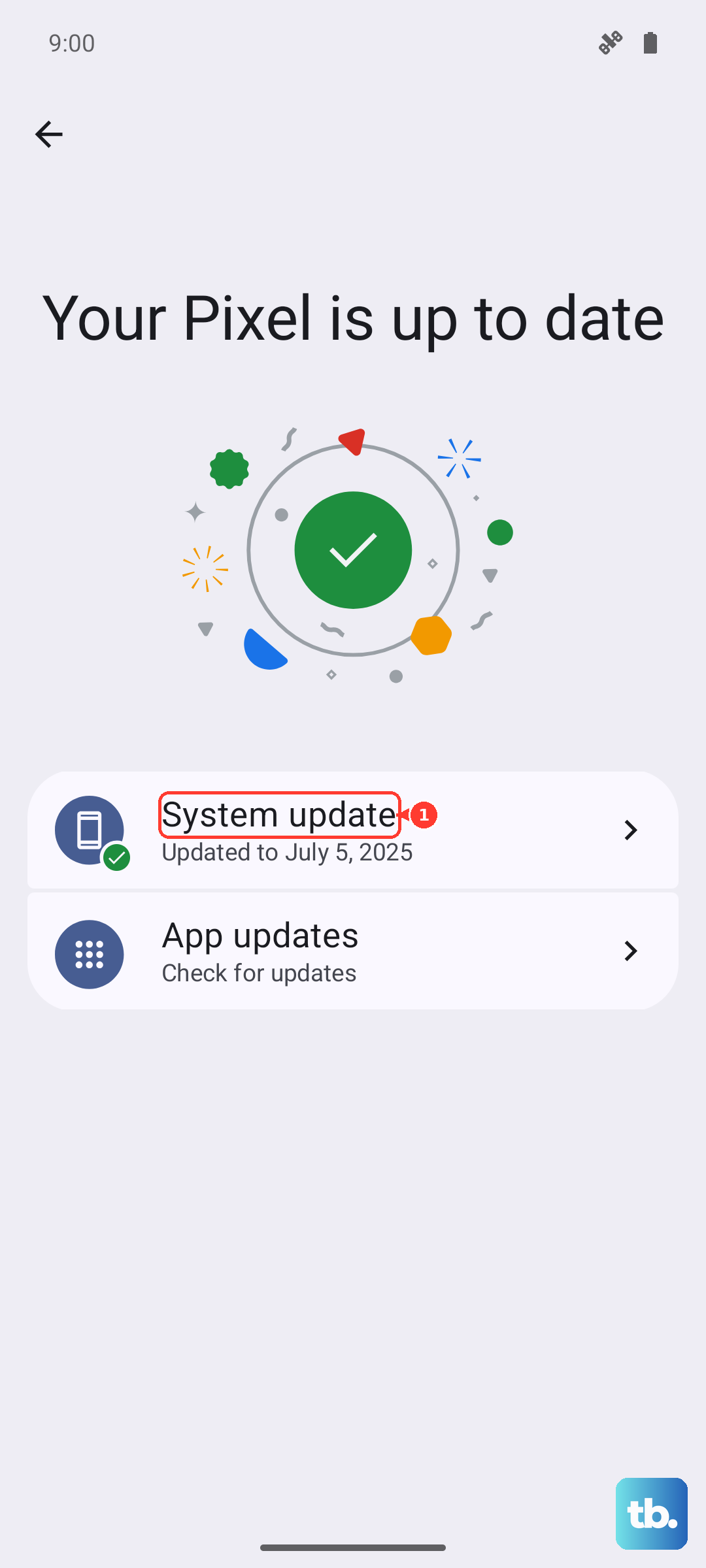
First, open the Google Play Store, tap your profile icon, and select "Manage apps & device." Update all apps, especially maps and navigation ones. Then, check for a system update by going to Settings > Software update > Download and install.
Clear the App's Cache and Data
If a specific app is acting up, its stored data might be corrupted. Clearing the cache is safe and won't delete your saved places.
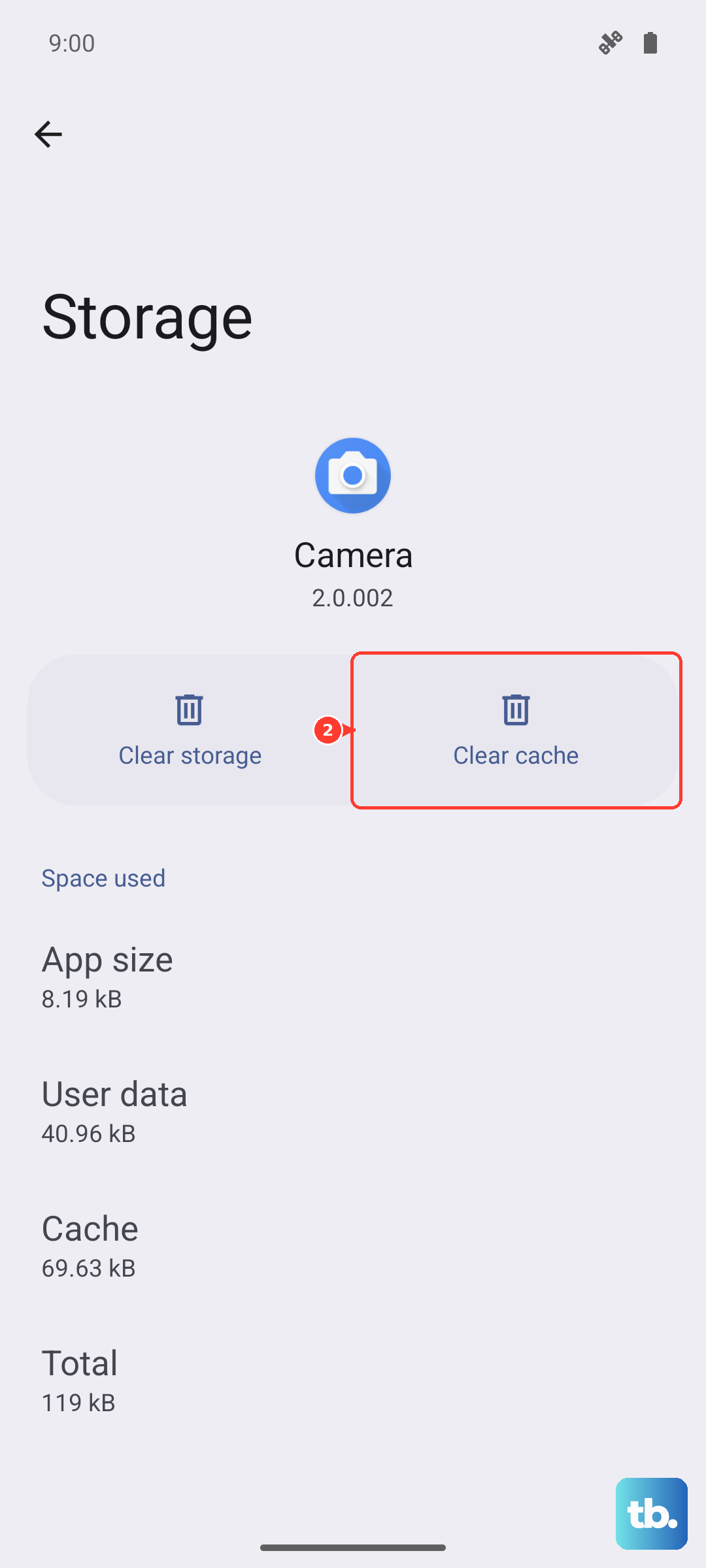
Go back to Settings > Apps, select the problematic app, and choose Storage. Tap "Clear cache." If the issue persists, you can tap "Clear data," but be aware this will reset the app to its default state, so you may need to sign in again.
Test in Safe Mode
A third-party app you installed could be interfering with location services. Booting into Safe Mode temporarily disables all those downloaded apps.
Press and hold the Power button until the power menu appears. Then, tap and hold the "Power off" option on your screen. You'll see a prompt to reboot to Safe Mode. Tap it. Once in Safe Mode (you'll see the words in the bottom corner), test your GPS. If it works, a downloaded app is the culprit. Restart normally to exit Safe Mode.
Check Your Physical Environment
The Snapdragon 695 chipset in the Tab A9+ is capable, but GPS signals are physical radio waves. They struggle to penetrate solid materials.
If you're indoors, try moving near a window. Thick metal cases or screen protectors can sometimes block the signal, so try removing them temporarily. For the most accurate lock, step outside with a clear view of the sky.
Use a GPS Diagnostic App
If you've tried everything and location is still broken, you need to figure out if it's a software or hardware problem. An app like "GPS Test" or "GPS Essentials" from the Play Store can show you what the tablet's GPS receiver sees.
Open the app outdoors with a clear sky view. Look at the satellite screen. If it shows multiple satellites with strong signals but your maps app still can't get a location, it's likely software. If the app shows zero satellites or consistently weak signals, there might be a hardware issue with the antenna.