
When your Samsung Galaxy S26 won't send pictures, it's usually a quick network or app setting that needs a tweak. The most common fix is to simply restart your phone, which clears out any temporary software glitches that might be hanging up the process. I'd start with that one.
Check Your Mobile Data and Network
First, make sure your phone actually has an internet connection. If you're using mobile data, pull down the Quick Settings panel from the top of your screen and ensure the mobile data icon is lit up. You can also go into Settings > Connections > Data usage to confirm it's enabled.
If you're on Wi-Fi, check that you're connected to a working network. Sometimes switching from Wi-Fi to mobile data, or vice versa, can get the picture moving. A weak signal is a common culprit, so try moving to a spot with better reception.
Verify MMS and APN Settings
For standard text messages (SMS/MMS), your carrier's Access Point Name (APN) settings need to be correct. These can sometimes get messed up after a software update. Go to Settings > Connections > Mobile networks > Access Point Names.
If the list is empty or looks wrong, you'll need to get the right APN details from your carrier's website or customer service. You can also try tapping the three-dot menu and selecting "Reset to default" to see if that populates them correctly.
Clear the Messaging App's Cache
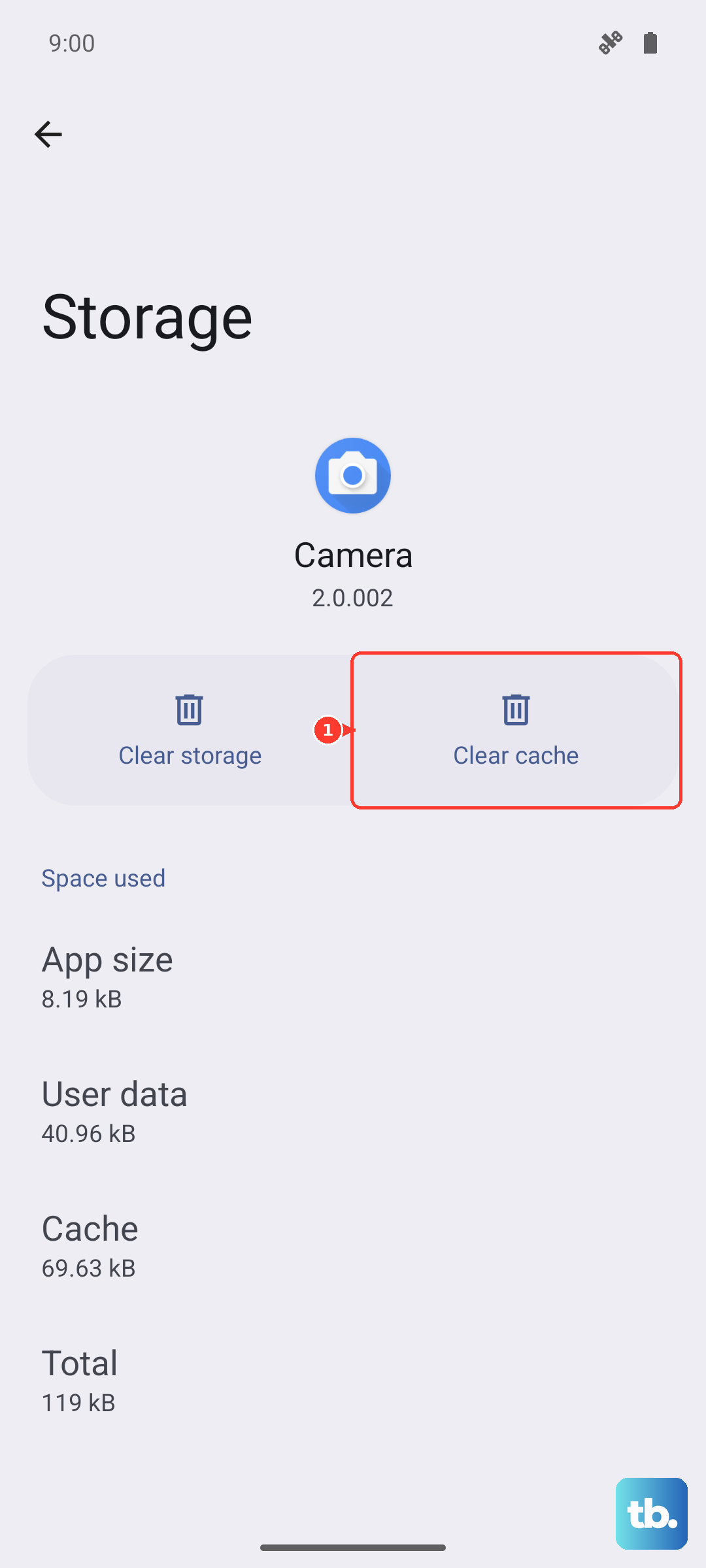
The Samsung Messages app stores temporary data that can occasionally cause issues. Clearing its cache is a safe first step that won't delete your conversations. Go to Settings > Apps, find and tap on "Messages", then select "Storage".
Tap "Clear cache". If the problem persists, you can try "Clear data" next, but be aware this will reset the app to its default settings and you might lose some preferences. Your message history should be safe, but it's always good to be sure.
Disable Wi-Fi Calling Temporarily
While Wi-Fi Calling is a great feature, it can sometimes interfere with MMS picture messages on some networks. It's an easy thing to test. Go to Settings > Connections > Wi-Fi Calling and toggle it off.
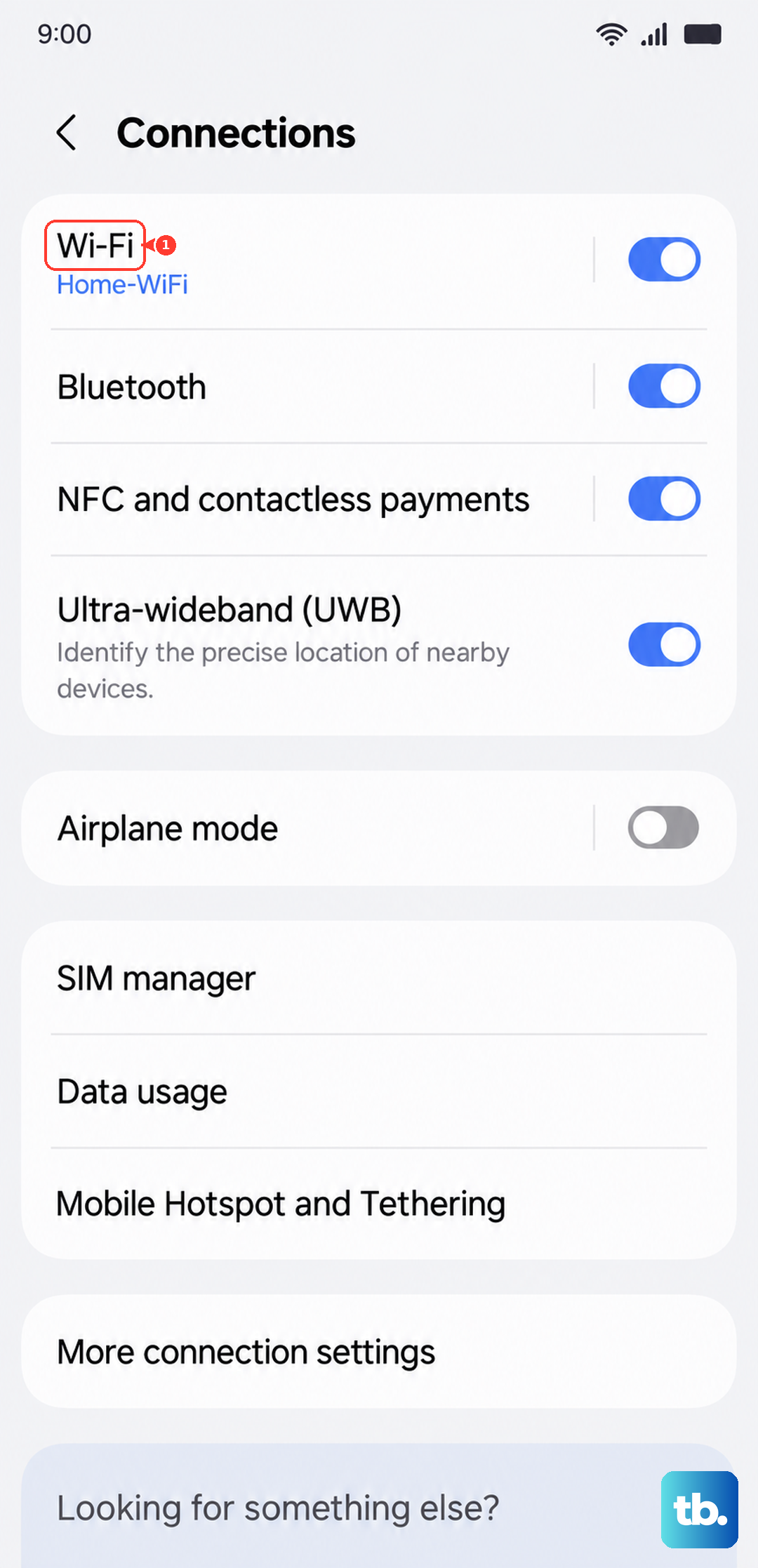
Try sending your picture again using mobile data. If it goes through, you know this was the conflict. You can try re-enabling it later to see if the issue was temporary.
Check for Software Updates
Since the Galaxy S26 is new with One UI 8.5, early software bugs are a real possibility. Samsung is likely releasing updates to smooth things out. Connect to Wi-Fi and go to Settings > Software update > Download and install.
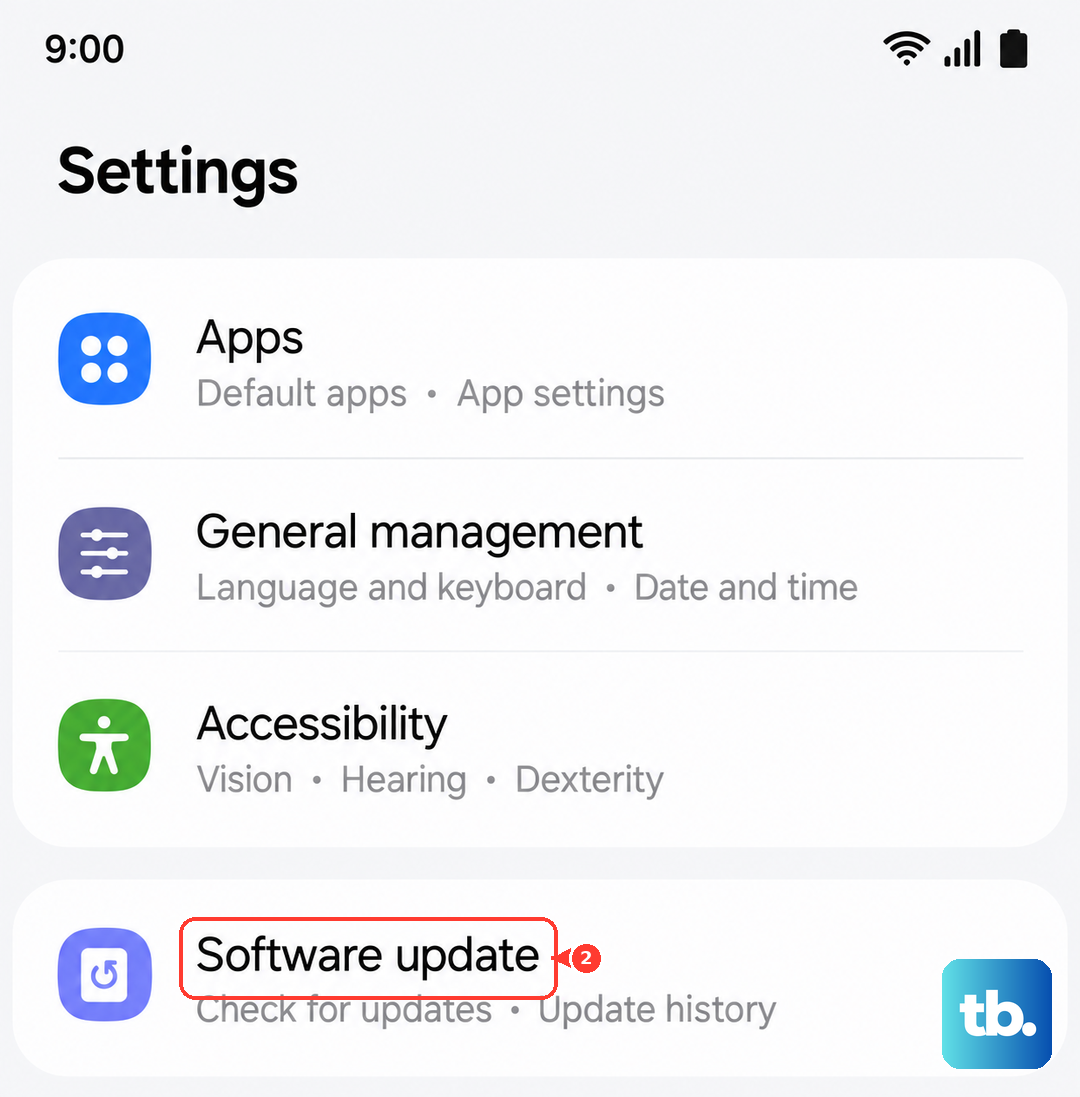
Keeping your phone updated is one of the best ways to fix messaging problems that popped up out of nowhere. An update might contain a specific patch for the exact issue you're having.
Try a Different Messaging App
This is a great way to figure out if the problem is with the Samsung Messages app itself or with your phone's system. Download a popular alternative like Google Messages from the Play Store and set it as your default.
If pictures send fine through the new app, then the issue is isolated to the Samsung app. You can either stick with the new one or use this info to focus your troubleshooting on the original app's settings and data.
Review Data Saver and Power Modes
Power-saving features can restrict background data, which is often needed to send multimedia messages. Go to Settings > Battery and make sure you're not on a power-saving mode like "Light" or "Maximum".
Also, check Settings > Connections > Data usage > Data saver. If Data saver is on, it might be blocking the Messages app. You can turn it off completely or tap on "Allowed apps" to make sure Messages has permission to use data in the background.
Reset Network Settings
This will wipe all your network-related configurations and start fresh. It clears out Wi-Fi passwords, paired Bluetooth devices, and mobile network settings, which can resolve deep-seated connection issues. Go to Settings > General management > Reset > Reset network settings.
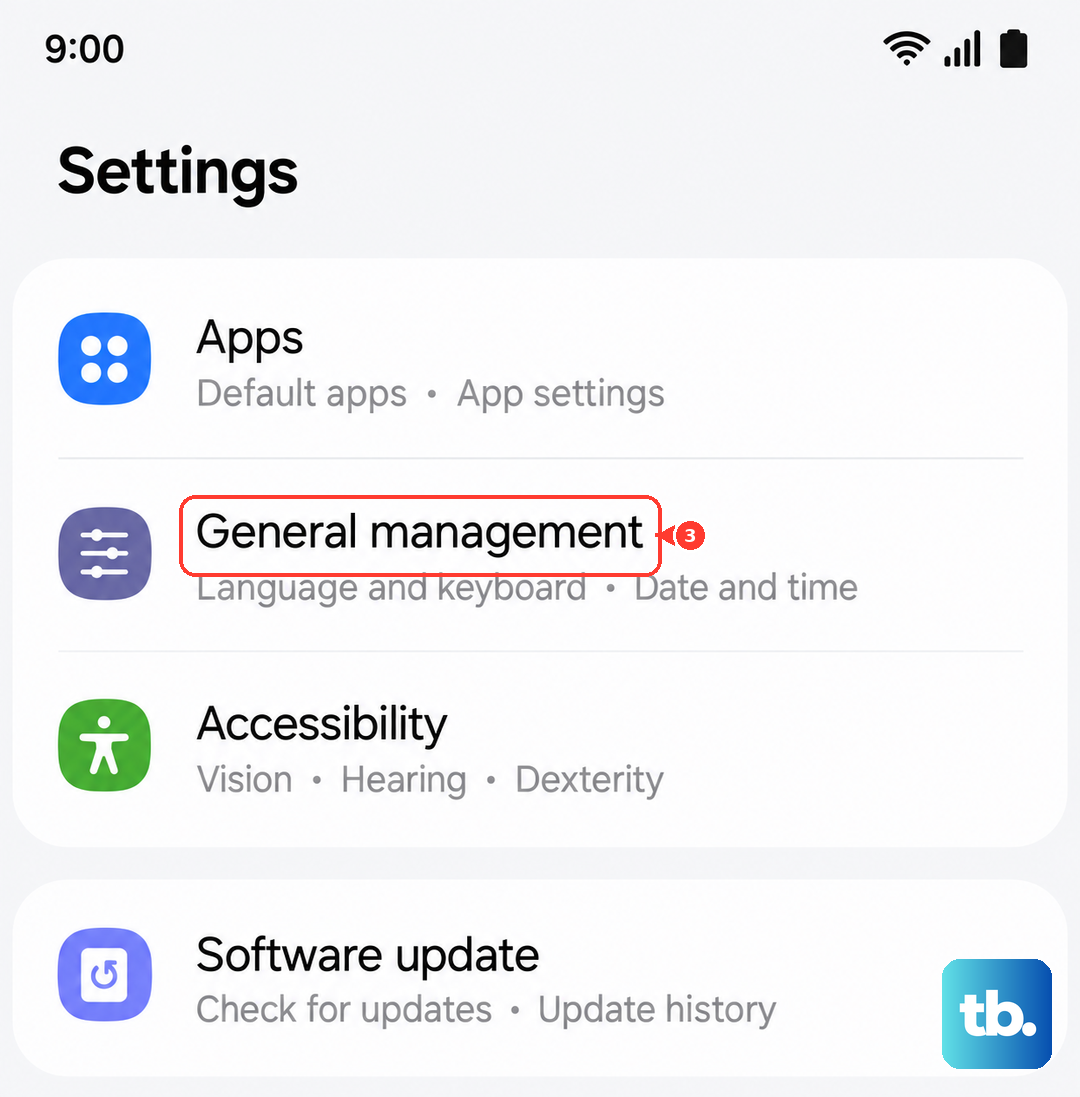
Tap "Reset settings" and confirm. Your phone will reboot. Afterward, you'll need to reconnect to Wi-Fi networks and re-pair Bluetooth devices, but it often clears up stubborn messaging problems.
Perform a Force Restart
A standard restart is good, but a force restart can clear more persistent system hiccups. Press and hold the Volume Down button and the Side/Power button simultaneously for about 10 seconds. Release when you see the Samsung logo appear on the screen.
This is different from just powering off and on. It's a deeper refresh of the phone's systems and can kick-start processes that have stalled, including those handling message delivery.
Contact Your Mobile Carrier
If you've tried everything on the phone itself, the issue might be on your carrier's end. There could be a service outage in your area, a problem with your account provisioning, or a specific block on MMS messaging.
Give them a call or use their online support. They can check your line status, reprovision your services, and confirm your APN settings are perfect for the Galaxy S26. Sometimes the fix is a simple refresh they do from their side.