
When your Samsung Galaxy S26 Ultra won't send picture messages, it's usually a quick fix. The most common culprit is a simple setting or a temporary network glitch. I'd start by checking your mobile data and the MMS settings in your messaging app.
Check Your Mobile Data and Network
Picture messages (MMS) require a cellular data connection, even if you're on WiFi. First, make sure mobile data is turned on. Pull down the Quick Settings panel from the top of your screen and tap the "Mobile data" icon to ensure it's blue.
If you have a weak signal, the message will fail. Try moving to a location with better reception. You can also try toggling Airplane mode on for 10 seconds and then off again to force your phone to reconnect to the network.
For the S26 Ultra, switching your network mode can sometimes help. Go to Settings > Connections > Mobile networks > Network mode. Try selecting "5G/LTE/3G/2G (auto connect)" if it's not already chosen.
Verify Your MMS and APN Settings
Your phone needs the correct Access Point Name (APN) settings from your carrier to send multimedia messages. These usually configure automatically, but they can get corrupted.
To check them, go to Settings > Connections > Mobile networks > Access Point Names. You should see an APN for your carrier selected. If not, or if it looks wrong, you may need to reset them.
You can often fix this by tapping the three-dot menu and selecting "Reset to default." If that doesn't work, you'll need to get the correct APN details from your carrier's website and enter them manually.
Force Restart Your Phone
A simple restart can clear out temporary software bugs that might be blocking messages. For the Galaxy S26 Ultra, press and hold the Volume Down button and the Side/Power button simultaneously for about 10 seconds until the Samsung logo appears.
This is a soft reset and won't delete any of your data. It's a good first step if you're seeing the message stuck on "Sending" or getting a generic failure notification.
Clear the Cache for Your Messages App
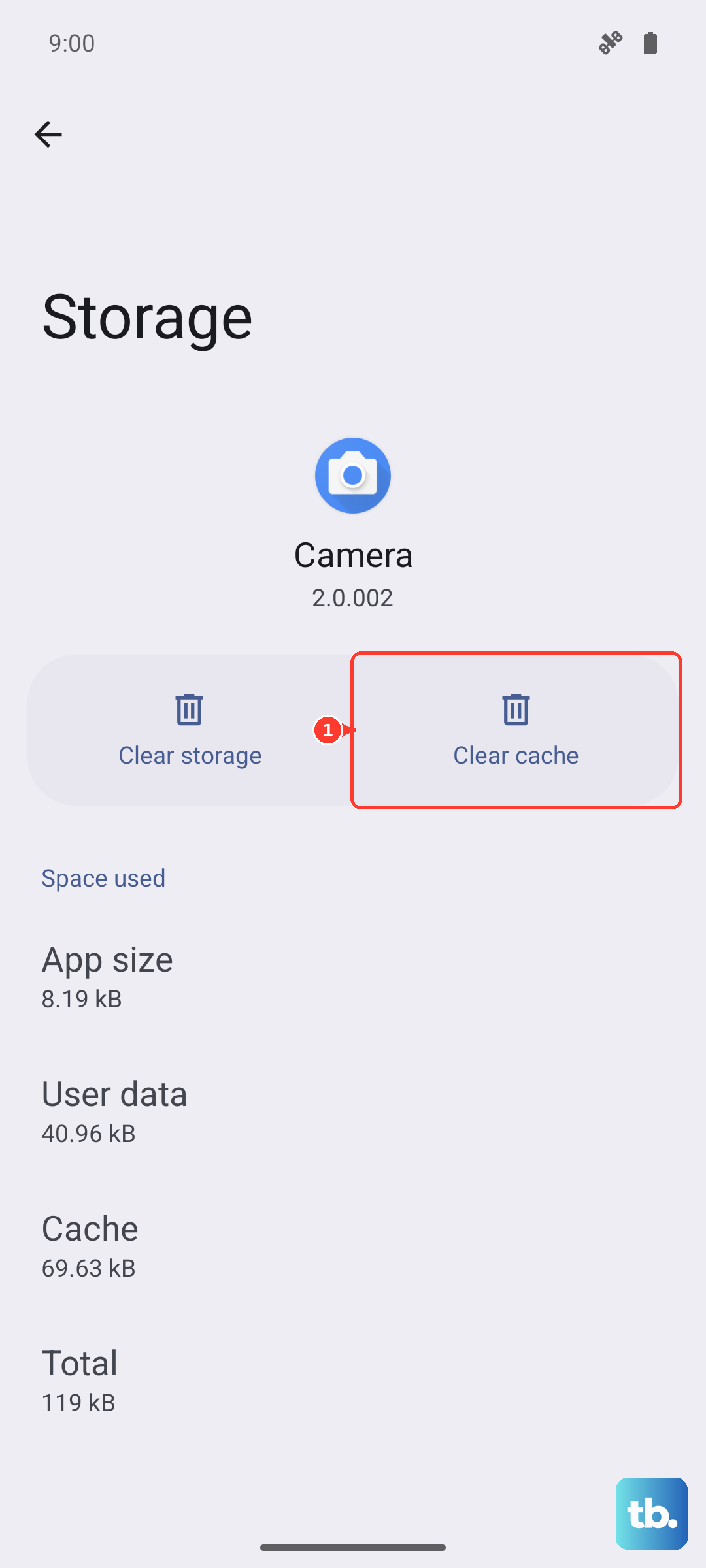
Over time, the cached data for an app can become corrupted. Clearing it can resolve sending issues without affecting your message history. Go to Settings > Apps.
Find and select "Messages" from the list. Tap on Storage, then tap "Clear cache." Do not tap "Clear data," as that will delete your texts. After clearing the cache, open the Messages app and try sending a picture again.
Check for Software Updates
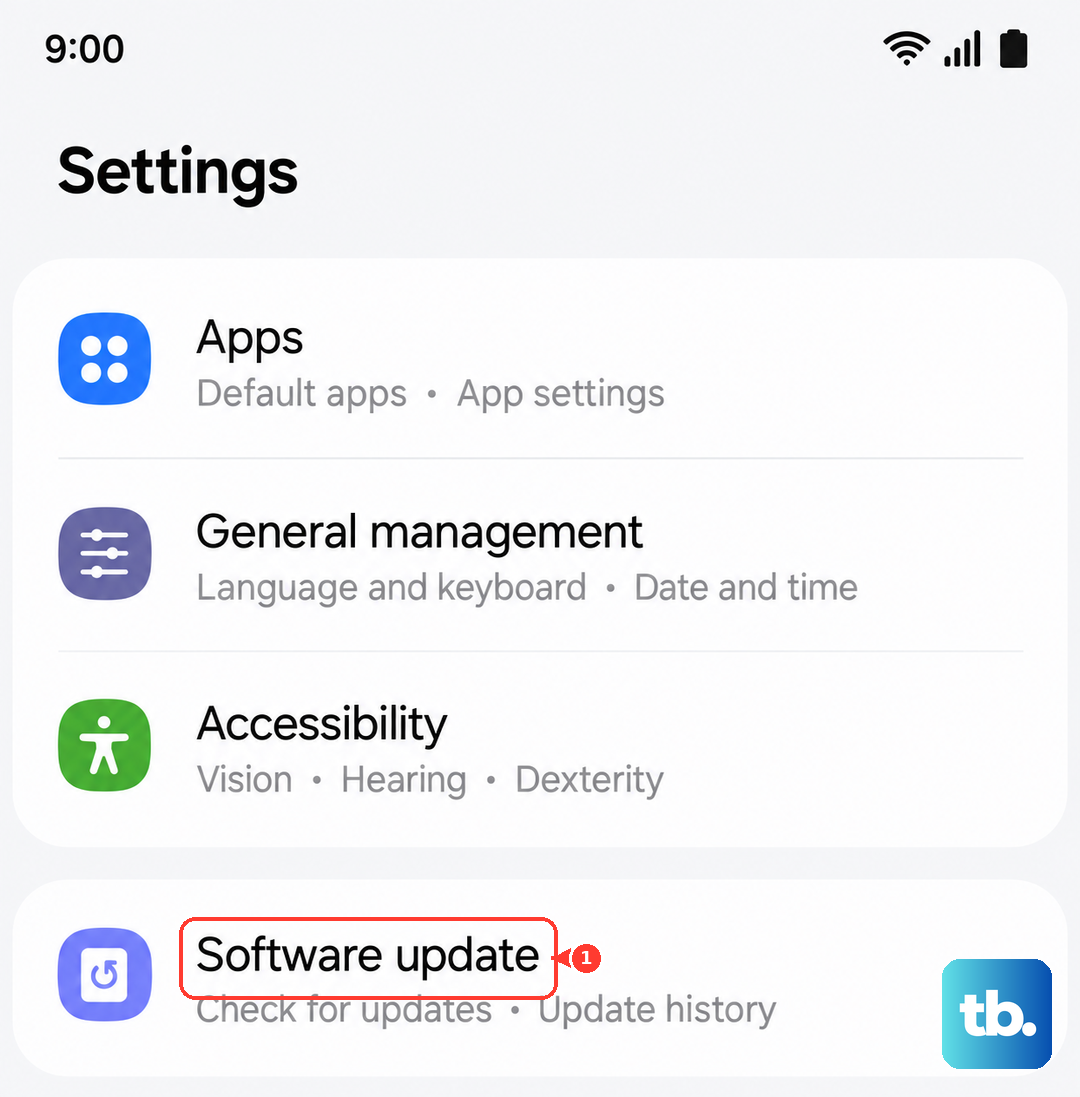
Since the S26 Ultra is a new device, early software bugs are possible. Samsung frequently releases updates to fix these kinds of issues. Make sure your phone is connected to WiFi and has sufficient charge.
Then, go to Settings > Software update > Download and install. If an update is available, install it and see if it resolves the picture messaging problem.
Disable Data Saver or Power Saving Modes
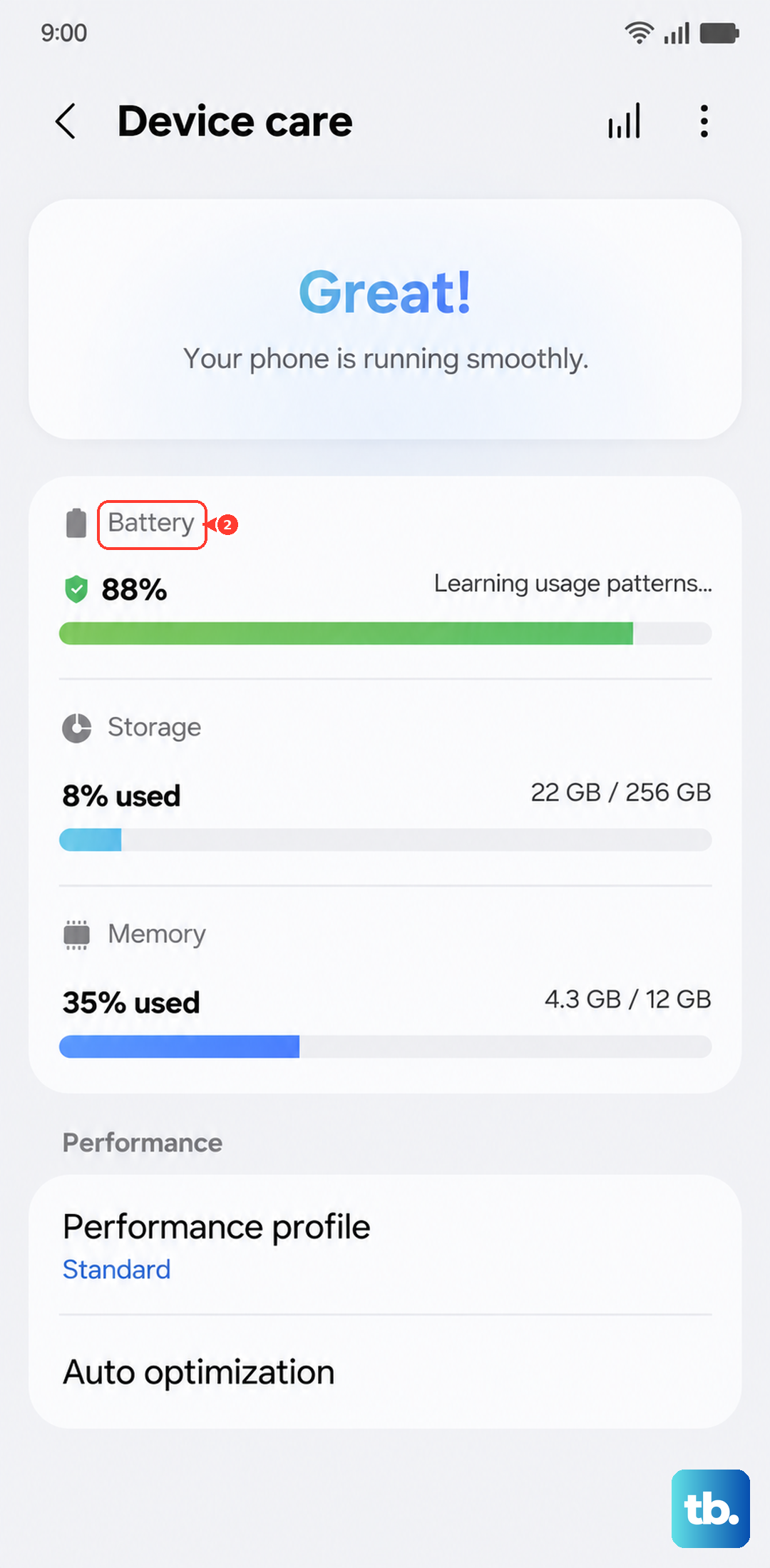
Power-saving features can restrict background data, which is necessary for MMS to send. Check if any battery-saving modes are active. Pull down the Quick Settings panel and see if "Power saving" or "Data saver" icons are highlighted.
You can also go to Settings > Battery and device care > Battery to turn off any power-saving modes. Remember, the S26 Ultra's Battery Protection feature can limit charge to 80% when its Maximum mode is turned on (it's off by default), but that shouldn't affect messaging.
Try a Different Messaging App
To rule out a problem with Samsung's default Messages app, try using an alternative like Google Messages. Download it from the Play Store, set it as your default, and see if you can send a picture.
If it works in another app, the issue is likely with the Samsung app's settings or data. You can switch back to your preferred app after troubleshooting.
Reset Your Network Settings
This will reset all WiFi, mobile data, and Bluetooth connections to their factory defaults. It's a more thorough step that can fix persistent network-related problems. You'll lose saved WiFi passwords and paired Bluetooth devices.
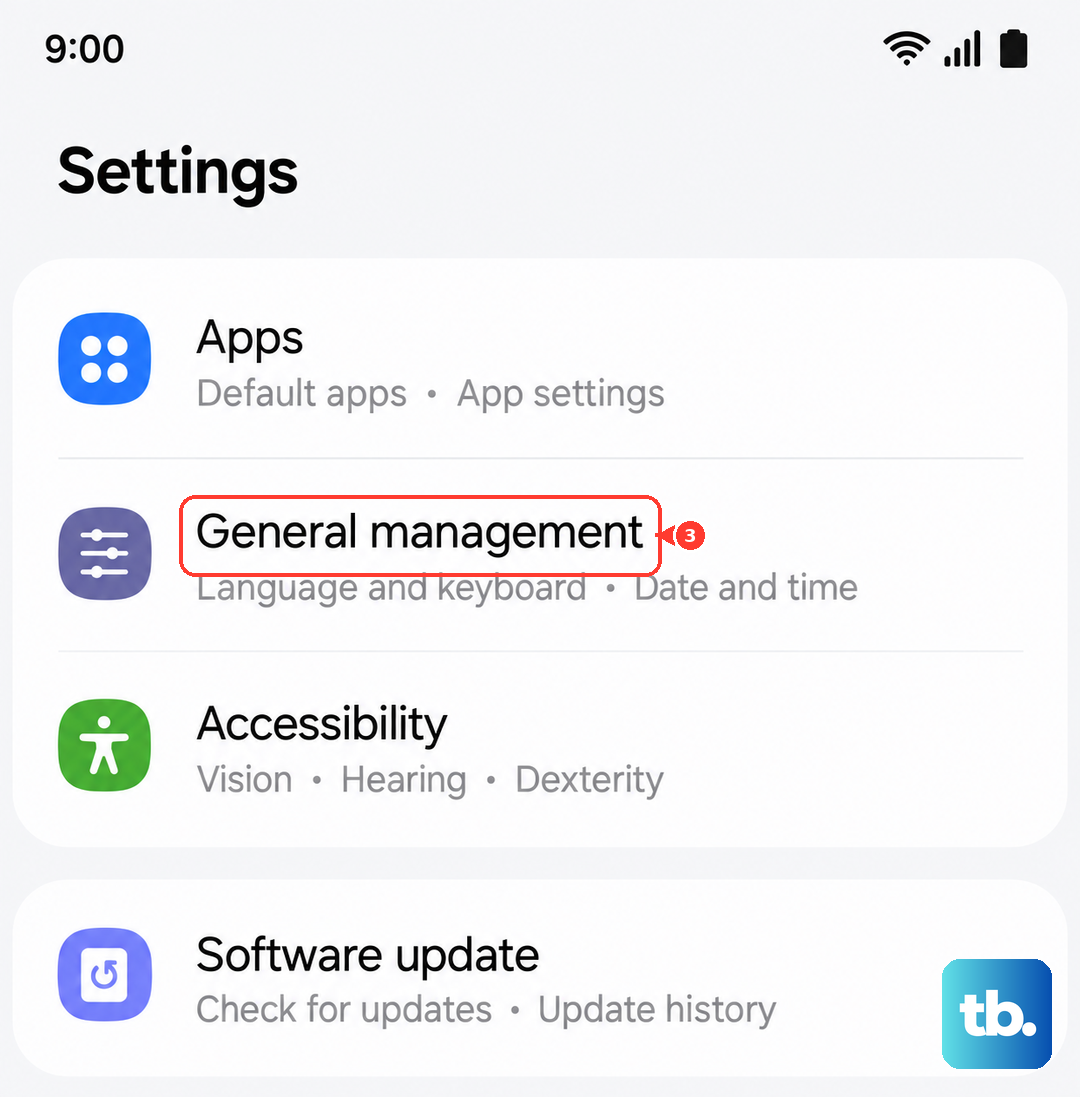
To do this, go to Settings > General management > Reset > Reset network settings. Tap "Reset settings" and enter your PIN if prompted. After your phone restarts, you'll need to reconnect to WiFi networks.
Check the Message Size and File Format
Most carriers have a size limit for MMS, often around 1MB. If your photo is too large or in an unsupported format, it may fail. The S26 Ultra's camera takes very high-resolution photos by default.
Try sending a smaller, lower-resolution picture to see if it goes through. You can also check your messaging app's settings for an option to reduce file size before sending, which is often turned on by default.
Contact Your Mobile Carrier
If you've tried everything and pictures still won't send, the issue might be on your carrier's end. There could be a service outage in your area, or there might be a problem with your account provisioning for MMS.
Give them a call or use their online support. They can check your account status, reprovision your services, and confirm the correct APN settings for your S26 Ultra on their network.