
Seeing your brand new Samsung Galaxy S26 Ultra screen flicker or flash is incredibly annoying. It can be a subtle shimmer, a full-screen flash, or random horizontal lines. On a device this new, it's often a software quirk that can be resolved without a trip to the repair shop. Let's get it sorted.
If the fault comes and goes, an online monitor test helps you reproduce it on demand with solid colors and gradient patterns.
Force Restart Your Phone
This is the universal first step for any weird glitch on a Galaxy phone. Press and hold the Volume Down button and the Side/Power button together for about 10 seconds. Let go when you see the Samsung logo appear. This clears the phone's temporary memory and can instantly fix a display driver hiccup.
Disable Adaptive Brightness
Your S26 Ultra's screen brightness automatically adjusts to your environment. If the ambient light sensor gets confused, it can cause the screen to flicker as it rapidly tries to find the right level. Swipe down twice for the Quick Settings panel and tap the Auto icon to turn it off. You can also go to Settings > Display and toggle off Adaptive brightness. Set the brightness manually with the slider and see if the flickering stops.
Turn Off Eye Comfort Shield
This feature, similar to True Tone or Night Shift, adjusts the screen's color temperature. A bug in this process can sometimes cause a subtle, pulsing flicker, especially in low light. Go to Settings > Display > Eye comfort shield and toggle it off. Check your screen in different lighting conditions to see if this was the culprit.
Update Your Software
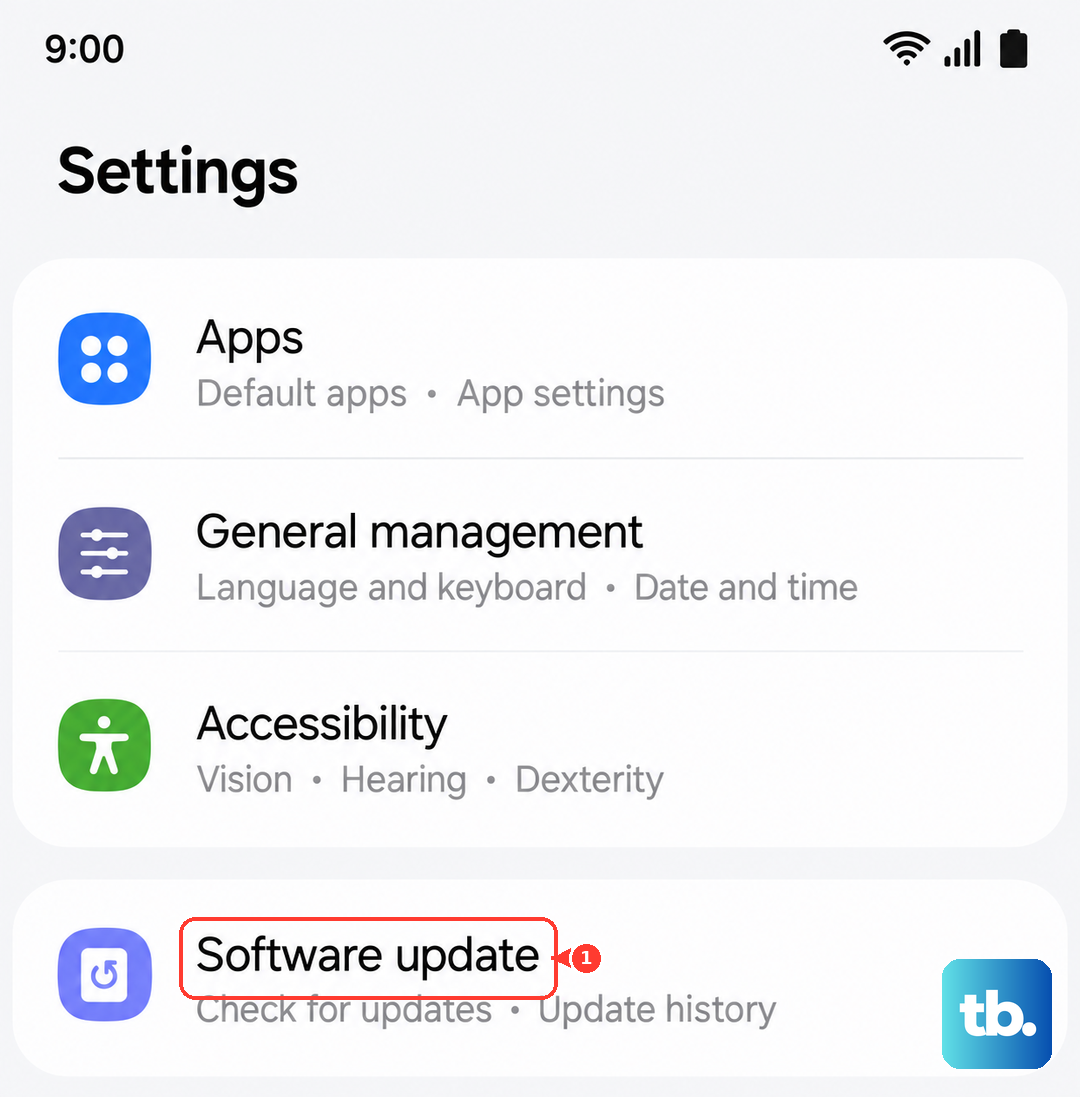
Since the S26 Ultra is a brand new device running the latest One UI 8.5, early software bugs are a real possibility. Samsung is quick to push out updates to fix these kinds of display issues. Go to Settings > Software update and tap Download and install. Make sure your phone is connected to Wi-Fi and has a good charge before you start.
Check for a Problematic App
A recently installed app might not be fully optimized for Android 16 or the S26 Ultra's powerful hardware, causing it to interfere with the display. Boot your phone into Safe Mode to check. Press and hold the power button until the power menu appears, then tap and hold the Power off icon. Tap Safe mode to restart. If the flickering stops in Safe Mode, a third-party app is likely the cause. You'll need to uninstall apps one by one, starting with the most recent, to find the offender.
Close All Background Apps
Even if an app isn't the main cause, having too many running can overwhelm the system and cause visual artifacts. Swipe up from the bottom and hold to enter the recent apps view. Tap Close all at the bottom. For a more thorough clean, go to Settings > Device care > Memory and tap Clean now. This frees up RAM and stops any background processes that might be misbehaving.
Reset All Settings
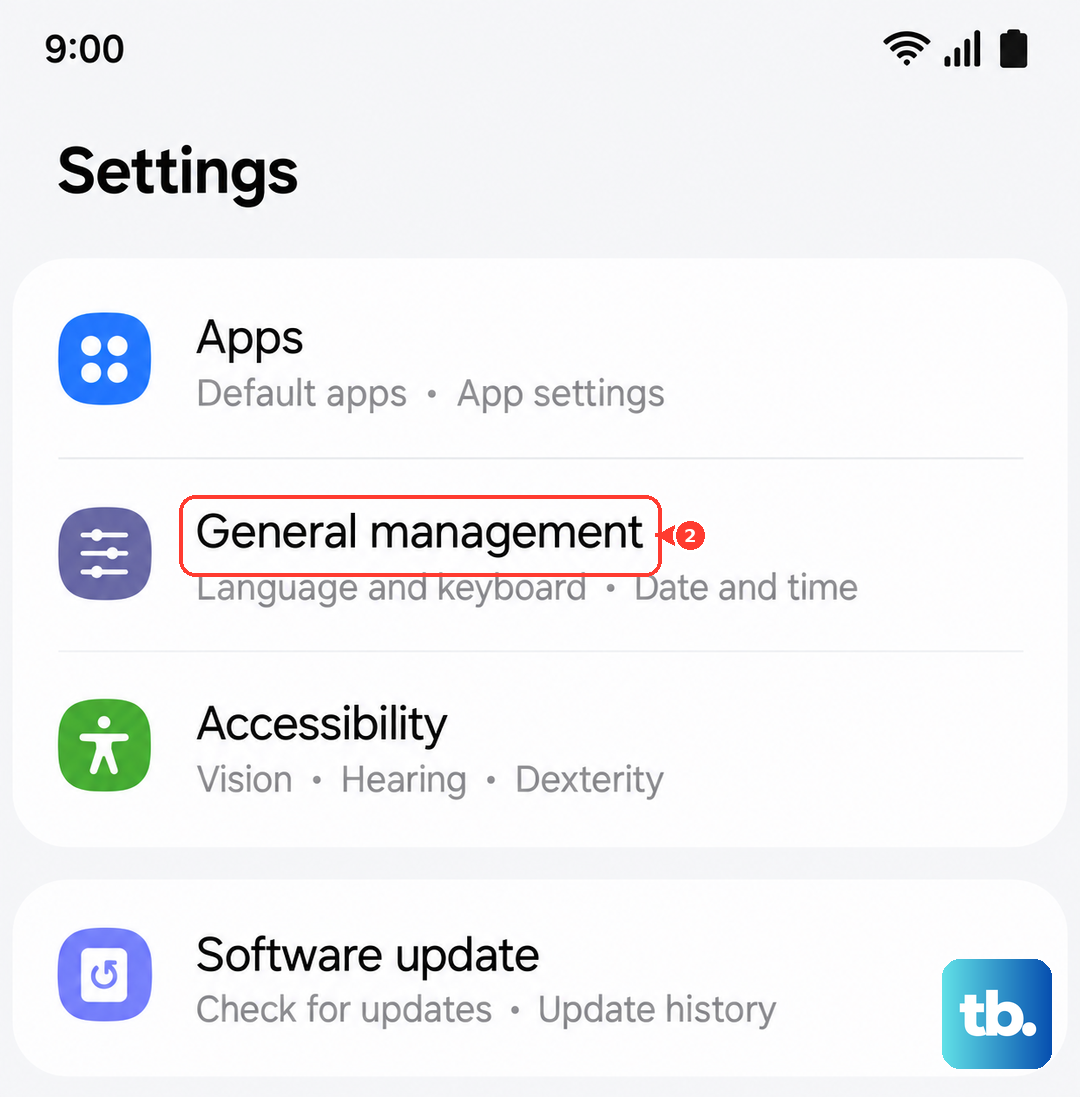
This is a deeper fix that won't touch your personal data. It resets all your system preferences, like display, sound, and network settings, back to factory defaults. It can resolve conflicts that a simple restart can't. Navigate to Settings > General management > Reset > Reset all settings. You'll need to re-enter Wi-Fi passwords and reconfigure things like ringtones, but it often clears up persistent software-related flickering.
Inspect for Physical Issues
Look very closely at your screen. Is the flickering localized to one area? Does pressing gently on the screen or the frame change it? While the S26 Ultra is built tough, a hard drop could loosen the internal display connector. Also, check the S Pen slot for any debris. Dust or pocket lint trapped there can sometimes migrate near internal components.
If the flickering is severe, shows green or purple lines, or is accompanied by black spots, the display itself may have sustained damage. In that case, the issue is hardware-related and will require professional service from Samsung.
Perform a Factory Reset
If every other step has failed, a factory reset is the final software step. This will erase everything on your phone, so you must back up your data first using Samsung Cloud or a computer. Once backed up, go to Settings > General management > Reset > Factory data reset. After the reset, set up the phone as new without restoring your apps and data immediately. If the flickering is gone on a fresh setup, it confirms a software problem. If it persists, the issue is almost certainly with the phone's hardware.