
Seeing your brand new Samsung Galaxy S26 frozen on its logo during startup is a real gut punch. The screen lights up, the "Samsung" text appears, and then... nothing. It just sits there, sometimes flashing on and off. This boot loop is almost always a software hiccup, often tied to the fresh One UI 8.5 software or an interrupted update. Let's get it moving again.
Give It Time and Power
First, plug your phone into a wall outlet using the official 60W charger and cable. A major system update or app optimization can sometimes take much longer than you'd expect on a new OS. If you see any animation or a progress indicator under the logo, it's still working. Don't touch it for a good 20-30 minutes.
Perform a Force Restart
If the logo is completely static or flashing with no progress after half an hour, you need to interrupt the boot cycle. On the Galaxy S26, press and hold the Volume Down button and the Side/Power button together for about 10 seconds. Release when you see the Samsung logo appear again. This simple reboot fixes a lot of temporary software glitches.
Boot into Recovery Mode
When a force restart just brings you back to the same stuck screen, you'll need to use Android's recovery mode. First, connect your S26 to a Windows PC or Mac with a USB-C cable. Turn the phone off if you can, or let the battery drain.
With it powered off, press and hold the Volume Up button and the Side/Power button simultaneously. Hold them until you see the blue "Installing system update" screen, then release. You'll soon see the Android recovery menu.
Use the volume buttons to navigate and the power button to select. Choose Wipe cache partition. This clears temporary system files without touching your personal data. After it completes, select Reboot system now.
Perform a Factory Reset from Recovery
If clearing the cache doesn't work, you'll need to consider a factory reset from this same recovery menu. This is a last resort before seeking help, as it erases all your data. Before you do this, know that you'll lose everything not backed up to Samsung Cloud or Google.
In the recovery menu, navigate to Wipe data/factory reset and confirm. Once it finishes, go back and select Reboot system now. Your phone should start up as if it were new. You can then restore your data from a backup during the setup process.
Use Smart Switch on a Computer
If your phone is stuck but your computer still recognizes it, Samsung's Smart Switch desktop app can sometimes force a software repair. Download and install Smart Switch on your computer, connect your S26 with a cable, and see if the app detects it. If it does, look for an option like "Emergency software recovery" or "Device initialization." This can reinstall the firmware.
Check for Software Updates Proactively
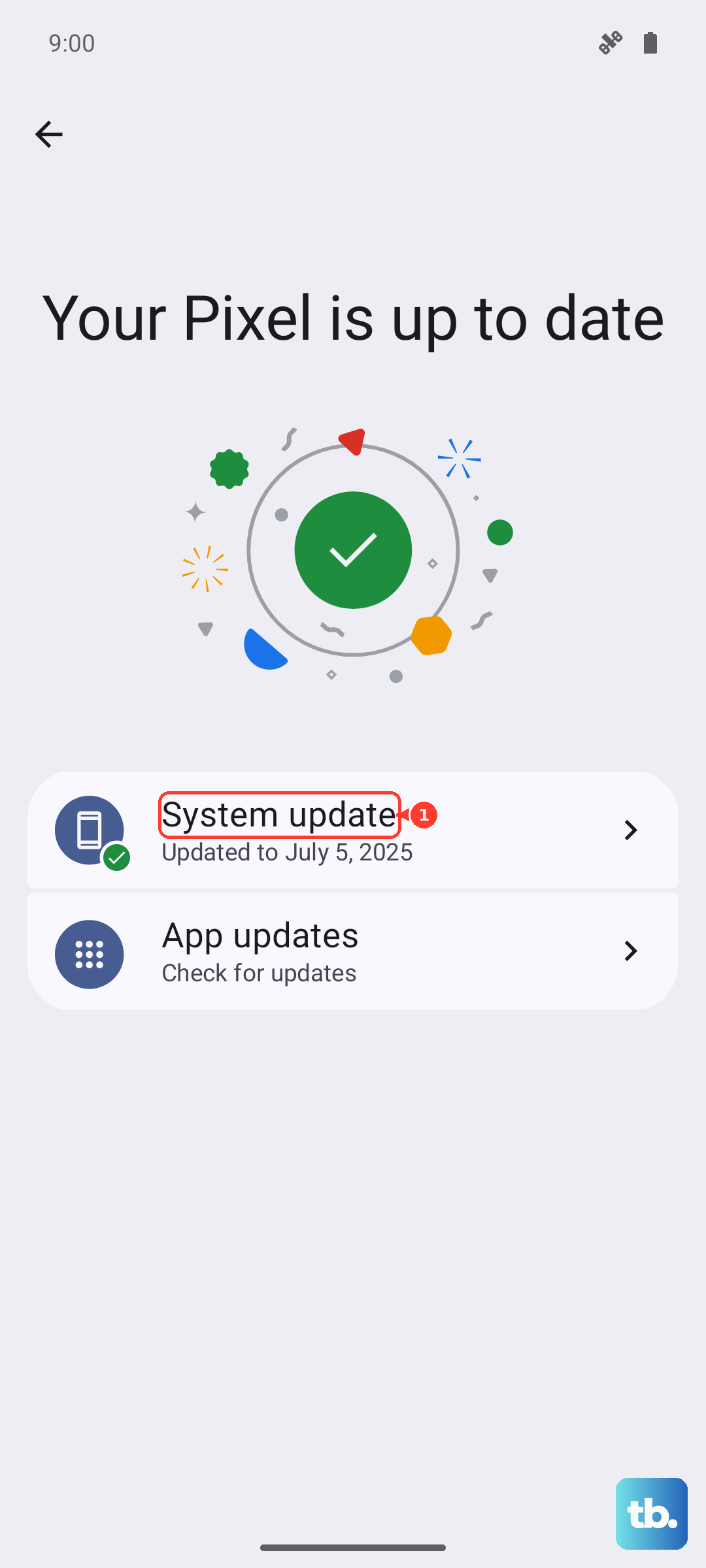
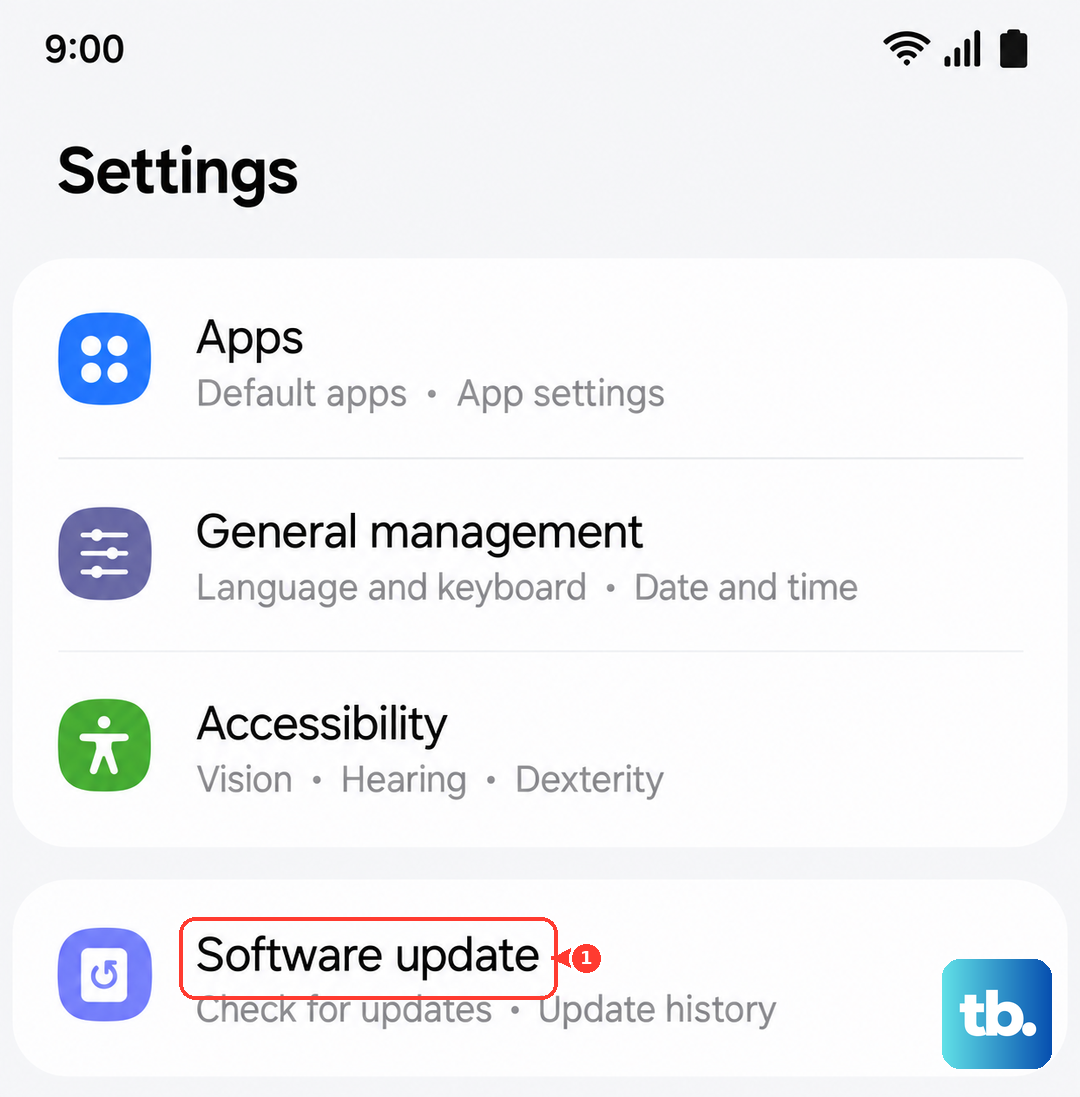
Since the Galaxy S26 runs the brand new One UI 8.5, early software bugs are a real possibility. Once you get your phone back up and running, immediately check for updates. Go to Settings > Software update > Download and install. Keeping the OS updated is the best way to prevent these boot issues.
Also, ensure you have plenty of free storage space before installing any future updates. An update that runs out of space mid-installation is a common cause of boot failures. I'd recommend keeping at least 10GB free on a device like this.
Consider a Charging Issue
While less common, a problematic battery or charging system can cause boot failures. Try using a different 60W PD charger and cable. Also, check your battery settings. Go to Settings > Battery > More battery settings.
See if features like "Battery protection" or "Adaptive charging" are limiting the charge. For troubleshooting, you might want to temporarily disable any battery protection modes to ensure the phone is getting full power during the boot process.