
Seeing a "SIM Card Not Provisioned" message on your new Samsung Galaxy S26 is a real roadblock. It means your phone can't connect to your carrier's network, so you're stuck without calls, texts, or mobile data. This usually happens because the SIM isn't activated or there's a hiccup in the connection process.
I'd start with the simplest fix first. A quick restart can clear out temporary software glitches that might be causing the problem. Just press and hold the Volume Down button and the Side/Power button together for about 10 seconds until you see the Samsung logo.
Check Your SIM Card Activation Status
If this is a brand new SIM card or you just switched it to your S26, it might not be active yet. The most common fix is to call your carrier's customer service. They can check their system to see if the SIM is properly registered and push the activation through from their end.
For prepaid plans, also double-check your account balance. Sometimes service gets suspended if a payment was missed or the balance ran out. You can usually check this in your carrier's app or by giving them a quick call.
Refresh Your Network Connection
Your phone might just need a nudge to reconnect. Swipe down from the top of your screen twice to open the full Quick Settings panel, then tap the Airplane Mode icon to turn it on. Wait about 30 seconds, then tap it again to turn it off.
This forces your Galaxy S26 to drop its current network connection and search for it again, which can resolve temporary provisioning errors.
Reinsert the SIM Card
It's worth taking the SIM tray out for a quick inspection. Turn your phone off first. Use the SIM ejector tool that came in the box (or a small paperclip) to pop out the tray.
Take a look at the SIM card itself. Make sure the gold contacts aren't scratched or dirty. If you see any dust, gently wipe it off with a soft, dry cloth. Then, place the SIM back in the tray, ensuring it's seated firmly in the correct orientation, and push the tray back in until it clicks.
Manually Select Your Network Operator
Sometimes the automatic network selection gets confused. You can manually tell your phone which carrier to use. Go to Settings > Connections > Mobile networks > Network operators.
Tap "Search networks" and wait for the list to populate. Then, select your specific carrier's name from the list. This bypasses the auto-connect process and can establish a cleaner link.
Update Your Phone's Software
The Galaxy S26 runs the brand new One UI 8.5, and early software can have bugs that affect network connectivity. It's a good idea to check for updates. Head to Settings > Software update > Download and install.
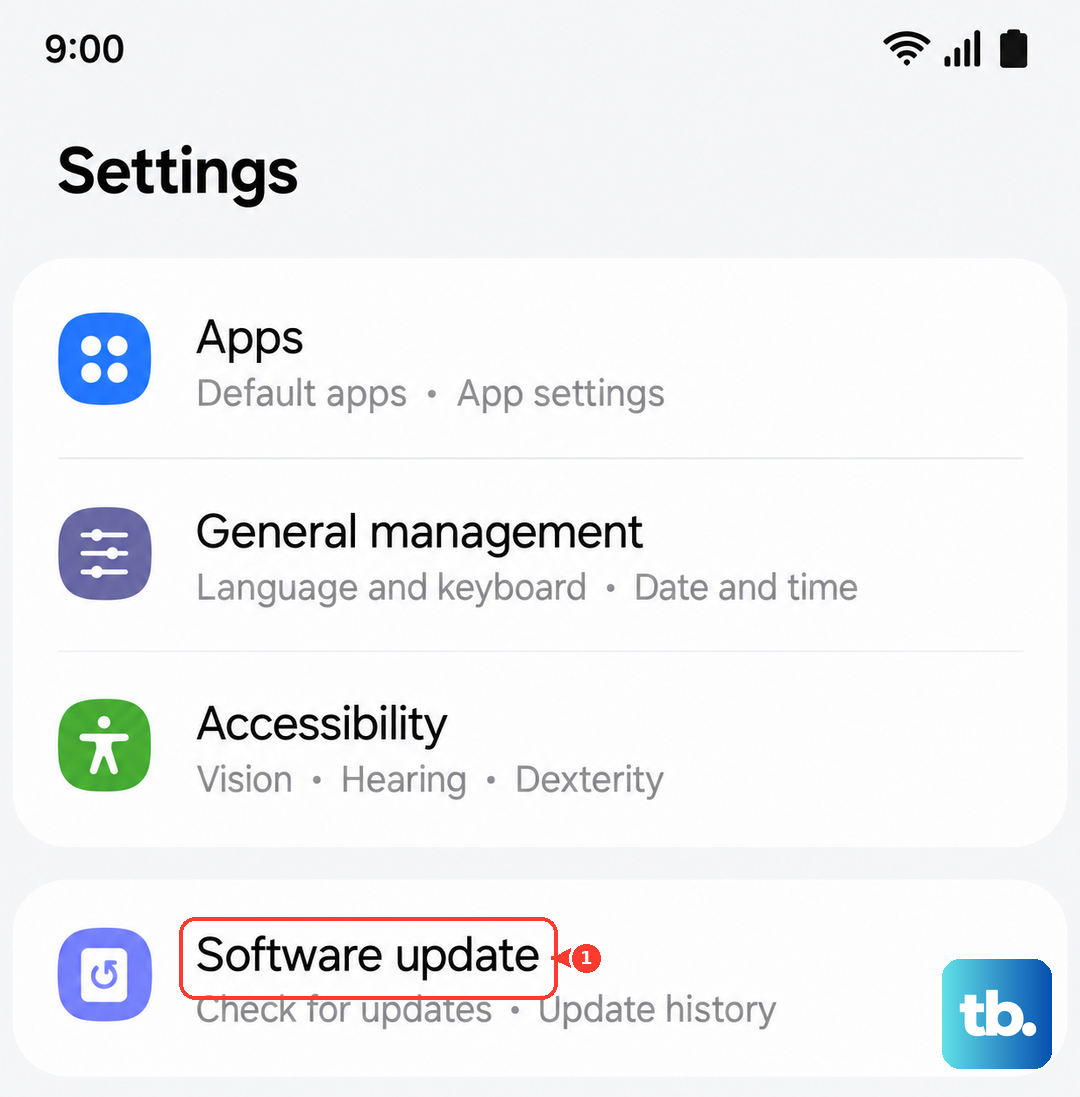
If an update is available, install it. A software patch often includes fixes for carrier-related issues and could resolve the provisioning error directly.
Reset Your Network Settings
If you're still stuck, resetting your network settings can help. This will erase all saved Wi-Fi networks, Bluetooth pairings, and mobile network preferences, but it won't touch your personal data.
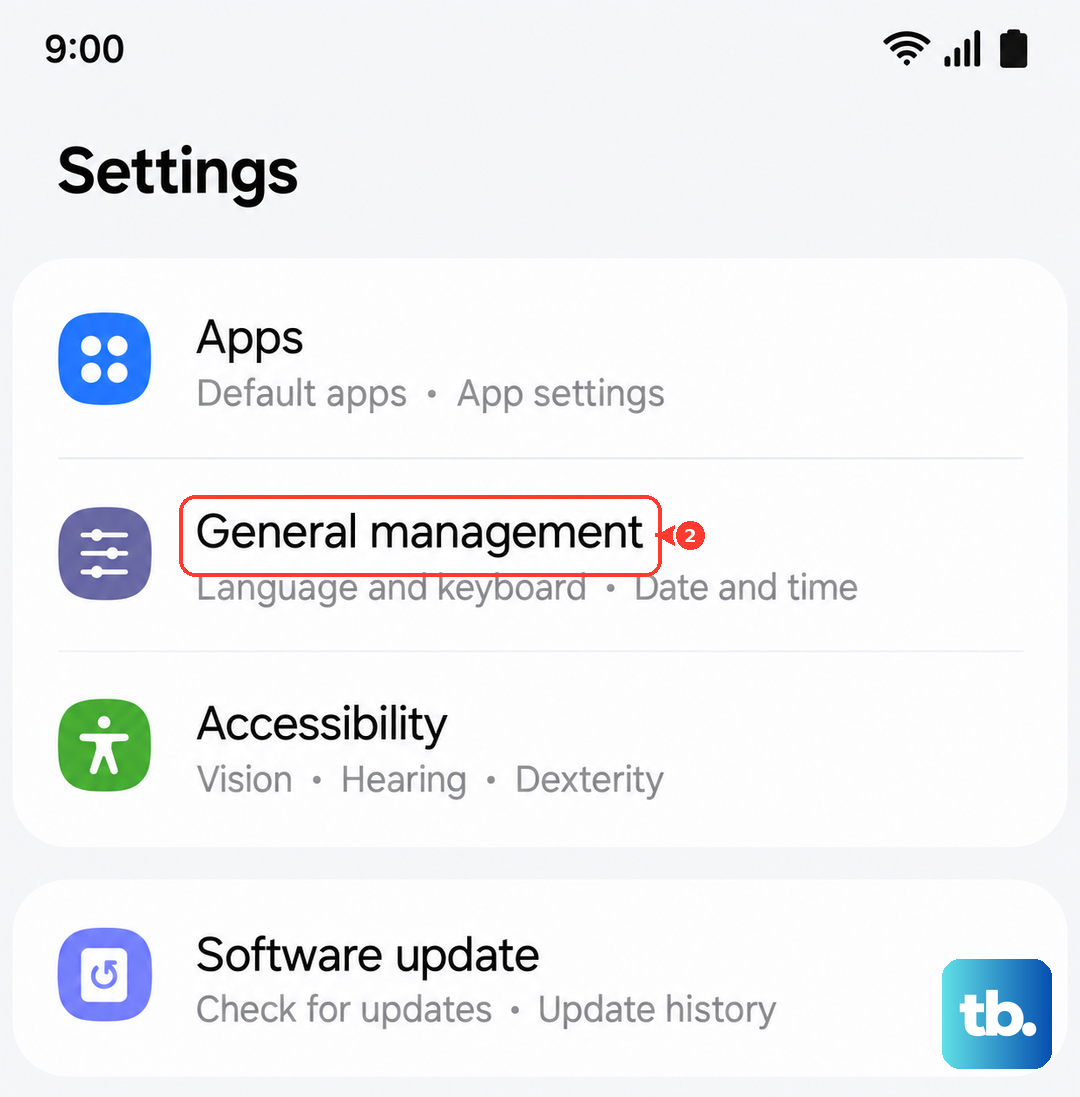
Go to Settings > General management > Reset > Reset network settings. Tap "Reset settings" and confirm. Your phone will reboot, and you'll need to reconnect to Wi-Fi and re-pair Bluetooth devices afterward.
Test the SIM in Another Phone
This is a great way to figure out where the problem actually lies. If you have access to another unlocked phone, power it off, insert your S26's SIM card, and turn it back on.
If the SIM works perfectly in the other phone, then the issue is likely with your Galaxy S26's software or settings. If the "Not Provisioned" error follows the SIM to the other device, then the problem is definitely with the SIM card or your carrier account.
Contact Your Mobile Carrier
At this point, your carrier's support team is your best resource. They can run deeper diagnostics on your line, check for any network outages in your area, and verify there are no blocks or holds on your account.
If the SIM card itself is faulty, they can deactivate the old one and provision a new replacement SIM for you, which often solves the problem immediately.