
Seeing your Samsung Galaxy S26 screen flicker or flash is incredibly distracting, and it can make using your brand new phone a real headache. This can pop up as random flashes, horizontal lines, or a subtle pulsing effect. Since the Galaxy S26 is brand new with the latest One UI 8.5 software, the cause is often a software bug or a setting that needs adjusting. Let's get it sorted.
It is worth viewing a few test patterns from a screen test before changing hardware. Faults that persist across every pattern point firmly at the display itself.
Force Restart Your Galaxy S26
This is the first thing I'd try. A force restart clears out temporary glitches in the system memory that can cause display problems. Press and hold the Volume Down button and the Side/Power button together for about 10 seconds. Let go when you see the Samsung logo appear on the screen. This takes about 30 seconds and doesn't delete any of your data.
Disable Adaptive Brightness
Your phone's light sensor constantly adjusts the screen brightness, and if it's acting up, it can cause flickering. Open Settings and go to Display. Look for the Adaptive brightness toggle and turn it off. After that, manually adjust your brightness slider to a comfortable level and see if the flickering stops.
Turn Off Eye Comfort Shield
This feature, which reduces blue light, can sometimes interact poorly with the display's refresh rate. Head to Settings > Display > Eye comfort shield. Try turning it off completely. If you rely on it, you can also try adjusting its schedule or intensity to see if a different setting eliminates the flicker.
Check for a Software Update
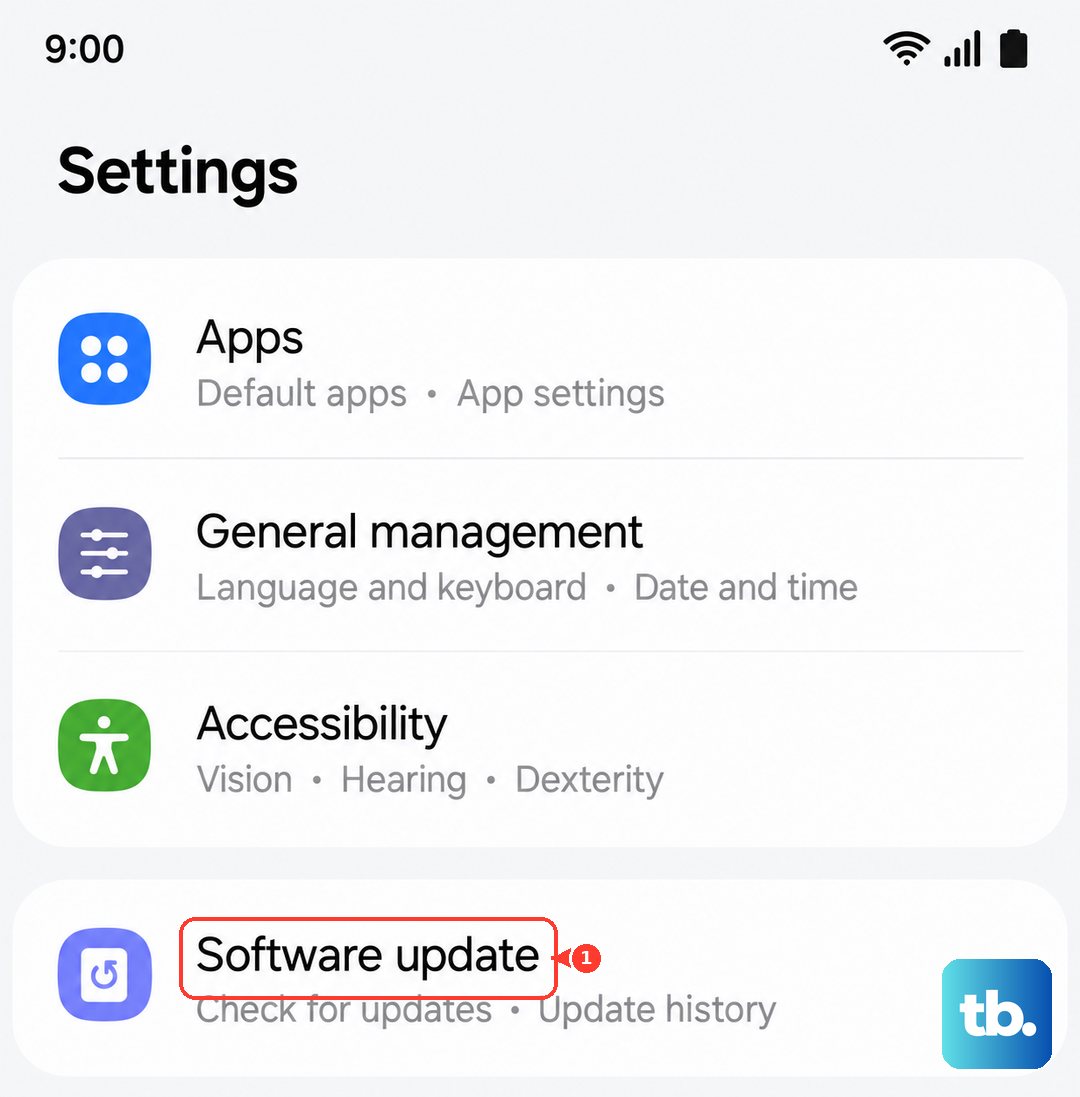
This is a critical step for a 2026 device. Samsung is likely pushing out updates to fix early bugs in One UI 8.5. Go to Settings > Software update and tap Download and install. Installing the latest update has resolved display flickering issues on past Galaxy models, so it's a very common fix.
Close Background Apps and Check for Bad Actors
A poorly coded app can sometimes cause screen issues. Swipe up from the bottom of the screen and hold to see your recent apps. Swipe up on each app to close it. Once they're all closed, use your phone normally for a bit. If the flickering is gone, reopen your apps one by one to try and pinpoint which one was causing the trouble.
Boot Into Safe Mode
Safe mode temporarily disables all third-party apps. If the flickering stops in Safe Mode, you know for sure an app you installed is the culprit. To enter Safe Mode, press and hold the power button until the power menu appears. Then, tap and hold the Power off option on the screen. You'll see a prompt to reboot into Safe Mode. Tap it. Your screen will look normal but "Safe mode" will be in the corner.
Reset All Settings
If the flickering seems tied to a display configuration or a system setting that's gotten corrupted, this can clear it up. Go to Settings > General management > Reset > Reset all settings. This will reset your network settings, display preferences, and sounds back to default, but it won't touch your photos, messages, or apps. You'll just need to reconfigure things like Wi-Fi passwords and ringtones afterward.
Inspect for Physical Damage
If the flickering started after you dropped the phone or it was exposed to moisture, there could be physical damage. Look closely at the screen for any new cracks, even tiny ones, or spots where the display looks discolored. Also, check the USB-C port for any debris or signs of liquid. Physical damage to the display or its internal connector will require a professional repair.
Perform a Factory Reset
This is your last resort before assuming it's hardware. A factory reset will wipe your phone back to its original out-of-the-box state. First, make sure everything is backed up to your Samsung account or Google Drive. Then, go to Settings > General management > Reset > Factory data reset. If the flickering persists on a completely fresh phone with no apps restored, the issue is almost certainly with the hardware itself.