If your brand new Samsung Galaxy S26+ is making videos look choppy or causing them to buffer endlessly, it can really take the shine off that new phone feeling. This is a common hiccup, especially with early software like One UI 8.5, and I've found most causes are pretty straightforward to sort out.
Clear the App Cache and Data
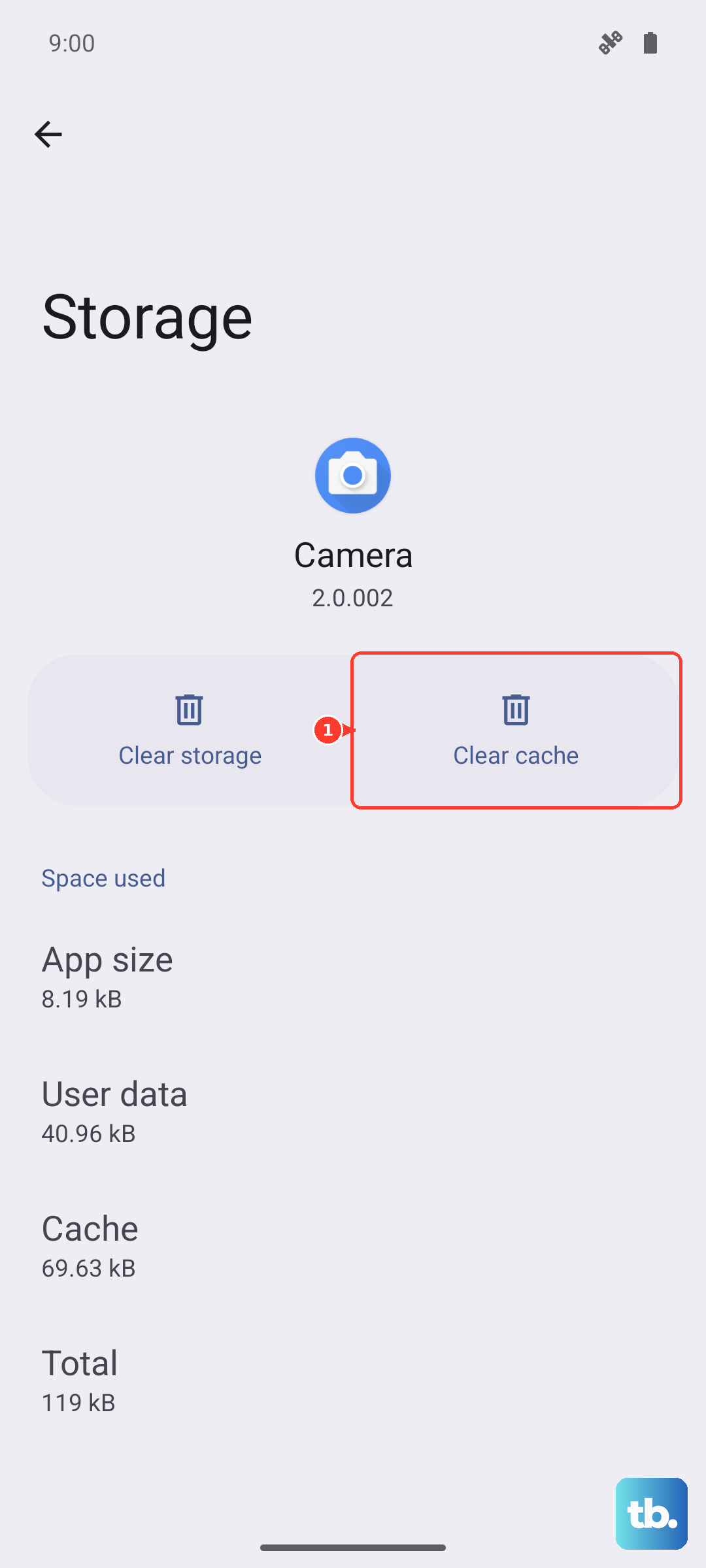
This is often the quickest fix. The video app you're using, whether it's YouTube, Samsung Gallery, or a streaming service, stores temporary data that can get corrupted. Go to Settings > Apps, select the problematic app, then tap Storage. From there, hit Clear cache first. If the lag persists, you can try Clear data, but be aware this will reset the app and sign you out.
Check Your Network Connection
For streaming videos, a weak Wi-Fi or cellular signal is the usual suspect. The S26+ supports the latest Wi-Fi standards, but your router might not. Try switching between Wi-Fi and 5G to see if the problem follows you. If you're on Wi-Fi, a quick router restart can sometimes clear up congestion that's causing the buffering.
Free Up Internal Storage
When your phone's storage is nearly full, the system struggles to read and write data smoothly, which directly impacts video playback. Head to Settings > Device care > Storage to see what's eating up space. Use the built-in cleanup tools to remove junk files, and consider offloading large videos to Samsung Cloud or Google Photos.
Update Your Software
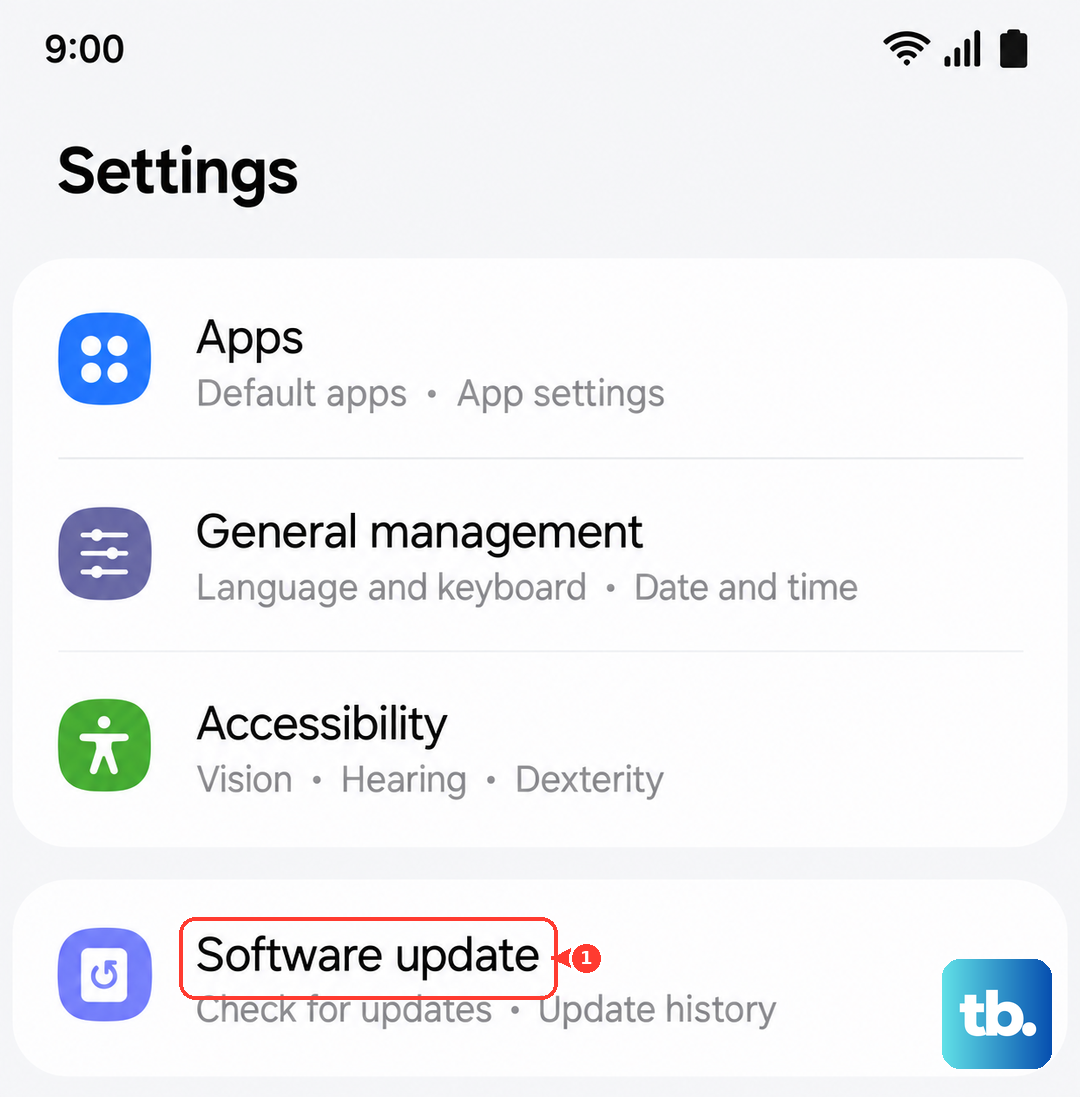
Since the S26+ is new, Samsung is actively pushing out One UI 8.5 patches to squash early bugs, including those that affect media playback. It's worth checking for an update right away. Go to Settings > Software update > Download and install. Make sure your phone is connected to Wi-Fi and has a good charge before you start.
Perform a Force Restart
A simple restart can clear out temporary glitches that cause lag. For the Galaxy S26+, you force restart by pressing and holding the Volume Down button and the Side/Power button together for about 10 seconds. Let go when you see the Samsung logo appear on the screen.
Disable Battery Protection Temporarily
This is a specific tip for Samsung users. If you have a feature like "Battery protection" enabled, it limits charging to 85% to preserve long-term health. While great for your battery, if your phone is hovering around that limit, it might be aggressively managing performance, including video decoding. You can toggle this off in Settings > Battery > More battery settings to see if it makes a difference.
Try a Different Video Player or App
Sometimes the issue is isolated to one app. If videos are lagging in Samsung Gallery, try playing the same file in Google Photos or VLC. If it's a streaming app like Netflix that's struggling, see if the problem happens on YouTube or Disney+ as well. This helps you figure out if it's a system-wide problem or just a single app needing an update.
Check for Overheating
The S26+ is powerful, but extended 4K recording or gaming can cause it to heat up. When the device gets too hot, it will throttle performance to cool down, which can lead to video stutter. If your phone feels warm, give it a break, close any demanding apps running in the background, and let it cool off before trying to play videos again.
Reset App Preferences
This is a less invasive step than a full settings reset. It will revert all your app permissions, notifications, and default apps back to their original state without deleting any personal data. Go to Settings > Apps > Menu (three dots) > Reset app preferences. You'll just need to re-grant permissions to your apps afterward.
Consider a Factory Reset
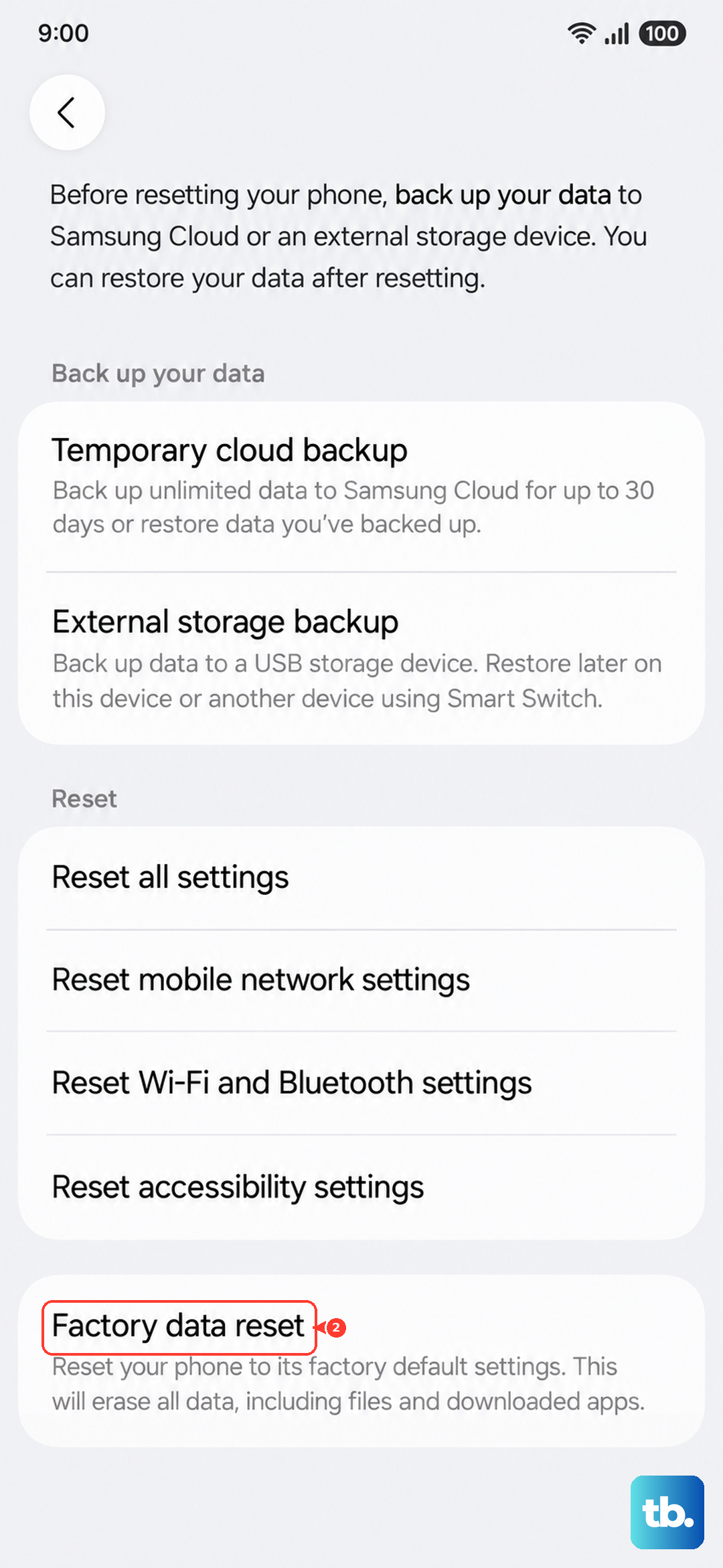
If you've tried everything else and the video lag is making the phone unusable, a factory reset is the final step. Since this is a new device, you hopefully don't have too much to lose, but you must back up everything important first. Go to Settings > General management > Reset > Factory data reset. After the reset, set the phone up as new instead of from a backup to rule out any data corruption causing the issue.