
If your Samsung Galaxy S26+ is showing a "No SIM card" or "Emergency calls only" message, you can't make calls or use mobile data. This is a common problem that's usually easy to fix yourself. The issue can be a simple software glitch, a dirty SIM tray, or a setting that got switched off.
Restart Your Galaxy S26+
This is the first thing you should try. A quick restart clears temporary software bugs that can cause the SIM to go undetected. Just press and hold the Side key and Volume Down button together for about 10 seconds until you see the Samsung logo.
Check the SIM Card Manager
Open your phone's Settings and go to Connections. Tap on SIM card manager. Make sure the toggle for your SIM card is switched on. Sometimes, after an update or a reboot, it can get disabled.
Clean the SIM Card and Tray
Turn your phone off completely. Use the SIM ejector tool to pop out the tray. Carefully remove the SIM card and look at the gold contacts. If you see any dust, lint, or corrosion, gently wipe them with a clean, dry microfiber cloth.
Also, take a look inside the SIM tray slot on the phone. Use a can of compressed air to blow out any debris. Reinsert the SIM card, making sure it's seated correctly in the tray, and push the tray back in until it clicks.
Toggle Airplane Mode
Swipe down from the top of your screen twice to open the full Quick Settings panel. Tap the Airplane mode icon to turn it on, wait about 10 seconds, and then tap it again to turn it off. This forces your phone's modem to reconnect to the network from scratch.
Update Your Phone's Software
Since the S26+ is new with One UI 8.5, there could be early software bugs affecting the modem. Go to Settings > Software update and tap Download and install. Installing the latest patch can resolve known connectivity issues.
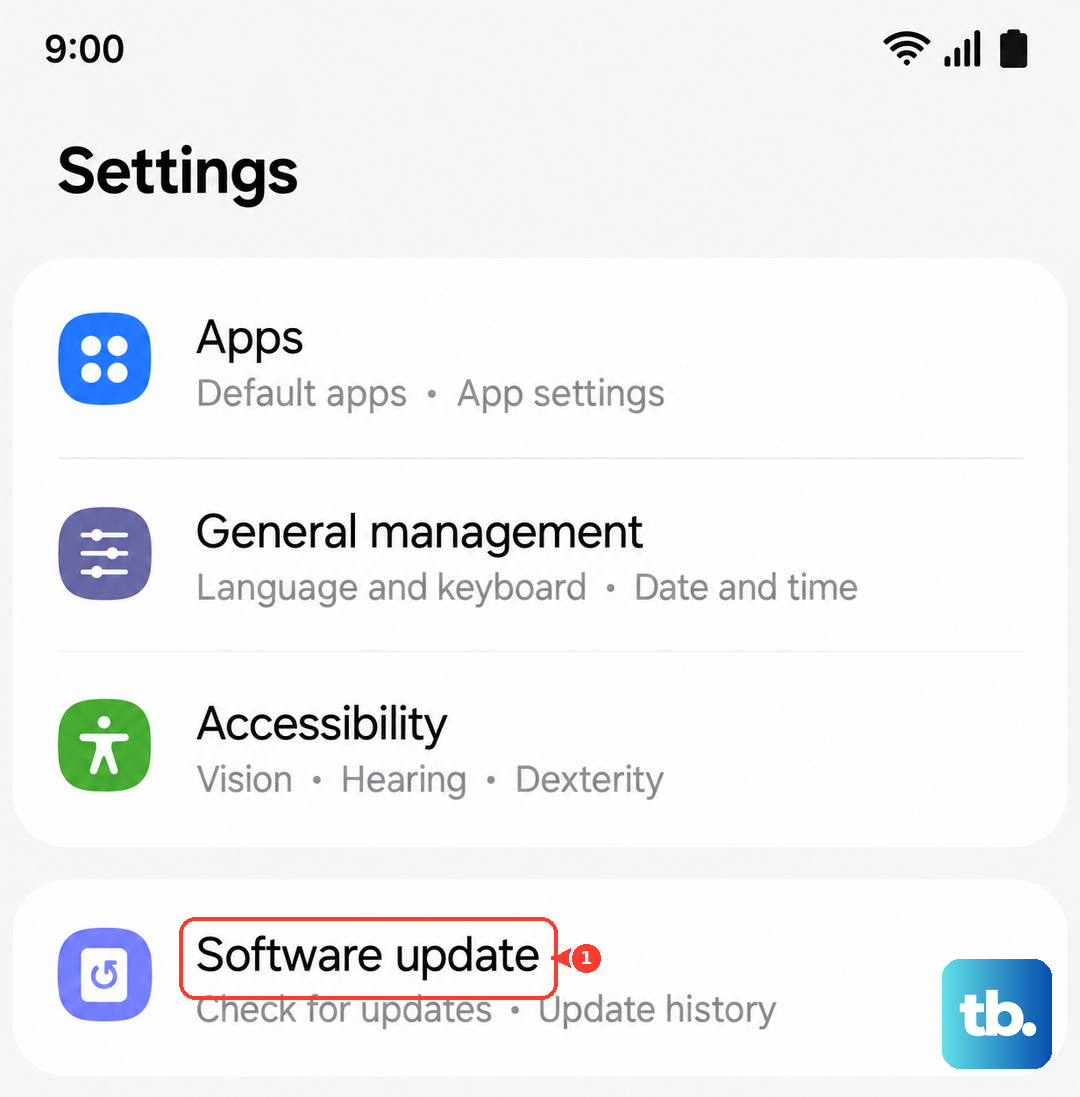
Reset Your Network Settings
This will erase all your saved Wi-Fi networks, Bluetooth pairings, and mobile network preferences, but it won't touch your personal data. It's a strong fix for persistent network problems.
Go to Settings > General Management > Reset. Select Reset network settings and confirm. Your phone will reboot, and you'll need to reconnect to Wi-Fi and re-pair Bluetooth devices.
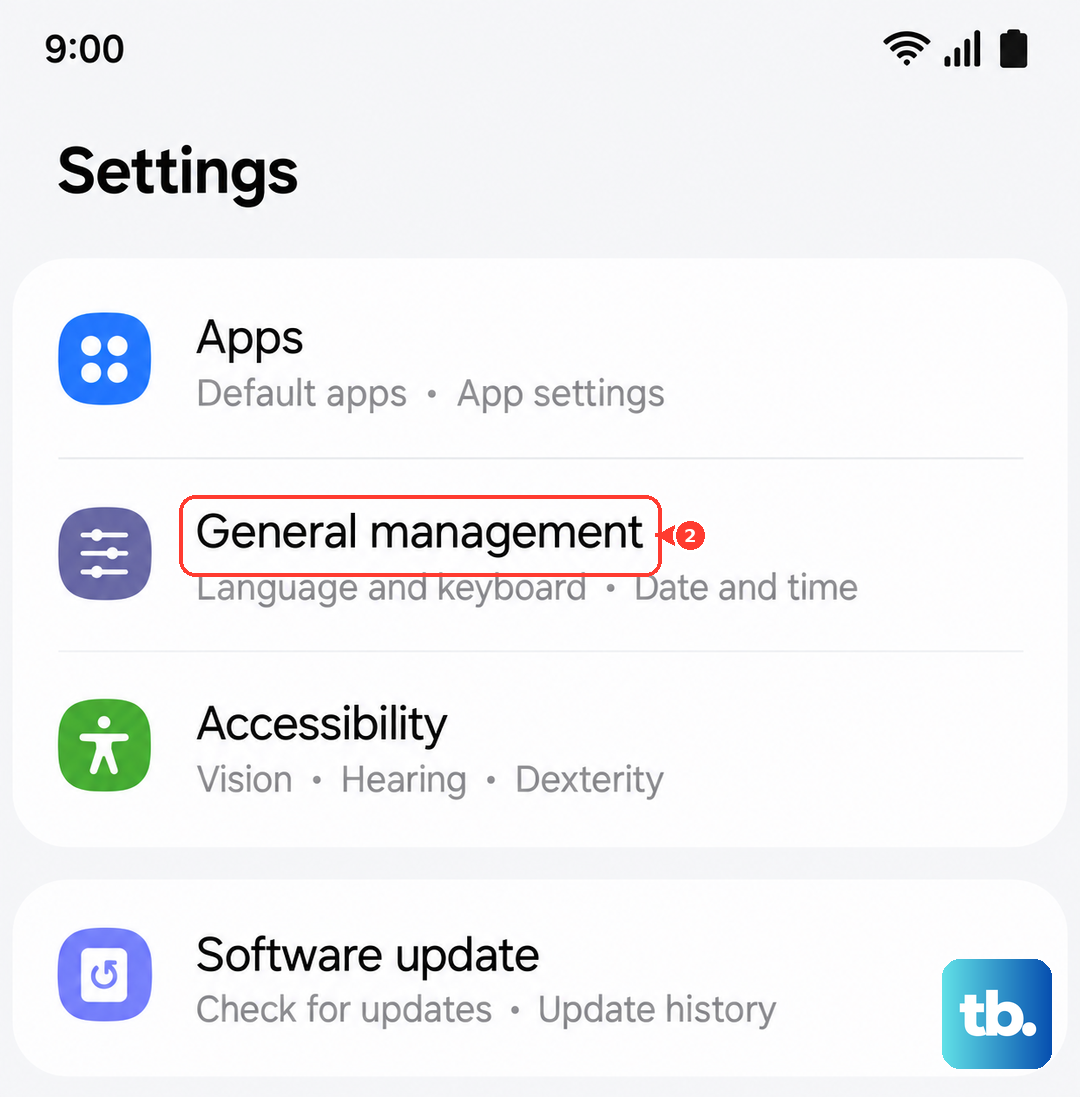
Manually Select Your Network
Sometimes the automatic network selection can fail. You can force your phone to find and connect to your carrier. Go to Settings > Connections > Mobile networks.
Tap on Network operators. Your phone will search for a moment. When the list appears, select your specific carrier's name instead of leaving it on "Select automatically."
Check and Reset APN Settings
Incorrect Access Point Name (APN) settings will stop your mobile data from working, which can sometimes be mistaken for a SIM issue. Go to Settings > Connections > Mobile networks > Access Point Names.
Tap the three-dot menu in the top right and select Reset to default. If your carrier requires specific APN details, you may need to enter them manually after the reset.
Test the SIM Card in Another Phone
This is the best way to figure out if the problem is with your SIM card or your phone. If you have access to another unlocked phone, power it off and insert your S26+ SIM card.
If the other phone also doesn't recognize the SIM, the card itself is likely faulty or deactivated. You'll need to contact your carrier for a replacement. If it works fine in another phone, the issue is with your S26+.
Consider Switching to an eSIM
The Galaxy S26+ supports eSIM. If your physical SIM card slot seems problematic or you keep having issues, contact your carrier. They can help you convert your physical SIM plan to a digital eSIM profile, which often bypasses hardware-related reading errors.