
Seeing that "No Service" or "Emergency Calls Only" message on your brand new Samsung Galaxy S26+ is a real buzzkill. You've got this powerful 2026 flagship, but it can't make a simple call. The good news is this is almost always a software hiccup or a simple setting, especially with the early One UI 8.5 software. Let's get your signal back.
The very first thing I'd try is a network settings reset. This clears out any corrupted connection data without touching your personal files. Go to Settings > General Management > Reset > Reset Network Settings. Tap to confirm. Your phone will reboot, and you'll need to reconnect to Wi-Fi and Bluetooth devices, but it often solves the issue in under a minute.
Perform a Force Restart
If the network reset didn't do the trick, a force restart is your next best move. This is different from a normal restart and can clear deeper system glitches. Press and hold the Volume Down button and the Side/Power button together for about 10 seconds. Let go when you see the Samsung logo appear on the screen.
Wait for the phone to fully boot up. This process doesn't delete any data. It's a common fix for the random radio bugs that can pop up, particularly in a new operating system like Android 16 with One UI 8.5.
Check Your SIM Card
A loose or dirty SIM card is a classic culprit. Grab the SIM ejector tool that came in the box and pop out the tray. Take out the SIM card and give the gold contacts a gentle wipe with a soft, dry cloth.
While you're at it, check for any visible damage on the card itself. Blow any dust out of the SIM tray slot, then carefully reinsert the card, making sure it's seated correctly. If you have access to another phone, try your SIM in it to see if the problem follows the card.
Verify Mobile Network Settings
Sometimes the phone's network mode gets stuck. Open Settings and go to Connections > Mobile Networks. First, make sure the mobile data switch is turned on. Then, tap on Network Mode.
You should see options like "5G/LTE/3G/2G (Auto connect)" or similar. Select the automatic option if it's not already chosen. This lets your S26+ hunt for the best available signal instead of being locked to a specific, potentially unavailable, band.
Update Your Access Point Name (APN)
Your APN is like the phone's address book for connecting to your specific carrier's network. If these settings are wrong, you get no service. In the same Mobile Networks menu, tap on Access Point Names (APN).
You should see a list, likely with one entry for your carrier. Tap the three-dot menu in the top right and select Reset to default. If that doesn't populate the correct settings, you'll need to get the exact APN details from your carrier's website or customer service and enter them manually.
Manually Select Your Network Operator
Your phone might be trying to latch onto a weak or roaming network. You can force it to search for and connect to your home carrier. Go back to Settings > Connections > Mobile Networks and tap Network Operators.
The phone will search for a moment. When the list appears, select your primary carrier's name from the list. Don't choose a roaming partner unless you're intentionally traveling. This direct command can often re-establish a solid handshake with the tower.
Check for a Software Update
Given that the S26+ is a new device, Samsung is actively pushing out updates to squash bugs in One UI 8.5. A network connectivity patch could already be waiting. Go to Settings > Software Update > Download and install.
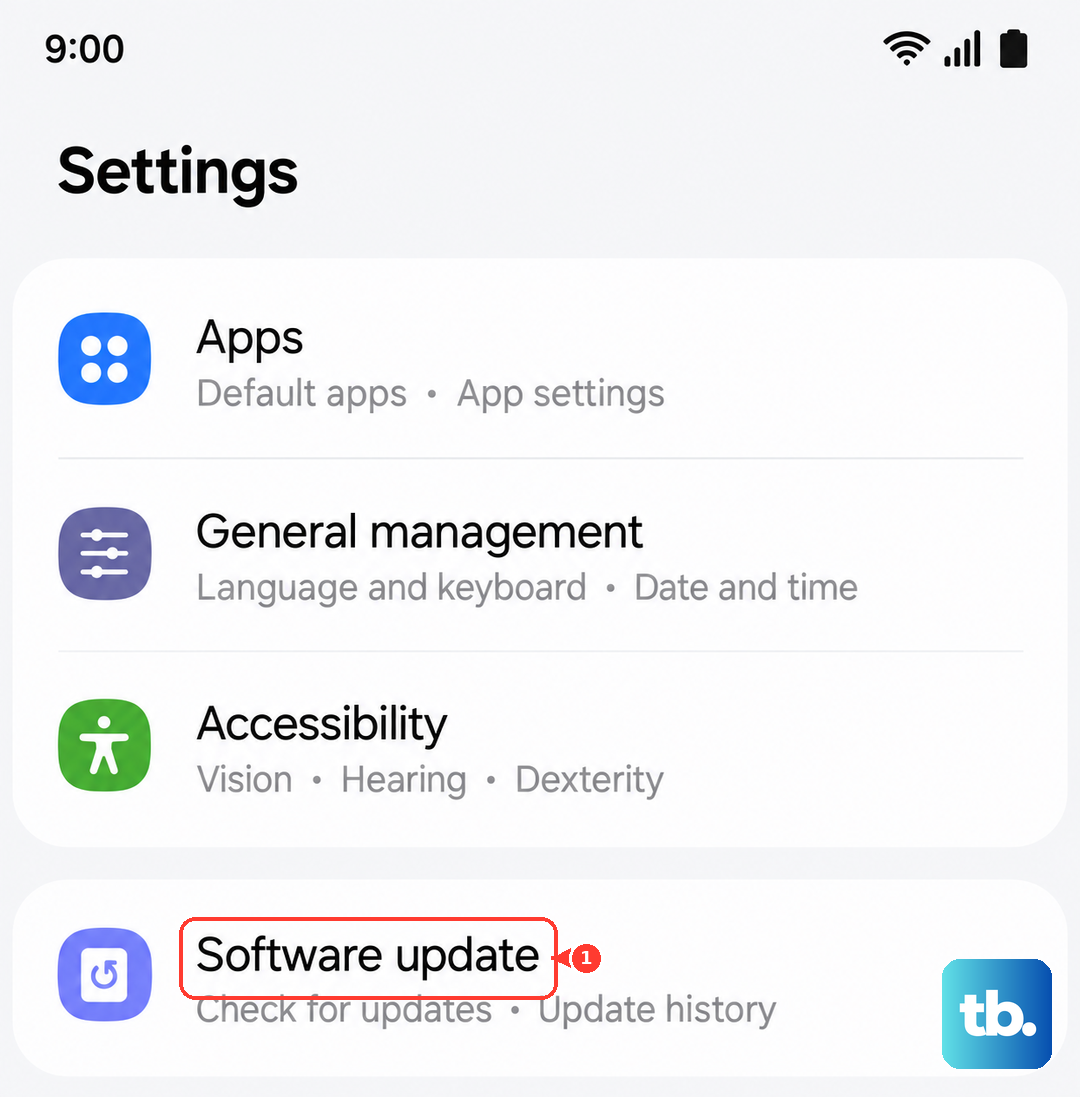
Make sure you're connected to Wi-Fi first. If an update is available, let it download and install completely. The phone will restart. I've seen early-adopter issues like this get resolved with the very first monthly security patch.
Review Your Installed Apps
Certain apps, particularly VPNs, firewalls, or aggressive battery savers, can interfere with cellular radio functions. Think about any apps you installed just before the signal dropped. Try booting the phone into Safe Mode to see if the problem persists.
To enter Safe Mode, press and hold the power button until the power menu appears. Then, tap and hold the "Power off" option on the screen. You'll get a prompt to reboot into Safe Mode. If you have full service in Safe Mode, a third-party app is the likely culprit.
Inspect for Physical Damage
This is less common but worth a quick check. Look at the edges of your S26+, especially near the top and bottom where the antenna bands are integrated into the frame. Significant cracks or deep scratches in these metallic lines could potentially disrupt the signal.
Also, are you using a case, particularly a heavy-duty metal or thick rugged one? Try removing the case completely and see if your signal bars improve. Some cases are poorly designed and can block the antenna.
Contact Your Carrier
If you've worked through all these steps and still have a dead signal, it's time to call in the experts. There could be a network outage in your area, a problem with your account provisioning, or your SIM card might need to be replaced.
Explain the troubleshooting you've already done. They can check for outages, reprovision your line on their network, and often send you a new 5G SIM card for free, which can solve issues that software fixes can't touch.