
When your brand new Samsung Galaxy S26+ starts restarting on its own, it can feel like you're stuck in a tech nightmare. This is often a software hiccup, especially with early One UI 8.5 builds, but it can also point to a problematic app or a hardware glitch.
Before you try anything, it's a good idea to make sure your data is backed up. You can use Samsung Cloud or Google One. This protects your photos and files just in case you need to take more serious steps later.
Force Restart Your Galaxy S26+
This is almost always the first thing I'd try. A force restart clears the phone's temporary memory and can stop a minor software loop dead in its tracks. For the S26+, press and hold the Volume Down button and the Side/Power button together for about 10 seconds.
Keep holding until you see the Samsung logo appear on the screen, then let go. Your phone will boot up normally. This doesn't delete any of your personal data.
Check for Software Updates
Since the S26+ runs the new One UI 8.5, there's a good chance Samsung has already released a patch for stability bugs causing random reboots. Go to Settings > Software update and tap Download and install.
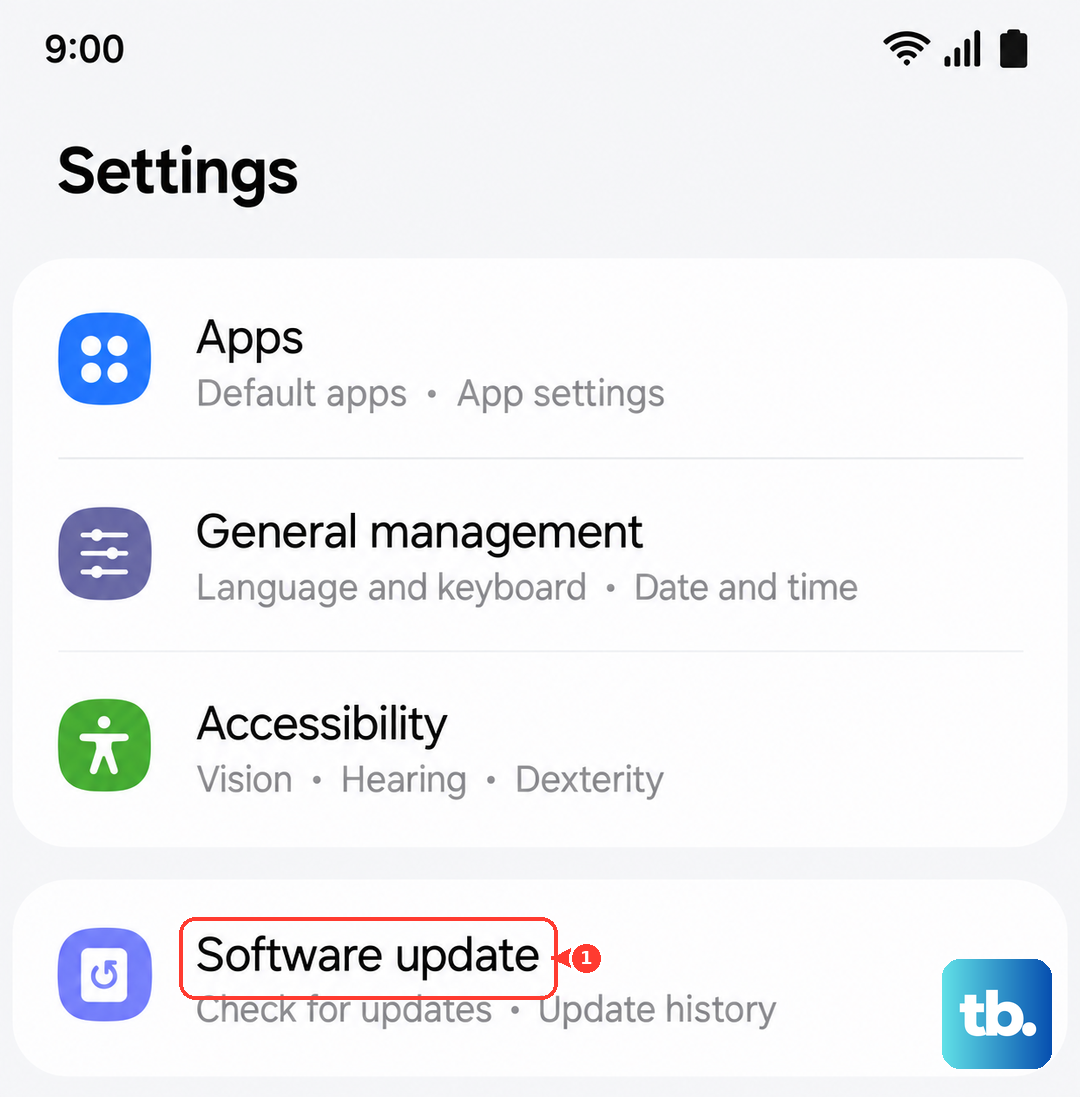
Make sure your phone is connected to Wi-Fi and has at least 50% battery. Installing the latest patch is one of the most effective fixes for a brand-new device acting up.
Boot Into Safe Mode
Safe Mode temporarily disables all third-party apps. If your phone stops restarting in Safe Mode, you know a downloaded app is the culprit. To enter Safe Mode, press and hold the power button until the power menu appears.
Then, tap and hold the "Power off" option on your screen. You'll see a prompt to reboot into Safe Mode. Tap it. Your screen will say "Safe Mode" in the bottom corner. Use the phone normally here to see if it stays stable.
Identify and Remove Problematic Apps
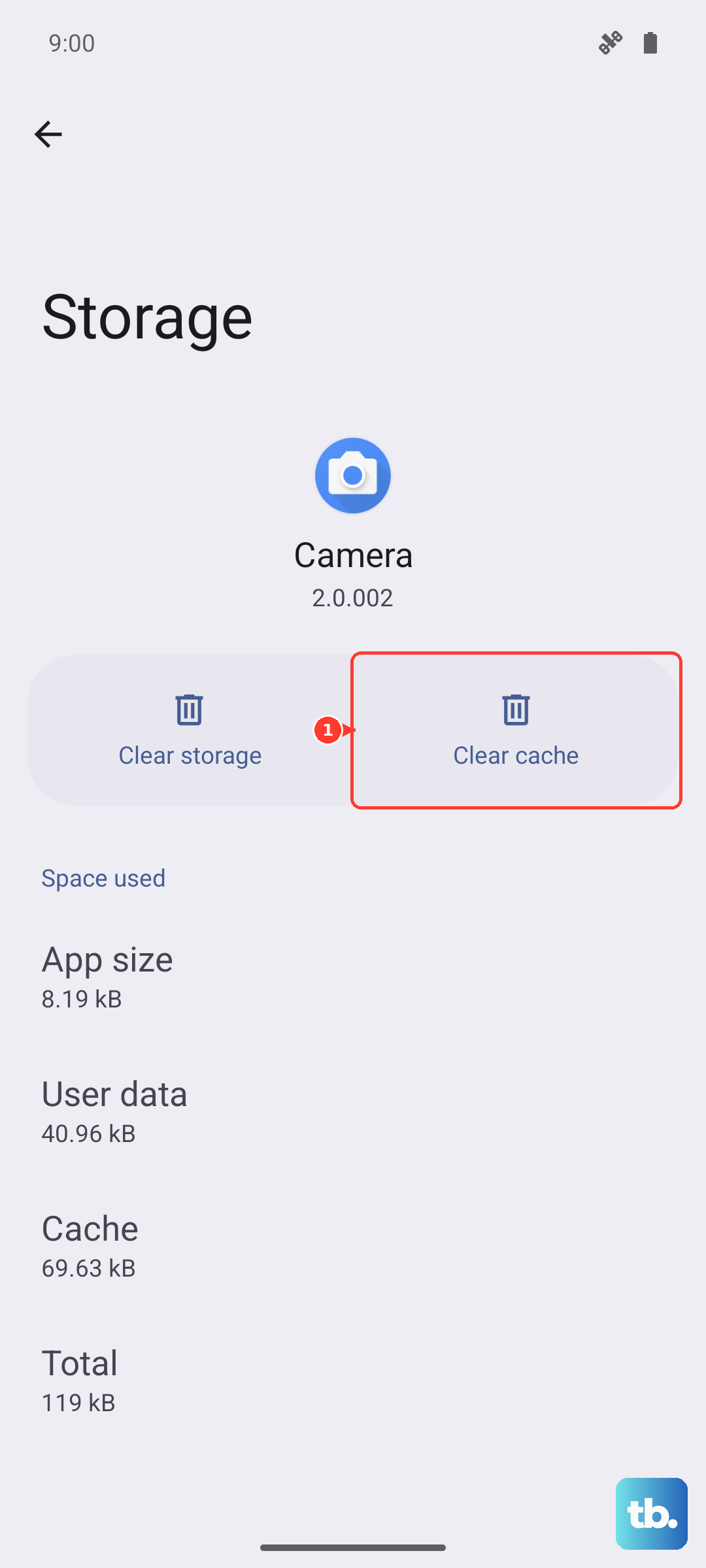
If Safe Mode fixed the restarting, you need to find the bad app. Think about what you installed just before the problems began. You can start by clearing the app's cache and data. Go to Settings > Apps, select the suspicious app, then tap Storage.
Tap "Clear cache" first. If the problem continues, tap "Clear data". Be aware this will reset the app like it's new. As a last resort, uninstall the app completely and see if that stops the reboots.
Check for Overheating and Battery
The S26+ is powerful, but intense use can cause overheating, which triggers a safety reboot. Feel the back of the phone. If it's very hot, give it a break and let it cool down. Remove the case if you're using one, as it can trap heat.
Also, check your battery settings. If you have a feature like "Battery protection" enabled, it stops charging at 85%. This is great for battery health, but if you're running on a very low charge, the system might get unstable. You can find this in Settings > Battery.
Free Up Storage Space
A phone that's almost full can behave strangely. Go to Settings > Device care, then tap "Storage". This will show you what's taking up space.
Look for large files you don't need, old downloads, or cached data from apps like Spotify or YouTube. Cleaning out a few gigabytes can sometimes resolve system instability issues.
Reset All Settings
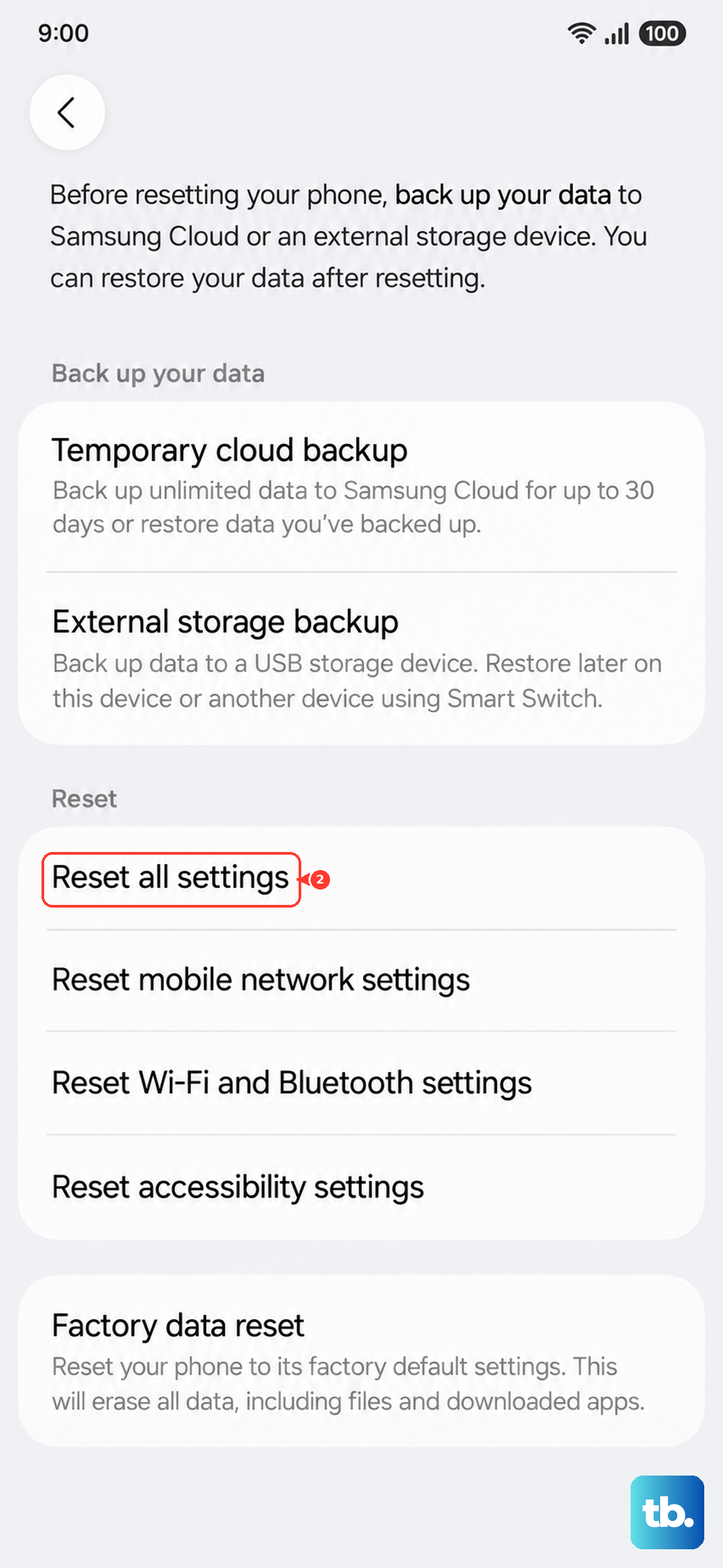
This resets your network, Bluetooth, and display settings back to default but leaves all your personal data and apps intact. It can fix conflicts caused by a misconfigured setting. Go to Settings > General management > Reset.
Then, select "Reset all settings". You'll need to enter your PIN or password. Afterward, you'll have to reconnect to Wi-Fi and re-pair Bluetooth devices, but it's a good middle step before a full reset.
Inspect the SIM Card and USB-C Port
A loose or faulty SIM card can cause system crashes. Use the SIM ejector tool to pop out the tray. Take out the SIM card, gently clean the gold contacts with a soft cloth, and reinsert it firmly.
Also, check the USB-C port for lint or debris. A false "moisture detected" warning, which is a known issue, can sometimes cause weird behavior. Use a can of compressed air or a soft-bristled brush to clean it out carefully.
Perform a Factory Reset
If nothing else has worked, a factory reset is your last software option. This will erase everything on your phone, so double-check your backups first. Go to Settings > General management > Reset > Factory data reset.
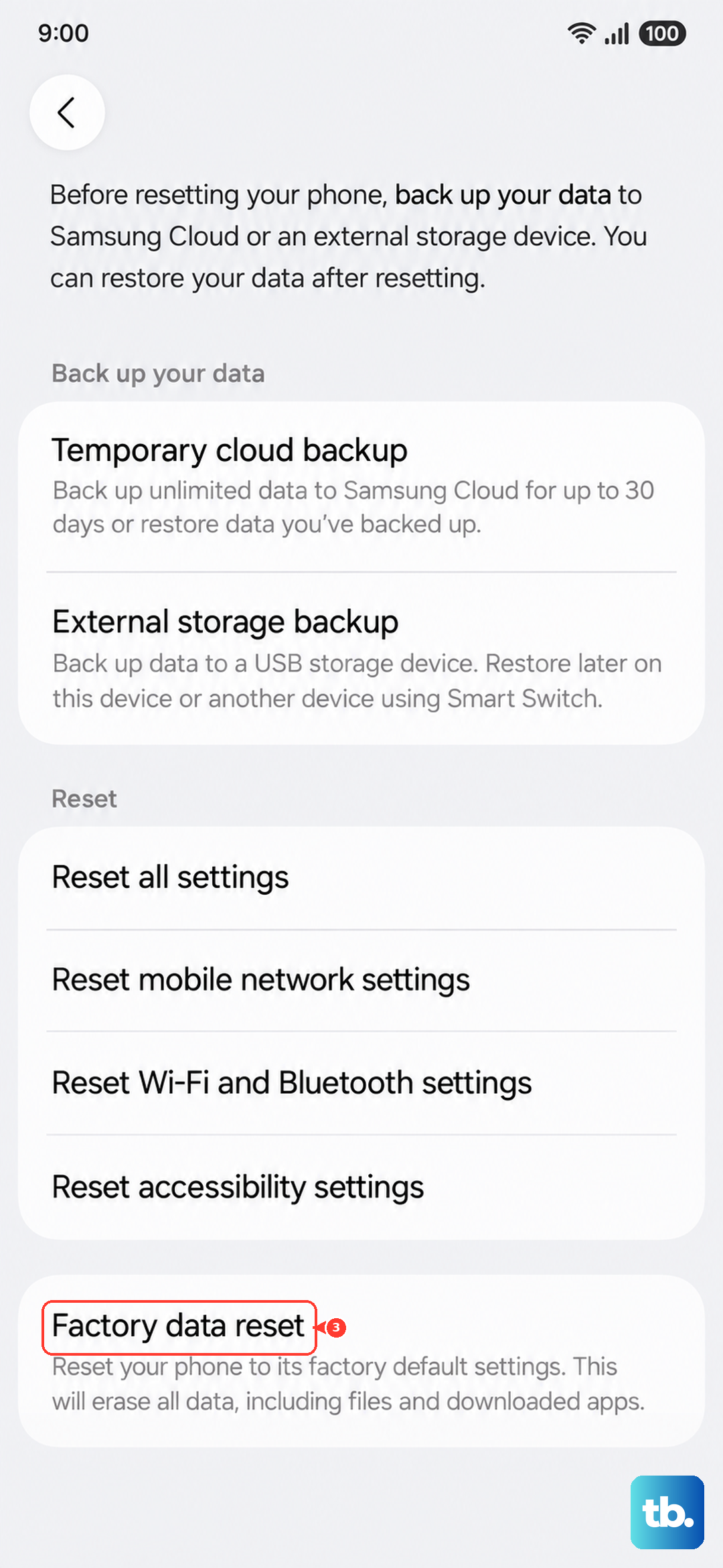
Tap "Reset" and follow the prompts. After the phone restarts, set it up as new without restoring a backup immediately. If the restarting problem is gone, it was a deep software issue. If it continues even on a fresh setup, the problem is likely hardware-related.