
A Samsung Galaxy S26+ that's completely frozen and won't respond to taps or button presses is incredibly frustrating. The screen might be stuck on an app, the lock screen, or just a black screen. Since it's a brand new device running the early version of One UI 8.5, software bugs are a likely culprit. The fixes below are designed to get you back up and running without losing your data.
Perform a Force Restart
This is the go-to fix for a completely unresponsive phone. Press and hold the Volume Down button and the Side/Power button at the same time. Keep holding them for about 10 seconds until you see the Samsung logo appear on the screen. This forces a clean reboot and won't delete any of your personal files or settings.
Charge the Phone Properly
A battery that's completely drained can make the phone seem dead or frozen. Plug it in using a USB-C cable and a compatible charger. Since the S26+ supports 60W Super Fast Charging 3.0, using a powerful enough charger is key. If your region didn't include a charger in the box, you may need to buy a 60W PD charger separately. Let it charge undisturbed for at least 20-30 minutes before trying to turn it on again.
Wait for a Background Process
Sometimes the phone isn't truly frozen, it's just working hard on something in the background. This could be installing a system update, processing photos, or a misbehaving app. If the screen is on but not responding, give it a solid 5 to 10 minutes. If the back of the phone feels warm, that's a good sign it's still processing and may recover on its own.
Close the Problem App
If the rest of the phone works but one app is frozen, you can force close it. Swipe up from the bottom of the screen and hold to open the recent apps view. Find the frozen app's preview and swipe it all the way up to close it. You can then try reopening it. If a specific app keeps causing freezes, check for updates in the Galaxy Store or Google Play Store.
Update One UI Software
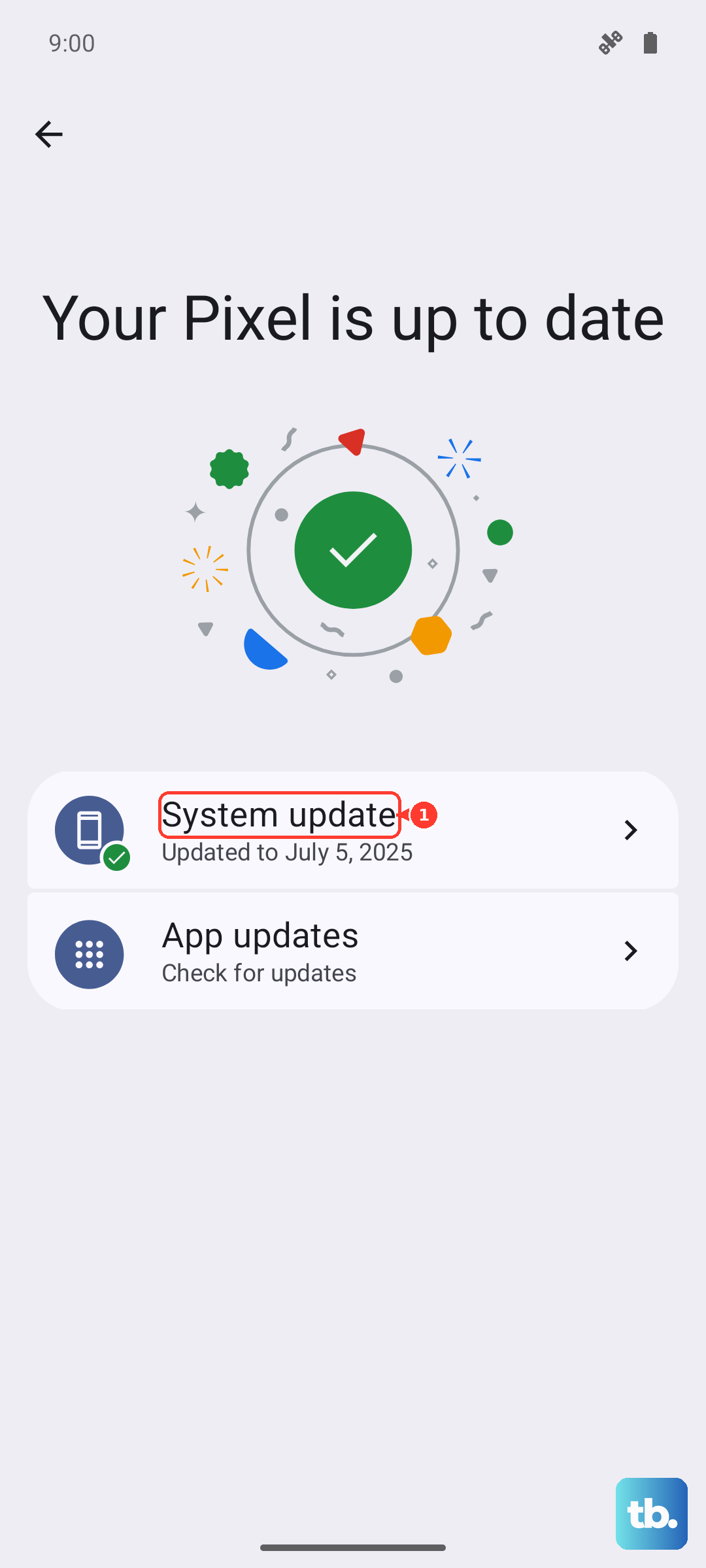
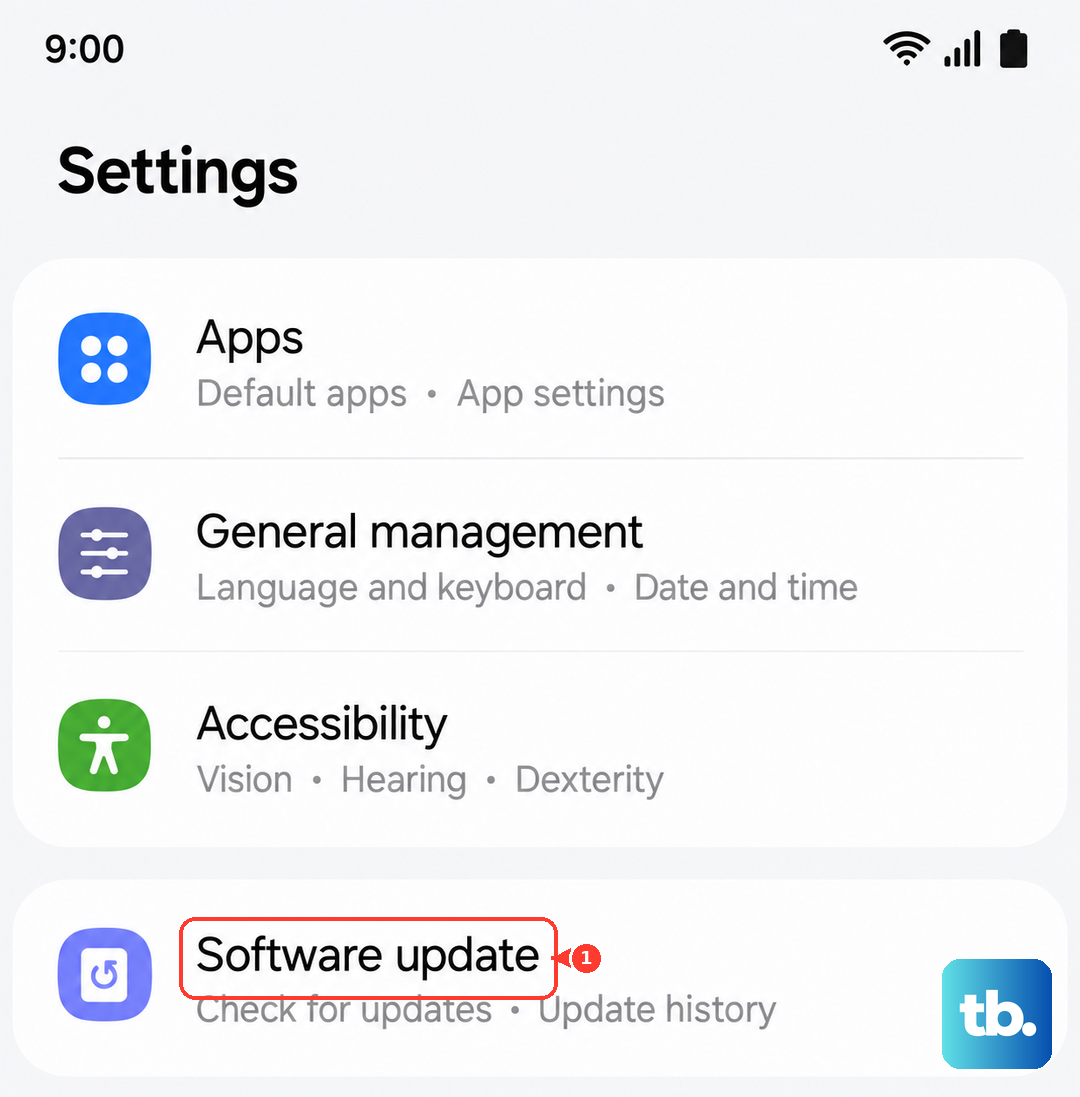
Early software versions often have bugs that get patched later. After you've restarted the phone, go to Settings > Software update and tap Download and install. Installing the latest One UI 8.5 patch can resolve many stability and freezing issues. Make sure your phone is connected to Wi-Fi and has sufficient battery before starting the update.
Check Your Available Storage
When your phone's storage is critically full, the system has no room to operate, which can lead to freezing and crashes. If you can access settings, go to Settings > Device care > Storage. See how much space is left and clean up unnecessary files. Aim to keep at least 10-15GB free for the system to run smoothly.
Reset All Settings
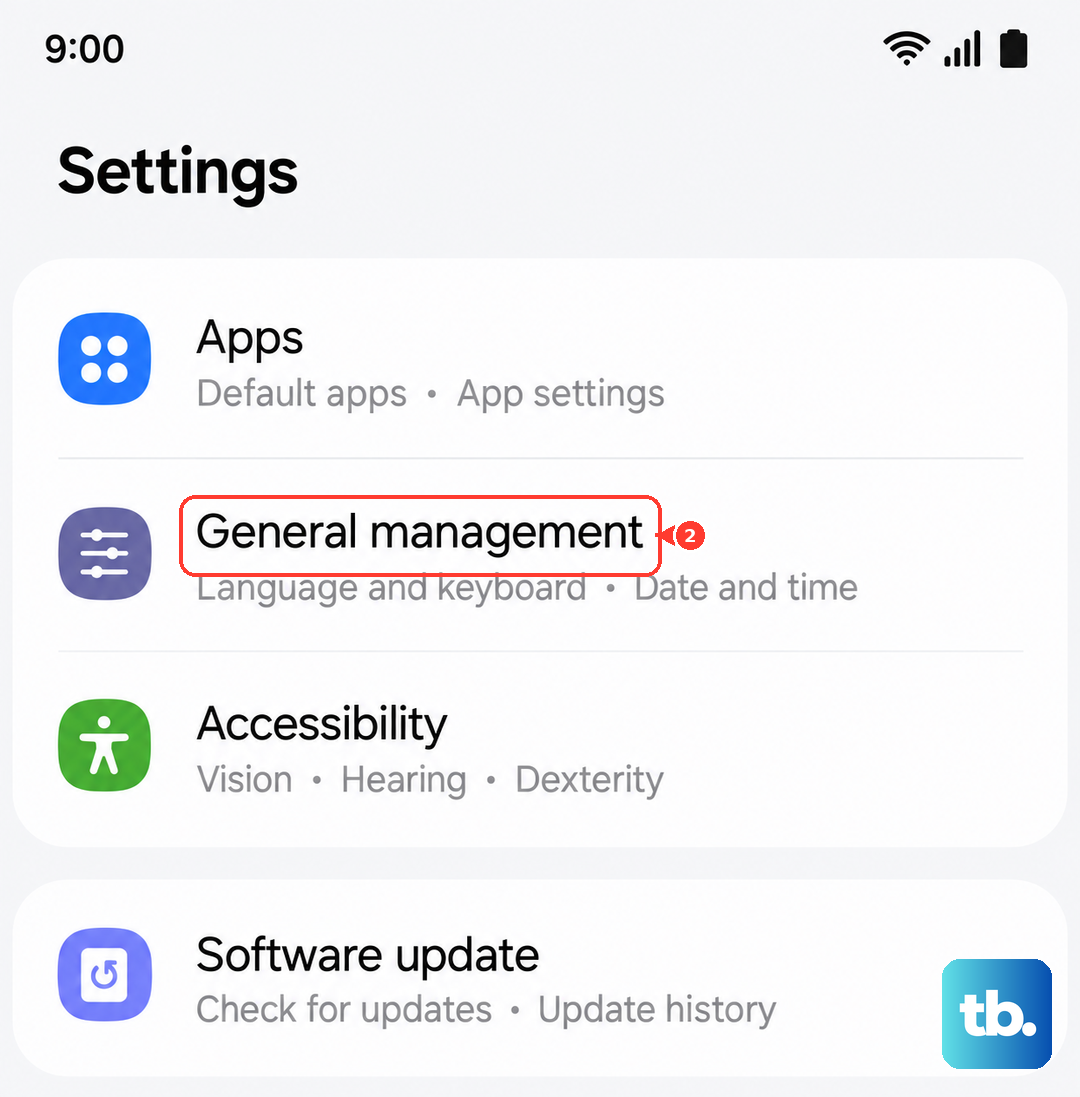
If freezing keeps happening after reboots, a system setting might be corrupted. You can reset them without touching your data. Navigate to Settings > General management > Reset > Reset all settings. This will revert your Wi-Fi passwords, wallpaper, and sound settings back to default, but it often clears up persistent software glitches.
Address Battery Protection Settings
The S26+ has a feature to protect battery longevity by limiting the maximum charge. If your phone seems to stop working or acting strange when the battery hits around 85%, this feature might be the cause. Go to Settings > Battery > More battery settings. Here, you can disable features like "Battery protection" or "Limit charging to 85%" to see if it resolves the unusual behavior.
Cool Down an Overheating Device
Like all smartphones, the Galaxy S26+ will throttle performance or become unresponsive if it gets too hot. If the device is warm to the touch and frozen, move it out of direct sunlight and take it out of its case. Let it cool down for 15-20 minutes in a cooler environment before attempting to use or charge it again.
Check for Moisture Detection Errors
A known issue with some Samsung phones is a false "moisture detected" warning in the USB-C port, which can disable charging and cause weird behavior. If you see this alert, even though the port is dry, unplug the cable and gently clean the port with a dry, soft-bristled brush. You can also try restarting the phone to clear the false warning.